
 Page Builder
  Widgets Bundle
  SiteOrigin CSS
  Installer
 Custom Layouts
4 min read Updated
Custom Layouts adds a library of reusable Page Builder layouts to your site. Save a row or a widget from any page, or build a layout from scratch. Then insert it into any Page Builder page from the Layouts dialog.
Requirements
- SiteOrigin Premium
- Page Builder by SiteOrigin
- Optional: SiteOrigin Widgets Bundle. The layout importer needs it.
Go to SiteOriginPremium Addons and activate Custom Layouts.
Custom Layouts vs. Prebuilt Layouts
Page Builder’s Layouts dialog is free. It lets you insert layouts from your theme or the Layouts Directory, import a layout file, or clone the layout of a whole page or post. Custom Layouts adds a Custom Layouts tab to that dialog. The tab lists layouts you save on your site. A custom layout can be a single row or a single widget, and it is kept apart from your pages and posts.
The Custom Layouts Screen
The addon adds a Custom Layouts menu to the WordPress admin. It has two items: All Custom Layouts and Add Custom Layout. You can also add a custom layout from the admin bar: New > Custom Layout.
- Custom layouts always use the Classic Editor with Page Builder. You can’t turn Page Builder off for them, so they don’t show in the Post Types list at SettingsPage Builder.
- History, the Live Editor and Revert to Editor aren’t available in the custom layout editor.
- The Featured Image is the thumbnail for the layout in the Layouts dialog.
- Custom layouts keep revisions, like posts.
- Custom layouts aren’t meant to be viewed on the front end, so the list has no View link. You use them in Page Builder.
Create a Custom Layout
- Go to Custom LayoutsAdd Custom Layout.
- Import a layout, or click Skip Importing. See Import a Layout below.
- Enter a title.
- Build or edit the layout with Page Builder.
- Optional: set a Featured Image.
- Click Publish or Save Draft.
Import a Layout
When the Widgets Bundle is active, a new custom layout opens with an Import a Layout box. The title field and Page Builder show after you import a layout or click Skip Importing. Without the Widgets Bundle, a new custom layout opens with an empty builder.
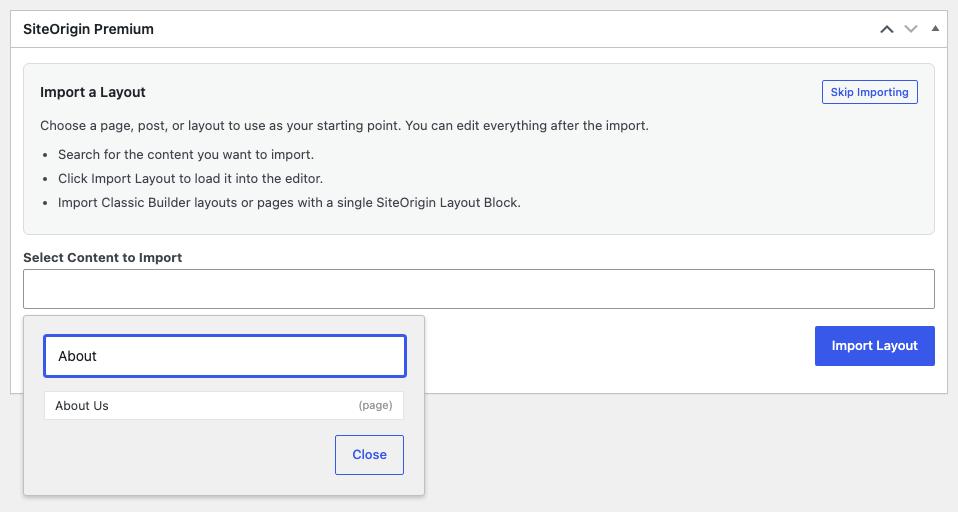
- Click the Select Content to Import field, then type part of a title in the search box.
- Select a page, post or custom layout from the list.
- Click Import Layout.
The list shows content that you can edit, from all public post types except media. It shows published and private content, not drafts. It shows only content with a Page Builder layout, or content with exactly one SiteOrigin Layout Block. It shows up to 20 results, most recently changed first.
The import copies the layout into the builder. Changes you make don’t affect the source. Widget settings sections load closed.
If the import fails, a message tells you why. For example: “Selected content does not contain a SiteOrigin layout.” or “Please select a post with a single SiteOrigin Layout Block.”
Save a Row or Widget as a Custom Layout
You can save a row or a widget as a custom layout while you edit any page with Page Builder. The action is in the right-click menu.
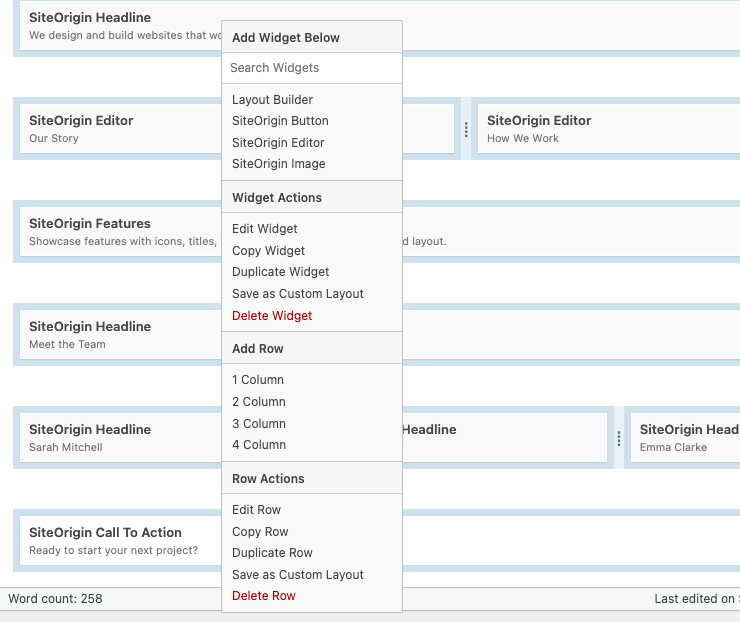
- Right-click a row or a widget.
- Click Save as Custom Layout.
- Enter a title and click OK.
- A message says “Custom layout created.” Click OK.
A notice at the top of the screen has an Edit Custom Layout link to the new layout.
When you right-click a widget, the menu shows Save as Custom Layout twice:
- Widget Actions: saves only the widget, in a new one-column row.
- Row Actions: saves the whole row, with its columns, widgets and styles.
The action saves the row or widget as it is in the builder now, including changes you haven’t saved yet. It doesn’t change the page. The new custom layout is a draft. You don’t need to publish it. Drafts also show in the Layouts dialog.
Insert a Custom Layout
- In Page Builder, click Layouts in the toolbar.
- Click the Custom Layouts tab. It is in the sidebar, above Import/Export.
- Click a layout to select it.
- Click Insert, then choose Insert after, Insert before or Replace current.
- Save the page.
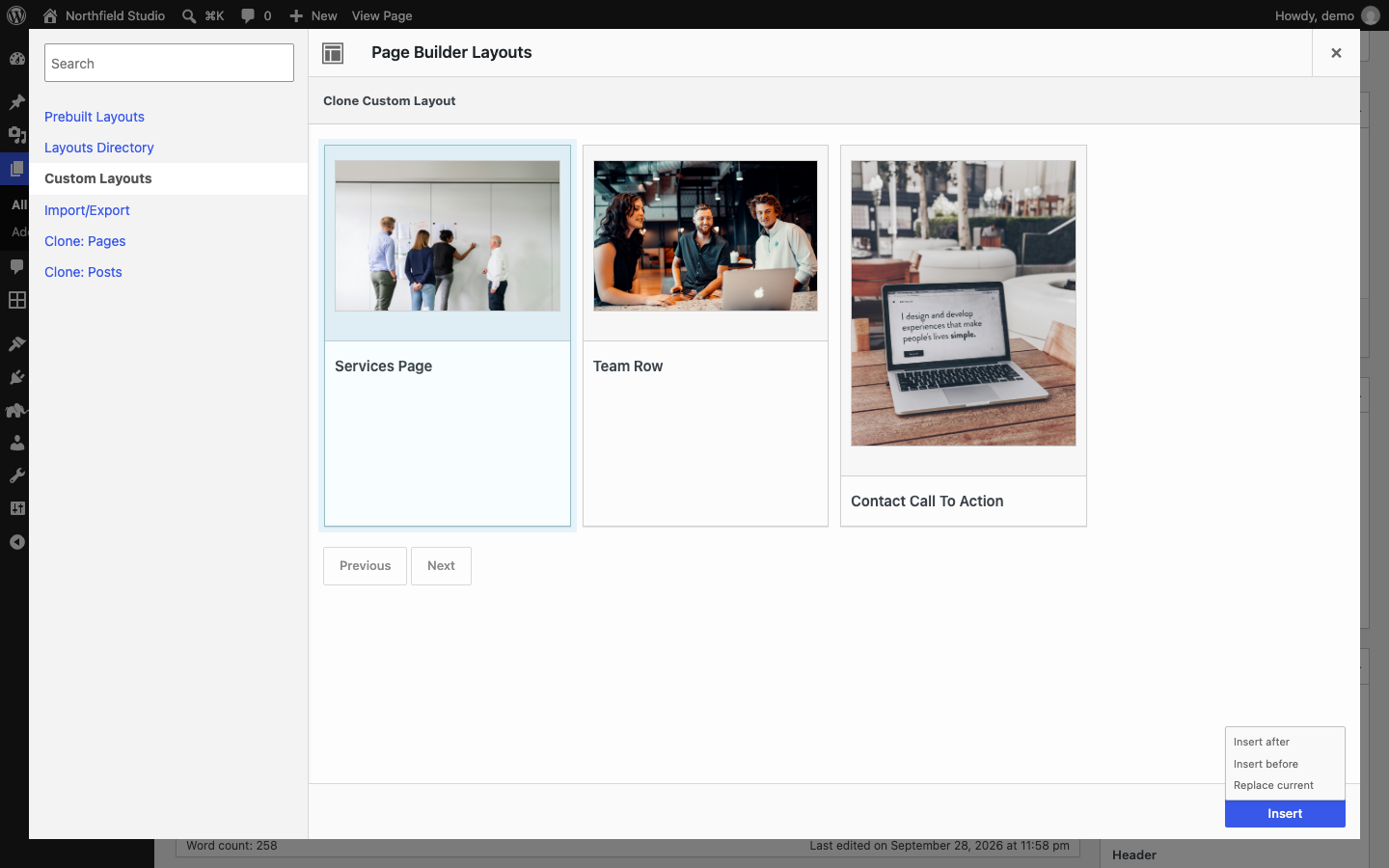
The tab lists published and draft custom layouts, newest first, 16 on each page. To find a layout by title, type in the Search field above the tabs and press Enter. The tab works in the Classic Editor and in the SiteOrigin Layout block.
Page Builder inserts a copy of the layout. If you change the custom layout later, pages where you inserted it don’t change. To show the same widget in several places and edit it in one place, use Mirror Widgets.