
 Page Builder
  Widgets Bundle
  SiteOrigin CSS
  Installer
 Page Settings Advanced Customization
2 min read Updated
Some SiteOrigin themes, such as SiteOrigin Corp, SiteOrigin North, SiteOrigin Unwind and Vantage, add a Page settings box to the post editor. It controls the layout of each page, for example the sidebar, the header and the page title. The Custom Post Type Builder lets you set these page settings once for all posts of a post type.
Set the Page Settings of a Post Type
- Go to ToolsAll Post Types and edit the post type.
- In the Page settings box in the sidebar, choose the settings, for example Page Layout: No Sidebar.
- Click Update.
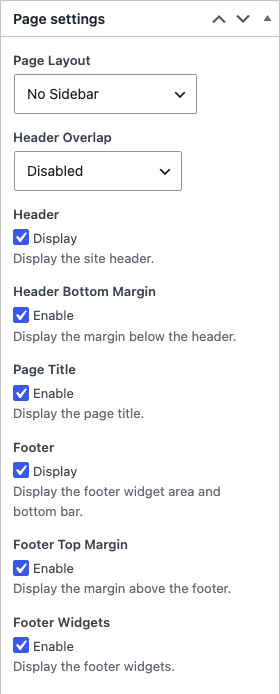
A new post of this type starts with these values in its own Page settings box. You can change them for each post.
At the moment, a post keeps the values it had when it was last saved. If you change the page settings of the post type later, posts you already saved keep the old values. To make all posts use the page settings of the post type, use the filter below.
Always Use the Post Type Page Settings
The siteorigin_premium_cptb_enforce_global_page_settings filter makes posts always use the page settings of their post type. The Page settings box still shows on each post, but its values have no effect. Add PHP snippets with a plugin such as Code Snippets, or in a child theme’s functions.php file.
For all post types
add_filter( 'siteorigin_premium_cptb_enforce_global_page_settings', '__return_true' );
For one post type
The filter also receives the post type slug. This example affects only the projects post type:
add_filter( 'siteorigin_premium_cptb_enforce_global_page_settings', function( $enforce, $type ) {
	if ( $type === 'projects' ) {
		return true;
	}
	return $enforce;
}, 10, 2 );
The filter works only after you save the Page settings box of the post type at least once.