
 Page Builder
  Widgets Bundle
  SiteOrigin CSS
  Installer
 Contact Log
5 min read Updated
The Contact Log addon keeps a record in your dashboard of every message sent through the SiteOrigin Contact Form widget. Entries are stored in WordPress, so you still have a message if the email is deleted, goes to spam, or never reaches your inbox. You can search the log, open each entry, export the log to a CSV file, and choose which user roles can see it.
For the Contact Form widget’s own settings, see the Contact Form widget documentation.
Requirements
- SiteOrigin Premium
- SiteOrigin Widgets Bundle, with the Contact Form widget.
Go to SiteOriginPremium Addons and activate Contact Log. This also activates the Contact Form widget at PluginsSiteOrigin Widgets. While the addon is active, it keeps the Contact Form widget active. If the Widgets Bundle or the widget is missing, administrators see a notice that says what to fix.
Viewing the Log
Go to SiteOriginContact Log. You can also click View Contact Log on the addon’s card at SiteOriginPremium Addons.
The addon adds an entry each time a SiteOrigin Contact Form sends its email. It records messages from the time you activate the addon.
- If the email fails to send, the visitor sees the form’s error message and the log gets no entry.
- If Akismet is set to Tag as spam in subject, the message is sent and logged, with
[spam]at the start of the subject. - At the moment, if a visitor refreshes the page after sending and the browser sends the form again within five minutes, you don’t get a second email, but the log gets a second entry.
You can’t add or edit entries. You can only view, search, export and delete them.
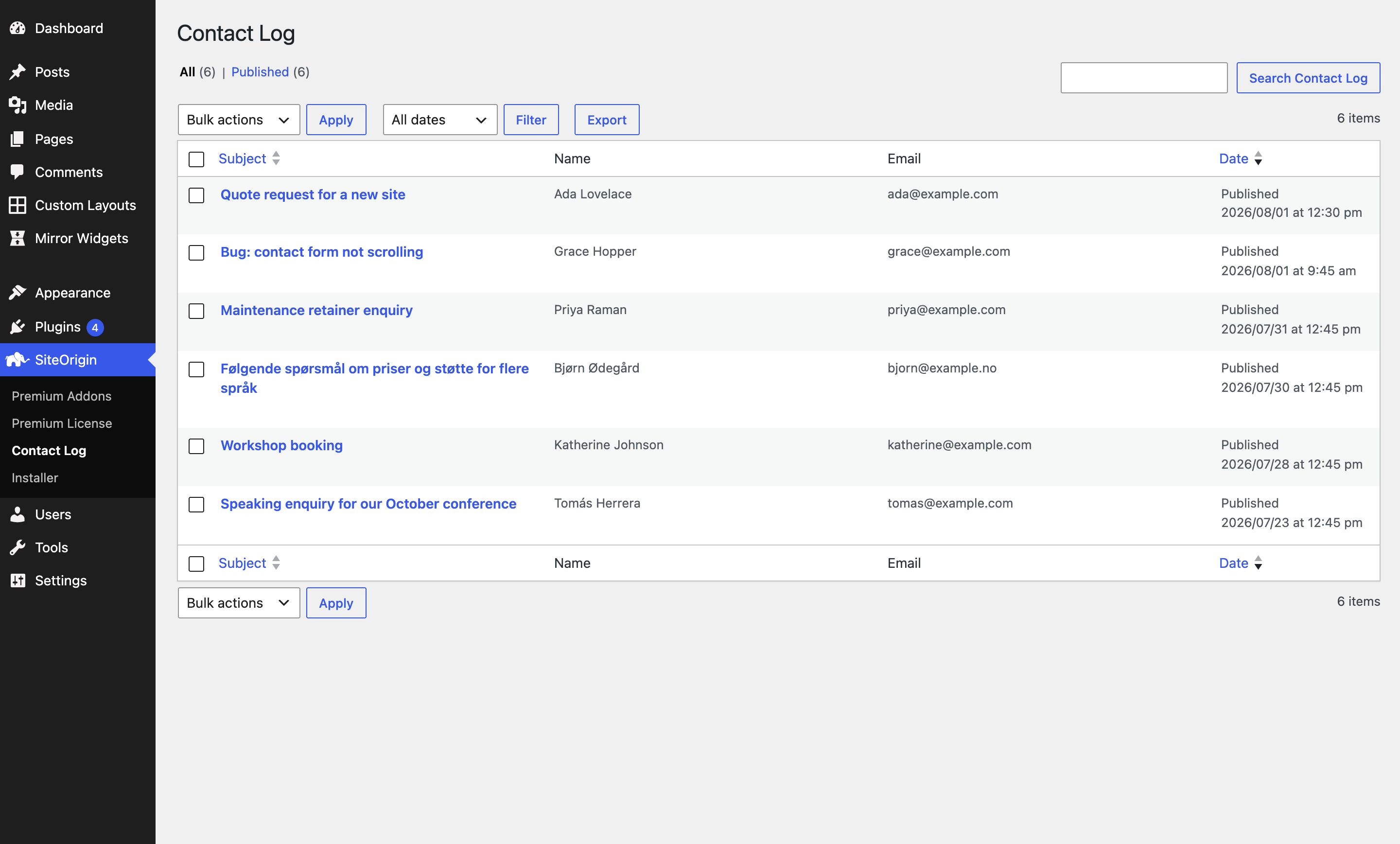
The list has these columns:
Subject
The subject of the email, including the Subject Prefix from the form. Click it to open the entry.
Name
The value of the form’s Name field. Empty if the form has no Name field.
Email
The value of the form’s Email field. If the form has no Email field, or the visitor left it empty, this shows the form’s From Email Address.
Date
When the message was received.
Hover over an entry for the View and Trash links. To delete several entries, select them and choose Move to Trash from Bulk actions. You can restore trashed entries, or delete them permanently, from the Trash view.
Viewing an Entry
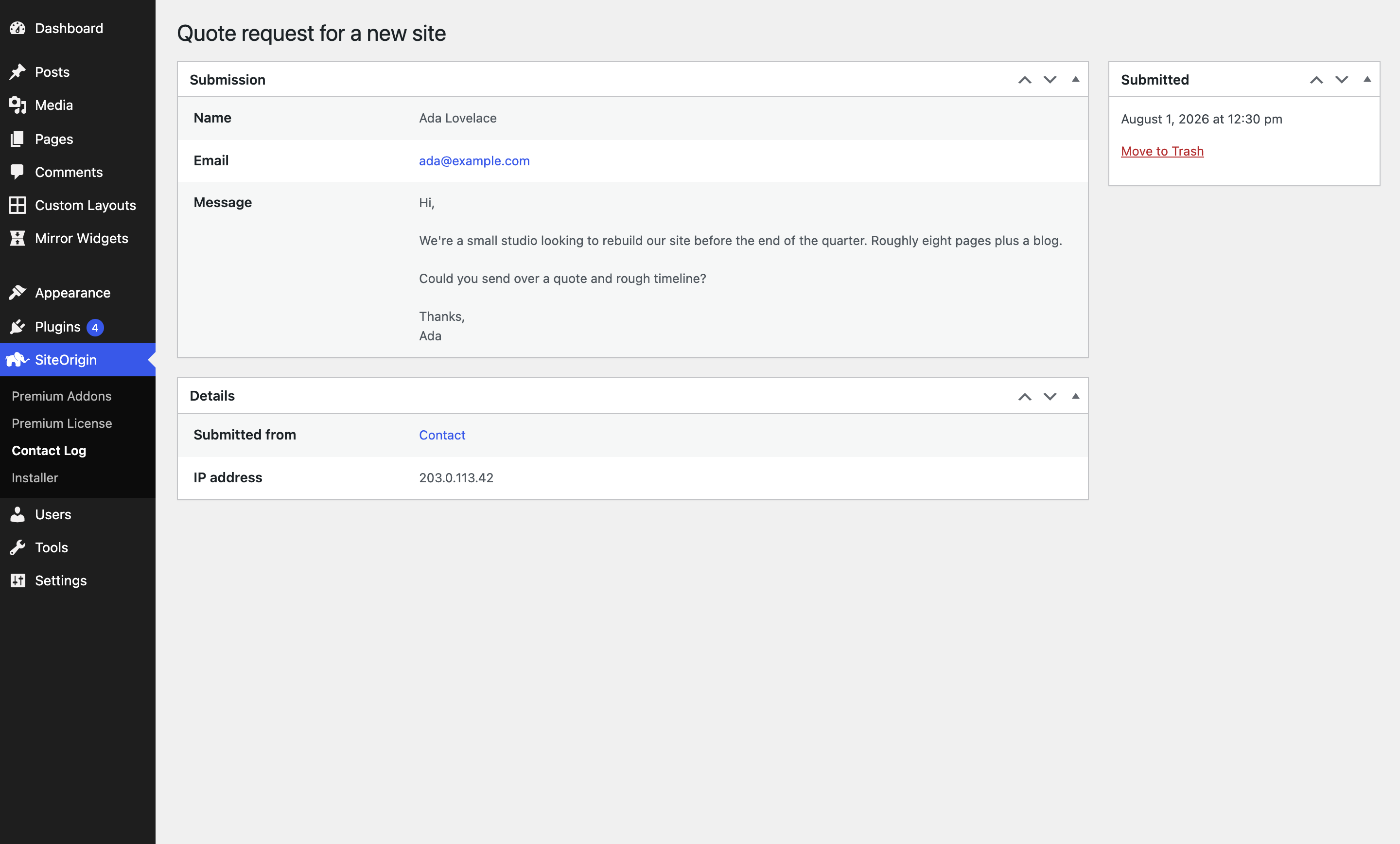
Click an entry to open it. The subject is the heading. The entry has three panels:
Submission
The fields the visitor filled in, with your field labels. Line breaks in messages are kept. Click the email address to reply.
Details
Submitted from links to the page that holds the form. IP address shows the sender’s IP address when Log IP Addresses is on in the form’s Settings section. The page is recorded only when the visitor sends the form from a single post or page. Forms on archives, the blog page or search results record no page. If the page was deleted later, Submitted from shows “(no title)”.
Submitted
The date and time the message was received, and a Move to Trash link.
Searching
Use the search box at the top right of the Contact Log. The search looks at the subject and at everything the visitor entered, so you can search for a name, an email address or words from a message.
If you search for more than one word, you get only the entries that contain all of the words. Put words in quotes to search for them as a phrase.
Exporting
Click Export above the list to download the log as a CSV file that you can open in a spreadsheet application. The file is named after your site and the date, for example Northfield-Studio-contact-log-2026-10-07.csv.
- The export has every entry that isn’t in the trash. It doesn’t use your search.
- The columns are Submitted (the date and time), one column for each field label used in your forms, and Submitted from and IP address when any entry has them. An entry without a value has an empty cell in that column.
- If a value starts with =, +, -, @, a tab or a line break, the export adds an apostrophe before it. This stops spreadsheet applications from running it as a formula.
Settings
Go to SiteOriginPremium Addons, find Contact Log and click Settings.
Roles With Access
The user roles that can use the Contact Log, in addition to Administrators. Administrators always have access, so the Administrator role isn’t in the list. Users in a selected role see a SiteOrigin menu with Contact Log in it. They can view, search, export and delete entries. Clear a role to remove its access. Default: none.
Delete Entries After
The number of days to keep entries. Leave it empty to keep entries until you delete them. Default: empty.
When you set a number, the addon deletes older entries once a day, including entries in the trash. The first run is about an hour after you first save a number. Deletion is permanent. Entries don’t go to the trash first, and you can’t get them back. Clear the field to stop the deletion. Deletion uses WP-Cron, so it runs when your site gets visits, or when your server runs WP-Cron.
Privacy Requests
The Contact Log works with the WordPress personal data tools at ToolsExport Personal Data and ToolsErase Personal Data. It shows there as SiteOrigin Contact Log.
Enter the visitor’s email address. WordPress adds their entries to the export file, or permanently deletes them for an erasure request. Both include entries in the trash.
WordPress finds entries by email address. It finds an entry only if the visitor entered that address in the form’s Email field. It can’t find personal data in a message or another text field of a form with no Email field. Use Delete Entries After to remove those entries.
The addon also adds suggested text to the Privacy Policy Guide at SettingsPrivacy. The text says how long you keep entries.
Related
- Contact Form widget
- Contact Form: adds date, location and layout fields, merge tags and an autoresponder to the Contact Form widget.
- Cloudflare Turnstile: spam protection for the Contact Form widget.