
 Page Builder
  Widgets Bundle
  SiteOrigin CSS
  Installer
 Related Posts
5 min read Updated
The Related Posts Addon adds a list of related posts below the content of your posts. It picks posts that share categories, tags or other terms with the current post. The list uses the Blog Widget, so you can use the Blog Widget’s Grid or Masonry template and its design settings. You set it up once for the whole site.
Requirements
- SiteOrigin Premium
- SiteOrigin Widgets Bundle 1.62.3 or later, with the Blog Widget
Go to SiteOriginPremium Addons and activate Related Posts. This also activates the Blog Widget.
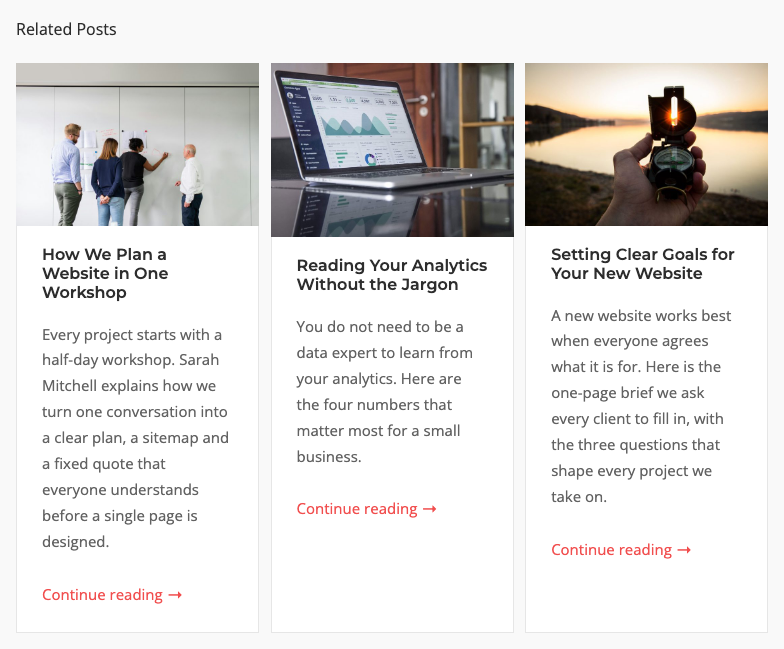
Setting Up Related Posts
The addon works as soon as you activate it. With the default settings, each post shows three related posts in a grid below its content. To change the settings:
- Go to SiteOriginPremium Addons.
- Find the Related Posts card and click Settings.
- Choose the post types in Enabled Post Types.
- Change the list’s settings in the Settings section.
- Click Save.
The list shows at the end of the post content. It shows only when at least one related post is found.
How Related Posts Are Chosen
The addon reads the terms of the current post in each of its taxonomies, for example its categories and tags. It then finds other published posts that have one or more of these terms. The current post is never in the list.
The Taxonomy Matching setting controls how the terms are compared:
- ANY: A post is related if it shares at least one term with the current post, in any taxonomy. This is the default.
- ALL: A post is related only if it shares at least one term in each taxonomy where the current post has terms. For example, if the current post has a category and tags, a related post must share a category and a tag.
If the current post has no terms, the addon can’t filter by term. The list then shows other posts in the Order By order, by default the latest posts.
Global Settings
Go to SiteOriginPremium Addons and click Settings on the Related Posts card.
Enabled Post Types
The post types that show related posts. The list shows Pages, Posts and the custom post types that have an admin screen. Default: Posts. You can turn related posts on or off for a single post in the Page Settings.
Settings
This section holds a copy of the Blog Widget form. The addon removes the settings that don’t apply to a related posts list, such as pagination. It also adds some settings and changes some defaults. For the other settings, see the Blog Widget documentation.
Title and Template
Title
Text that shows above the related posts, for example “Related Posts”. The title shows as plain text, not as a heading. Use the Related Posts Title design settings to style it. Default: empty.
Template
Choose Grid or Masonry. Default: Grid. When you change the template, the form loads that template’s preset values, for example a Column Count of 2 and the post meta turned on. Check the Template Settings after you change the template.
Template Settings
These are the Blog Widget’s Settings. The addon changes these defaults:
- Column Count: 3.
- Post Title HTML Tag: H4.
- Post Content: None. The None option comes from the Blog Addon. Without the Blog Addon, the list shows the post excerpts.
- Post Date, Post Author, Post Categories, Post Tags and Post Comment Count: off.
The addon removes Post Excerpt Read More Link. When the list shows excerpts, each excerpt always has a read more link.
If the Blog Addon is active, this section also has its settings, such as Featured Image Fallback, Excerpt Trim Indicator, Post Read More Link Text and Post Date Format. The Blog Addon’s pagination settings are removed.
Design
The addon adds two groups at the top of the Design section.
Related Posts Title
The style of the Title: Font (default: the theme font), Font Size (default: 16px), Color (default: #2d2d2d) and Bottom Margin (default: 20px).
Related Posts Container
Margin: The space above and below the list. Default: 50px top, 0px bottom.
The other design groups are the Blog Widget’s. The addon changes the default Post Title Font Size to 16px, and removes the pagination groups.
Posts Query
The addon removes the Post Type, Post In, Taxonomies and date settings, because it picks the posts itself.
Taxonomy Matching
ANY or ALL. See How Related Posts Are Chosen. Default: ANY.
Order By
The order of the related posts, for example Published date, Title or Random order. Default: Published date.
Order Direction
Ascending or Descending. Default: Descending.
Number of Related Posts
The most posts the list shows. Default: 3.
Sticky Posts
Default, Ignore sticky, Exclude sticky or Only sticky. Default: Exclude sticky. At the moment, a sticky post that shares terms with the current post can still show when you choose Exclude sticky.
Additional
Extra query arguments, as in the Blog Widget. See WP_Query for the arguments.
Page Settings
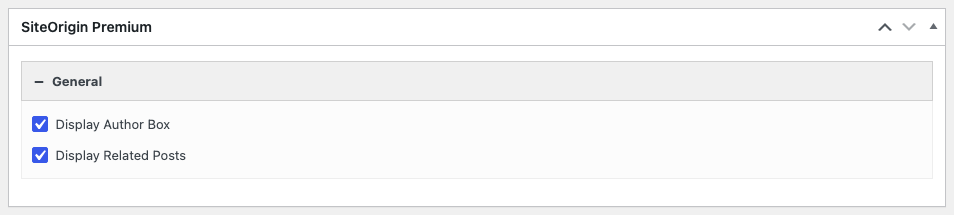
You can turn related posts on or off for a single post, page or custom post:
- Open the post in the editor.
- Scroll to the SiteOrigin Premium box below the content.
- Open the General tab.
- Check or uncheck Display Related Posts.
- Update the post.
The checkbox is on for the post types in Enabled Post Types and off for the others. Check it to add related posts to a post whose type isn’t enabled. Uncheck it to hide them on one post.
Advanced Customizations
Two filters change the query. Add them to your child theme’s functions.php file or with a code snippets plugin.
siteorigin_premium_related_posts_count
Changes the number of related posts. This value replaces the Number of Related Posts setting.
add_filter( 'siteorigin_premium_related_posts_count', function( $count ) {
	return 6;
} );
siteorigin_premium_related_posts_query
Changes the WP_Query arguments of the list. This example shows only posts from the last year:
add_filter( 'siteorigin_premium_related_posts_query', function( $query ) {
	$query['date_query'] = array(
		array(
			'after' => '1 year ago',
		),
	);

	return $query;
} );