
 Page Builder
  Widgets Bundle
  SiteOrigin CSS
  Installer
 Copy and Paste Rows and Widgets
3 min read Updated
You can copy a row or a widget and paste it on the same page or on another page of your site. Copy and paste uses the Page Builder right-click menu.
The Right-Click Menu
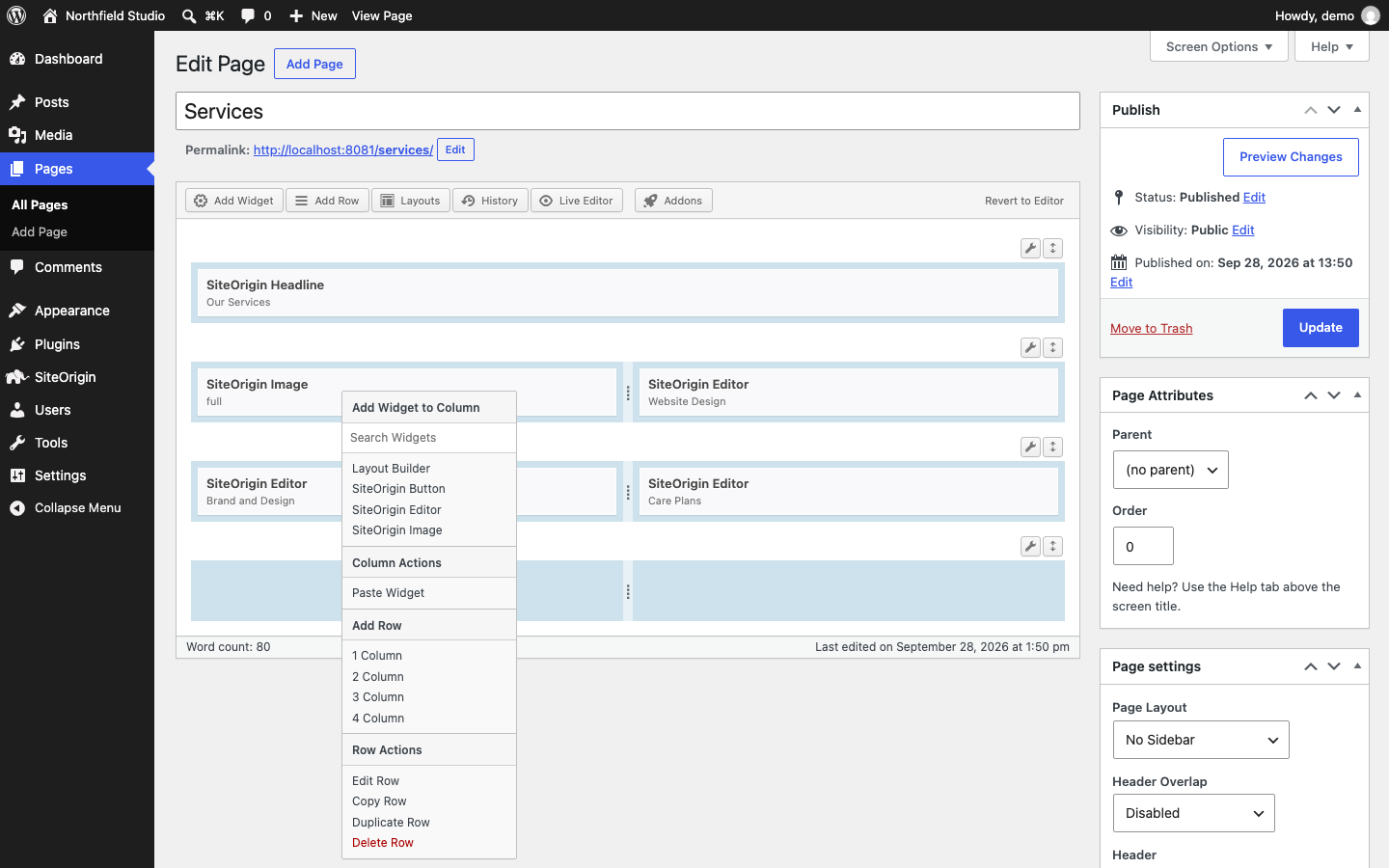
Right-click a row, column or widget in Page Builder to open the menu. The menu shows actions for the item you clicked and for the column and row that hold it.
- Add Widget Below or Add Widget to Column: Search for a widget and add it.
- Widget Actions: Edit Widget, Copy Widget, Duplicate Widget and Delete Widget. Some widgets are read-only and have no Edit Widget action.
- Column Actions: Paste Widget. This section shows only after you copy a widget.
- Add Row: Add a new row with one to four columns below the current row.
- Row Actions: Edit Row, Copy Row, Paste Row, Duplicate Row and Delete Row. Paste Row shows only after you copy a row.
A site can turn off some builder actions. If it does, the menu shows fewer items.
SiteOrigin Premium adds Custom Layouts, which adds Save as Custom Layout to the row and widget menus. Saved layouts show on a Custom Layouts tab in the Layouts dialog.
Copy and Paste a Row
- Right-click the row you want to copy.
- Click Copy Row.
- Right-click the row that you want directly above the pasted row.
- Click Paste Row.
The copy includes the row’s columns, column widths, widgets and styles. To paste into a page with no rows, right-click the “to get started” message and click Paste Row.
Copy and Paste a Widget
- Right-click the widget you want to copy.
- Click Copy Widget.
- Right-click the column where you want the widget, or a widget in that column.
- Click Paste Widget.
Page Builder adds the widget at the bottom of the column, with its settings and styles. Drag it to move it to a different position.
To copy an item to the same page, you can also use Duplicate Row or Duplicate Widget. Duplicate puts the copy directly below the original.
Paste on Another Page
Page Builder keeps the copied item in your browser’s local storage, linked to your WordPress user. To paste on another page, open that page in Page Builder and paste as normal. This works on any page on the same domain, with the same http or https, in the same browser, when you are logged in as the same user.
The clipboard holds one item. When you copy a new row or widget, it replaces the old one. You can paste the same item as many times as you need.
Where You Can Copy and Paste
The right-click menu works everywhere the Page Builder interface shows:
- The Page Builder tab in the Classic Editor.
- The builder sidebar in the Live Editor. The menu does not open on the preview.
- The SiteOrigin Layout block in the Block Editor. If the block shows a preview, click the Edit layout button (pencil icon) in the block toolbar first. The menu does not open on the preview.
All three share the same clipboard. For example, you can copy a row in the Classic Editor and paste it into a Layout block.
Copy Between Sites
Browser storage is kept separately for each domain, so the standard clipboard does not work between sites on different domains. To copy rows and widgets from one site to another, use the Cross Domain Copy Paste addon in SiteOrigin Premium.