
 Page Builder
  Widgets Bundle
  SiteOrigin CSS
  Installer
 Menu Locations
1 min read Updated
Vantage has one menu location, Primary Menu. By default it shows below the header and is left aligned. You can center it, align it right, or put it on the same line as the logo with the Logo In Menu layout. See Layout and Theme Design: Menu.
Create a Menu
- Go to AppearanceMenus.
- Type a name in Menu Name, such as Main Menu. Click Create Menu.
- Tick the pages you want in Add menu items and click Add to Menu.
- Drag the items to set their order. Drag an item slightly to the right to make it a sub-menu item.
- Under Menu Settings, tick Primary Menu next to Menu location.
- Click Save Menu.
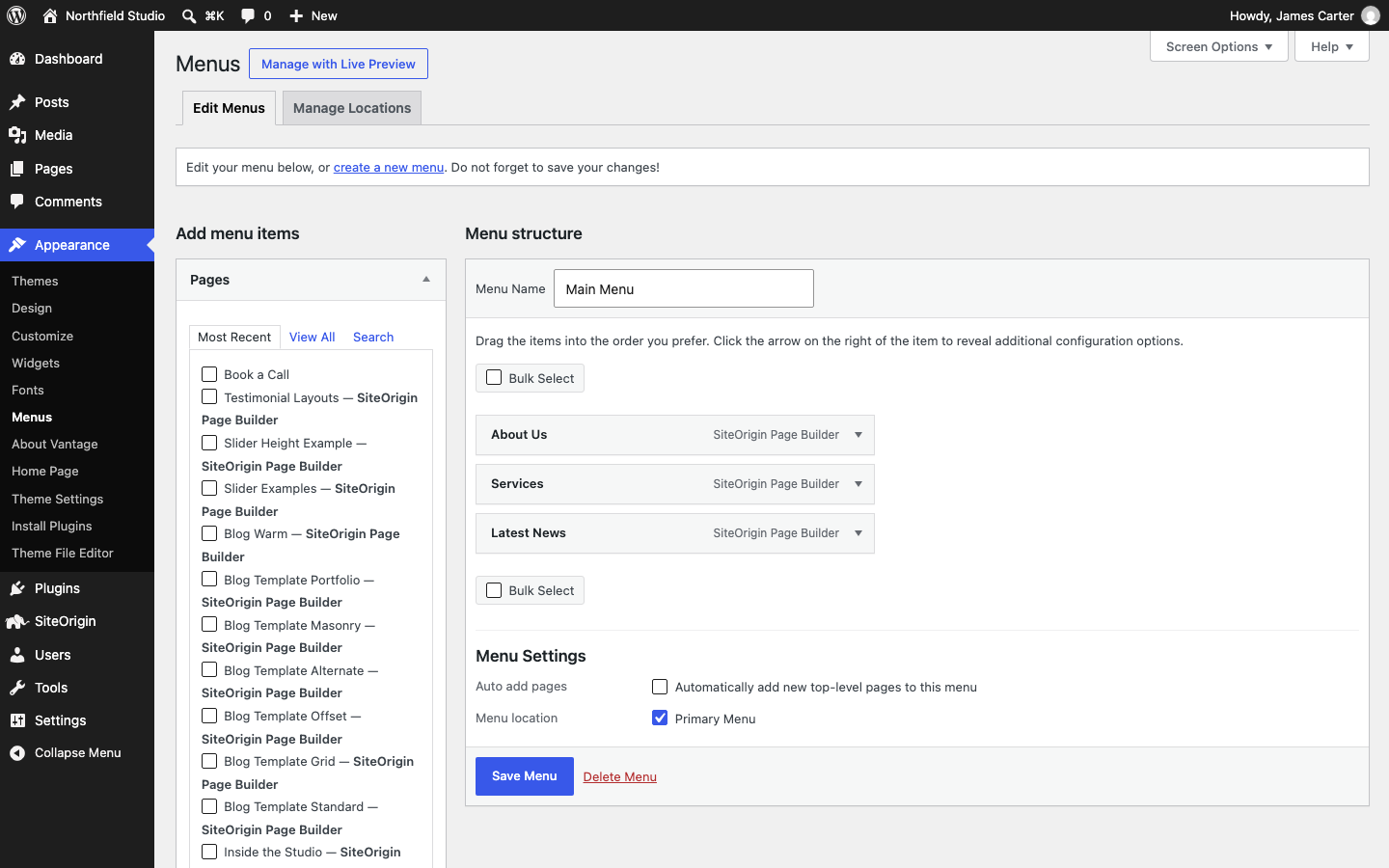
You can also do this in the Customizer at AppearanceCustomizeMenus. Click Publish to save.
Change the Menu Location Later
Go to AppearanceMenus and open the Manage Locations tab. Choose the menu for Primary Menu and click Save Changes.
Menu Settings in Vantage
- Search, sticky menu, the home icon and the mobile menu are in Navigation.
- Menu colors and sizes are in Theme Design: Menu.
- To add icons to menu items, see Menu Icons.
- To remove the menu, set Masthead Menu to Empty Menu in Layout.