
 Page Builder
  Widgets Bundle
  SiteOrigin CSS
  Installer
 Theme Design
1 min read Updated
Theme Design settings control the fonts, colors, spacing and backgrounds of your site. Go to AppearanceCustomizeTheme Design.
Do not confuse Theme Design with Theme Settings. Theme Settings control the layout, navigation and blog options. Theme Design controls how they look.
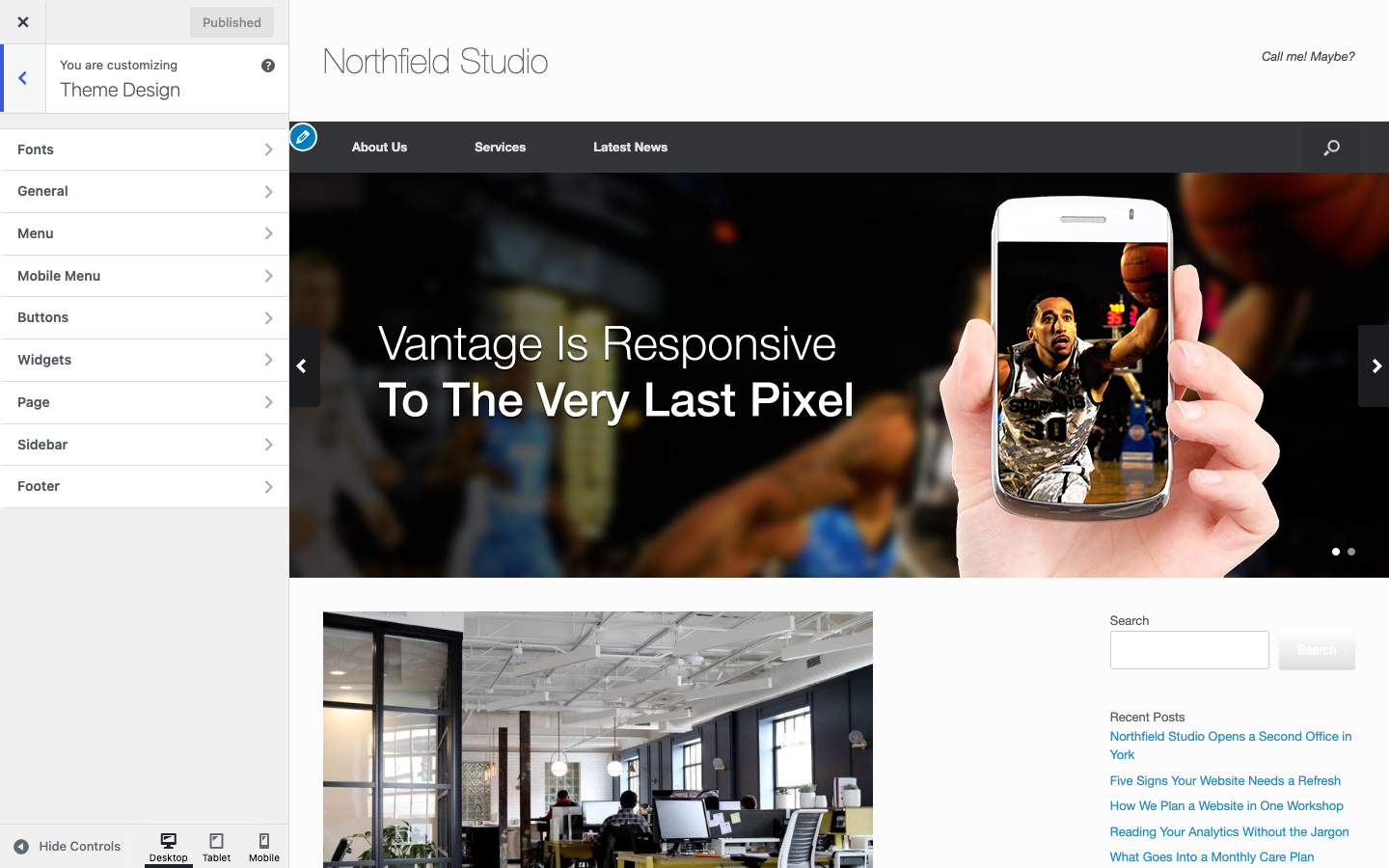
Sections
- Fonts: font families, sizes and text colors.
- General: header padding, logo alignment and link colors.
- Menu: colors, padding and font size of the main menu.
- Mobile Menu: colors of the mobile menu.
- Buttons: colors and shadows of buttons.
- Widgets: masthead widget titles and the Circle Icon Widget colors.
- Page: backgrounds for the masthead and the page, and image shadows.
- Sidebar: the sidebar position. This section is on this page.
- Footer: footer colors and background.
How Theme Design Works
- Click Publish to save your changes.
- Color settings use a color picker. Size settings take a number of pixels.
- The font lists show web safe fonts and Google Fonts. Vantage loads the Google Fonts that you choose from Google.
- Settings for text, headings and links also style the block editor, so the editor looks like your site.
- The Buttons colors also style the core Button, File and Search blocks. This happens only when you change a color from its default.
Sidebar
Sidebar Position
Sets the side of the content where the sidebar shows. Choose None, Left or Right. None hides the sidebar on your whole site. Default: Right.
The Full Width Page templates never show a sidebar. To change the sidebar on one page only, use Page Settings. To add widgets to the sidebar, see Widget Areas.