
 Page Builder
  Widgets Bundle
  SiteOrigin CSS
  Installer
 Getting Started
2 min read Updated
Vantage is a free multipurpose theme from SiteOrigin. It works best with Page Builder and the Widgets Bundle.
Requirements
- WordPress 4.7 or higher.
- PHP 5.6.20 or higher.
- Optional: Page Builder by SiteOrigin for the Custom Home Page and page layouts.
- Optional: SiteOrigin Widgets Bundle and SiteOrigin CSS.
Install Vantage
- Go to AppearanceThemes and click Add Theme.
- Type Vantage in the search field.
- Click Install on the Vantage card, then click Activate.
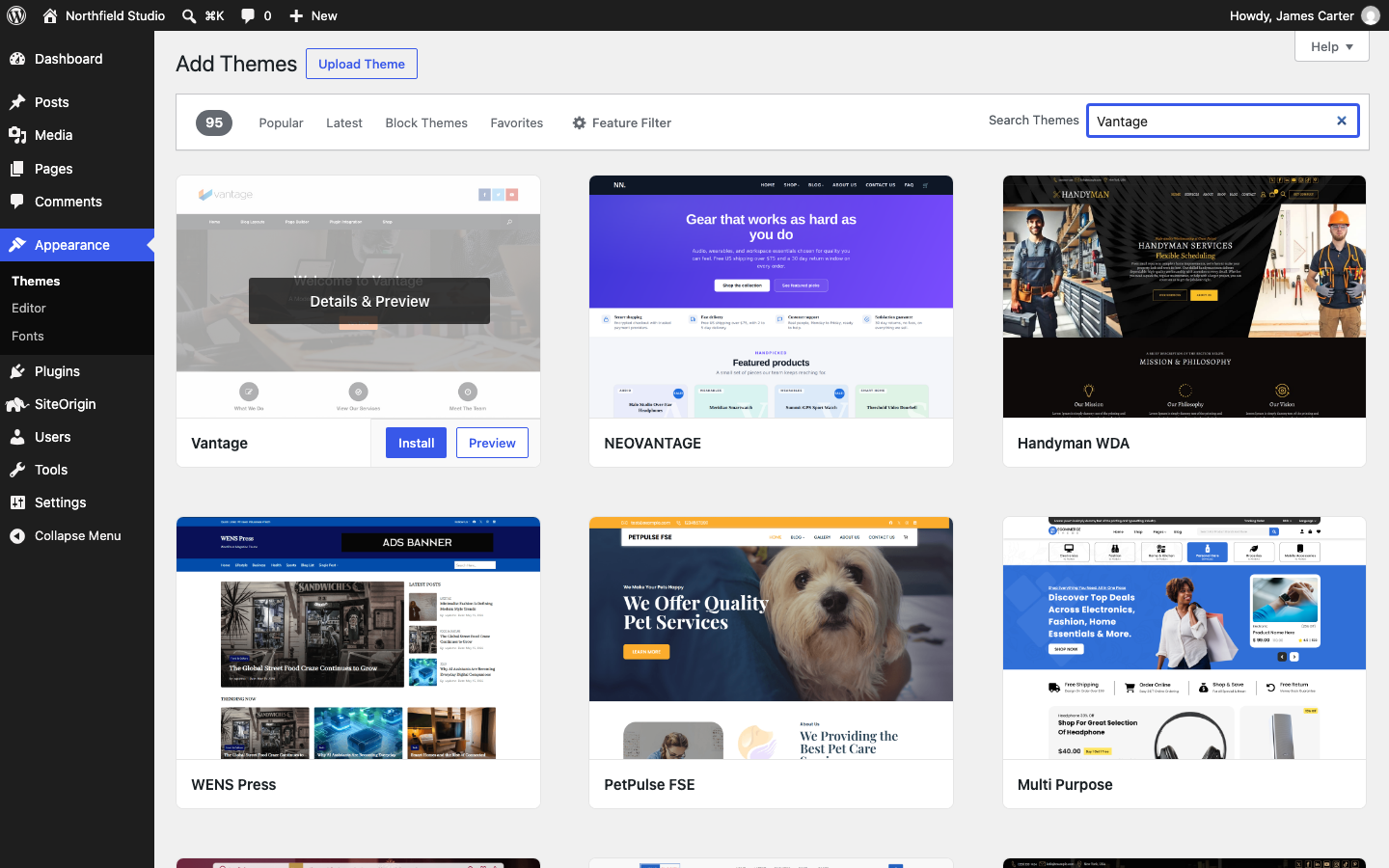
To install a zip file instead, click Upload Theme, choose the zip file and click Install Now. Then click Activate.
Install the Recommended Plugins
After you activate Vantage, you may see a notice that recommends three plugins. They are Page Builder, the Widgets Bundle and SiteOrigin CSS. None of them is required.
- Click Begin installing plugins in the notice. You can also go to AppearanceInstall Plugins.
- Tick the plugins you want, choose Install from the bulk actions list and click Apply.
- Go to PluginsInstalled Plugins and activate them.
Page Builder and the Widgets Bundle work with any theme. They keep working if you change theme later.
See What You Get
Open your site. By default, the front page shows your latest posts under a demo slider. To change these, see Custom Home Page and Home Page Slider.
Open the Customizer
Go to AppearanceCustomize. Vantage adds three panels:
- Theme Settings holds the functional settings: logo, layout, navigation, blog and footer text. See Theme Settings.
- Theme Design holds fonts, colors and sizes. See Theme Design.
- Page Template Settings sets the layout for the blog page, archives, search results and the 404 page. See Page Templates and Settings.
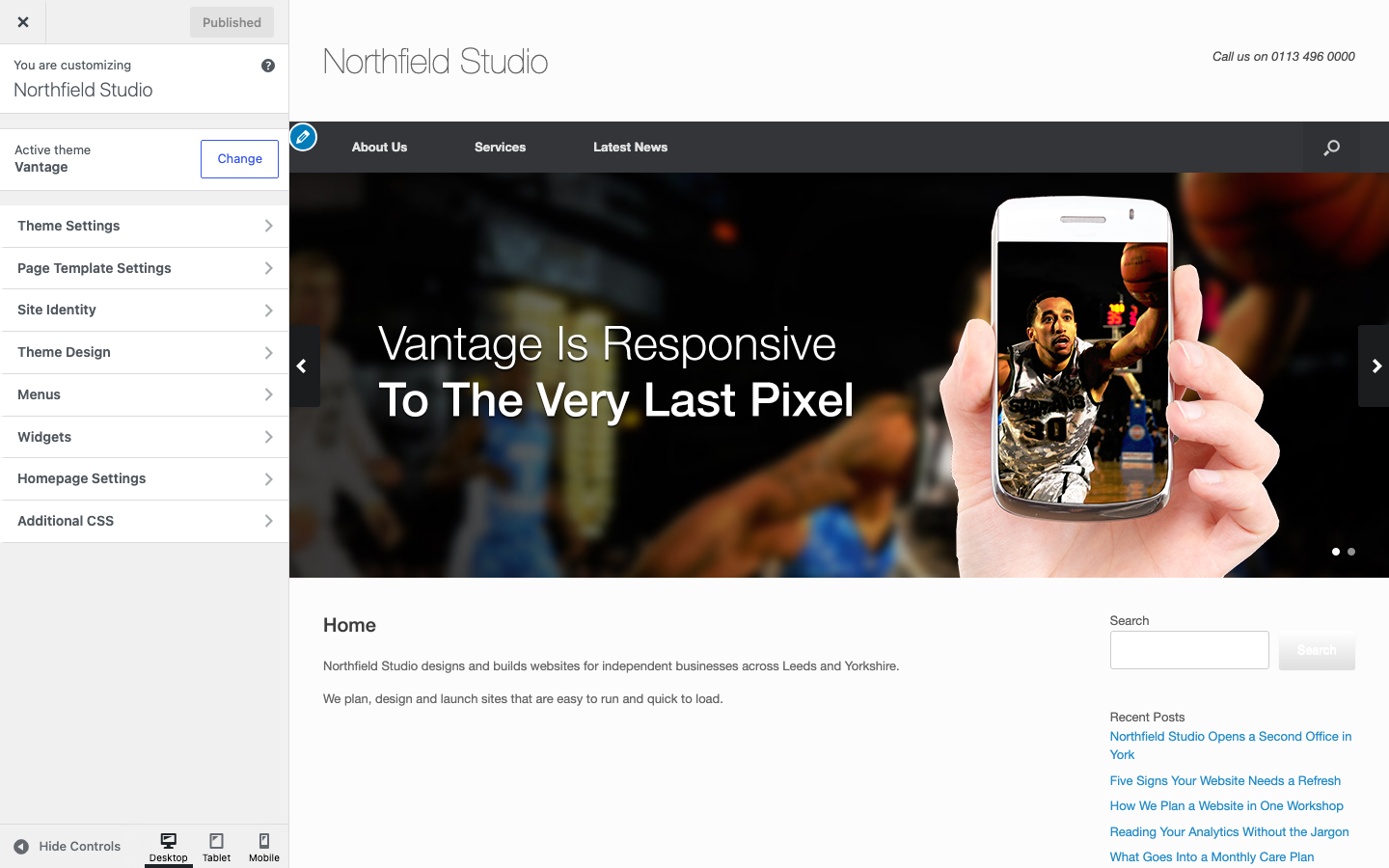
WordPress adds its own panels too. Site Identity holds your site title and tagline. Menus and Widgets manage your menus and widget areas. Click Publish to save your changes.
Set Up Your Site
- Add your logo. See Logo.
- Create your menu. See Menu Locations.
- Build your home page. See Custom Home Page.
- Add widgets to the header, sidebar and footer. See Widget Areas.
- Choose the page layout for each page. See Page Templates and Settings.
Get Help
If you are new to Page Builder, read the Page Builder documentation. For questions, use the SiteOrigin forum.