
 Page Builder
  Widgets Bundle
  SiteOrigin CSS
  Installer
 Posts Slider
2 min read Updated
Corp has two ways to show a slider of posts. The blog home page slider uses the Jetpack Featured Content module. The Posts Slider template for the Post Loop Widget puts a slider on any page.
Slider on the Blog Home Page
Corp shows the slider at the top of the blog home page when Jetpack Featured Content has at least one post. Corp has no setting for it. The slider does not show on page 2 and later of the blog. It slides the featured posts, each with its featured image, its post details and its title. The header margin is removed while the slider shows.
Install Jetpack
Go to PluginsAdd Plugin, search for Jetpack, then install and activate it.
Choose the Featured Tag
Go to AppearanceCustomizeFeatured Content. Featured Content works with a post tag. In the Tag name field, search for a tag or enter a new one, for example Featured. The section has two options:
- Do not display tag in post details and tag clouds. On by default. The tag does not show in the post details or in the tag cloud widget.
- Also display tagged posts outside the Featured Content area. Off by default. While it is off, the featured posts do not show in the normal blog list. Turn it on to show them in both places.
Choose the Posts
Go to PostsAll Posts and edit a post. Add the featured tag to the post. Repeat for each post that you want in the slider. Featured Content works with posts only, not pages.
Give each post a featured image. A slide without a featured image can show the image of the slide before it. See the known issue.
The slider shows on the page in SettingsReading set as Posts page, or on the front page when it shows your latest posts. Content that you add to the Posts page does not show, because that page only lists posts.
Posts Slider on Any Page
Use the Post Loop Widget to put a slider on any page. You need Page Builder by SiteOrigin.
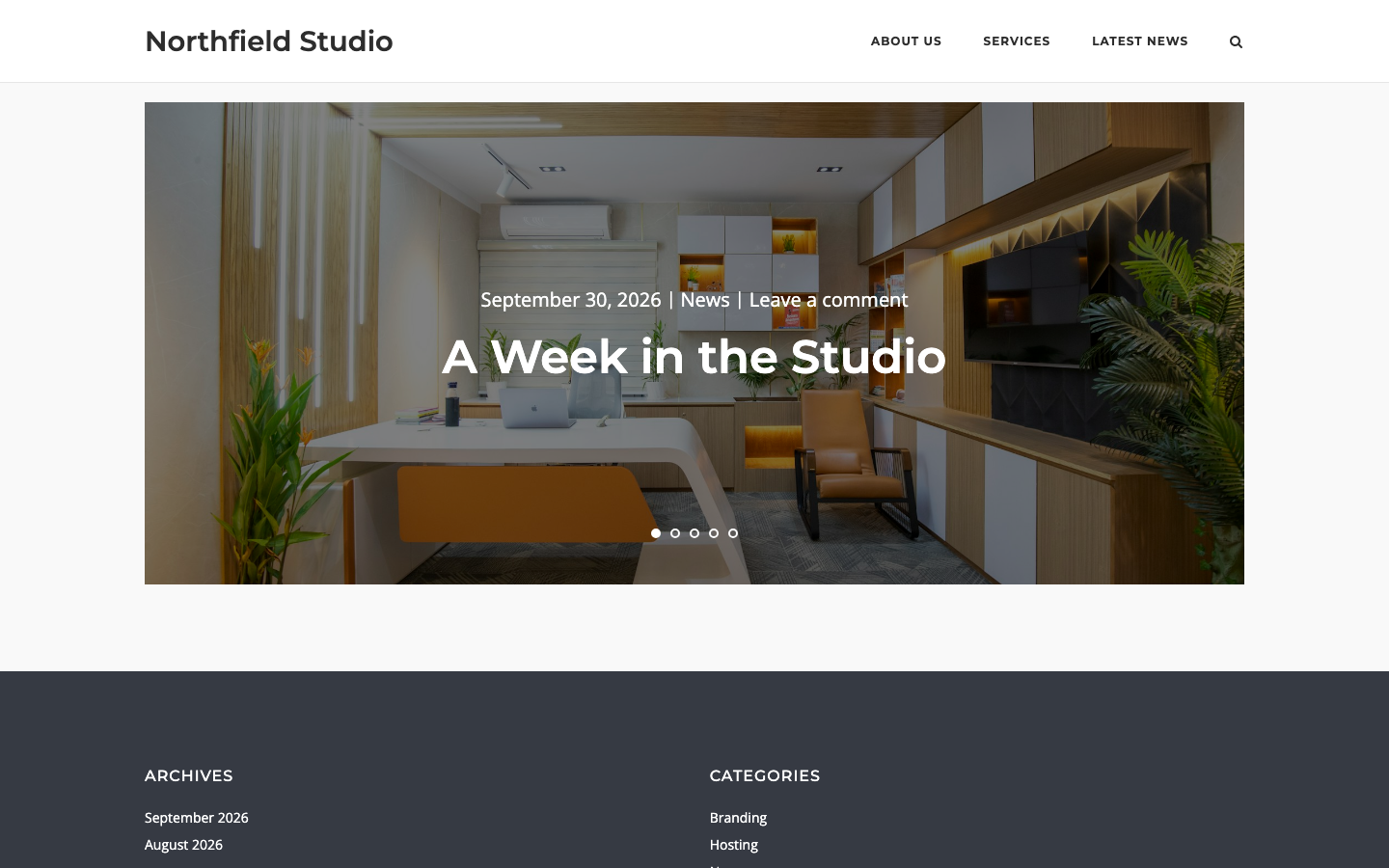
- Edit the page. In the Classic Editor click the Page Builder tab. In the Block Editor add a SiteOrigin Layout Block.
- Click Add Widget and choose the Post Loop widget.
- In the Template list choose Posts Slider.
- Use the Posts Query section to choose which posts show. Then click Done.
This slider does not use Jetpack Featured Content. It shows the posts of the widget query. To list posts under the slider, add a second Post Loop Widget and choose one of the Corp blog layouts as its template: Blog Alternate, Blog Grid, Blog Masonry, Blog Offset or Blog Standard.
The page set as your Posts page in SettingsReading does not show Page Builder content. To use Page Builder on the blog page, first remove that page from the Posts page setting.