
 Page Builder
  Widgets Bundle
  SiteOrigin CSS
  Installer
 Portfolio
3 min read Updated
Corp supports the Jetpack Portfolio content type. Use it to show your projects, each with its own page, project types and project tags. View the Corp demo portfolio.
Turn On Jetpack Portfolio
- Go to PluginsAdd Plugin, search for Jetpack, then install and activate it.
- Go to JetpackSettings and search for Portfolios. Turn the setting on.
A Portfolio menu now shows in the WordPress menu. It has links for projects, project types and project tags. A project is like a post. A project type is like a category. Go to PortfolioAdd New Project to add your first project.
Show Your Portfolio
Choose one of three methods.
Use the Default URL
If your site uses pretty permalinks, the portfolio is at /portfolio on your domain. For example https://example.com/portfolio/. You do not need to create a page. To link to it, go to AppearanceMenus, add a Custom Link and use /portfolio as the URL.
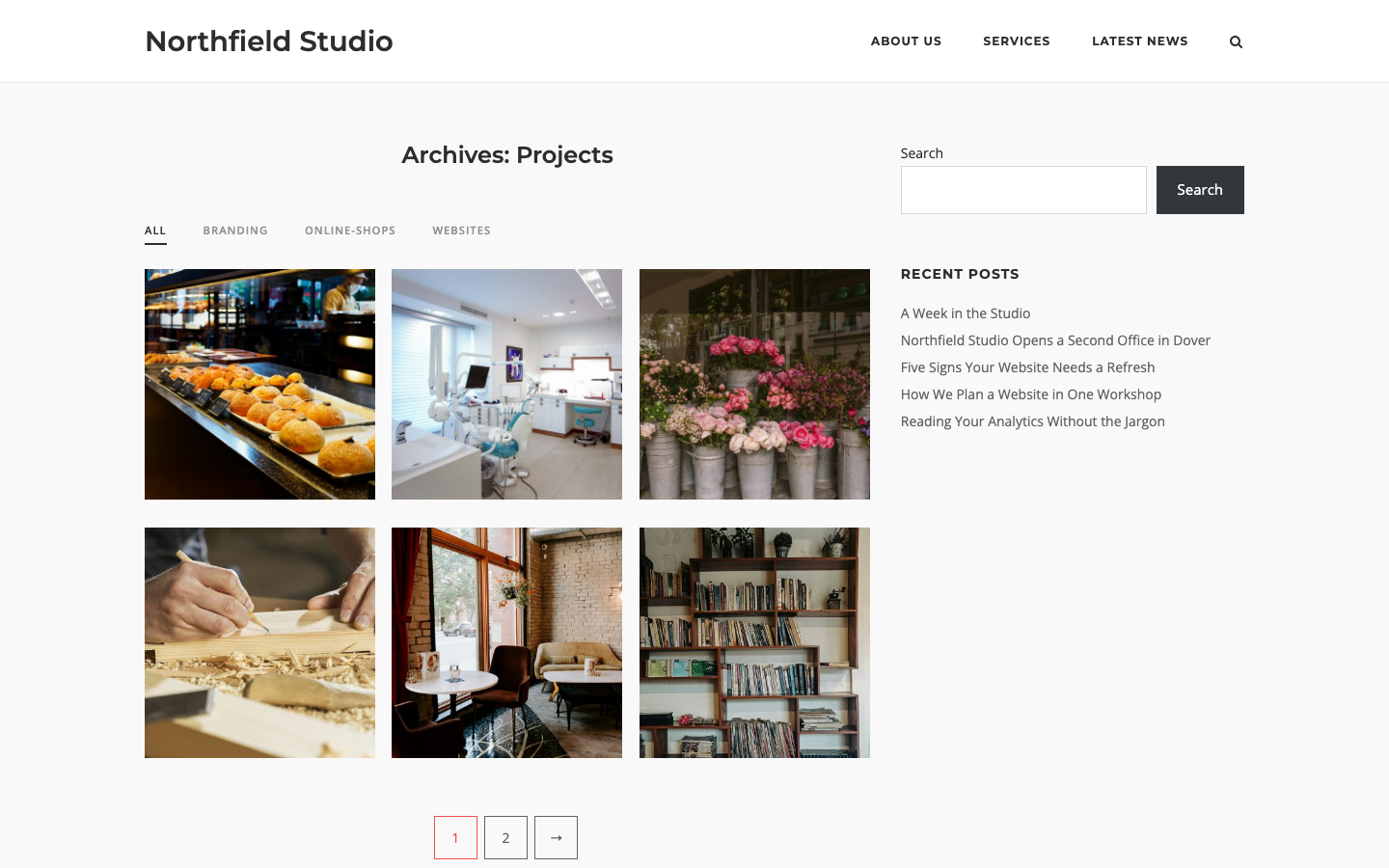
Corp shows the portfolio in a grid with buttons that filter the projects by project type. The buttons show the slug of each project type, not its name. Keep the slugs short and clear. Use this method if you want Jetpack Infinite Scroll on the portfolio.
Use the Post Loop Widget
Use Page Builder by SiteOrigin to put the portfolio on any page.
- Edit a page. In the Classic Editor click the Page Builder tab. In the Block Editor add a SiteOrigin Layout Block.
- Click Add Widget and choose the Post Loop widget.
- In the Template list choose Portfolio (only for Jetpack portfolio projects).
- Click Done, then publish or update the page.
This template only shows Jetpack Portfolio projects, so you do not need to change the Post Type list in the Posts Query section. By default the number of projects on each page comes from the Portfolio Projects setting in SettingsWriting. If you choose Projects as the Post Type in Posts Query, the widget setting Posts Per Page sets the number instead. The page numbers show below the projects when there are more projects. Jetpack Infinite Scroll does not work with the widget. To use Infinite Scroll, use the default URL.
Use the Jetpack Shortcode
Jetpack has a shortcode that shows your projects anywhere: [portfolio]. To set the number of columns, add columns. For example, [portfolio columns=3] shows three columns.
To show a short summary under each project image, fill in the Excerpt field of the project. Corp styles the shortcode like its grid blog layout. It does not add the filter buttons. To get the filter buttons, use the default URL or the Post Loop Widget.
Number of Projects per Page
Go to SettingsWriting and change Portfolio Projects. The default URL /portfolio, the project type pages, the project tag pages and the Post Loop portfolio template use this number.
Single Project Pages
A single project page shows the project, the Jetpack Likes and Sharing buttons if you turned them on, the post navigation, the author box and the comments. If Related Posts is on in Blog, the page also shows related projects. Corp uses Jetpack Related Posts when it is active. If not, Corp shows projects of the same project type.
Page Settings
To change the layout of one project, edit the project and use the Page settings box. See Page Settings. It has the same eight settings as a page.
To change all portfolio pages at once, go to AppearanceCustomizePage Template Settings and use these sections: Type: Projects, Taxonomy: Project Types and Taxonomy: Project Tags. See Page Template Settings.
If you show the portfolio with the Post Loop Widget, the Page Template Settings do not apply to that page. Edit the page and use its Page settings box.