
 Page Builder
  Widgets Bundle
  SiteOrigin CSS
  Installer
 Price Table
4 min read Updated
The Price Table Widget shows your plans side by side. Each column has a title, a price, a list of features and an optional button. Mark a column as featured to make it stand out.
Requirements
To use this widget, go to PluginsSiteOrigin Widgets and activate the Price Table Widget.
You can use the Price Table Widget anywhere:
Page Builder: Insert the widget in Page Builder by SiteOrigin, in the Classic Editor or in the Page Builder Layout Block.
Block Editor: Insert the SiteOrigin Price Table block. You will find it in the SiteOrigin category.
Theme and Plugin Widget Areas: Insert the widget into any theme or plugin widget area.
Settings
Title
An optional widget title above the table.
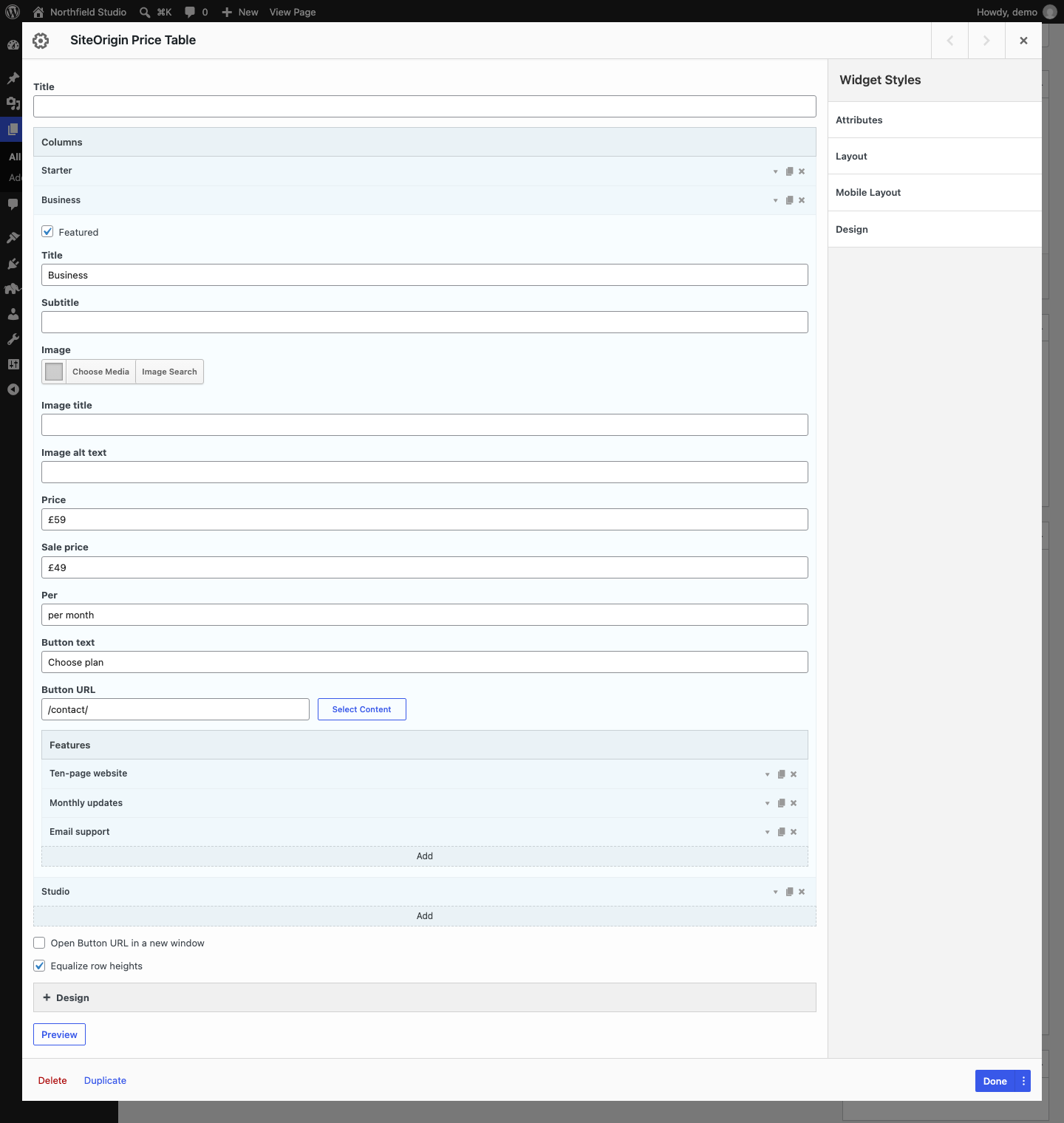
Columns
Each column is one plan. Click Add to add a column. Use the arrow to open a column, the page icon to duplicate it, and the cross icon to delete it. All columns have the same width.
Featured
Highlights this column with the featured colors. Disabled by default.
Title
The plan name at the top of the column.
Subtitle
A short line below the title.
Image
An optional image. It shows below the price. The widget uses the full-size image.
Image title
The title attribute of the image.
Image alt text
The alt text of the image. Describe the image for screen readers.
Price
The price, for example £29.
Sale price
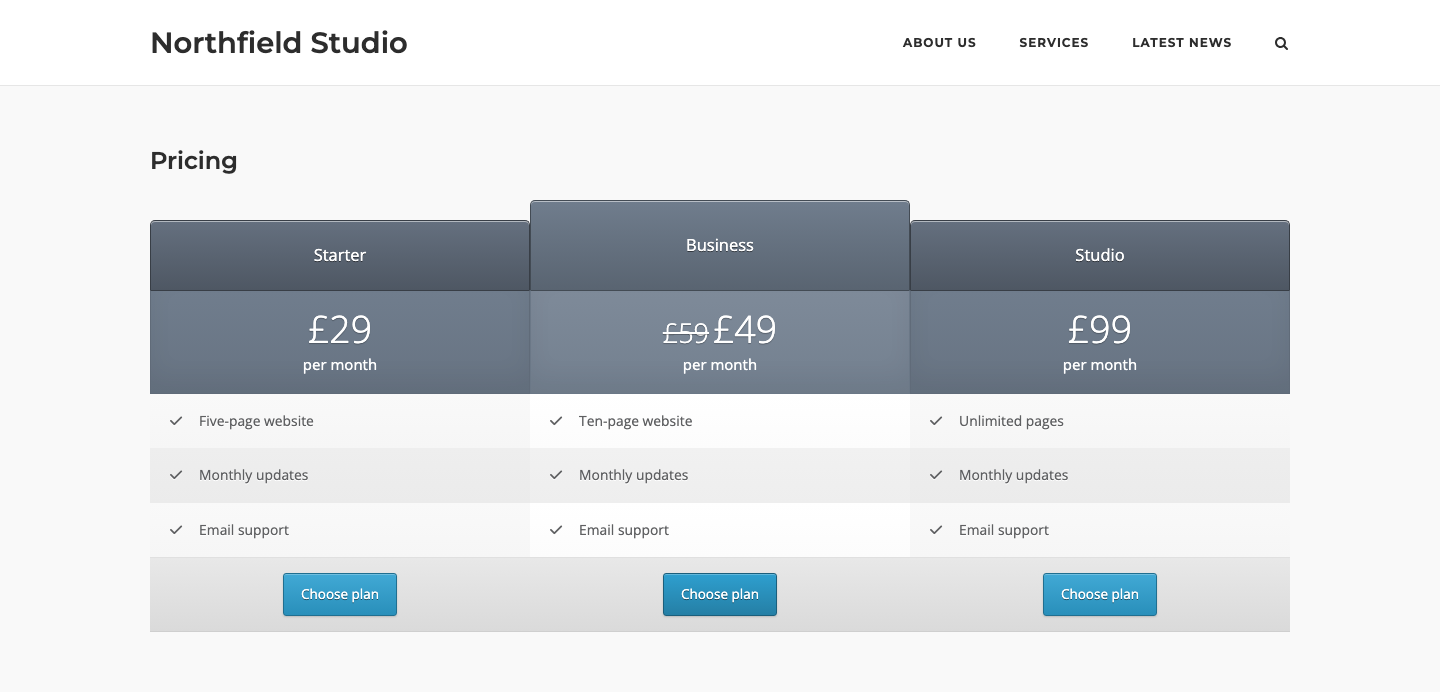
An optional sale price. When you enter one, the widget shows the Price smaller and struck through, and shows the Sale price next to it.
Per
The text below the price, for example per month.
Button text
The text on the column button. Leave it empty to hide the button.
Button URL
The URL the button links to. Enter a URL, or use the Select Content button to find a post or page on your site.
Features
Each feature is one row in the column. Click Add to add a feature.
Text
The feature text. Shortcodes work in this field.
Hover text
Extra text for the feature. Without SiteOrigin Premium, the browser shows it as a plain tooltip when a visitor hovers over the feature.
Icon
An optional icon before the feature text. Click Choose Icon to select one.
Icon color
The icon color.
Other Settings
Open Button URL in a new window
Opens every button link in the table in a new tab or window. Disabled by default.
Equalize row heights
Lines up the parts of each column. Where they exist, the title area, the price area, the image area, each feature row and the button area get the same height in every column. Disabled by default.
On screens 680px wide or less, the columns stack, and the widget does not equalize row heights.
Design
Price table theme
The table style. Atom is the only theme.
Header
The header is the top of each column: the title, subtitle, price and per text.
Background color
The header background color. Default: #65707f.
Featured background color
The header background color of the featured column. Default: #707d8d.
Color
The header text color. Default: #fff.
Featured color
The header text color of the featured column. Default: #fff.
Feature
Color
The feature text color. Default: #5f6062.
Button
Container background color
The background of the area around the button. Default: #e8e8e8.
Color
The button background color. Default: #41a9d5.
Background color
The button background color of the featured column. Default: #2e9fcf.
The widget picks the button text color for you, based on the button background color.
SiteOrigin Premium
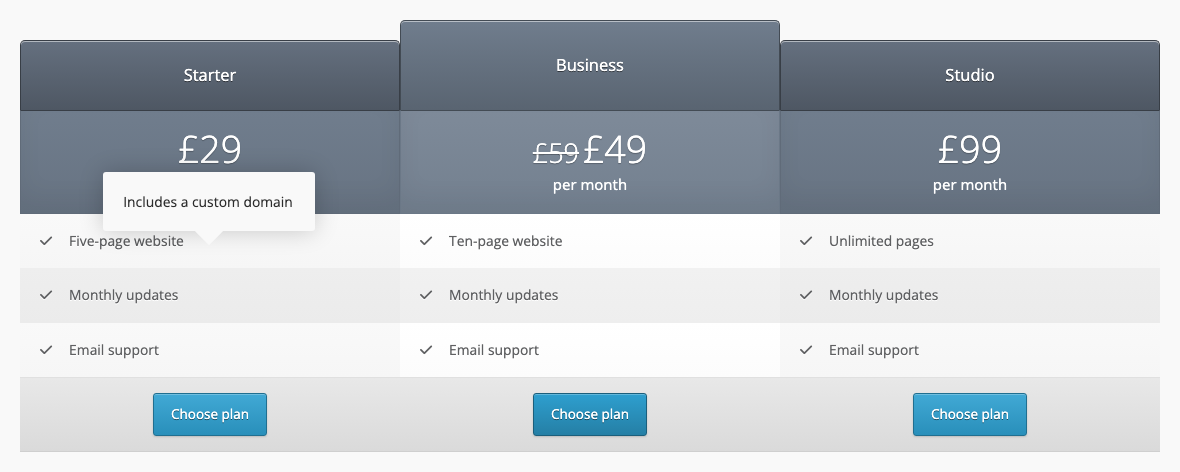
The Tooltip Addon in SiteOrigin Premium shows the Hover text of each feature in a styled tooltip. The tooltip opens on hover or on click, as set in the addon settings. It adds a Tooltip section to the widget form:
- Enable Tooltip: Use global setting, Enabled or Disabled.
- Tooltip Theme: Use global setting, Light or Dark.
The addon is on for the Price Table Widget by default. Set the global options, such as the trigger, delay, position and theme, in the addon settings.
Advanced Customizations
Use the siteorigin_widgets_price_table_button_attributes filter to change the attributes of each column button. The filter receives the attributes and the column. This example adds rel="nofollow" to every button.
add_filter( 'siteorigin_widgets_price_table_button_attributes', function( $attributes, $column ) {
	$rel = isset( $attributes['rel'] ) ? $attributes['rel'] . ' ' : '';
	$attributes['rel'] = $rel . 'nofollow';
	return $attributes;
}, 10, 2 );