
 Page Builder
  Widgets Bundle
  SiteOrigin CSS
  Installer
 Using Widgets in the Block Editor
4 min read Updated
In the Block Editor, each SiteOrigin widget is its own block. The block name is usually the name on the widget’s card at Plugins > SiteOrigin Widgets, with SiteOrigin in front. For example, the Hero Image widget is the SiteOrigin Hero Image block.
Requirements
Only enabled widgets have a block. To enable a widget, go to PluginsSiteOrigin Widgets and click Activate on its card. Some widgets from SiteOrigin Premium addons have no Activate button, because the addon turns them on. Read Getting Started for more help.
Setup Video
This video adds a SiteOrigin Button block to a page, fills in the form, previews the block and shows the result on the front end.
Where You Can Use the Blocks
- The Block Editor, for posts and pages.
- The Site Editor.
- The block-based Widgets screen at AppearanceWidgets.
Add a Widget Block
- Edit your page in the Block Editor.
- Open the block inserter.
- Scroll to the SiteOrigin category. You can also type the widget name in the search field, for example Button.
- Click the block to add it to the page.
Widgets from other plugins that use the Widgets Bundle framework also get their own block.
Set Up the Widget
A new widget block shows the widget form inside the block. The top of the form shows the widget name and a short description. The form has the same settings as the widget has in Page Builder.
- Fill in the settings in the form.
- Click the Preview widget. button (the eye icon) in the block toolbar.
The block now shows a preview of the widget. To change the settings again, click the Edit widget. button (the pencil icon) in the block toolbar.
The block saves your changes as you edit the form. Save the page as usual to keep them.
The Preview
The preview shows the widget with your current settings. The front end can look a little different, because of your theme styles or because some widgets, such as the Blog Widget, load new content each time the page loads.
If the widget has no content to show yet, the block shows No widget preview available. Add content to the form, then preview the block again.
In the post and page editor, you cannot save while the block loads a preview. Saving works again when the preview is ready.
Required Fields
Some widget settings are required. The editor checks them after the page saves. If a widget block is not inside another block, its form is open and a required field is empty, the editor marks the field and shows this message: You have empty required fields. Are you sure you wish to continue? The page is already saved at this point, so fill in the field and save again.
Migrate Legacy SiteOrigin Widgets Blocks
Older versions of the Widgets Bundle used one block, the SiteOrigin Widgets Block, for every widget. That block is now a legacy placeholder. You cannot add it from the block inserter. Legacy blocks still show on the front end of your site until you migrate them.
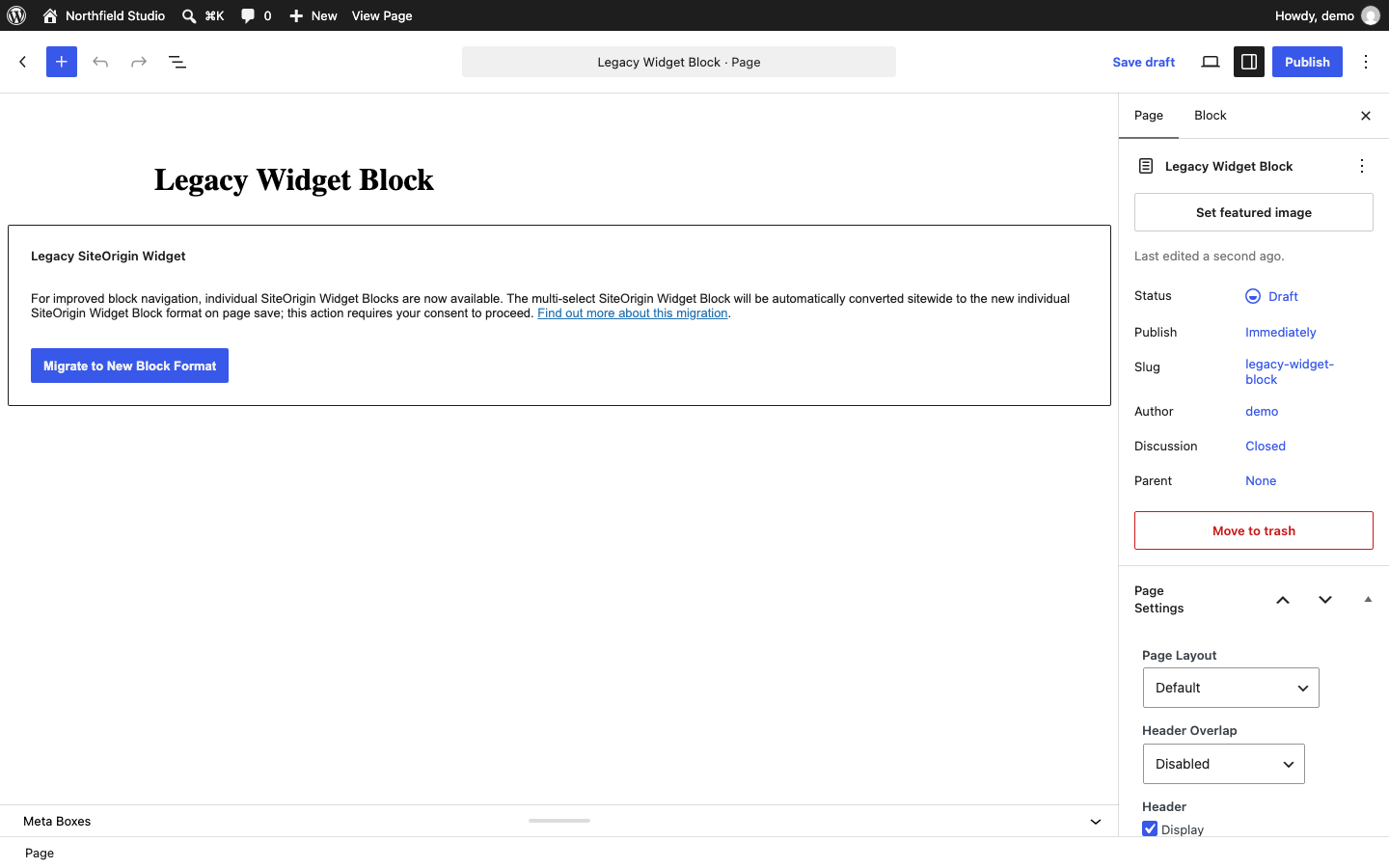
When you open a page that has a legacy block, the block shows Legacy SiteOrigin Widget and a notice about the migration.
- Log in as a user who can manage options, for example an Administrator.
- Open a page that has a legacy block.
- Click Migrate to New Block Format.
- Check the new blocks.
- Save the page.
The button changes the legacy blocks on the page into the block for each widget. For example, a legacy block that holds a Button Widget becomes a SiteOrigin Button block. Your widget settings stay the same.
When you click the button, you also give consent for the whole site. After that, the editor changes legacy blocks for you each time someone opens a page that has them. Save each page to keep the change. Pages that no one opens keep their legacy blocks.
Until an administrator gives consent, users who cannot manage options see this message on the legacy block: Please contact your site administrator to migrate this block.
The Widget for a Legacy Block Cannot Be Found
The migration needs the widget to be enabled. If it is not, the migration leaves the legacy block in place, and the block shows a SiteOrigin Widget placeholder with The widget for followed by the widget class name and cannot be found.
- Go to PluginsSiteOrigin Widgets.
- If the widget card has an Activate button, click it. If the widget is not in the list, or its card has no Activate button, activate the plugin, addon or theme that provides the widget.
- Reload the page in the Block Editor.
If a widget block shows that it is not available, read Troubleshooting.