
 Page Builder
  Widgets Bundle
  SiteOrigin CSS
  Installer
 Recent Posts
6 min read Updated
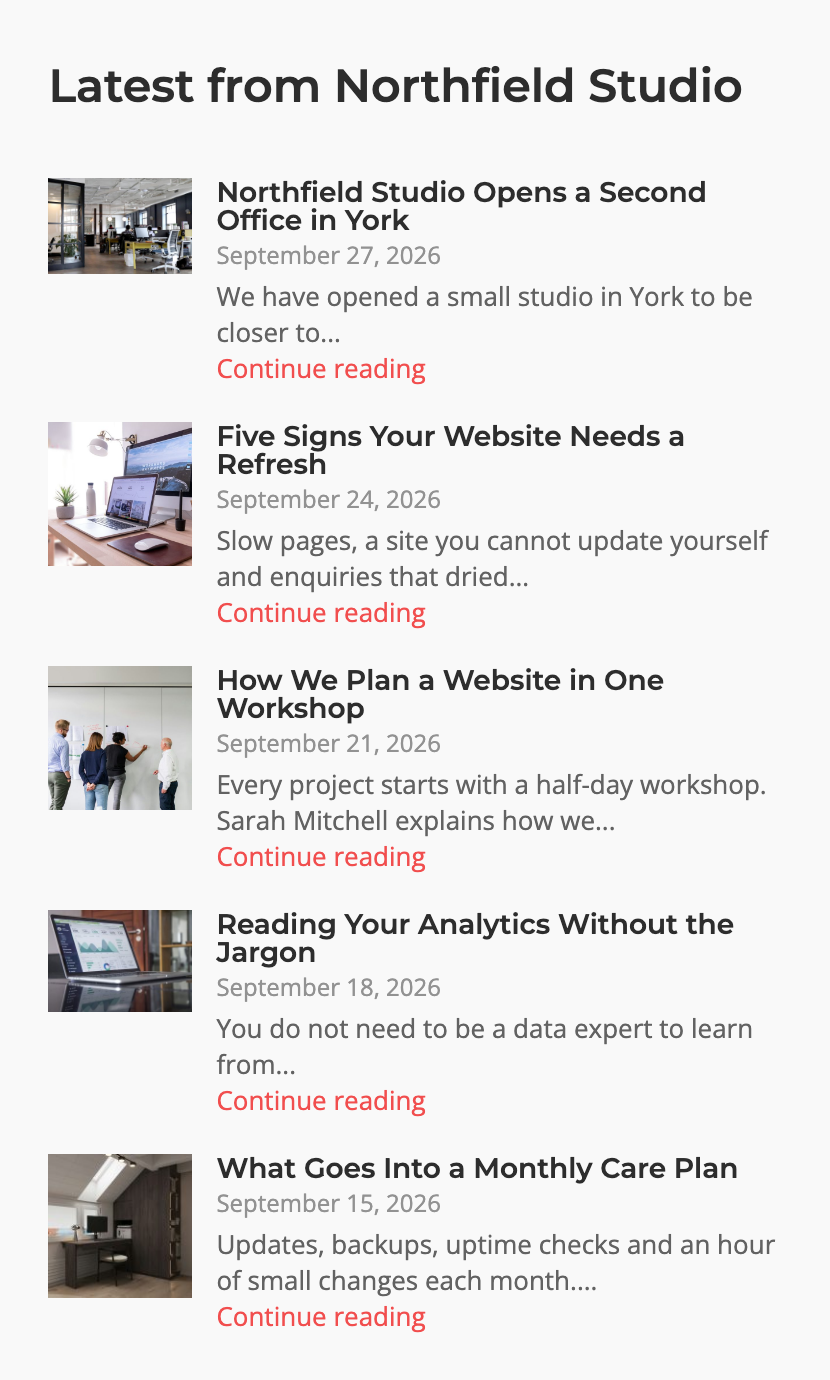
The Recent Posts Widget shows a list of your latest posts. Each item can show a featured image, title, date, excerpt and a read more link. Use the Posts Query to choose which posts to show and in what order.
Requirements
To use this widget, go to PluginsSiteOrigin Widgets and activate the SiteOrigin Recent Posts Widget.
You can use the Recent Posts Widget anywhere:
Page Builder: Add the widget to a Page Builder layout in the Classic Editor, or in the Page Builder Layout Block in the Block Editor.
Block Editor: Add the SiteOrigin Recent Posts block. You will find it in the SiteOrigin block category.
Theme and Plugin Widget Areas: Add the widget to any theme or plugin widget area.
Settings
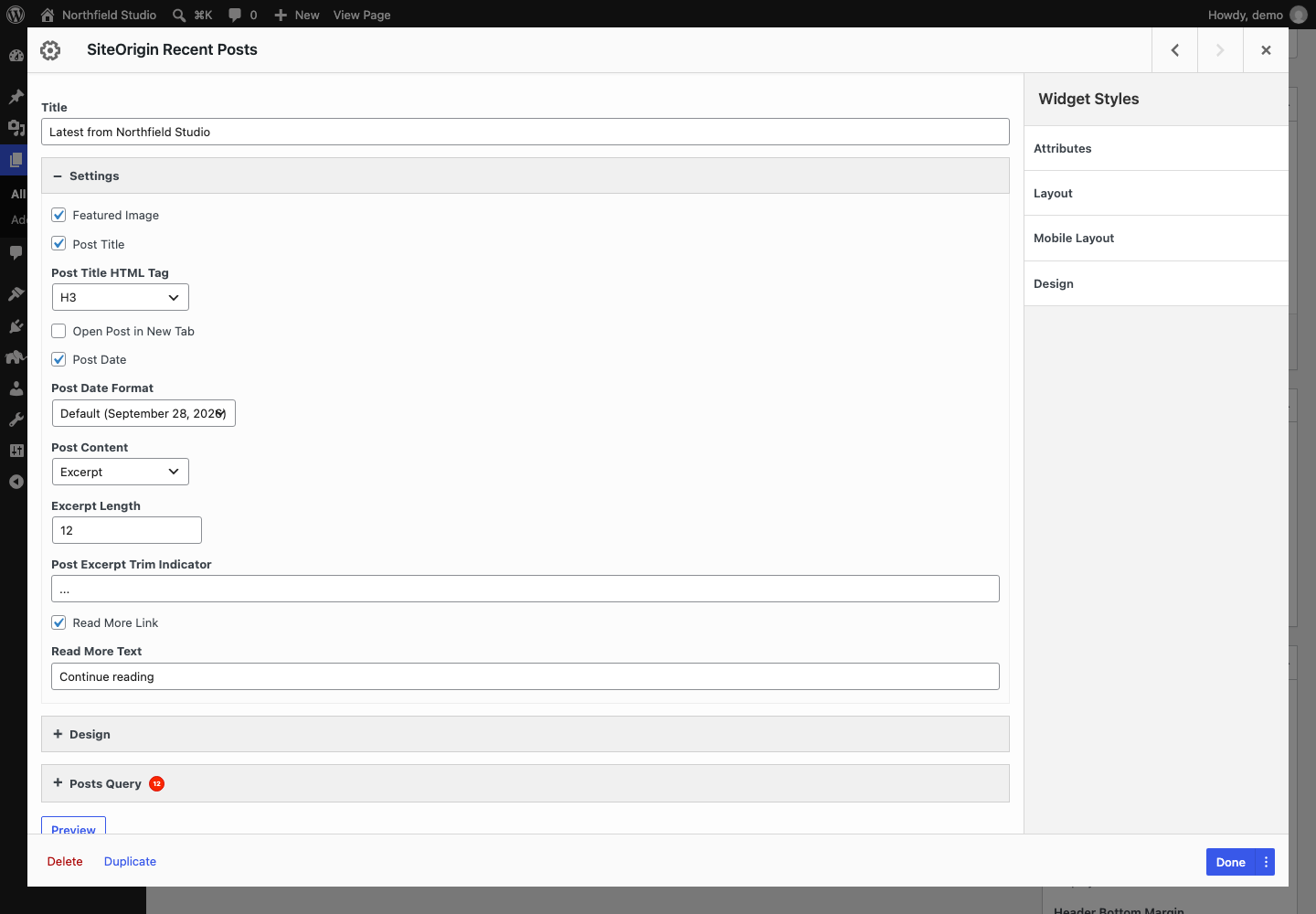
Title: An optional title above the list.
Settings
Featured Image: Show the post featured image. Default: on.
Post Title: Show the post title. Default: on.
Post Title HTML Tag: The HTML tag for the post title. Choose H1 to H6 or Paragraph. Default: H3. Shows when Post Title is on.
Open Post in New Tab: Open post links in a new tab. Default: off.
Post Date: Show the post published date. Default: on.
Post Date Format: Choose Default (your site’s date format), yyyy-mm-dd, mm/dd/yyyy or dd/mm/yyyy. Default: your site’s date format. Shows when Post Date is on.
Post Content: Choose None or Excerpt. Default: None.
Excerpt Length: The number of words in the excerpt. Default: 10. Shows when Post Content is Excerpt.
Post Excerpt Trim Indicator: The text added when Excerpt Length shortens an excerpt. Default: .... Shows when Post Content is Excerpt.
Read More Link: Add a link to the post below the excerpt. Default: off. Shows when Post Content is Excerpt.
Read More Text: The read more link text. Default: Continue reading. Shows when Read More Link is on.
If a post has a manual excerpt, the widget shows it in full. Excerpt Length and Post Excerpt Trim Indicator apply only to automatic excerpts. WordPress limits automatic excerpts to 55 words by default, so a higher Excerpt Length has no effect.
The read more link still shows if you set Post Content to None while Read More Link is on. To remove the link, turn off Read More Link first.
Design
Open the Design section to style each part of the list.
Post
Bottom Margin: The space below each post. Default: 18px.
Featured Image
This section shows when Featured Image is on.
Placement: Choose Above, Right, Below or Left. Default: Left.
Gutter: The space between the image and the post details. Applies at and above the Responsive Breakpoint. Default: 12px.
Max Image Size: The maximum image width. Default: 72px.
Padding: The padding around the image. Default: 0px.
Border Style: Choose None, Solid, Dotted, Dashed, Double, Groove, Ridge, Inset or Outset. Default: None.
Border Color: Default: #e6e6e6. Shows when Border Style is not None.
Border Thickness: Default: 1px. Shows when Border Style is not None.
The widget uses a 216×216 pixel image, cropped from the center. WordPress creates this size when you upload an image while the widget is active. For older images, use a plugin that regenerates thumbnails.
Post Title
This section shows when Post Title is on.
Font: The title font. Default: the theme font.
Font Size: Default: 14px.
Color: Default: #2d2d2d.
Hover Color: Default: #626262.
Post Date
Font: The date font. Default: the theme font.
Font Size: Default: 12px.
Color: Default: #929292.
Post Excerpt
This section shows when Post Content is Excerpt.
Font: The excerpt font. Default: the theme font.
Font Size: Default: 13px.
Color: Default: #626262.
Read More Link
This section shows when Read More Link is on.
Font: The link font. Default: the theme font.
Font Size: Default: 13px.
Color: The link color. Default: the theme link color.
Color Hover: The link hover color. Default: the theme link hover color.
Top Margin: The space above the link. No default.
List Style
Icon: The marker before each post. Choose None, Image, Disc, Circle or Square. Default: None.
Image: The icon image. Pick an image from the Media Library or enter an external URL. Shows when Icon is Image.
Indent: The space between the icon and the post. Applies at and above the Responsive Breakpoint. Default: 10px. Shows when Icon is not None.
Max Icon Size: The width and height of the icon image. Default: 25px. Shows when Icon is Image.
Color: The icon color. Default: #929292. Shows when Icon is Disc, Circle or Square.
Posts Query
Open the Posts Query section to choose which posts the widget shows. The widget normally leaves out the post or page it is on.
Post Type: Choose one or more post types, or All. Default: Posts.
Taxonomies: Show only posts in these categories, tags or other terms. Type to search.
Taxonomies Relationship: OR shows posts that have at least one of the terms. AND shows posts that have all of them. Default: OR.
Date Selection Type: Choose Specific for fixed dates, or Relative for dates relative to today. Default: Specific.
Dates: The date range. With Specific, pick a From and a to date. With Relative, enter a number and choose days, weeks, months or years ago for each end of the range.
Order By: How to sort the posts. Default: Published date.
Order Direction: Choose Ascending or Descending. Default: Descending.
Posts Per Page: The number of posts to show. Default: 5.
Sticky Posts: Choose Default, Ignore sticky, Exclude sticky or Only sticky. Default: Default.
Additional: Extra query arguments in URL query format. See WP_Query for the arguments you can use.
The Order By options are: No order, Post ID, Author, Title, Published date, Modified date, By parent, Random order, Comment count, Menu order, By meta value, By numeric meta value and By include order.
The Sticky Posts options work like this:
- Default: WordPress moves sticky posts to the top. They can show in addition to the Posts Per Page count and outside the Dates range. For an exact count or date range, use Ignore sticky or Exclude sticky.
- Ignore sticky: Sticky posts are not moved to the top. They show in their normal position.
- Exclude sticky: Sticky posts are removed from the list.
- Only sticky: Only sticky posts show. If your site has no sticky posts, the widget shows all posts.
Additional Query Examples
Skip the first post in the results:
offset=1
With the Default sticky setting, sticky posts can still show at the top. If you use offset, set Sticky Posts to Ignore sticky or Exclude sticky.
Show only posts by the author with the user ID 3:
author=3
Combine arguments with &:
offset=1&author=3
Global Settings
Go to PluginsSiteOrigin Widgets, find the Recent Posts Widget and click Settings.
Responsive Breakpoint: Below this screen width, the featured image stacks above the post details and the Placement setting no longer applies. Default: 780px.
Related Links
- Blog Widget: a full post archive with pagination and templates.
- Author Box Widget
- WordPress: WP_Query arguments