
 Page Builder
  Widgets Bundle
  SiteOrigin CSS
  Installer
 Tiled Galleries
2 min read Updated
Jetpack Tiled Galleries show your images as a mosaic, square tiles, circles or columns in place of the standard WordPress gallery grid. Unwind does not add its own styles to tiled galleries. For a gallery made in the Classic Editor, Jetpack uses the Unwind content width of 1140 pixels and scales the gallery down to fit a narrower column, for example next to the sidebar. View a tiled gallery in the Unwind demo.
Go to PluginsAdd Plugin, search for Jetpack, then install and activate it. The next steps depend on the editor you use.
Block Editor
The Tiled Gallery block needs Jetpack connected to your WordPress.com account.
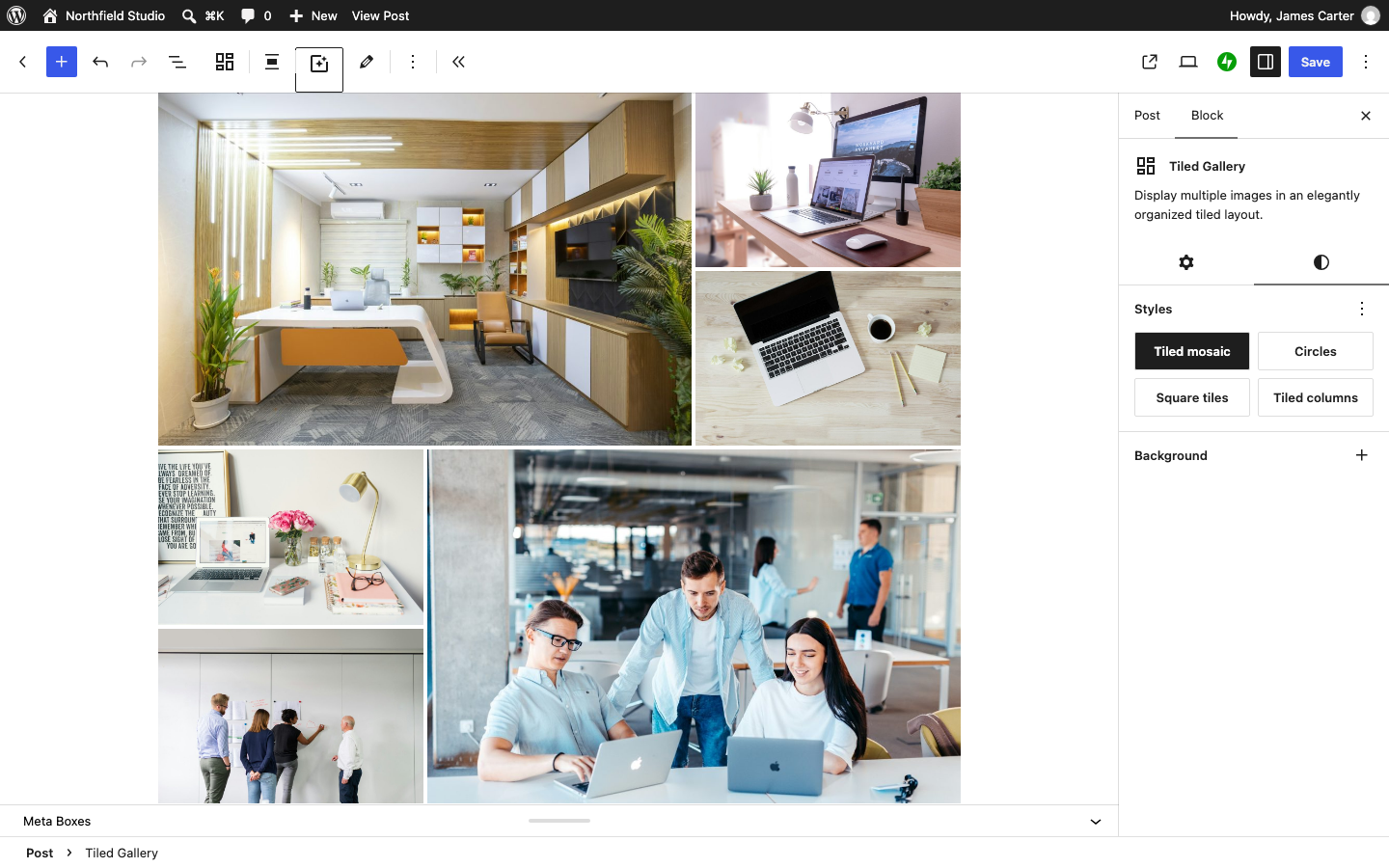
- Edit a post or page and add the Tiled Gallery block from the block inserter.
- Upload images or choose them from the Media Library.
- In the block sidebar, choose a style: Tiled mosaic, Circles, Square tiles or Tiled columns.
Classic Editor
The Classic Editor uses the Jetpack Tiled Galleries feature. Go to JetpackSettings, search for Tiled Galleries and turn it on if it is off.
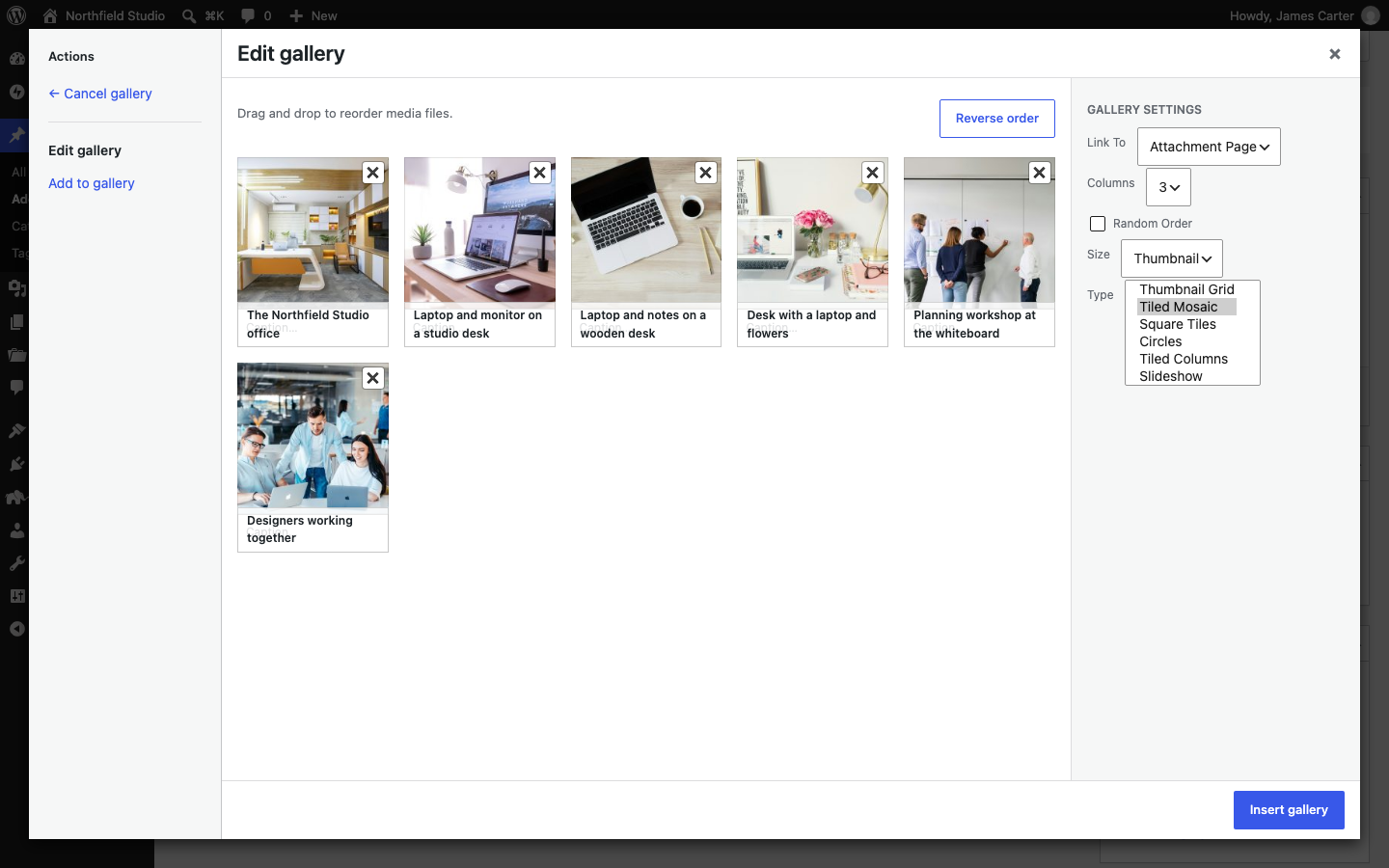
- Edit a post or page and click Add Media.
- Click Create gallery in the left column, choose your images, then click Create a new gallery.
- In Gallery Settings in the right column, choose a layout in the Type list: Thumbnail Grid, Tiled Mosaic, Square Tiles, Circles or Tiled Columns.
- Click Insert gallery.
To make Tiled Mosaic the default type for new galleries, go to SettingsMedia and turn on Tiled Galleries.
Tiled Galleries in Gallery Format Posts
In a post with the Gallery format, Unwind shows the first gallery as a slider at the top of the post. A gallery that you add in the Classic Editor becomes that slider and loses its tiled layout. The Tiled Gallery block keeps its layout, because Unwind only looks for standard galleries. To show a tiled gallery as it is, use the block or give the post the Standard format. See Post Formats.
For all the gallery options, see the Jetpack Tiled Galleries help page.