
 Page Builder
  Widgets Bundle
  SiteOrigin CSS
  Installer
 Post Sharing
2 min read Updated
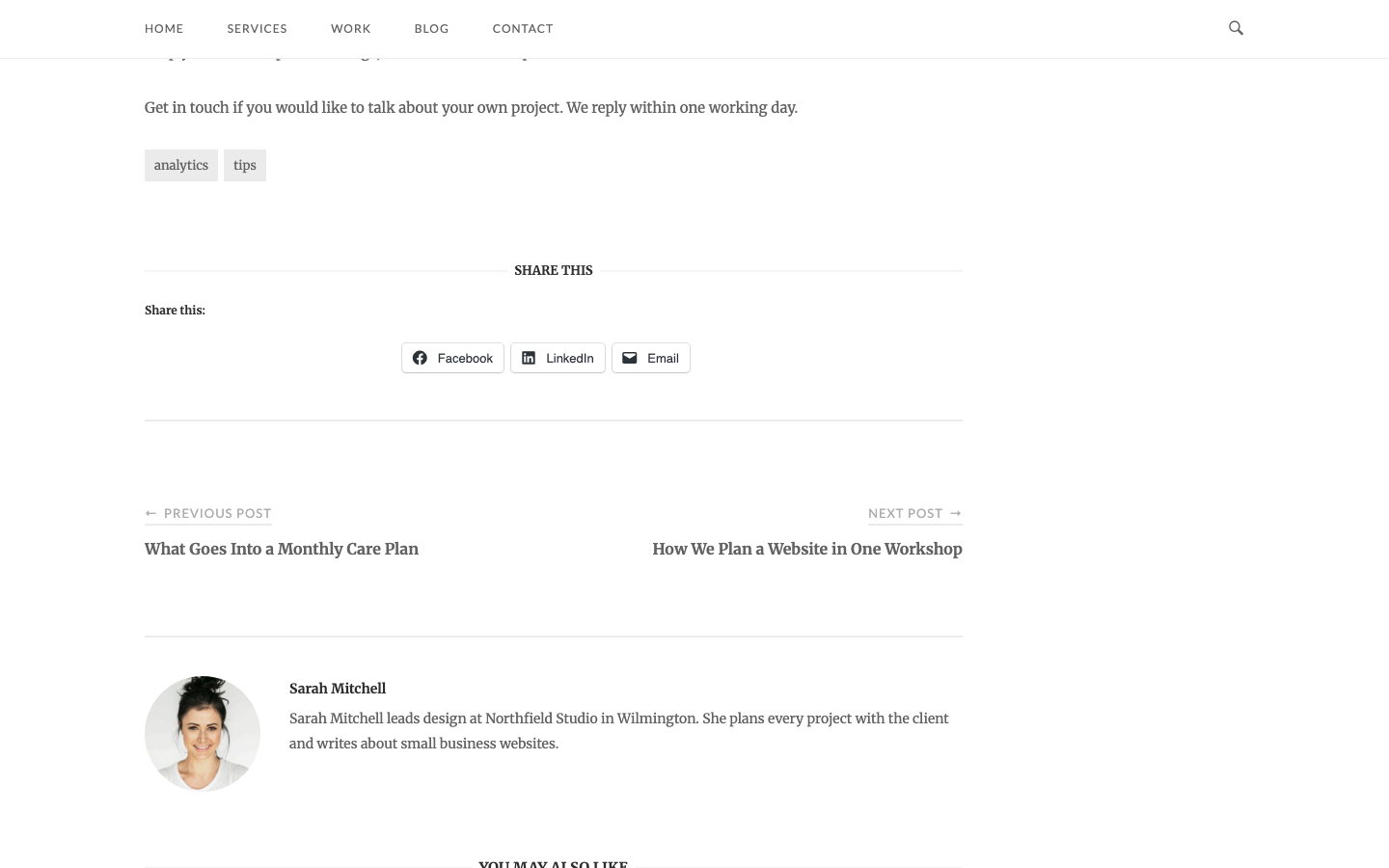
Unwind shows the Jetpack Sharing buttons under a Share This heading below single posts and portfolio projects, centered and styled to match the theme.
Install Jetpack
Go to PluginsAdd Plugin, search for Jetpack, then install and activate it.
Set Up Sharing
- Go to JetpackSettings, open the Sharing tab and turn on Add sharing buttons to your posts and pages.
- Click Configure your sharing buttons. The same settings are at SettingsSharing.
- Drag the services you want from Available Services to Enabled Services. To remove a service, drag it back.
- Choose the Button style: Icon + text, Icon only, Text only or Official buttons.
- Clear the Sharing label field, because Unwind shows its own Share This heading.
- In Show buttons on, choose Posts. If you use the Jetpack Portfolio, also choose Projects.
- Leave Disable CSS and JS off, then click Save Changes.
Jetpack changes its settings screens from one version to the next. If a field is not there, see the Jetpack Sharing help page.
Where the Buttons Show
Unwind shows the buttons on single posts and single portfolio projects only, after the content and before the post navigation. If you also choose pages, or Front Page, Archive Pages, and Search Results, in Show buttons on, Unwind does not show the buttons there. Unwind removes the default Jetpack placement, so the buttons do not show twice or in the post excerpts. If the Jetpack Likes feature is on, the Likes show on single posts just before the sharing buttons.
The Share This heading shows on every single post and project while the Jetpack sharing feature is on, even where no buttons show. To keep the heading and the buttons together, keep Posts and Projects chosen in Show buttons on, and do not turn off the sharing buttons for single posts.