
 Page Builder
  Widgets Bundle
  SiteOrigin CSS
  Installer
 Page Template Settings
2 min read Updated
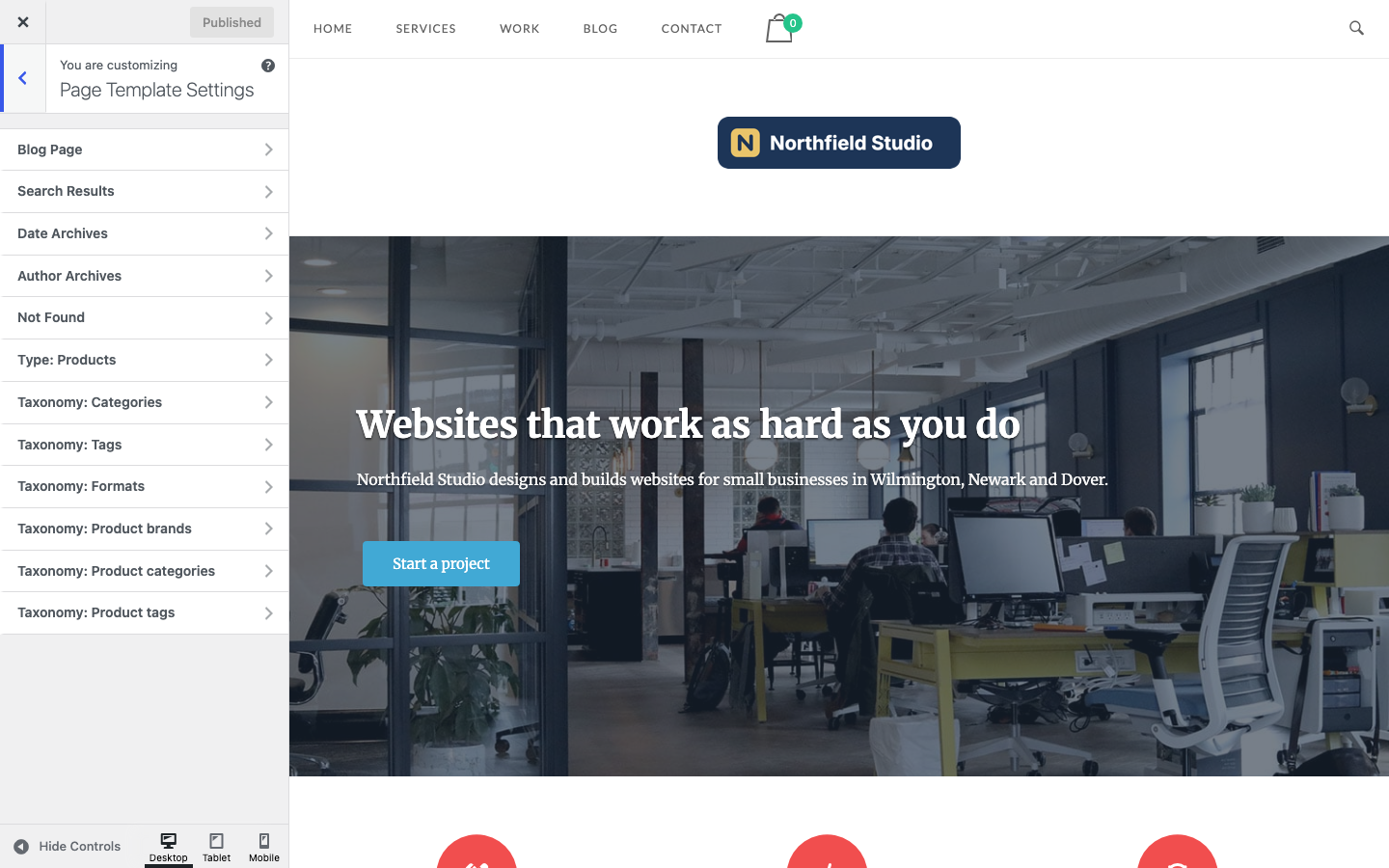
The Page Template Settings panel sets the layout of the pages WordPress builds for you: the blog page, search results, archives, the WooCommerce Shop page and the 404 page. Go to AppearanceCustomizePage Template Settings.
To change one page, post or project, use its Page settings box instead; see Page Settings.
Sections
The panel has a section for each of these templates, post types and taxonomies:
- Blog Page: The page set as Posts page at SettingsReading, or the home page when it shows your latest posts.
- Search Results
- Date Archives
- Author Archives
- Not Found: The 404 page.
- Type: {name}: One section for each public post type that has an archive, for example Type: Products for the WooCommerce Shop page.
- Taxonomy: {name}: One section for each public, publicly queryable taxonomy, for example Taxonomy: Categories, Taxonomy: Tags or Taxonomy: Product categories.
The sections that show depend on your plugins. A plugin that adds a public post type with an archive, or a public, publicly queryable taxonomy, adds a section here. For example, Jetpack Portfolio adds sections for the portfolio archive and for project types and tags.
Settings
Each section has the same settings as the Page settings box. See Page Settings for what each one does:
- Page Layout: Default, No Sidebar, Full Width or Full Width, With Sidebar
- Page Title, which shows the archive, search results or 404 page heading
- Header Bottom Margin
- Footer Top Margin
- Header
- Footer Widgets
By default, Page Layout is set to Default and every checkbox is on. The exception is Blog Page, where Page Title is off. Unwind does not show a visible heading on the blog page, so ticking Page Title in this section has no effect.
Common Changes
- To remove the sidebar from the WooCommerce Shop page, set Page Layout in Type: Products to No Sidebar. The Shop page uses the Shop widget area; see Widget Areas.
- To hide the category name and description above a category archive, clear Page Title in Taxonomy: Categories.
- To widen the search results page, set Page Layout in Search Results to Full Width.
The preview reloads after each change. To see a section’s result, open a page of that type in the preview, then click Publish to save.
Which Settings a Page Uses
- The Posts page and the Shop page ignore their own Page settings box. Use the Blog Page and Type: Products sections.
- A page that shows posts with a widget, for example the Post Loop Widget in Page Builder, is still a page. It uses its own Page settings box.
- To change the defaults with code, use the
siteorigin_page_settings_defaultsfilter. See Advanced Customizations.