
 Page Builder
  Widgets Bundle
  SiteOrigin CSS
  Installer
 Getting Started
3 min read Updated
SiteOrigin Unwind is a free WordPress theme for blogs and online stores, with four header designs, five blog layouts and full WooCommerce support. It works best with Page Builder and the Widgets Bundle. This page takes you from a new install to a working site.
Requirements
- WordPress 4.7 or higher.
- PHP 7.0 or higher.
- Optional: Page Builder by SiteOrigin to build page layouts and the Home Page screen.
- Optional: SiteOrigin Widgets Bundle for widgets such as the Hero, Button and Contact Form Widgets, and for the social icons in the header.
Install Unwind
- Go to AppearanceThemes and click Add Theme.
- Type SiteOrigin Unwind in the search field.
- Click Install on the SiteOrigin Unwind card, then click Activate.
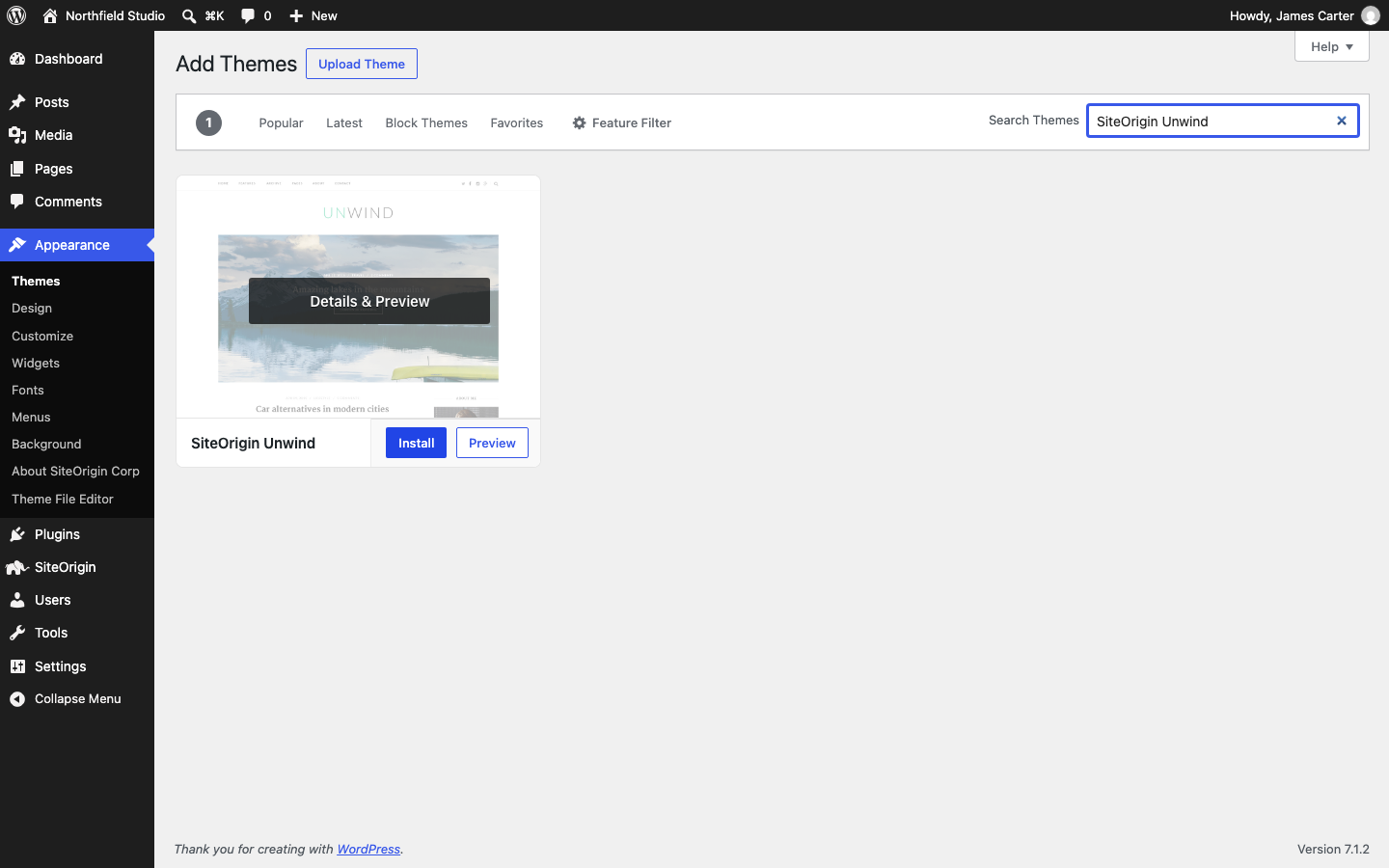
To install a zip file instead, click Upload Theme, choose the zip file and click Install Now. Then click Activate.
After you activate Unwind, WordPress shows a notice with a Learn About SiteOrigin Unwind button. It opens AppearanceAbout SiteOrigin Unwind, which links to this documentation.
Install the Plugins You Need
Unwind does not ask you to install any plugin. Add the ones you want:
- Go to PluginsAdd Plugin.
- Search for Page Builder by SiteOrigin or SiteOrigin Widgets Bundle, click Install Now, then click Activate.
Page Builder and the Widgets Bundle work with any theme and keep working if you change theme later. For other plugins that Unwind supports, such as WooCommerce, Jetpack and breadcrumb plugins, see Integrated Plugins.
Open the Customizer
Go to AppearanceCustomize. Unwind adds two panels:
- Theme Settings holds the Unwind settings for branding, fonts, header, navigation, icons, layout, blog and footer. See Theme Settings.
- Page Template Settings sets the layout for the blog page, archives, search results and the 404 page. See Page Template Settings.
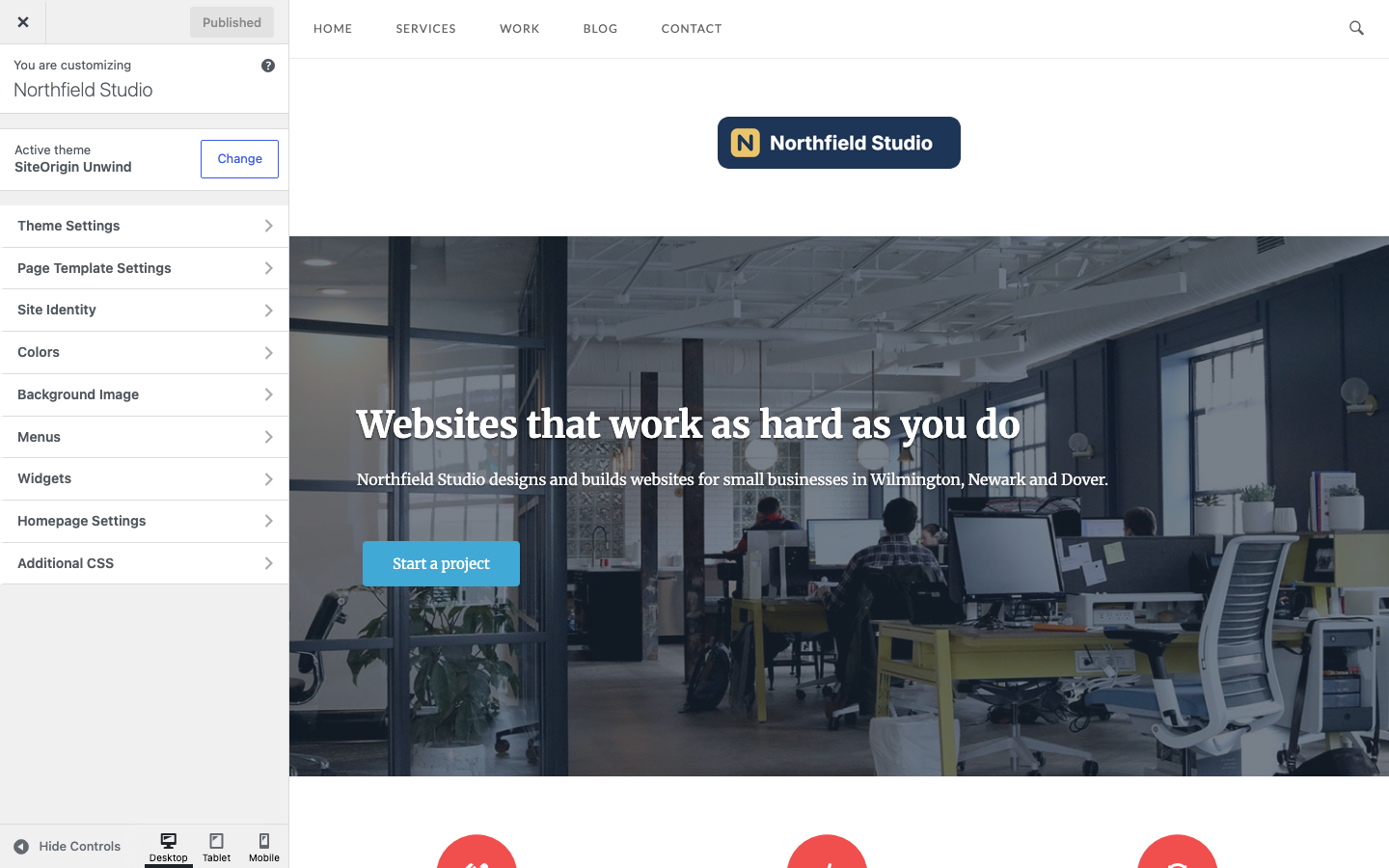
WordPress adds its own panels too: Site Identity holds your site title, tagline and site icon, and Menus and Widgets manage your menus and widget areas. Click Publish to save your changes.
Set Up Your Site
- Add your logo at AppearanceCustomizeTheme SettingsBranding, as shown in Branding.
- Choose a header design at AppearanceCustomizeTheme SettingsHeader, as shown in Header.
- Create your menu and assign it to Primary Menu, as shown in Menus.
- Add your widgets to the sidebar, footer and masthead, as shown in Widget Areas.
- Choose the blog layout at AppearanceCustomizeTheme SettingsBlog, as shown in Blog.
- Choose the layout of each page in its Page settings box, as shown in Page Settings.
Build a Home Page
By default, your home page shows your latest posts in the blog layout you choose. To use a page you design instead:
- Go to PagesAdd Page, type a title such as Home and build the page. With Page Builder in the Block Editor, add the SiteOrigin Layout Block: search the block inserter for SiteOrigin Layout. In the Classic Editor, click the Page Builder tab.
- In the Page settings box, set Page Layout to No Sidebar and clear Enable under Page Title. Click Publish.
- Go to SettingsReading, choose A static page (select below), choose your page for Homepage and click Save Changes.
To keep a blog, create an empty page such as Blog and choose it for Posts page. With Page Builder active, you can also build the front page at AppearanceHome Page; Unwind sets the page it creates to No Sidebar with the title off. See the Page Builder documentation.
SiteOrigin Premium
SiteOrigin Premium adds three theme addons for Unwind: the Logo Booster Addon for a different logo on scroll or on one page, the No Attribution Addon to remove the SiteOrigin footer link, and the Ajax Comments Addon to post comments without a page reload.
Get Help
If you are new to Page Builder, read the Page Builder documentation. For questions, use the SiteOrigin forum.