
 Page Builder
  Widgets Bundle
  SiteOrigin CSS
  Installer
 Menus
2 min read Updated
Unwind shows your main menu in the header through one menu location, Primary Menu, and nested menu items open as drop down sub menus.
Create and Assign a Menu
- Go to AppearanceMenus.
- Click create a new menu, type a name such as Main Menu and click Create Menu.
- On the left, open Pages, tick the pages you want and click Add to Menu. Drag an item to the right, under another item, to make it a sub item.
- Under Menu Settings, tick Primary Menu for Menu location.
- Click Save Menu.
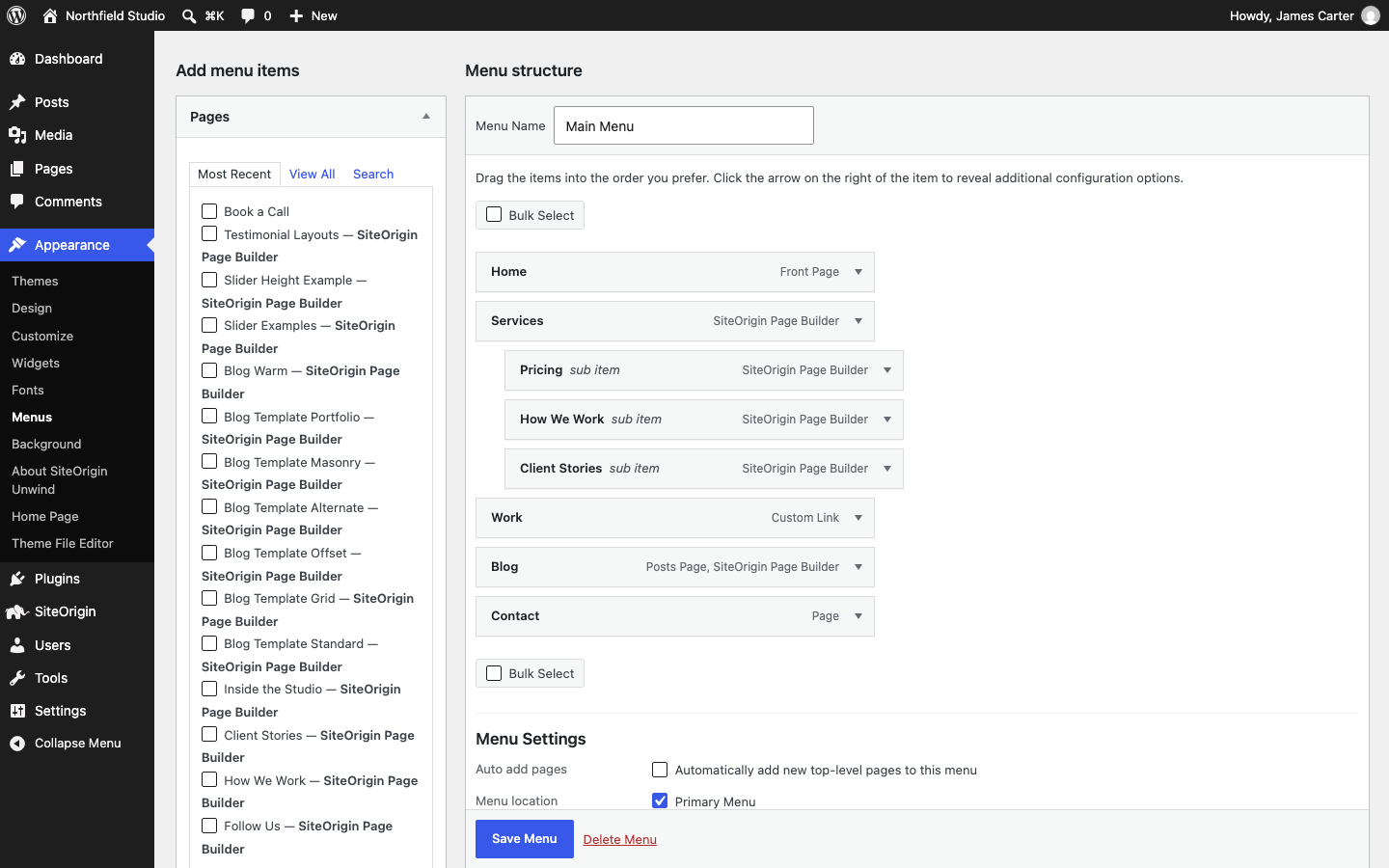
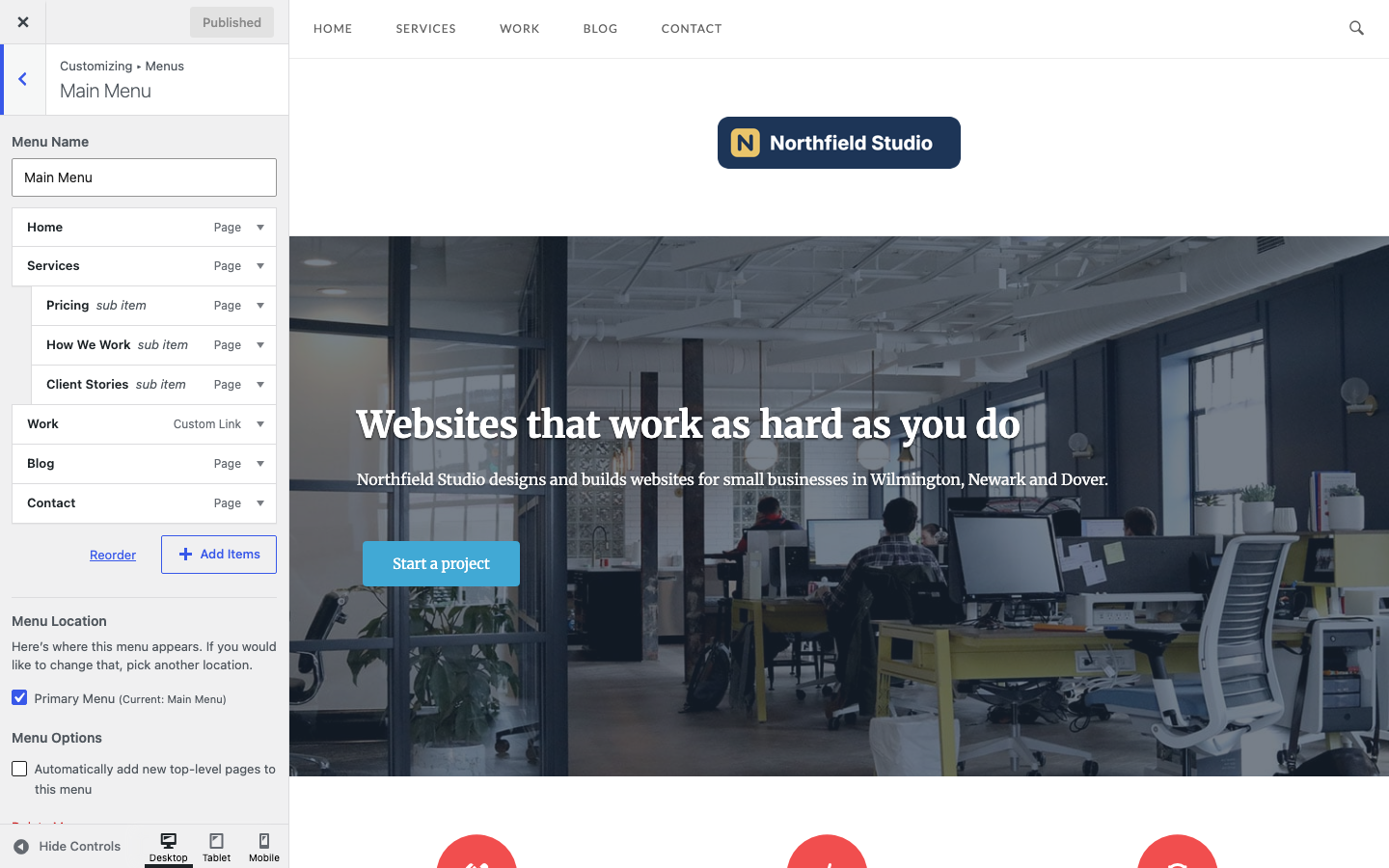
You can also assign a menu at AppearanceMenusManage Locations, or in the Customizer at AppearanceCustomizeMenus, where you see the changes in the preview before you publish.
Until you assign a menu to Primary Menu, Unwind shows a list of your pages in the header.
Where the Menu Shows
The Header Design setting in Header decides where the menu sits. The default is Menu above header.
- Menu above header: The menu is in a bar above the logo, with the social icons and search icon on the right.
- Menu below header: The same bar sits below the logo.
- Menu centered below header: The menu is centered in a bar below the logo. The social icons and search icon move to a bar above the logo.
- Menu inline with logo: The logo is on the left and the menu is beside it in the same bar. The social icons and search icon are in a bar above.
By default, on screens 768px wide or narrower, the menu collapses into a mobile menu button, which opens the menu as a list. Change the width with Mobile Menu Collapse in Navigation.
Menu Settings
The menu settings are in the Customizer at AppearanceCustomizeTheme SettingsNavigation. There you can turn off the search icon (Menu Search) and stop the menu bar from sticking to the top of the screen as you scroll (Sticky Menu); both are on by default, and Navigation covers each setting.
Settings in other sections change the menu as well:
- To add social icons beside the menu, click Edit Widget in Header. This needs the SiteOrigin Widgets Bundle.
- Details Font and Medium Text Color in Fonts set the menu font and color. They also change other text on the site.
- To use your own images for the mobile menu button and the search icon, set Mobile Menu Icon and Menu Search Icon in Icons.
- When WooCommerce is active, Unwind adds a cart icon to the menu. Turn it off with Mini Cart (default on) in WooCommerce. The cart icon does not show on the cart and checkout pages.
Mega Menus
Unwind supports Max Mega Menu in the Primary Menu location. While Max Mega Menu is enabled for that location, Unwind does not add its own mobile menu button. See Integrated Plugins.