
 Page Builder
  Widgets Bundle
  SiteOrigin CSS
  Installer
 Navigation
2 min read Updated
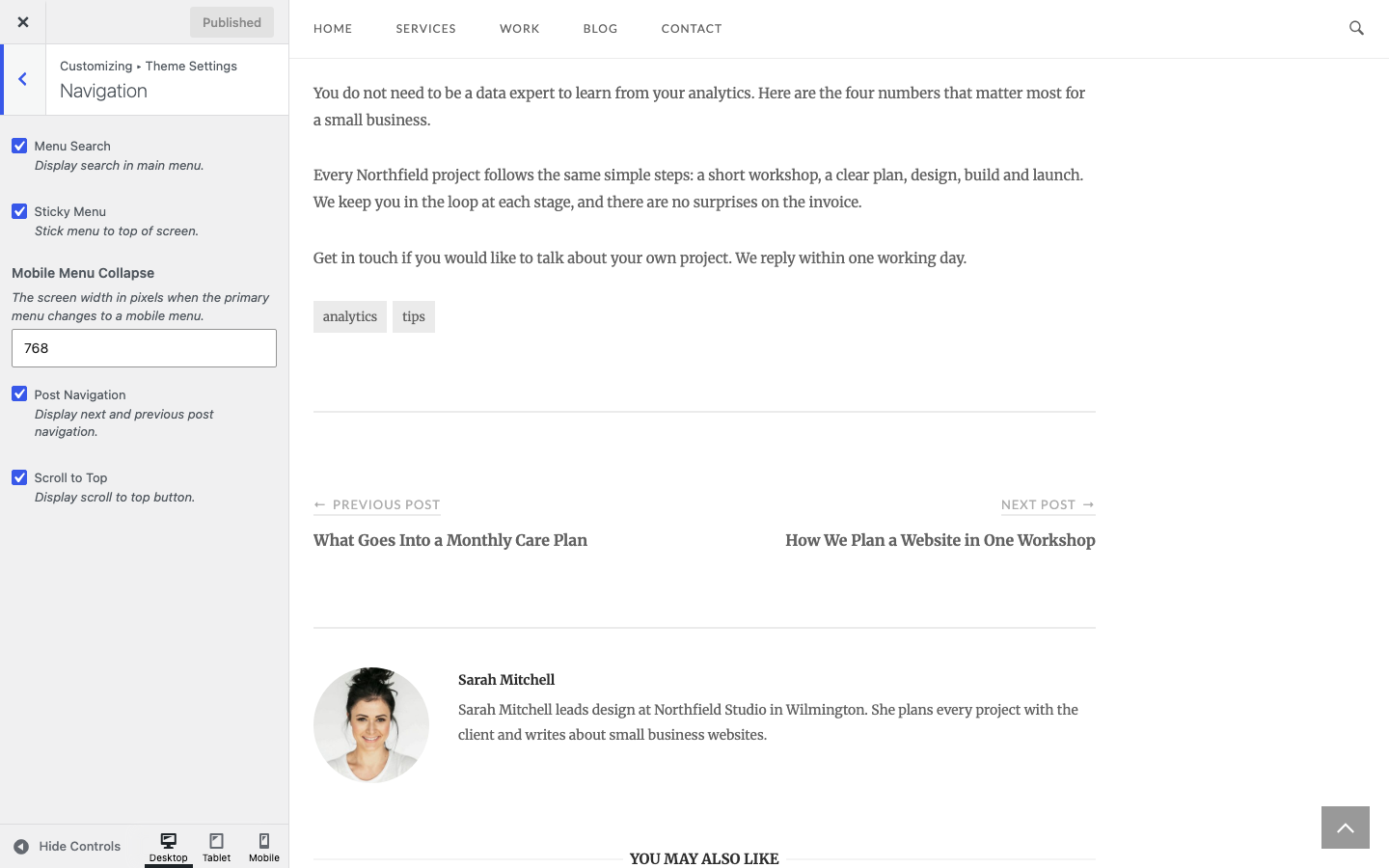
The Navigation section turns on the header search, the sticky menu, the links between posts and the scroll to top button, and sets the width at which the mobile menu takes over. Go to AppearanceCustomizeTheme SettingsNavigation. To add a menu, see Menus.
Header Menu
Menu Search
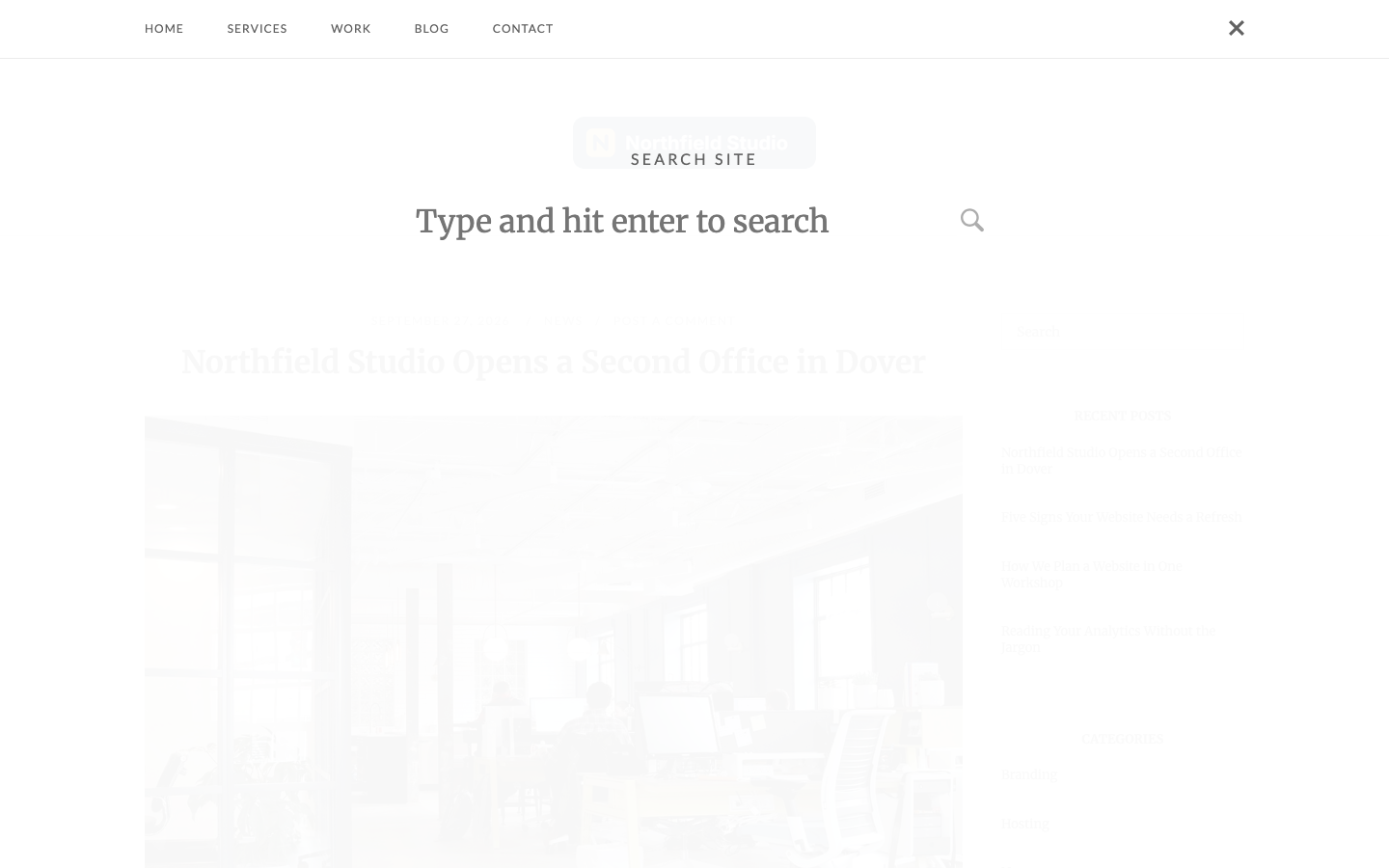
Show a search icon in the header. A click on the icon opens a search form with the heading Search Site. The form covers the page below the bar that holds the icon, and the icon changes to a close icon. The visitor closes the form with the close icon or the Esc key. Where the icon sits depends on the Header Design in Header. Default: on.
Sticky Menu
Keep the menu at the top of the screen once the visitor scrolls past it. In Menu above header and Menu below header, the bar with the menu, the social icons and the search icon sticks. In Menu centered below header, the centered menu bar sticks. In Menu inline with logo, the bar with the logo and the menu sticks. Default: on.
Mobile Menu Collapse
The screen width in pixels at which the menu changes to a mobile menu button. At this width or less, a click on the button opens the menu as a drop down list. With Mini Cart on in WooCommerce, the cart link shows in the mobile menu, except on the Cart and Checkout pages. Default: 768.
If Max Mega Menu is active on the primary menu, Unwind does not show its own mobile menu button.
Posts
Post Navigation
Show links to the previous and next posts below the content of single posts and portfolio projects, when there is a previous or next item. Default: on.
Scroll to Top
Scroll to Top
Show a dark button with an up arrow at the bottom right of the screen. It shows once the visitor scrolls past the header, and a click on it scrolls back to the top. Default: off.
Related
- Header for the header designs and the social icons.
- Icons to replace the search and mobile menu icons.
- Menus to set up the primary menu.
- CSS Snippets for the mobile menu colors.