
 Page Builder
  Widgets Bundle
  SiteOrigin CSS
  Installer
 Icons
1 min read Updated
The Icons section replaces four of Unwind’s built-in header icons with images from your Media Library. Go to AppearanceCustomizeTheme SettingsIcons. Leave a field empty to keep Unwind’s icon.
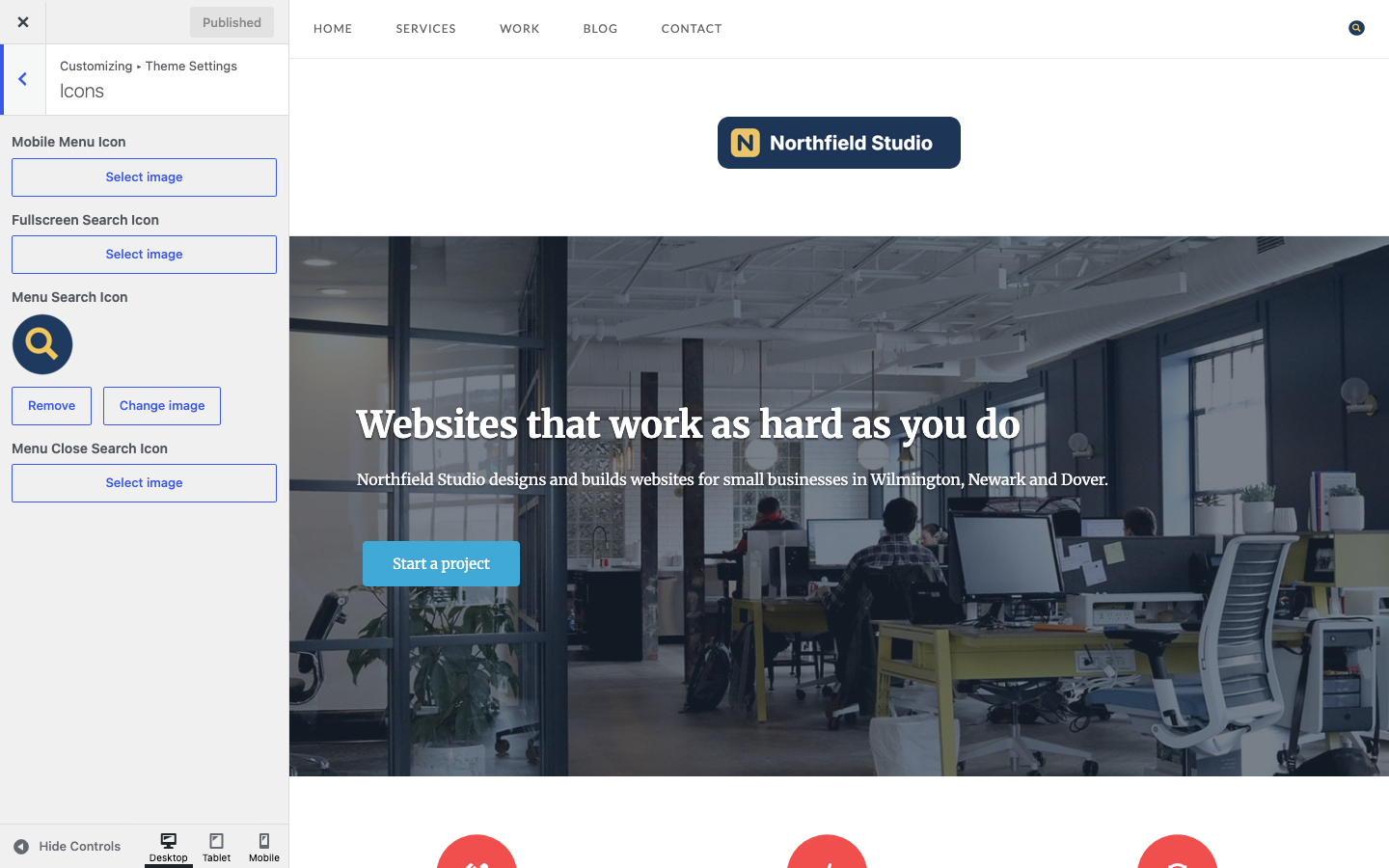
Mobile Menu Icon
Replaces the three-line icon of the mobile menu button. Unless Max Mega Menu is active on the primary menu, the button shows on screens at or below the Mobile Menu Collapse width in Navigation. Unwind shows it 22 pixels wide. Default: none.
Fullscreen Search Icon
Replaces the search icon on the button of the search form that opens from the header. Unwind sets no display size for a custom image here, so upload an icon of about 32 x 32 pixels, the size of the built-in icon. Default: none.
Menu Search Icon
Replaces the search icon in the header that opens the search form. Unwind shows it at 17 x 16 pixels. Default: none.
Menu Close Search Icon
Replaces the close icon that takes the place of the search icon while the search form is open and closes the form when clicked. Unwind shows it at 16 x 16 pixels. Default: none.
The three search icons show only when Menu Search is on in Navigation.
SVG Icons
WordPress does not accept SVG uploads by default. To use SVG icons, install a plugin that adds SVG support, for example SVG Support:
- Go to PluginsAdd Plugin.
- Search for SVG Support, then click Install Now and Activate.
- Upload your SVG icons in the Icons section.
Related
- Navigation to turn the menu search on or off and set the mobile menu width.
- Fonts to change the color of Unwind’s built-in icons with the Medium Text Color.