
 Page Builder
  Widgets Bundle
  SiteOrigin CSS
  Installer
 Custom Home Page
3 min read Updated
A custom home page replaces the list of latest posts on your front page with a layout you design in Page Builder. In North you can build it as a normal page in the Block Editor or the Classic Editor, or on the Home Page screen under Appearance.
Requirements
- Page Builder by SiteOrigin.
- Optional: SiteOrigin Widgets Bundle for widgets such as the Hero, Button, Features and Contact Form Widgets.
To install them, go to PluginsAdd Plugin, search for each plugin by name, click Install Now and then Activate. Both plugins work with any theme and keep working if you change theme later.
Build the Page
- Go to PagesAdd Page and type a title, for example Home.
- Start Page Builder: in the Block Editor, open the block inserter and add the SiteOrigin Layout Block, and in the Classic Editor, click the Page Builder tab.
- Add rows and widgets, or click Layouts to start from a prebuilt layout. In the Layouts Directory tab (click Enable the first time), click a layout, click Insert and choose Insert after.
- In the Page settings box, set Page Layout to No Sidebar and clear Display under Page Title.
- Click Publish.
The editor that opens for a new page depends on Use Classic Editor for New Posts at SettingsPage Builder. When it is on, and Post Types includes pages, new pages open in the Classic Editor. Both are the default. See Page Builder Settings.
For a page that starts with a full width image or slider, set Menu Position to Overlaps Content and clear Enable under Masthead Bottom Margin. See Page Settings.
Make It Your Home Page
- Go to SettingsReading.
- Choose A static page (select below) for Your homepage displays.
- Choose your page for Homepage and click Save Changes.
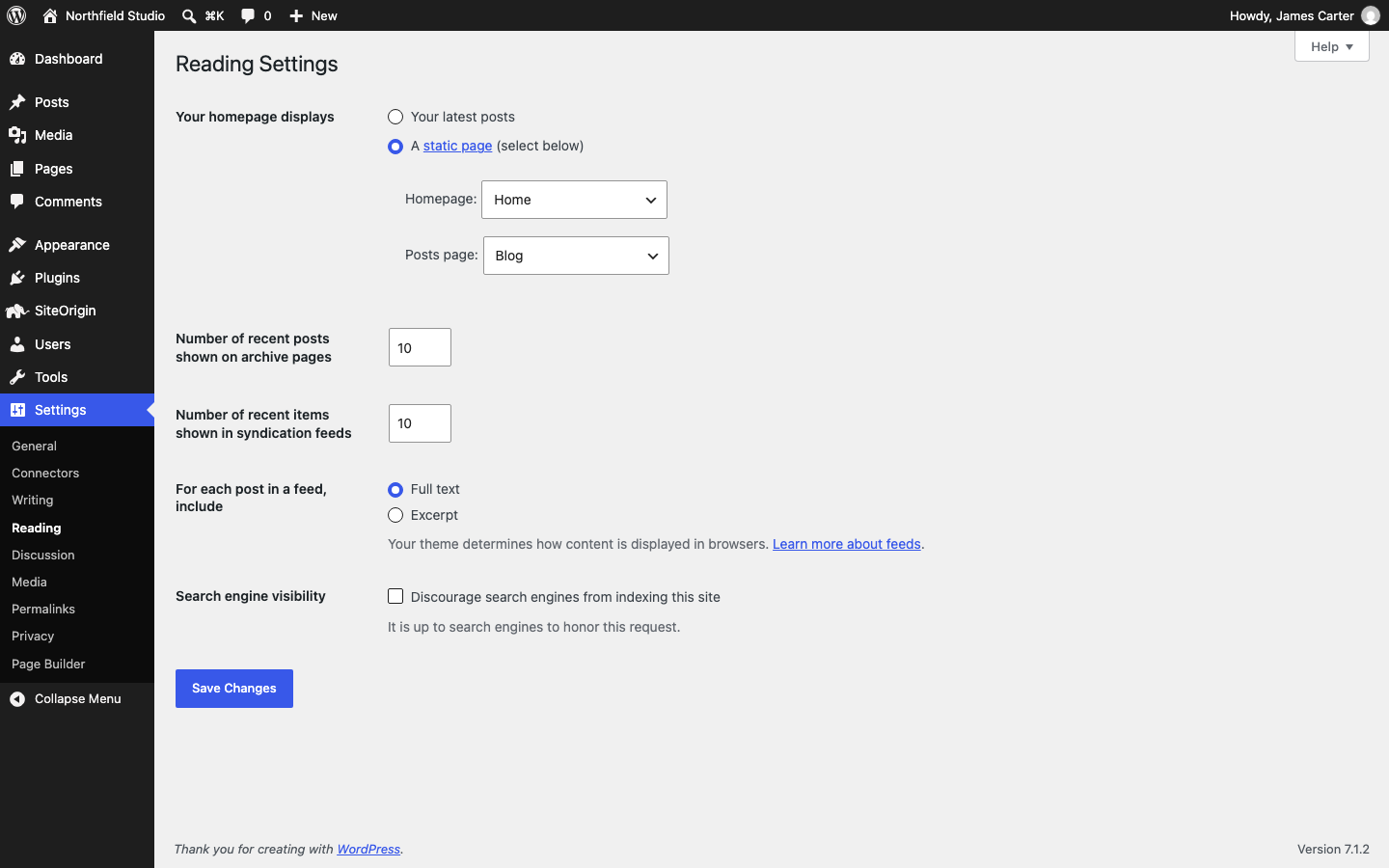
You can also use AppearanceCustomizeHomepage Settings. To show your posts on another page, create an empty page, for example Blog, and choose it for Posts page. That page shows your posts in place of its own content and takes its layout from Page Template Settings.
The Home Page Screen
North also turns on the Page Builder Home Page screen at AppearanceHome Page. It opens Page Builder for your front page without the page editor.
- Go to AppearanceHome Page.
- Build the layout with rows, widgets and Layouts.
- Turn the toggle next to Custom Home Page to On.
- Click Save Home Page.
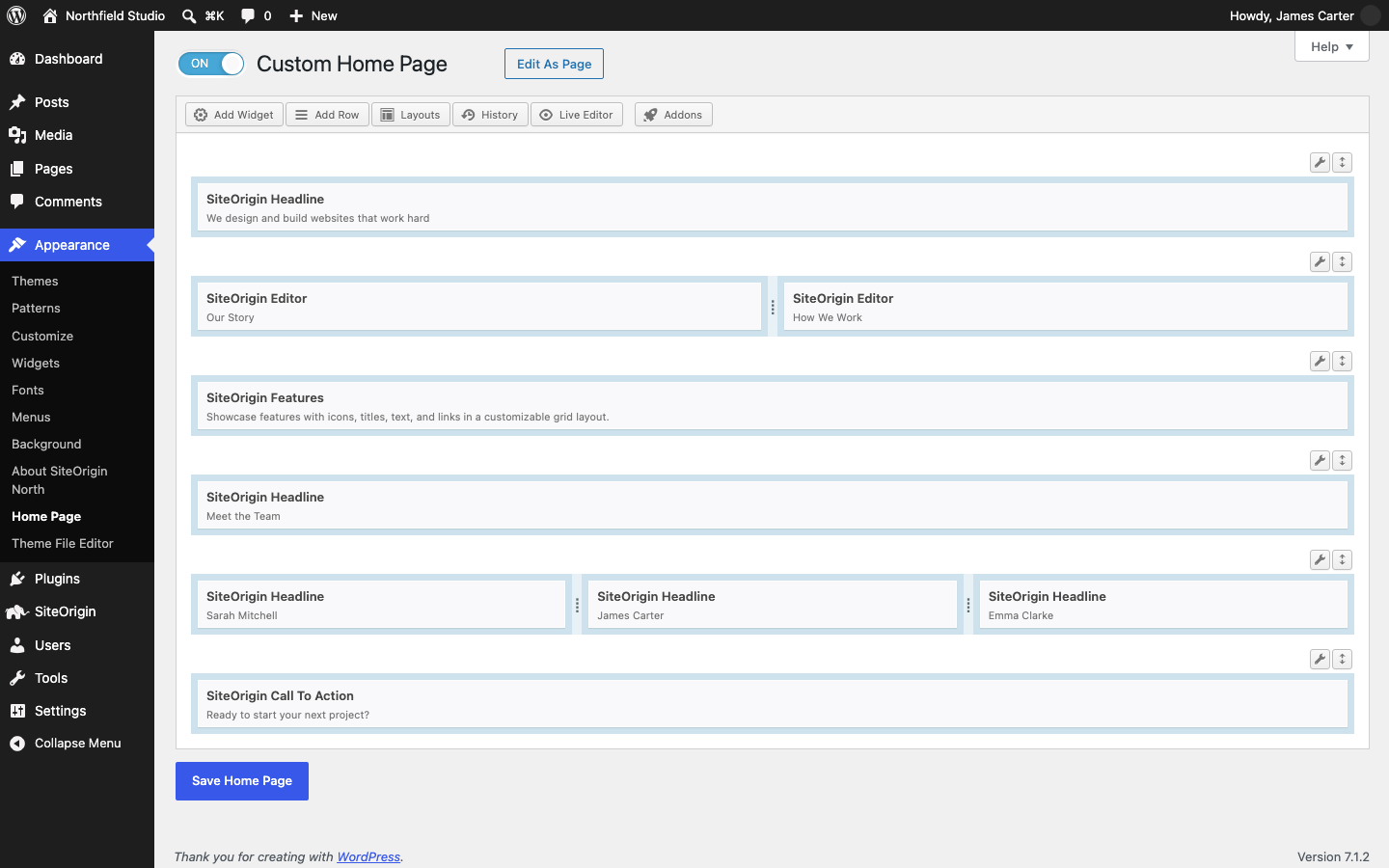
On the first save, Page Builder creates a page called Home Page and sets it as your static front page. North sets that page to No Sidebar and turns its page title off. After that, the Edit As Page button opens the page in the editor, and an Edit Home Page link shows in the admin bar when an administrator views the home page.
The screen edits your front page only when that page has a Page Builder layout from the Classic Editor or from this screen. For any other front page, including one built with the SiteOrigin Layout Block, saving the screen creates a new Home Page page, so edit a Block Editor page in the Block Editor.
To turn the custom home page off, set the toggle to Off and click Save Home Page. The page becomes a draft and your home page shows your latest posts again.
When Page Builder is not active, the screen shows an Install Page Builder Plugin link instead of the builder.