
 Page Builder
  Widgets Bundle
  SiteOrigin CSS
  Installer
 Header
3 min read Updated
The Header section controls the top bar, the header layout, and the colors and spacing of the header. Go to AppearanceCustomizeTheme SettingsHeader. To add a logo, see Branding. The sticky menu settings are in Navigation.
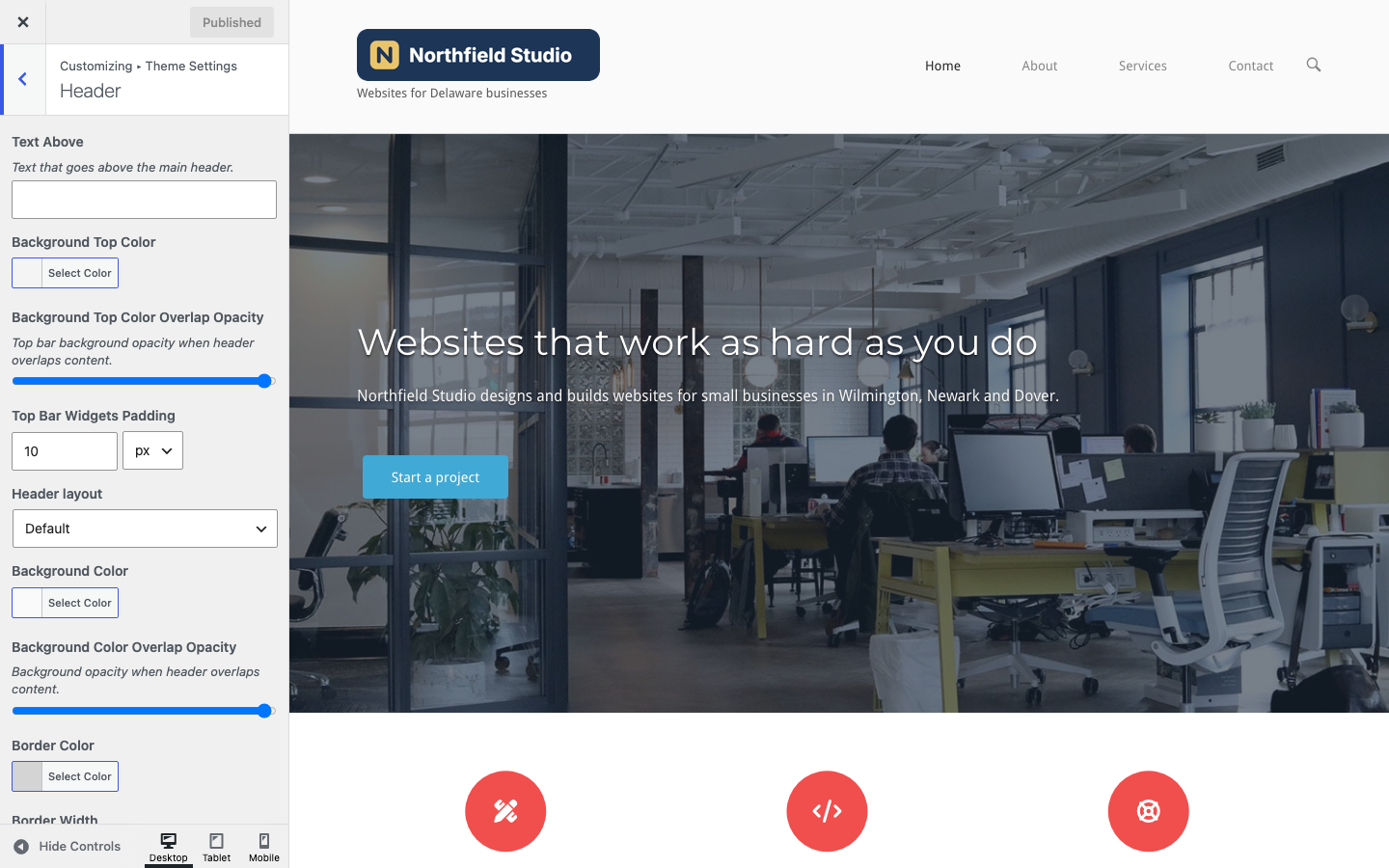
Top Bar
The top bar is a thin strip above the header. It shows when Text Above has text, when the Top Bar widget area has widgets, or when the WooCommerce store notice is on. If the Top Bar widget area has widgets, they replace the text.
Text Above
The text in the top bar, aligned to the right. You can add a link or other basic HTML, or leave it empty to hide the top bar. Default: empty.
For example, to show a phone number that visitors can tap to call:
Call us: <a href="tel:+13025550123">302-555-0123</a>

Background Top Color
The background color of the top bar. Default: #f4f4f4.
Background Top Color Overlap Opacity
The opacity of the top bar background on pages where the header overlaps the content. 0 is fully transparent and 1 is solid. Default: 0.975.
Top Bar Widgets Padding
The space above and below the widgets in the top bar. It has no effect on Text Above. Default: 10px.
To add widgets to the top bar, go to AppearanceWidgets and use the Top Bar widget area. Each widget gets its own column; see Widget Areas.
Header
Header layout
Choose Default or Centered. Default shows the logo on the left and the menu on the right. Centered shows the logo above the menu, and both are centered. Default: Default.


Background Color
The background color of the header. Drop down menus, the header search bar and the mini cart drop down use this color too. Default: #fafafa.
Background Color Overlap Opacity
The opacity of the header background on pages where the header overlaps the content. 0 is fully transparent and 1 is solid. Default: 0.975.
Border Color
The color of the line below the header and below the top bar. Drop down menus use it for their border. Default: #d4d4d4.
Border Width
The width of the line below the header and below the top bar. Default: 1px.
Padding
The space above and below the header content. In the Centered layout, it is also the space between the logo and the menu. Default: 30px.
Bottom Margin
The space between the header and the page content. Default: 30px. To remove it on one page, turn off Masthead Bottom Margin in Page Settings.
Header Overlap
To place the header over the content of one page, for example over a full width hero image, set Menu Position to Overlaps Content in Page Settings. The two overlap opacity settings above set how much of the content shows through the header and the top bar on those pages. With Sticky menu on, the header background turns solid when the visitor scrolls down. To hide the header on one page, use Hide Masthead in Page Settings.
Related
- Navigation for the sticky menu, the menu search and the scroll to top button.
- Fonts for the menu text colors.
- Menu Locations to add a menu to the header.
- CSS Snippets for a full width header and other header changes.