
 Page Builder
  Widgets Bundle
  SiteOrigin CSS
  Installer
 Page Settings
5 min read Updated
The Page settings box changes the layout of one page, post or Jetpack Portfolio project. Use it to remove the sidebar, let the header overlap a full width banner, hide the title, or strip the header and footer back for a landing page, cart or checkout page.
Find the Page Settings Box
North adds the box to pages, posts and, when Jetpack Portfolio is active, projects. Open the item in the editor and follow the route for your editor.
Block Editor
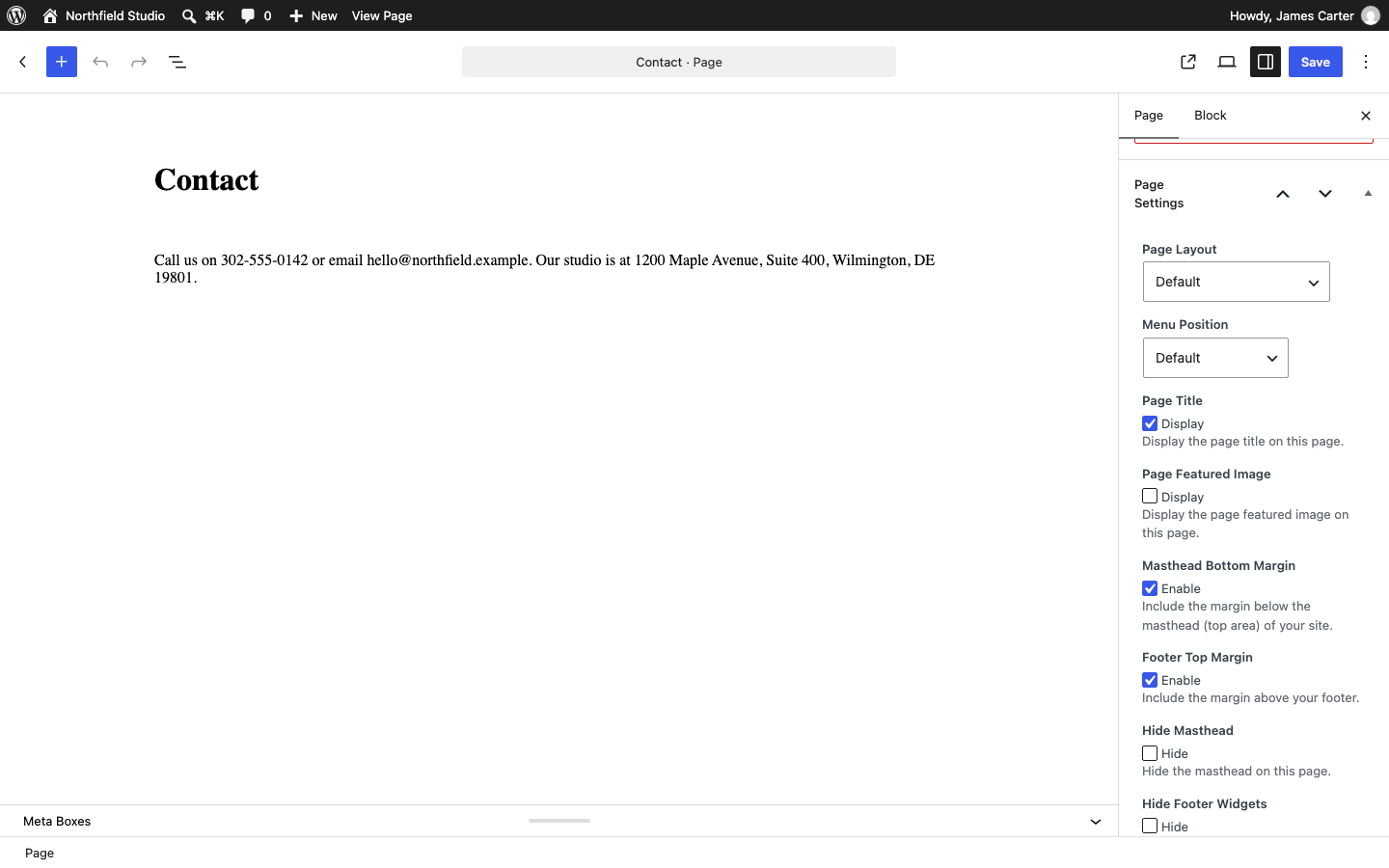
- Click the Settings icon at the top right to open the sidebar.
- Select the Page tab (Post for a post).
- Scroll to the bottom of the tab and open the Page settings panel.
If the panel is not there, open the Options menu (three dots) and choose Preferences. In the General tab, scroll to Advanced and turn Page settings on.
Classic Editor
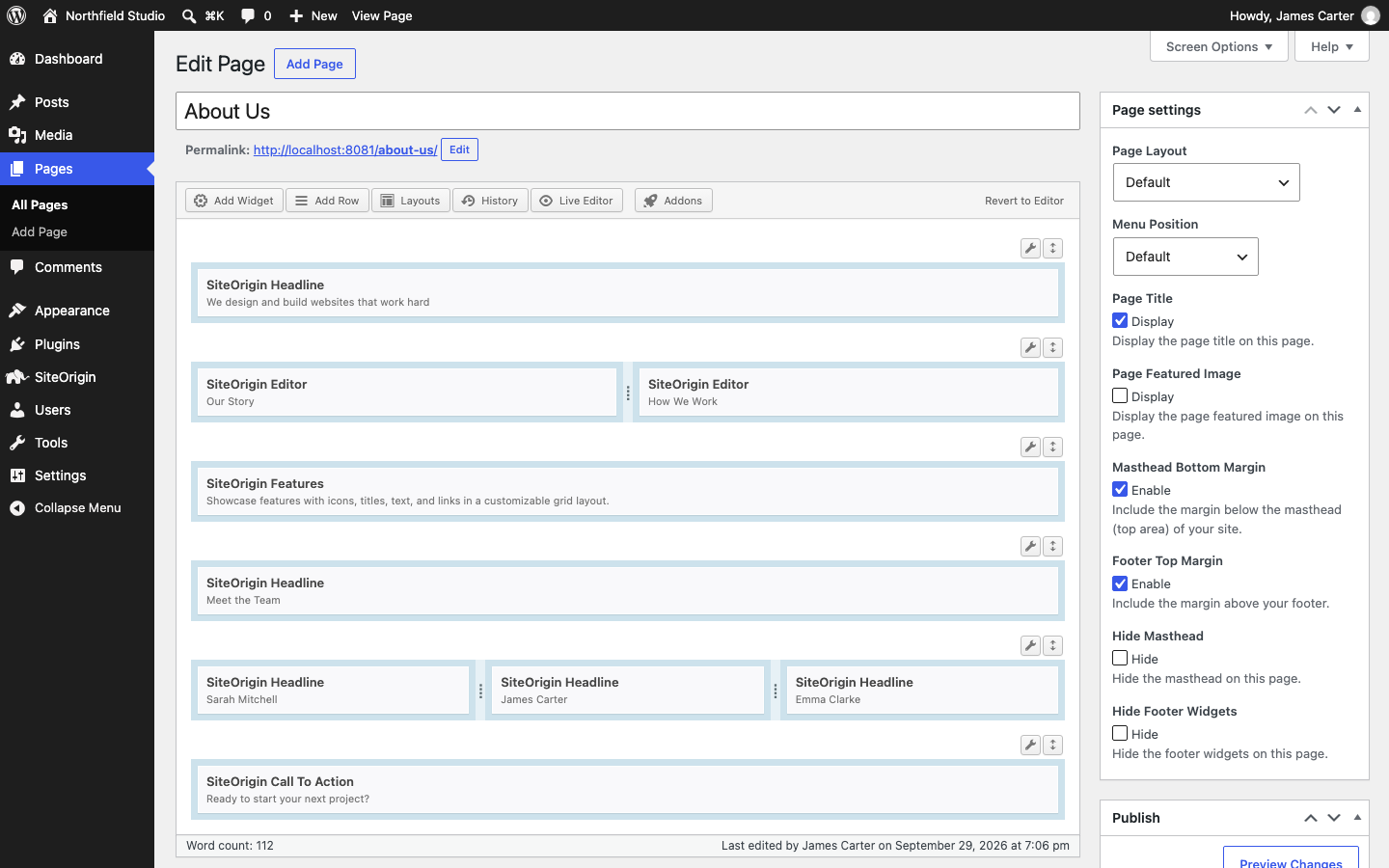
The Page settings box is in the right column. If you do not see it, click Screen Options at the top of the screen and tick Page settings. Pages that you build with Page Builder in the Classic Editor use this route.
Save or update the page to apply your changes.
Settings
A new page uses the Default layout and the Default menu position, shows the page title and both margins, and hides nothing. Each checkbox has a short label next to it (Display, Enable or Hide); the setting name is above it.
Page Layout
Choose how the page uses the sidebar and the screen width. Default: Default.
- Default: Shows the page title, the content and the Main Sidebar.
- No Sidebar: Shows the page title and the content without the sidebar.
- Full Width: Removes the sidebar and lets the content area use the full width of the screen.
- Full Width, With Sidebar: Keeps the sidebar and lets the content area and sidebar use the full width of the screen.
- Stripped: For cart and checkout pages. Replaces the menu, search icon and cart with a Go back link, and removes the sidebar, the footer widgets and the scroll to top button.
The sidebar only shows when the Main Sidebar widget area has widgets. Set its side and width in Page Structure.
- Default: The header sits above the content.
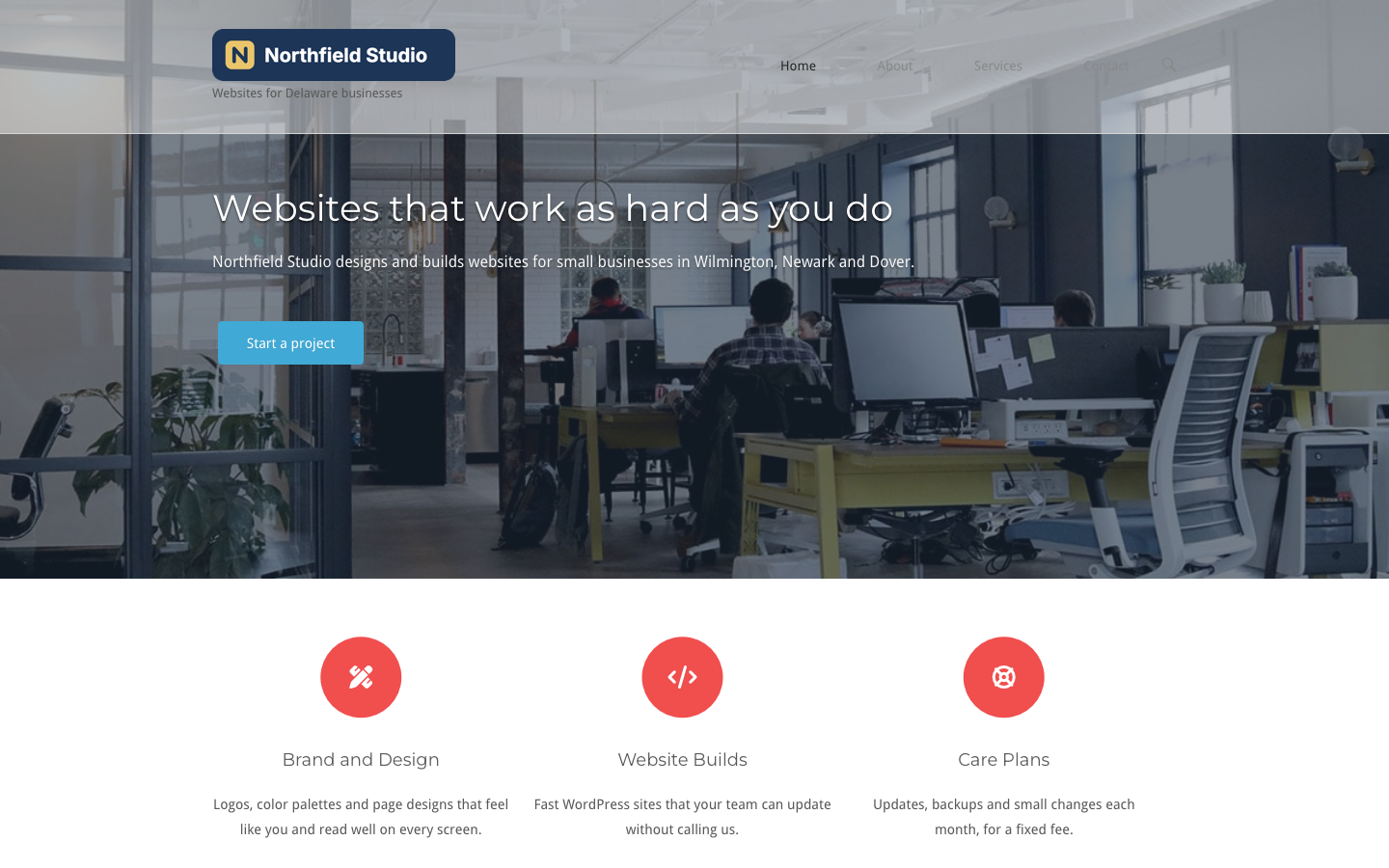
- Overlaps Content: The header and the top bar sit on top of the start of the content. Use it on a page that starts with a full width image, slider or hero row.
An overlapping header keeps its background color at the opacity set in Background Color Overlap Opacity (default 0.975), so the image behind it barely shows. Lower the value in Header to let more of the image through. When the sticky menu floats on scroll, the header uses its normal background color.
Page Title
Clear Display to hide the title. On a post, this also hides the date, author and comment count below the title. Default: on.
Page Featured Image
Tick Display to show the page’s featured image above the page title. This setting is on pages only; for posts, use Featured image on single in Blog. Default: off.
Set the image in the Featured image panel (Block Editor) or box (Classic Editor). North shows it at up to 650 by 650 pixels when the sidebar shows, and cropped to 1040 by 650 pixels when it does not.
Masthead Bottom Margin
Clear Enable to remove the space between the header and the content. Use it when a banner or slider must touch the menu. The size of this space is Bottom Margin in Header (default 30px). Default: on.
Hide Masthead
Tick Hide to remove the header, with the logo and menu, from this page. The top bar still shows when it has text or widgets. Default: off.
Pages Without the Box
Some pages take their layout from a Customizer section, and their own Page settings box has no effect:
- The page you choose as Posts page at SettingsReading uses the Blog Page section.
- The WooCommerce Shop page has no box and uses the Type: Products section.
- Archives, search results and the 404 page use their own sections.
Set them at AppearanceCustomizePage Template Settings. See Page Template Settings.
Change the Defaults
To give every new page a different default, for example No Sidebar, use the siteorigin_page_settings_defaults filter in Advanced Customizations. A page saved with its own settings keeps them.
When the Page Builder Home Page screen creates your home page, North sets its Page Layout to No Sidebar and turns Page Title off. See Custom Home Page.
Body Classes
North adds classes to the body tag for the layout, menu position, margins and hidden areas, so you can target one layout in your own CSS:
page-layout-{layout}, for examplepage-layout-no-sidebarorpage-layout-strippedpage-layout-menu-defaultorpage-layout-menu-overlappage-layout-no-masthead-marginandpage-layout-no-footer-marginwhen a margin is offpage-layout-hide-mastheadandpage-layout-hide-footer-widgetswhen an area is hidden
See CSS Snippets for examples of custom CSS.