
 Page Builder
  Widgets Bundle
  SiteOrigin CSS
  Installer
 Widgets and Widget Areas
5 min read Updated
Widgets are the pieces of content in your sidebar and footer, such as a search field, your latest posts or your opening hours. Your theme decides where they can go, and each of those places is a widget area.
How you manage them depends on your theme. With a classic theme, you manage widget areas at AppearanceWidgets or in the Customizer. The Widgets screen uses blocks unless your theme or the Classic Widgets plugin switches it to the classic Widgets screen. A block theme without widget areas has no Widgets menu item; you add blocks to its layout in the Site Editor instead, as described under Block Themes below.
Block Widgets Screen
If the Widgets screen shows your widget areas as panels with a + button, you are on the block screen. You fill each area with blocks, such as Paragraph, Search or Latest Posts.
- Go to AppearanceWidgets and click a widget area, for example Footer, to open it.
- Click the add block button (+) inside the area and search for a block, such as Search.
- Click the block to add it, then edit it in place. For more options, open the block settings sidebar on the right.
- Click Update at the top right.
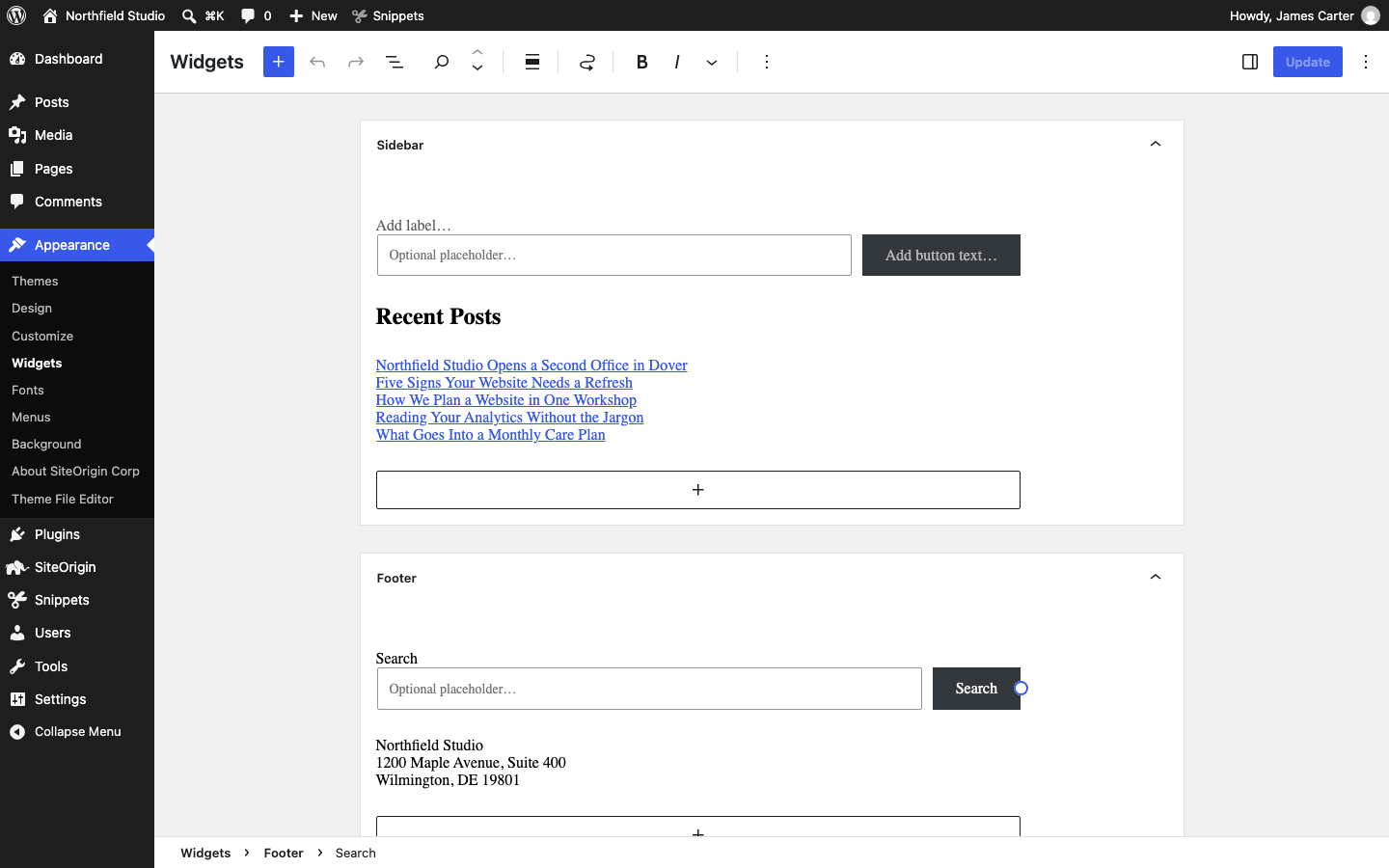
To move a block to another area, select it and choose the new area from Move to widget area in the block toolbar. Existing classic widgets show as Legacy Widget blocks and keep their settings. For a live preview, click outside the widget area to show the Widget Areas tab, then click Manage with live preview to open the Customizer.
Classic Widgets Screen
The classic screen lists the available widgets on the left and your theme’s widget areas on the right. Classic themes that switch off the block screen keep it, including our SiteOrigin Corp and Vantage themes. If your theme opens the block screen, the Classic Widgets plugin from the WordPress team brings the classic screen back. Install and activate it; it has no settings.
- Go to AppearanceWidgets.
- Drag a widget from Available Widgets into a widget area. If dragging is awkward, click the widget, choose the area from the list and click Add Widget.
- Fill in the widget’s fields, such as Title, and click Save.
- Drag widgets up or down inside an area to change their order. WordPress saves the new order as soon as you drop the widget.
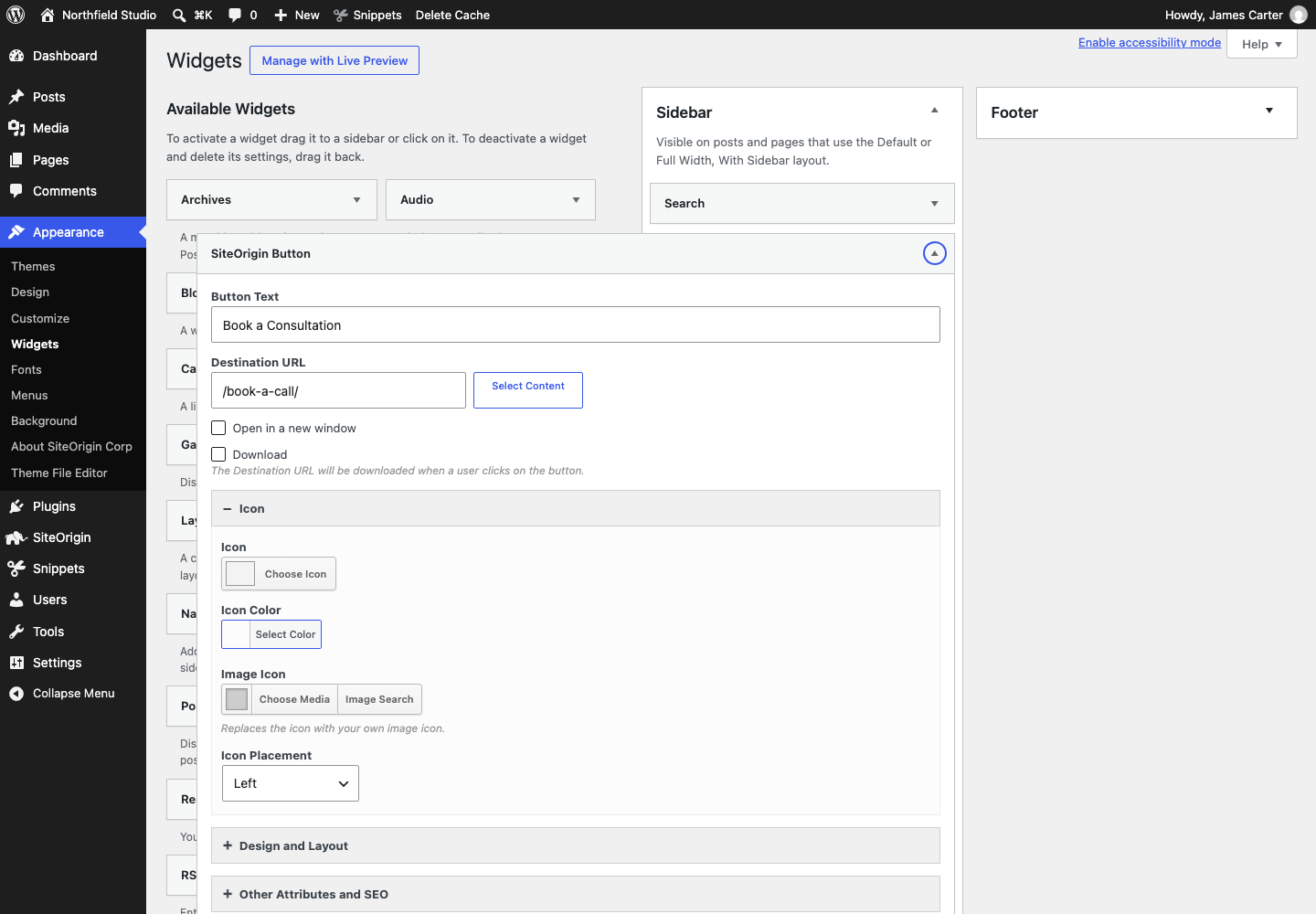
If Update or Save fails with an error, check whether a security plugin or your host’s firewall blocked it; Fixing Saves Blocked by a Firewall shows how.
Click Done to close a widget, or Delete to remove it. The Classic Widgets plugin changes only the widget screens. To change the editor for posts and pages, see Block Editor or Classic Editor.
Customizer
The Customizer previews your widget changes on the page you are viewing before you publish them.
- Go to AppearanceCustomizeWidgets and click a widget area.
- Click Add a Widget and choose a widget. If your site uses the block widgets screen, click the add block button (+) instead and choose a block.
- Edit the widget or block, then check the preview.
- Click Publish.
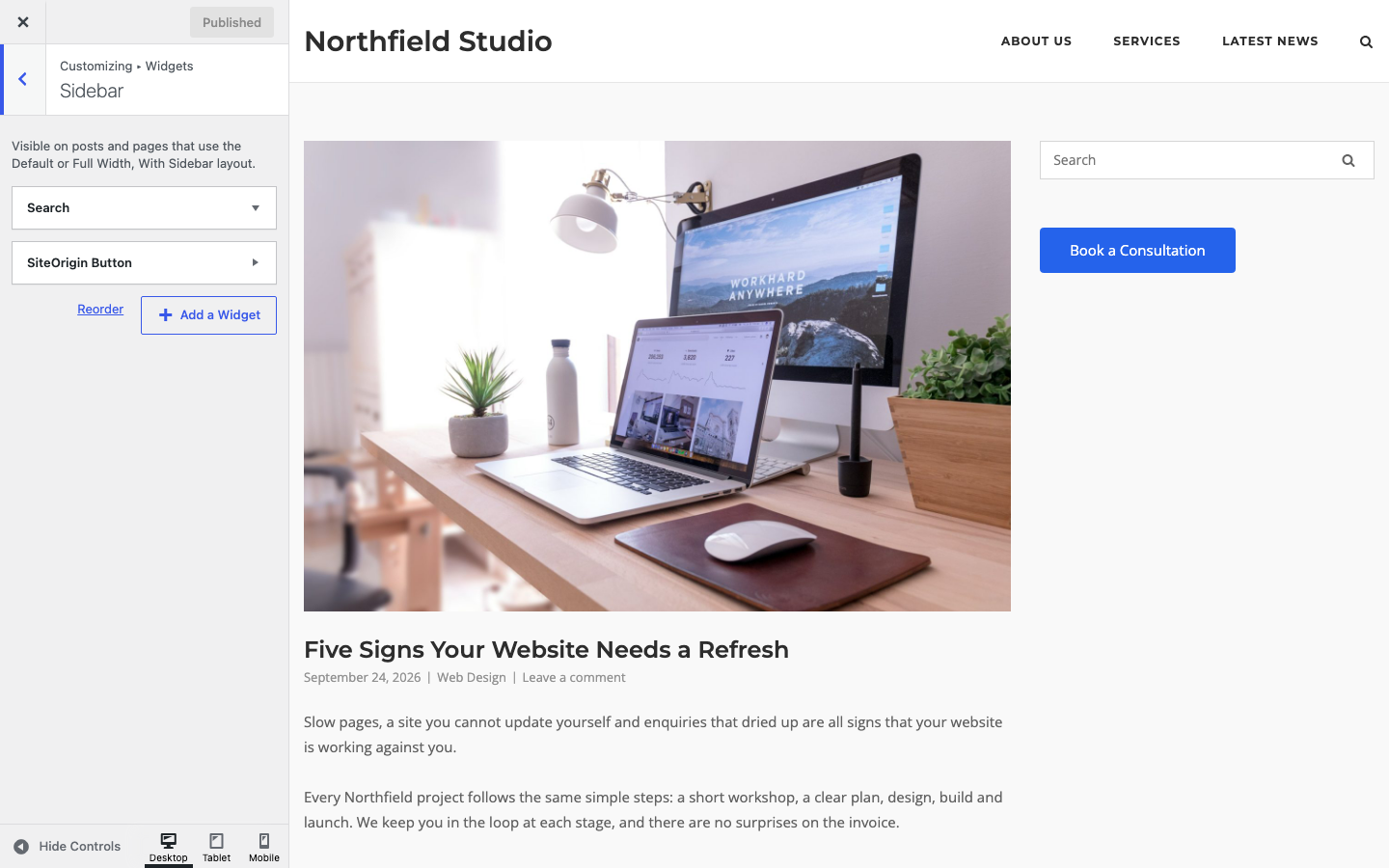
The Widgets panel shows only the areas on the page you’re previewing. To edit a missing area, open a page that uses it.
Block Themes
A block theme builds its header and footer from template parts, which you edit in the Site Editor. For example, to show a search field in the footer, add a Search block to the footer template part.
- Go to AppearanceEditor and click Patterns.
- Choose Footer or Header, then open the template part you want to edit.
- Click the add block button (+) to add a block.
- Click Save.
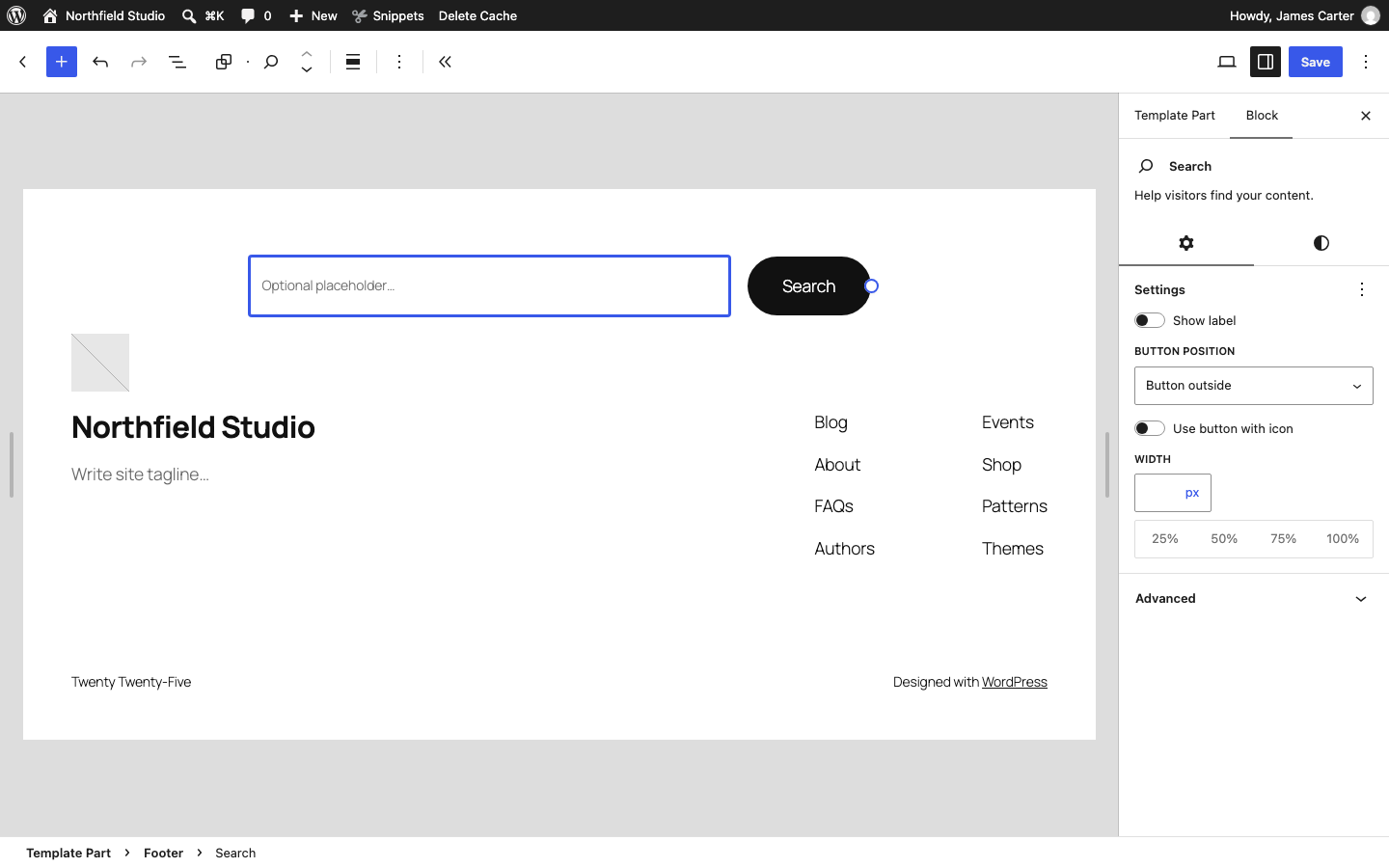
A change to a template part shows on every template that uses it. If your block theme has a Widgets item under Appearance, it has widget areas too, so use the steps above.
SiteOrigin Widgets
When the SiteOrigin Widgets Bundle is active, its widgets are available on every screen covered here. On the classic screen, choose a widget such as SiteOrigin Button. Wherever you work with blocks, find them in the SiteOrigin block category. For rows and columns, add the Layout Builder Widget from Page Builder by SiteOrigin on the classic screen, or its SiteOrigin Layout Block on the block screen.
Widgets Missing After a Theme Change
Each theme has its own widget areas. After you change themes, check the pages where your widgets used to appear. When the new theme has matching widget areas, WordPress places your widgets there. If the new theme has a Widgets screen, look for the rest under Inactive Widgets at the bottom. When a theme update removes a widget area, its widgets move there too. If the new theme has no Widgets screen, switch back to the old theme briefly, copy the widget content, then reactivate the new theme and add that content as blocks in the Site Editor.
Inactive widgets keep their settings. To use one again, drag it into a widget area on the classic screen. On the block screen, open Inactive widgets, select the block and use Move to widget area. Clear Inactive Widgets on the classic screen deletes them for good.
See Block-based Widgets Editor and Manage WordPress Widgets for the full WordPress guides.