
 Page Builder
  Widgets Bundle
  SiteOrigin CSS
  Installer
 Disable Comments
5 min read Updated
To turn off comments in WordPress, disable Allow people to submit comments on new posts at SettingsDiscussion, then close comments on the posts you already have. Every post, page and media item keeps its own comment setting, and the Discussion setting only sets the starting value for new posts. Comments that are already published stay visible until you remove them, and a plugin can turn comments off across the whole site.
Turn Off Comments on New Posts
- Go to SettingsDiscussion.
- Under Default post settings, disable Allow people to submit comments on new posts.
- To stop pingbacks and trackbacks as well, disable Allow link notifications from other blogs (pingbacks and trackbacks) on new posts.
- Click Save Changes.
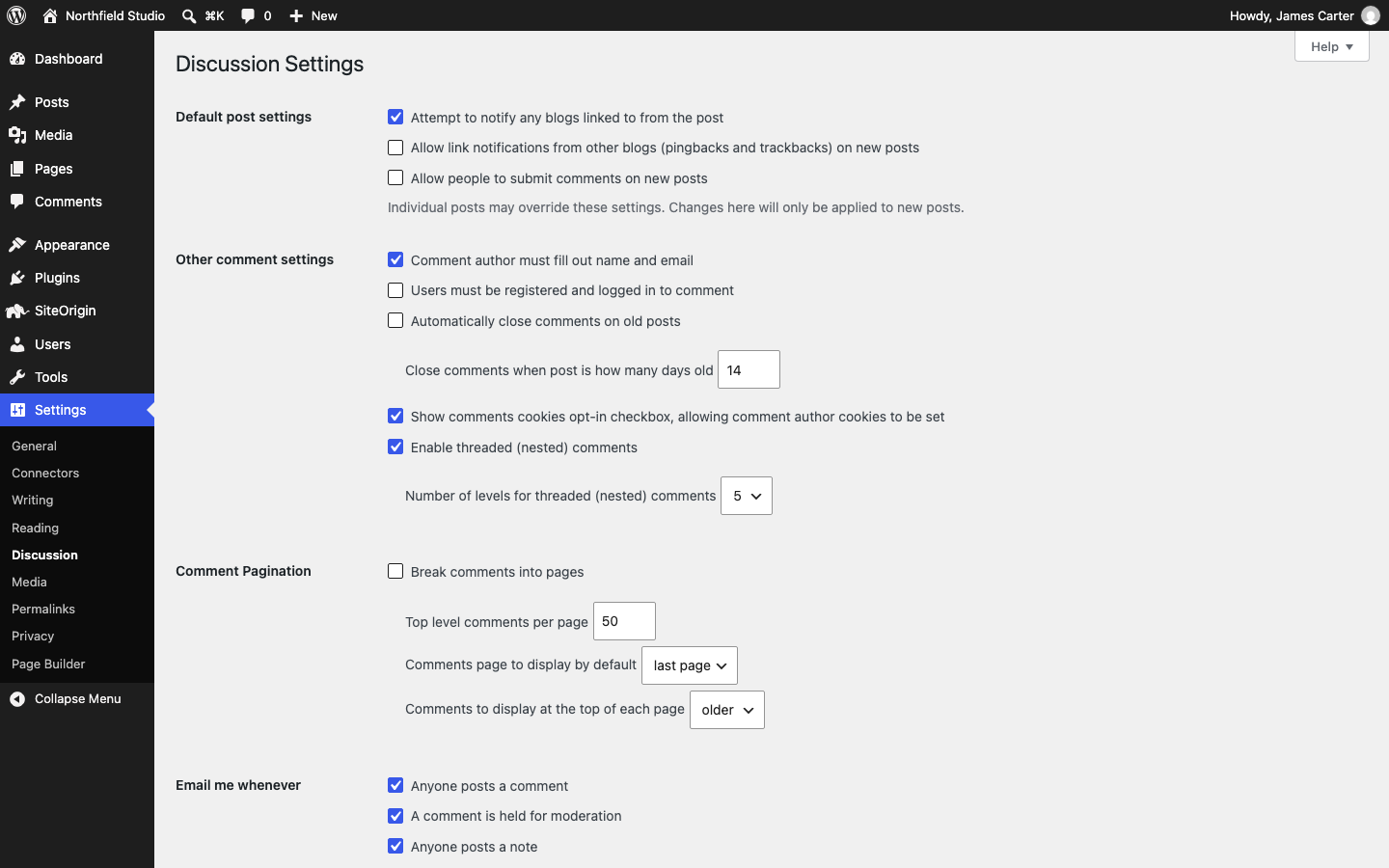
These settings apply only to new posts. They do not change posts you have already published, so close comments on those with one of the routes below.
The same screen has Automatically close comments on old posts under Other comment settings. Enable it and set Close comments when post is how many days old, for example to 1, and WordPress closes comments on every post older than that number of days. You don’t need to edit the posts. This option applies to posts only, so pages and media are not affected.
Turn Off Comments on Existing Posts
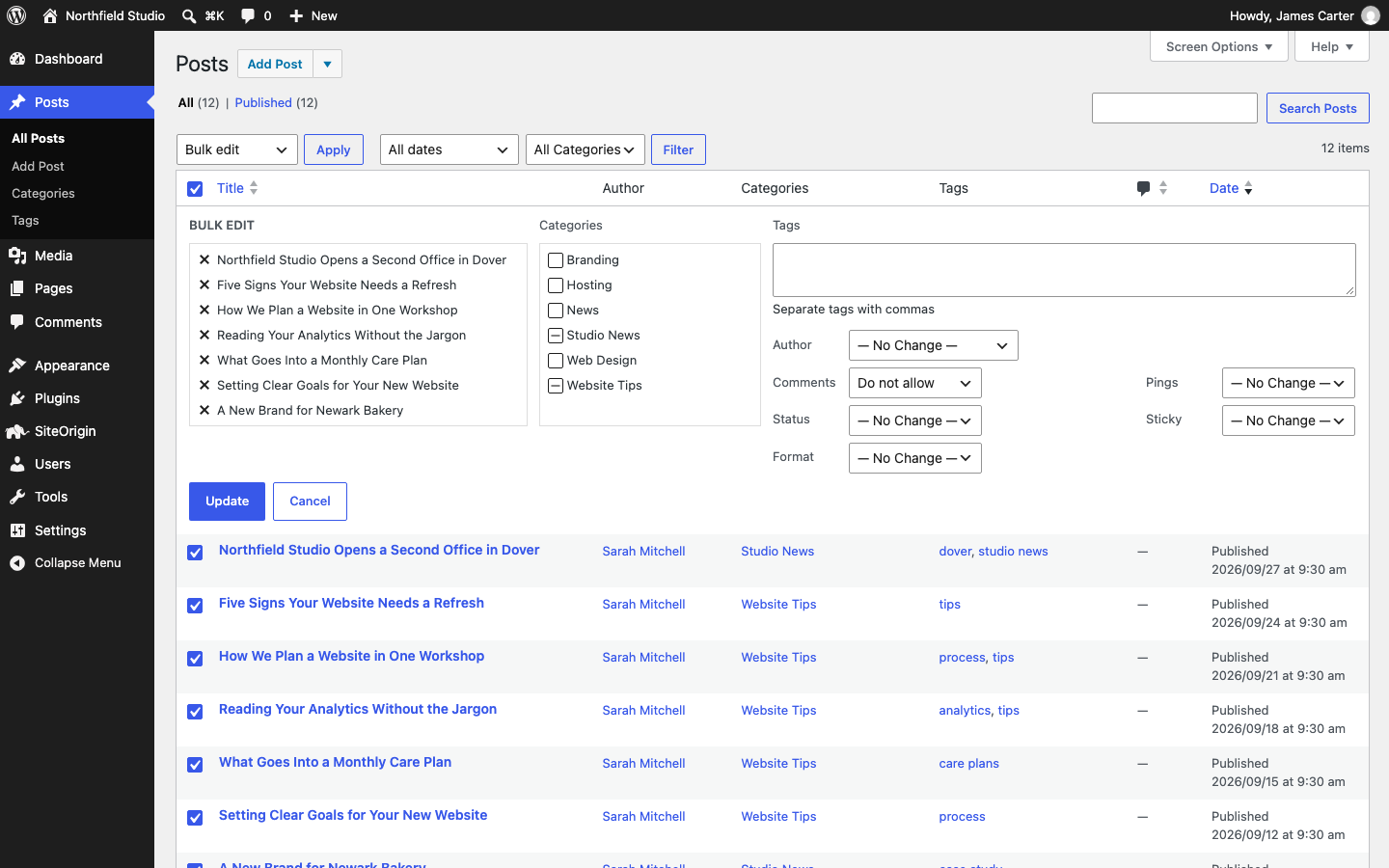
Bulk edit closes comments on many posts at once. To fit more posts on one screen, open Screen Options at the top right of the post list and raise Number of items per page.
- Go to PostsAll Posts.
- Select the checkbox in the table header to select every post on the screen.
- In the Bulk actions menu, choose Bulk edit and click Apply.
- Set Comments to Do not allow. Set Pings to Do not allow too if you want to stop pingbacks.
- Click Update, then repeat for any further screens of posts.
Turn Off Comments on One Post or Page
Block Editor
- Open the post or page in the editor.
- In the settings sidebar on the right, open the Post tab (Page for a page) and click the value next to Discussion.
- Select Closed, and disable Enable pingbacks & trackbacks to stop pingbacks too.
- Click Save.
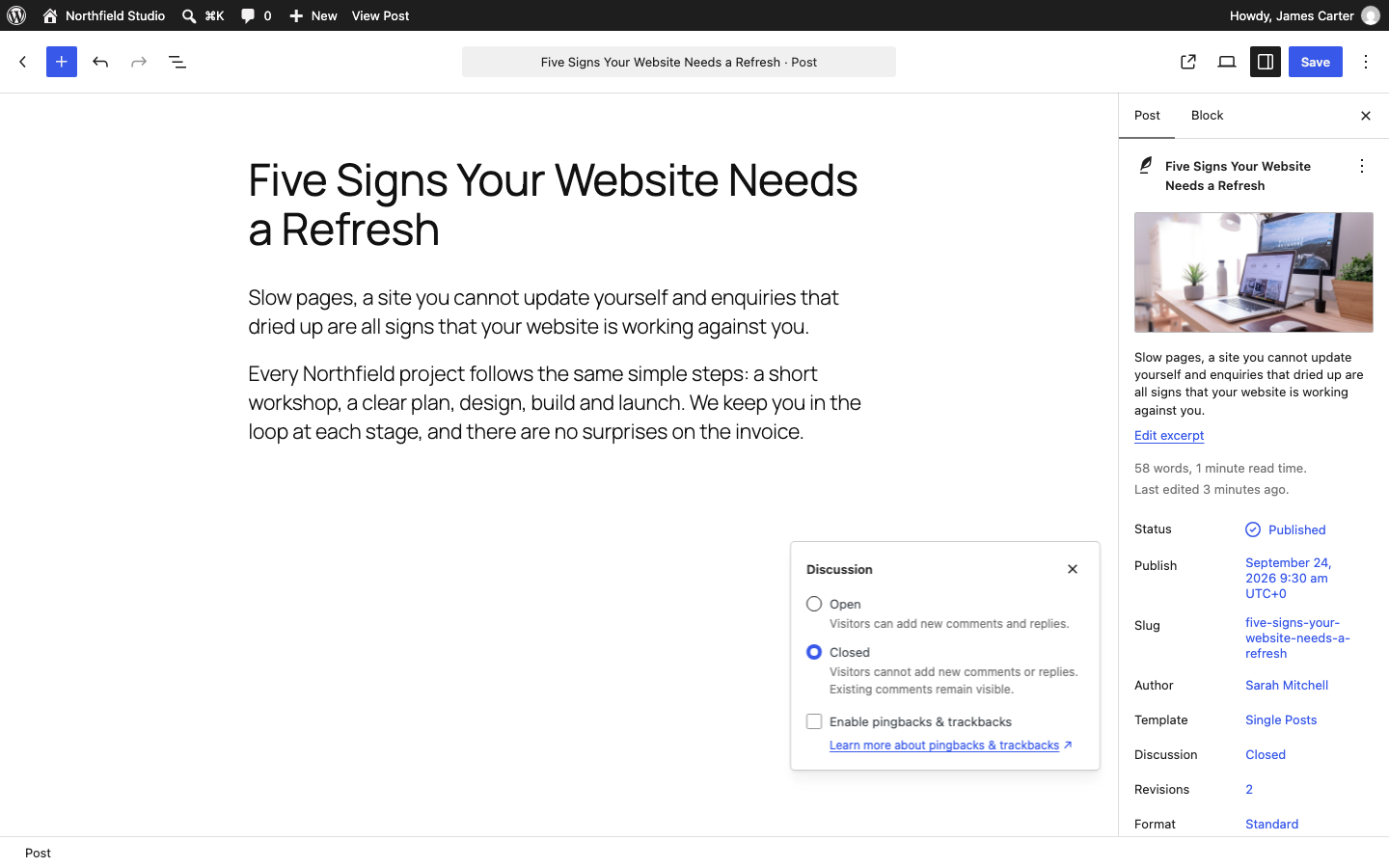
If Discussion is missing from the sidebar, click the Options menu (three dots) at the top right, choose Preferences, and in the General tab under Document settings, enable Discussion. This only shows the panel; it does not change any comment setting.
Classic Editor
- Open the post or page in the editor.
- In the Discussion box below the content, disable Allow comments. Disable Allow trackbacks and pingbacks to stop those too.
- Click Update.
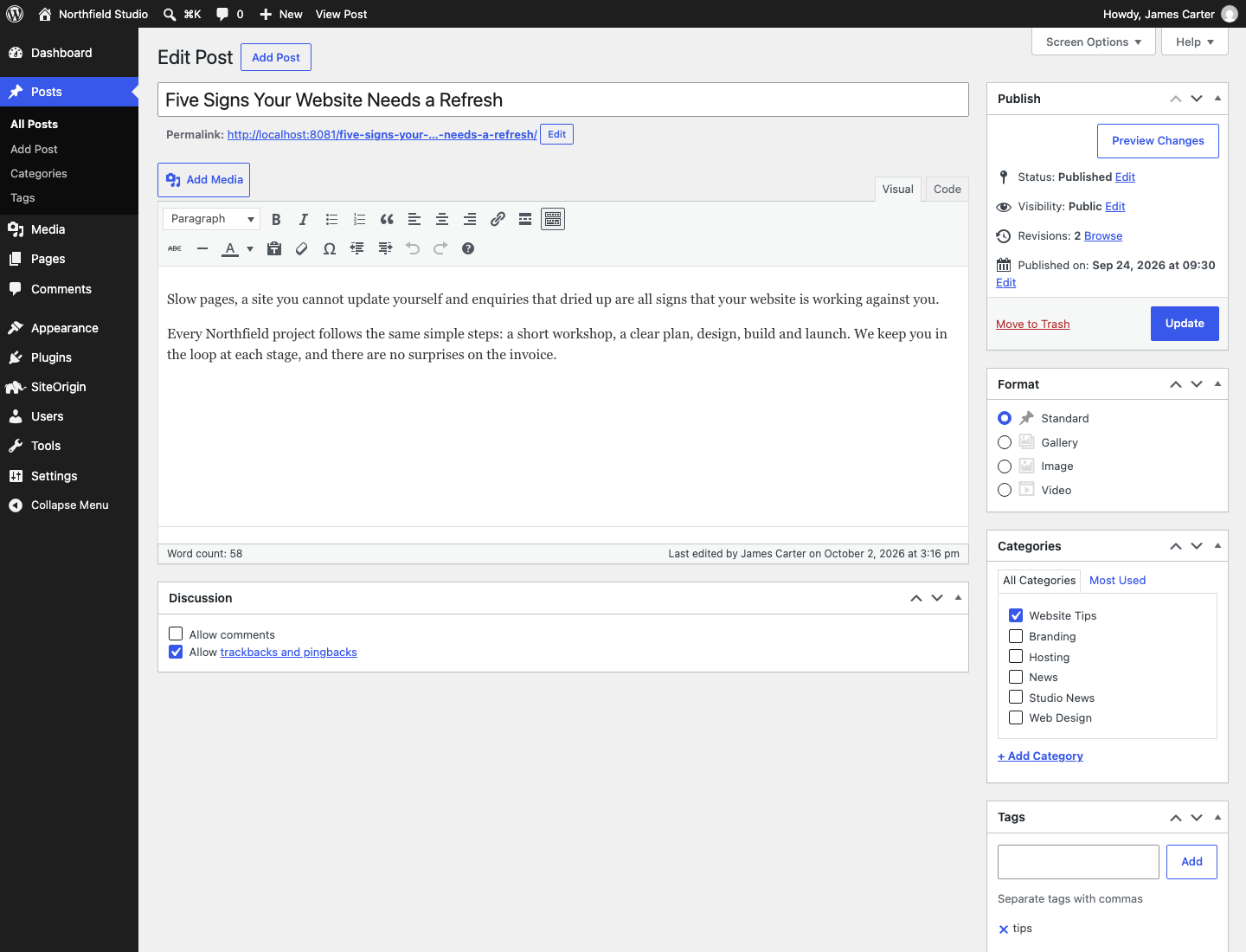
If the Discussion box is missing, open Screen Options at the top right of the editor and enable Discussion.
From the post list, Quick Edit has the same setting: hover over a post at PostsAll Posts, click Quick Edit, disable Allow Comments and click Update.
Pages and Media
New pages start with comments closed, whatever the setting at SettingsDiscussion. Pages created by an older version of WordPress, or by an importer or plugin that sets its own value, can still be open. To close them, go to PagesAll Pages and use bulk edit as described for posts.
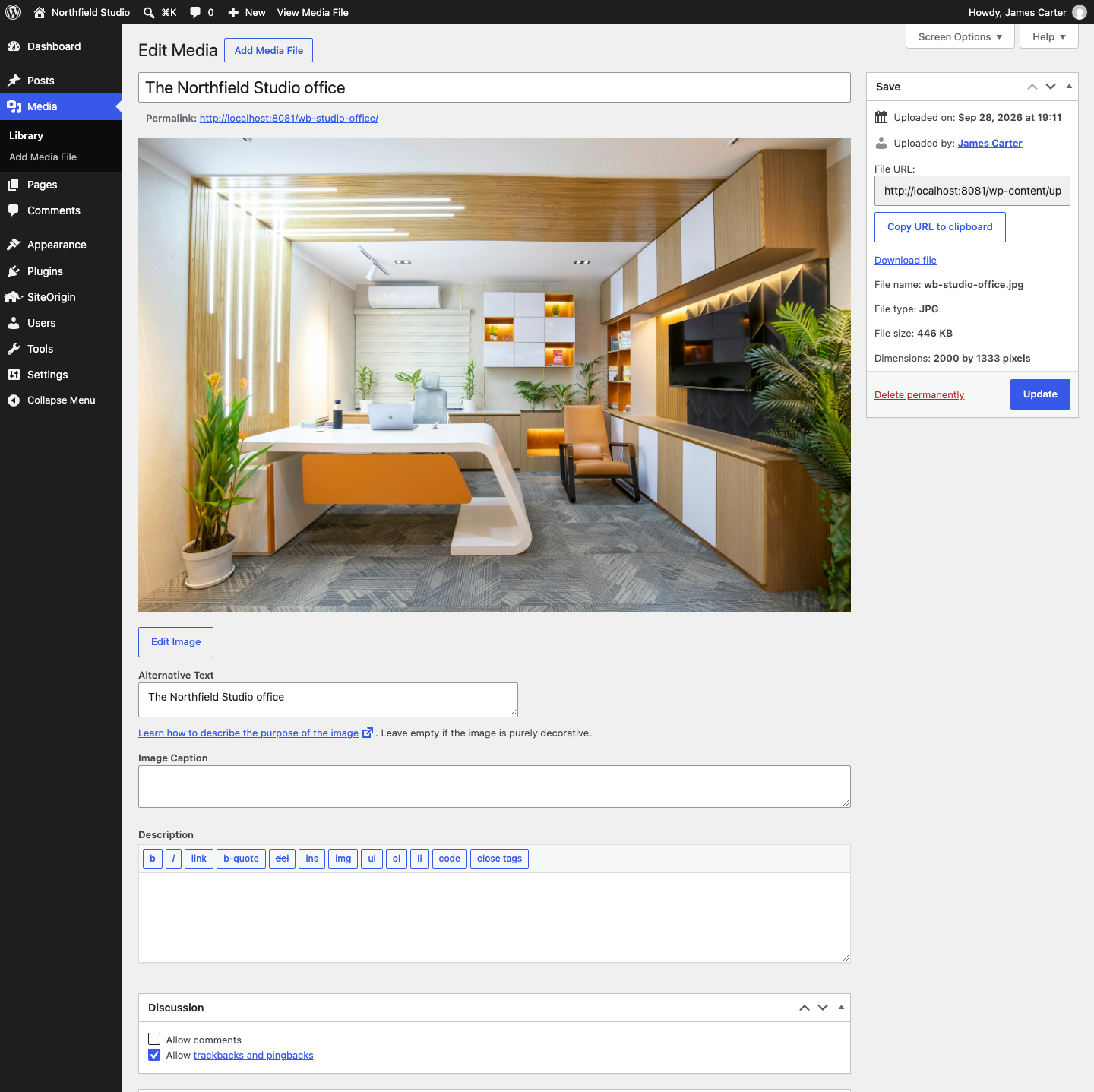
Media items follow the default for new posts. If your site shows a page for each media item, visitors can comment there. To close comments on one item, go to MediaLibrary, switch to the list view, click the item title to open Edit Media, and disable Allow comments in the Discussion box. WordPress hides that box by default on media items: if it is missing, open Screen Options at the top right and enable Discussion. Sites installed with WordPress 6.4 or later have media pages turned off by default and send visitors to the file itself, so they show no comment form for media.
Hide Comments That Are Already Published
Closing comments stops new comments, and existing comments stay visible. Your theme can also show a “Comments are closed.” note under them. To remove the comments themselves, go to Comments, select them, and choose Unapprove or Move to Trash in the Bulk actions menu. Unapproved comments stay in your admin and you can approve them again later.
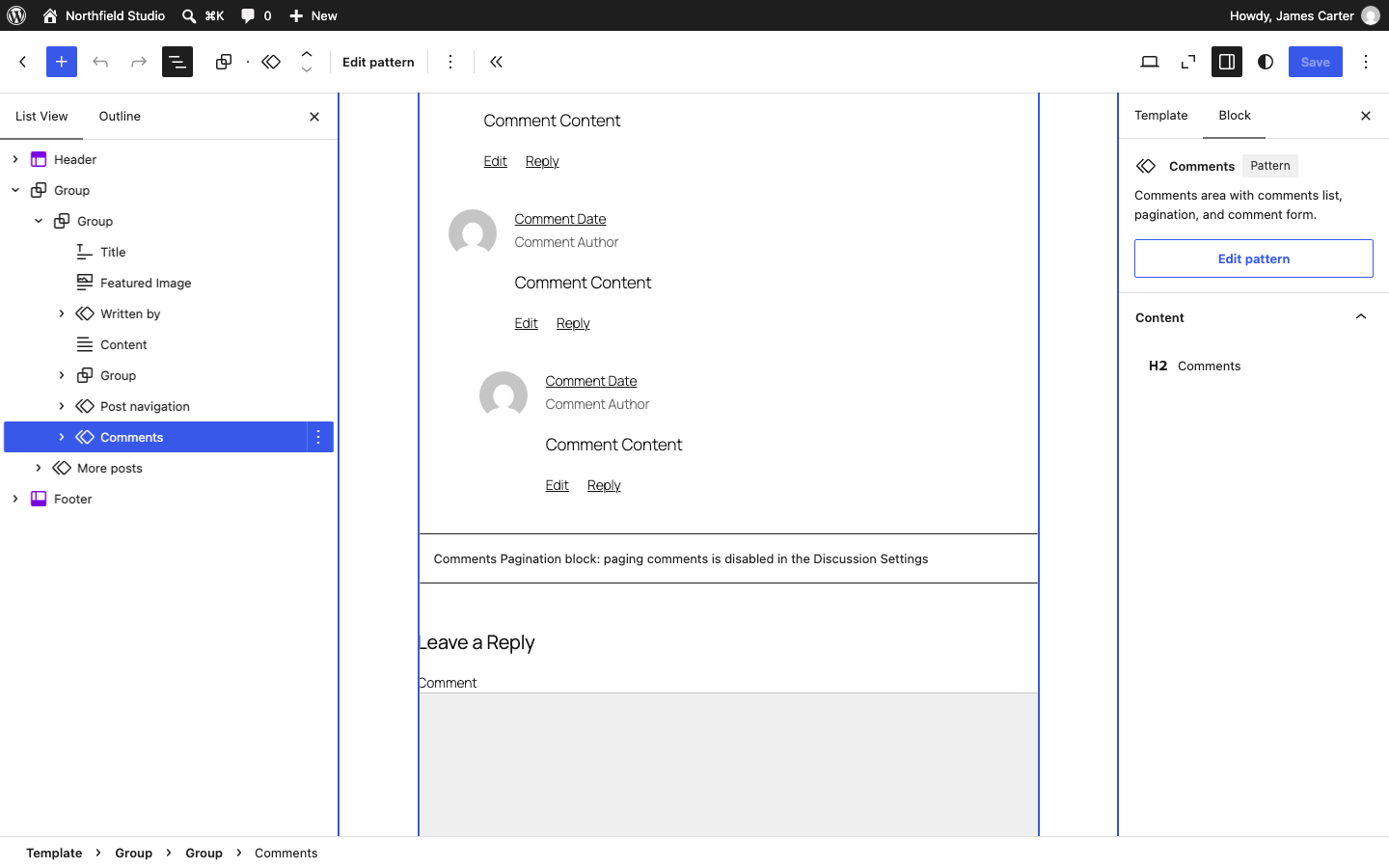
In a block theme, the Comments block in the post template shows the comments area. When a post has comments closed and no comments, that block shows nothing, so a site with comments closed on every post needs no template change. To remove the area from every post anyway, edit the template:
- Go to AppearanceEditor and click Templates.
- Open the Single Posts template.
- Open the List View and select Comments. In some themes, such as Twenty Twenty-Five, this item is a pattern that holds the Comments block.
- Delete it. This removes the whole comments area from the template.
- Click Save. Repeat for the Pages template and any custom templates that contain the block.
In a classic theme, the theme’s own template files show comments, and there is no admin setting to remove the area. Trash or unapprove the comments, or use the plugin below.
Turn Off Comments Everywhere With a Plugin
The free Disable Comments plugin turns comments off for the whole site or for chosen content types, and it also hides the Comments admin menu and the Discussion settings screen while it is active.
- Install and activate the plugin, as described in Installing a Plugin.
- Go to SettingsDisable Comments.
- Choose Everywhere, or choose On Specific Post Types and select the types to turn off.
- Click Save Changes.
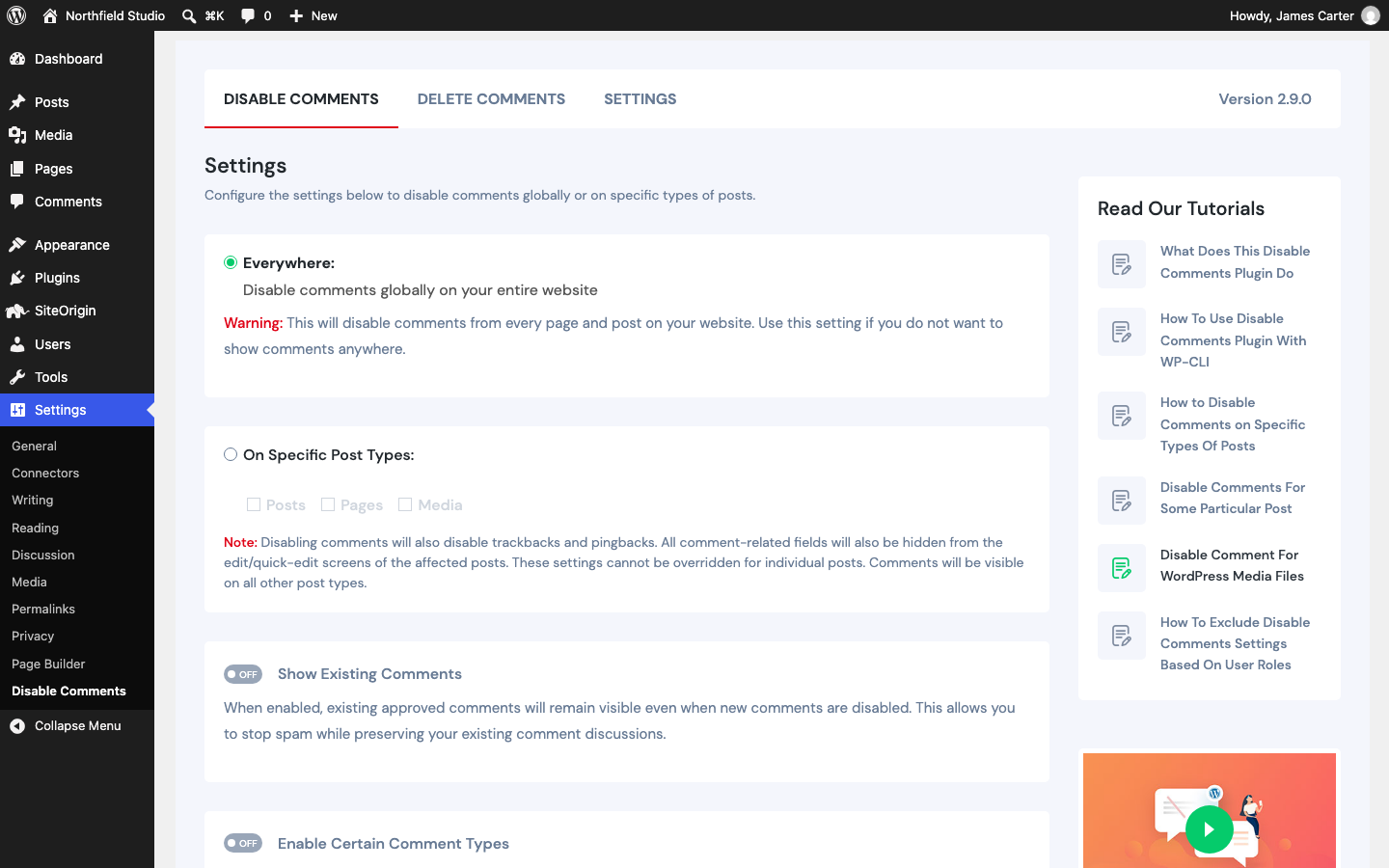
The plugin also hides comments that already exist. To keep approved comments visible, enable Show Existing Comments. To remove old comments for good, use the plugin’s Delete Comments tab. Deleted comments cannot be restored, so back up your site first if you want to keep a copy.
If spam is the reason you want comments off, consider keeping them open with moderation instead: enable Comment must be manually approved under Before a comment appears at SettingsDiscussion, and no comment appears until you approve it.
For a full tour of comment settings, see Comments in WordPress in the WordPress documentation.