
 Page Builder
  Widgets Bundle
  SiteOrigin CSS
  Installer
 Fixing Saves Blocked by a Firewall
8 min read Updated
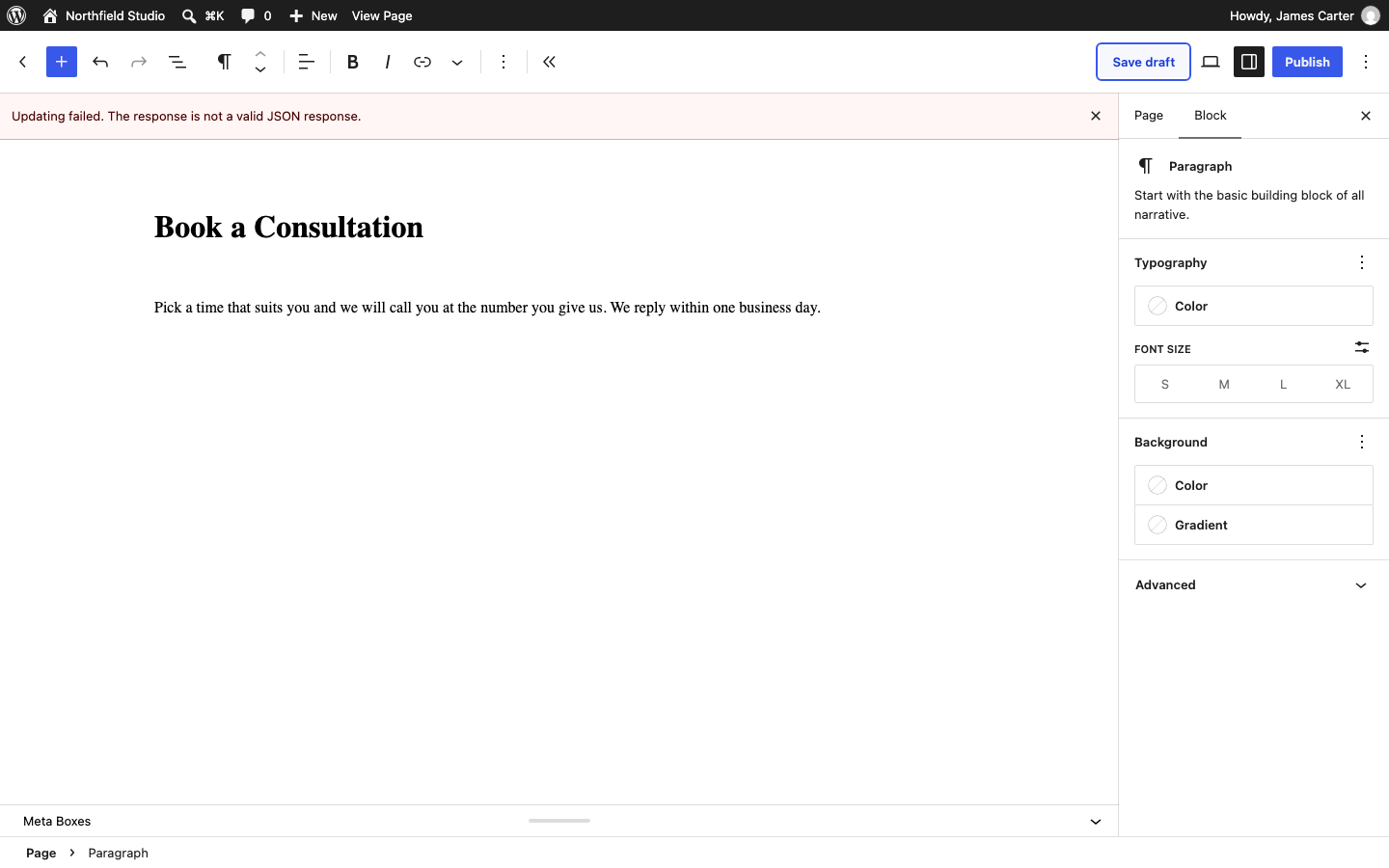
Security plugins such as Wordfence, and firewalls run by your web host, protect your site by blocking requests that look like an attack. They also block an ordinary save when a page or widget contains HTML or embedded code that matches one of their rules. When that happens, WordPress shows “Updating failed. The response is not a valid JSON response.” or a Page Builder widget form opens blank. Here’s how to confirm a firewall caused it and allow the save without turning the firewall off.
Signs That a Firewall Blocked the Save
Check for these signs of a blocked save:
- The Block Editor shows “Updating failed. The response is not a valid JSON response.” When you publish a new post, the message starts with “Publishing failed.”
- The Classic Editor or a settings screen shows a page that says “Forbidden”, “403” or “Not Acceptable” instead of saving.
- A Page Builder or Widgets Bundle widget form opens blank, or shows only a date and time. The date and time come from the firewall’s error page, which the form shows in place of its fields.
- Wordfence shows a Background Request Blocked message.
Confirm the Block in Your Browser
The Network tab in your browser shows the request sent when you save. When a firewall blocked the save, the response is the firewall’s error page. Look in it for the name of the firewall or host.
- Open the page or widget that won’t save.
- Right-click the page and choose Inspect in Chrome, Edge or Firefox, then open the Network tab. In Safari, enable Show features for web developers in Safari > Settings > Advanced. Then choose Develop > Show Web Inspector and open the Network tab.
- Save again, or open the widget form again.
- Find the request from your last save. A firewall block has an error status such as 403 or 406, and the browser shows the row in red.
- Click that request and open its Response or Preview tab. Look for a message that names a firewall.
Check the response for these clues:
- A Wordfence page says “A potentially unsafe operation has been detected in your request to this site”.
- A Cloudflare page shows a Cloudflare Ray ID.
- A plain “Forbidden” or “Not Acceptable” page names no service. Send it to your host and ask whether a server firewall, such as ModSecurity, blocked the request.
Note when you saved, the request address and the status code. You need them for the next steps, and your host will want them if you contact them.
A status of 500 points to a PHP or server error; Debugging in WordPress shows how to find it. When a PHP warning is added to the save response, you get the same JSON error, and the Response tab shows the warning text before the data.
Test Without Your Security Plugin
If you use a security plugin, deactivate it briefly and try the save again.
- Go to PluginsInstalled Plugins and deactivate your security plugin.
- Save again.
- Activate the security plugin again straight away.
If the save works while the plugin is off, look for the failed request in the plugin’s firewall log. If the log shows your failed save, allow that request in the plugin’s settings. For a security plugin other than Wordfence, ask the plugin’s author how to allow it.
If the save still fails, check the response in the Network tab again. A Cloudflare page means Cloudflare blocked it. If the response only says “Forbidden”, ask your host to check their server firewall.
Allow the Request in Wordfence
In Wordfence, allowlist the affected address and field, and the firewall stays on for everything else. Only allowlist a save you made yourself, with content you trust. If you didn’t make it, leave it blocked.
If Wordfence shows a warning when it blocks the save, look for one of these options:
- A Background Request Blocked message. Click Add action to allowlist and confirm.
- A Wordfence block page with an allowlist option for administrators. Enable I am certain this is a false positive. and click Allowlist This Action.
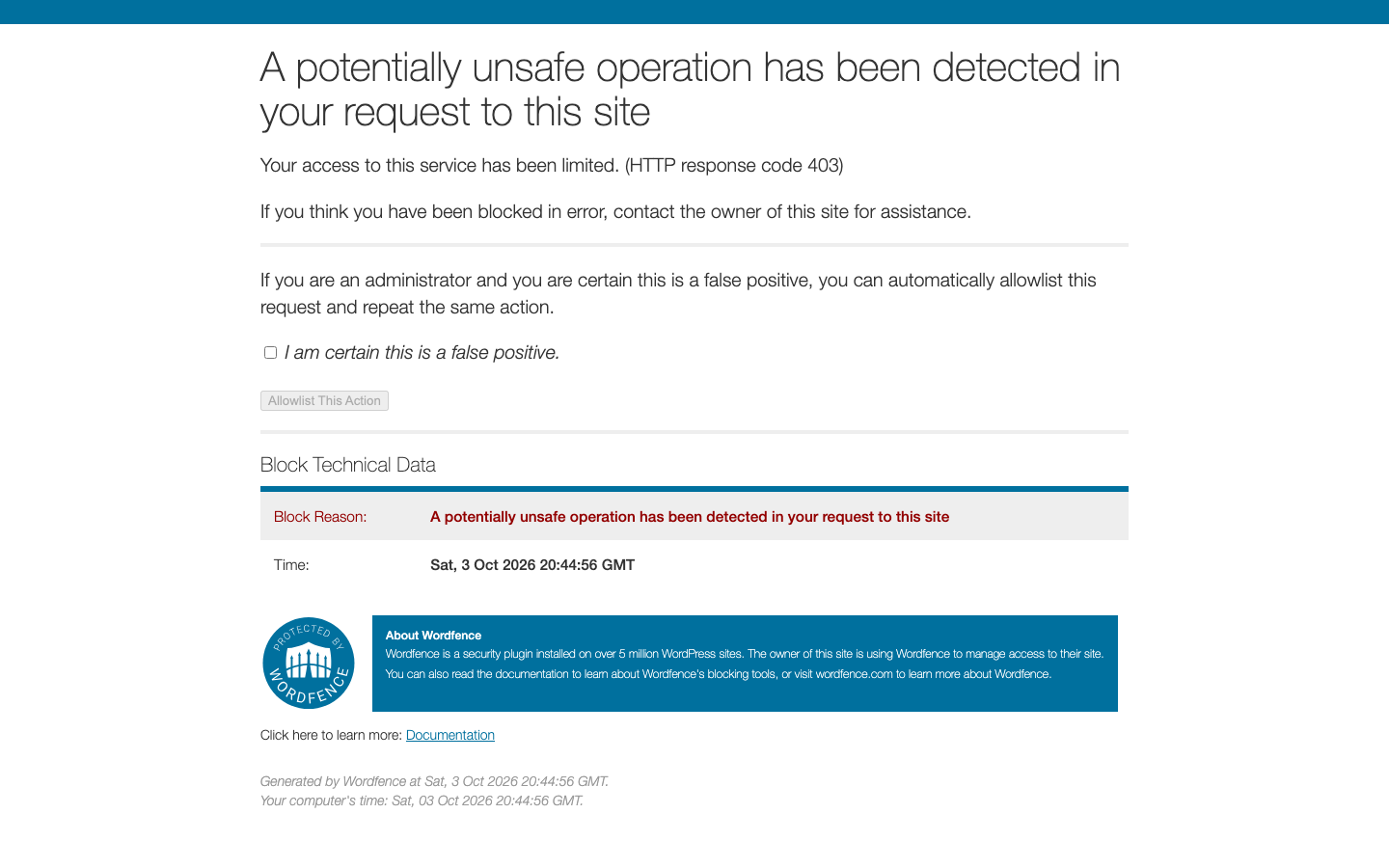
Then repeat the save. If you missed the message, allow the request from the Live Traffic log:
- Go to WordfenceTools and open the Live Traffic tab.
- Find the blocked entry from the time you saved, and check that its address matches the request address you noted.
- Click Add Param to Firewall Allowlist.
- Save again.
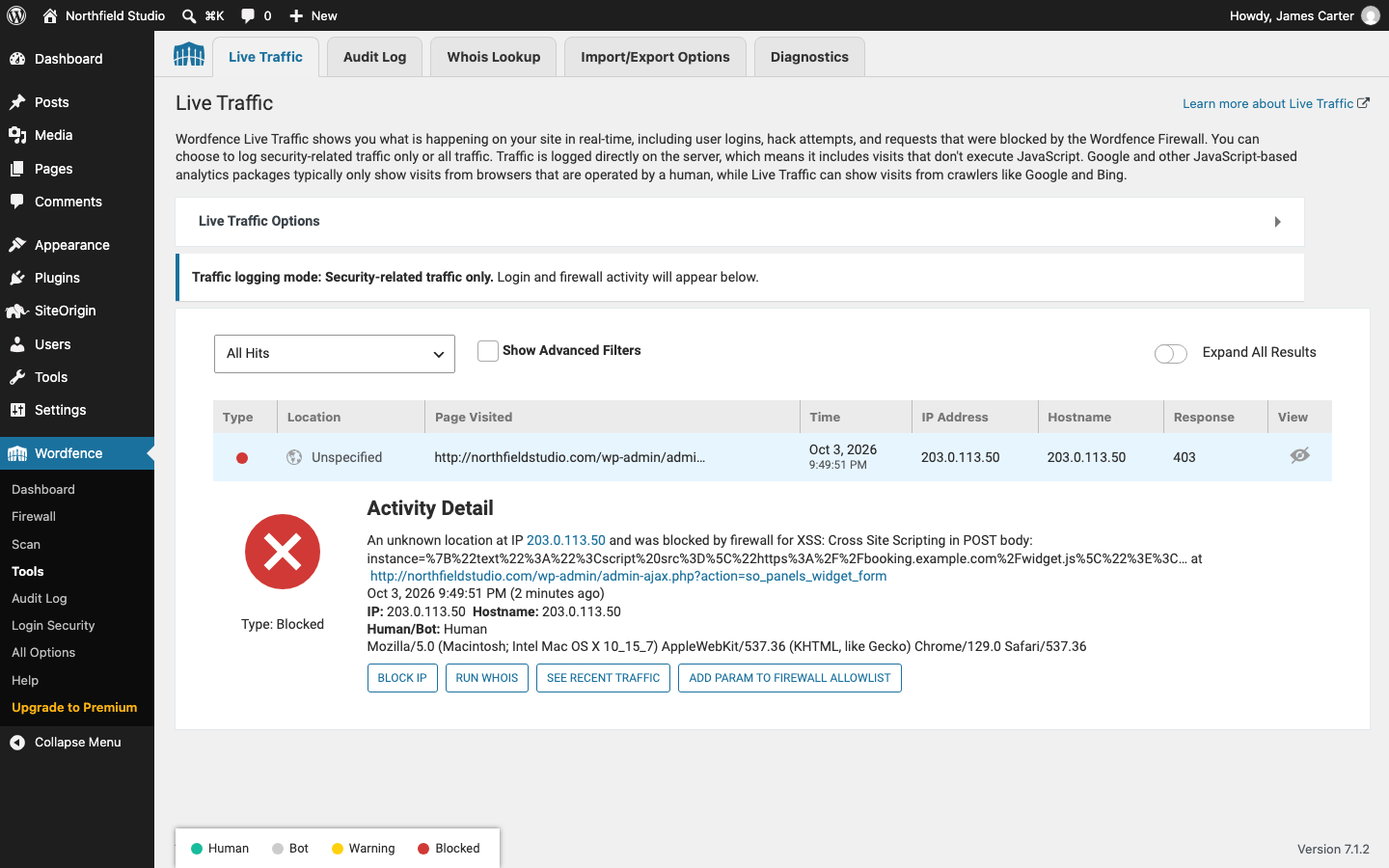
If Wordfence still blocks the request, use Learning Mode. In Learning Mode, the firewall lets through requests its rules would block, and adds them to its allowlist. Wordfence’s other protections stay on.
- Go to WordfenceFirewall and click All Firewall Options.
- Under Basic Firewall Options, set Web Application Firewall Status to Learning Mode and click Save Changes.
- Repeat the save that failed straight away.
- Set Web Application Firewall Status back to Enabled and Protecting and click Save Changes.
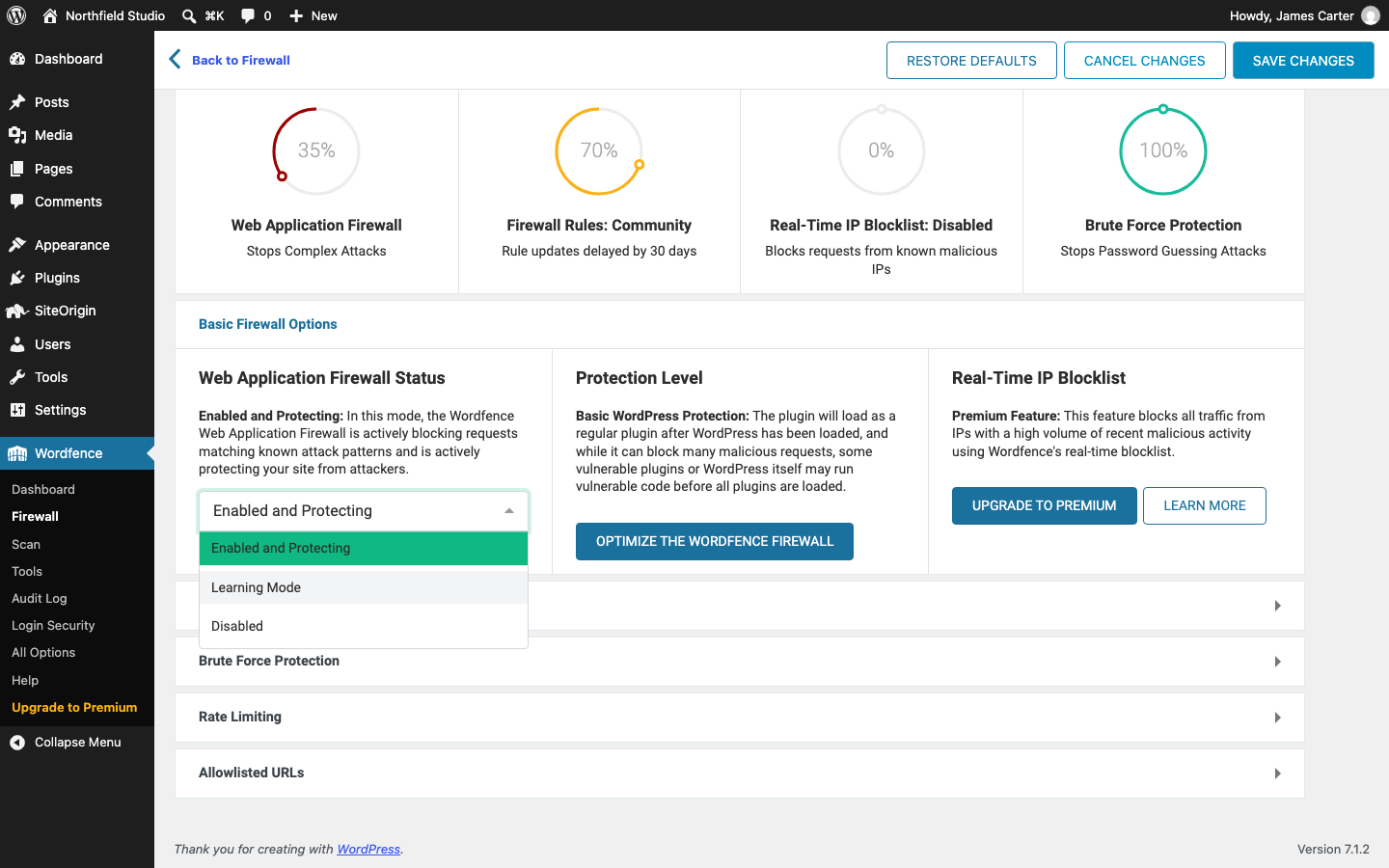
While Learning Mode is on, other visitors’ requests enter the allowlist too, so switch back to Enabled and Protecting as soon as the save works. Then check the Allowlisted URLs section on the same page and remove any entry added during that time that isn’t from your save.
Server Firewalls and ModSecurity
If your host runs a firewall on its servers, such as ModSecurity, it blocks suspicious requests before they reach WordPress. A server firewall runs outside WordPress, so deactivating plugins doesn’t affect it and its settings aren’t in your dashboard. Ask your host to exempt your save from the rule that blocked it. Turning the firewall off would remove its protection from your whole site.
Send your host these details so they can find the rule in their server logs:
- The date and time of the failed save, with your time zone.
- The page you were editing and what you did, for example “clicked Update on the Contact page”.
- The request address and status code from the Network tab.
- Your IP address. Searching “what is my IP” shows it.
- The text of the error page, if there was one.
Ask which rule blocked the save, and for an exception limited to the affected address and form field. Block Editor saves use the WordPress REST API, at addresses that start with /wp-json/ (or contain ?rest_route= on sites with plain permalinks), so an exception for /wp-admin/ alone doesn’t cover them.
Cloudflare
If your site’s traffic passes through Cloudflare, its web application firewall (WAF) checks each request before it reaches your host and blocks a save that matches one of its rules. A Cloudflare block page shows a Ray ID, and the same ID is in the cf-ray header of the blocked request in the Network tab.
- Log in to the Cloudflare dashboard and select your site.
- Go to Security > Analytics and open the Events tab.
- Find the event with your Ray ID, or a blocked request from the time you saved. If it isn’t listed, narrow the time range to the minutes around the failed save. Cloudflare shows a sample of events, so a missing entry doesn’t rule out a block.
- Expand the event to see which rule blocked it and the request path.
If the event names a Cloudflare managed rule, add an exception that skips only that rule. Limit the exception to the affected path and request method. Cloudflare’s guide to adding an exception in the dashboard has the steps. Don’t skip all rules for /wp-admin/ or /wp-json/. Those addresses accept requests from anyone, including attackers. If a different kind of rule blocked the save, check what requests that rule matches before you add an exception. If someone else manages your Cloudflare account, send them the Ray ID and the time of the save.
Ask an AI Assistant
Use your AI assistant to read the response and draft a message to your host. Before you add an exception it suggests, check that the rule it names appears in your firewall log. If you can’t identify the rule, ask your host or the plugin’s author. Before you paste anything, remove passwords, cookies, keys and customer details. Don’t paste request headers: when you’re logged in, they include your login cookies.
To work out what blocked the save:
Saving in my WordPress dashboard fails. I tried to DESCRIBE THE
SAVE on PAGE NAME. The browser's Network tab shows a request to
PASTE THE REQUEST ADDRESS with status STATUS CODE.
The response says: PASTE THE TEXT OF THE ERROR PAGE.
I use these security tools: SECURITY PLUGIN, CLOUDFLARE OR NONE.
What does this response tell me about what blocked the request, and how do I confirm it?
Do not suggest turning the firewall off for good.
To write the request to your host:
Help me write a short, factual message to my web host. A save in
my WordPress dashboard failed, and the response looks like it came
from a server firewall. Ask them which rule blocked the save, and
to add the narrowest exception that lets me save again.
My notes: PASTE THE TIME WITH TIME ZONE, THE PAGE, THE REQUEST
ADDRESS, THE STATUS CODE AND YOUR IP ADDRESS.