
 Page Builder
  Widgets Bundle
  SiteOrigin CSS
  Installer
 Block Editor or Classic Editor
4 min read Updated
WordPress has two editors for posts and pages. The Block Editor is the default, and you build your content in it from blocks. The Classic Editor is a single content field with Visual and Text tabs, and it opens when a plugin such as Classic Editor or Page Builder asks for it. Page Builder by SiteOrigin works in either one.
Which Editor Opens
Plugins such as Page Builder have their own setting for which editor opens. A post opens in the Classic Editor when any of these apply:
- The Classic Editor plugin is active and set to the Classic Editor.
- Page Builder is active. By default, it opens new posts and pages in the Classic Editor, along with existing Page Builder pages that contain no blocks.
- Another plugin sets the pages it adds to open in the Classic Editor.
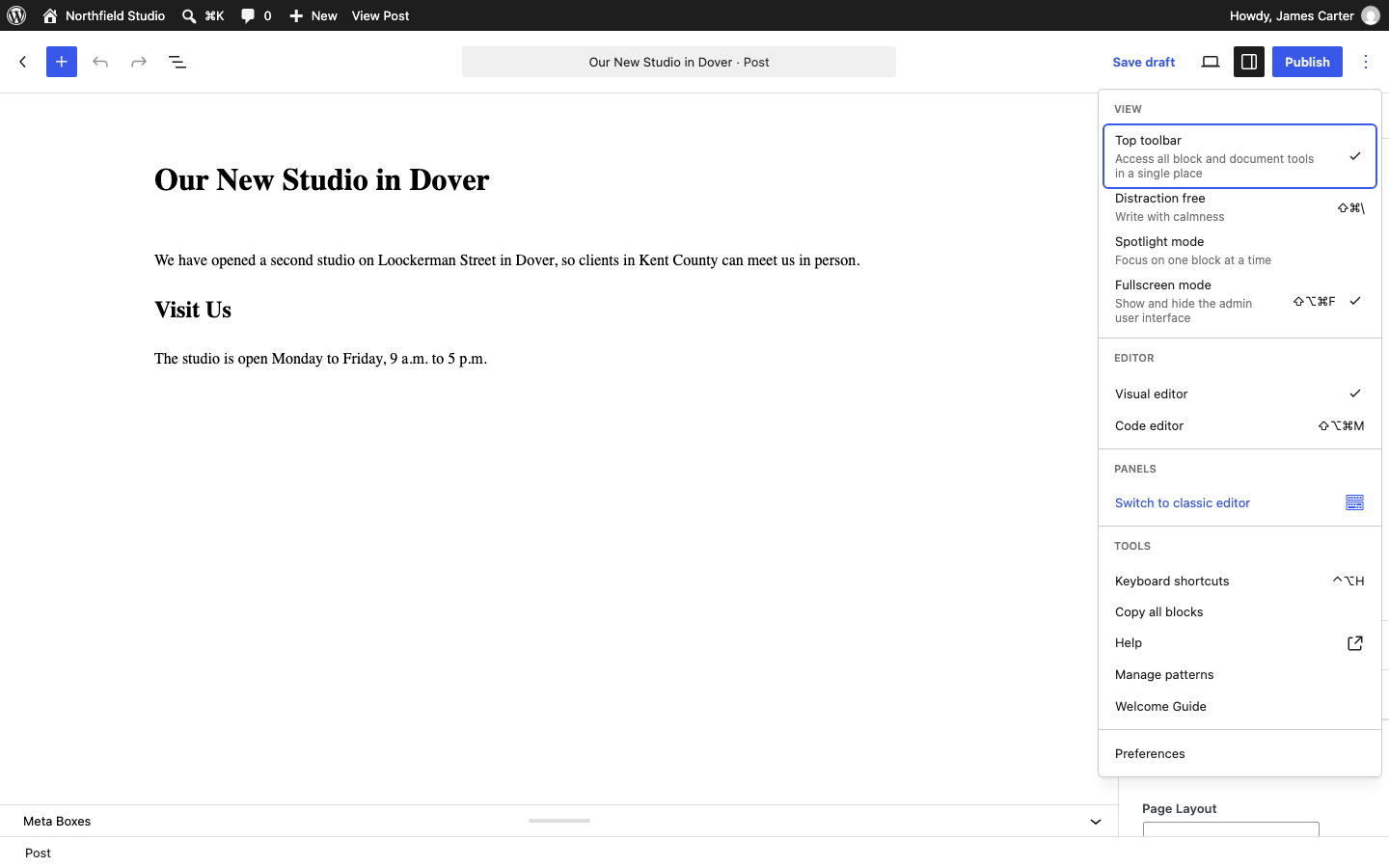
Make the Classic Editor the Default
The WordPress team’s Classic Editor plugin restores the Classic Editor and lets you make it the default for posts and pages.
- Install and activate Classic Editor from PluginsAdd Plugin. See Installing a Plugin if you need help.
- Go to SettingsWriting.
- Under Default editor for all users, select Classic editor.
- Under Allow users to switch editors, choose No to keep everyone in the Classic Editor. Choose Yes to let users switch for each post.
- Click Save Changes.
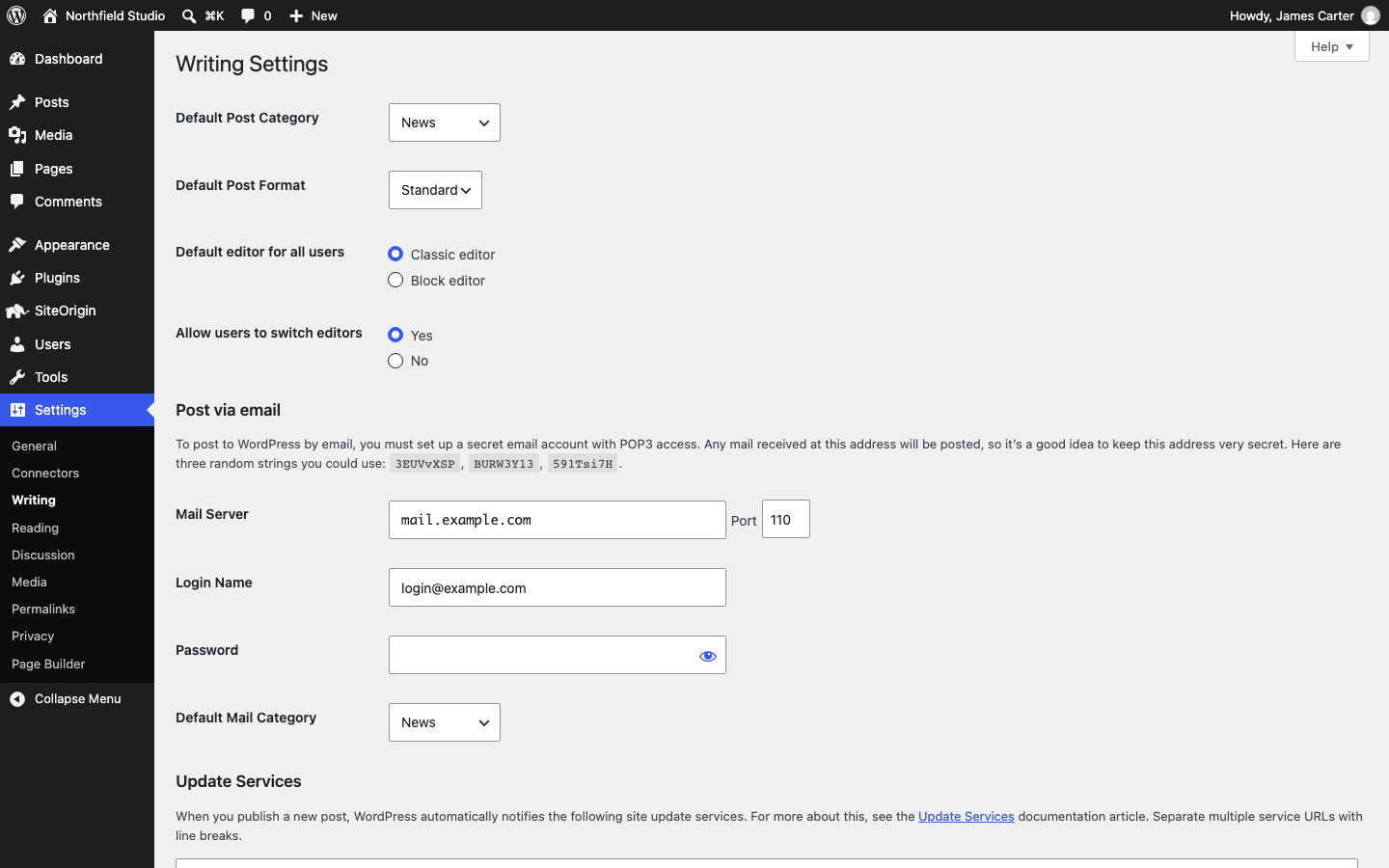
The same default applies to a plugin’s editing screens if that plugin supports both editors. It doesn’t change the Widgets screen; see Widgets and Widget Areas to bring back its classic view.
Switch Editors for One Post
With Allow users to switch editors set to Yes, choose an editor for each post or page:
- Open PostsAll Posts or PagesAll Pages. Hover over a title and click Edit (block editor) or Edit (classic editor).
- In the Block Editor, click the three dots at the top right (Options) and choose Switch to classic editor.
- In the Classic Editor, click Switch to block editor in the Editor box in the sidebar.
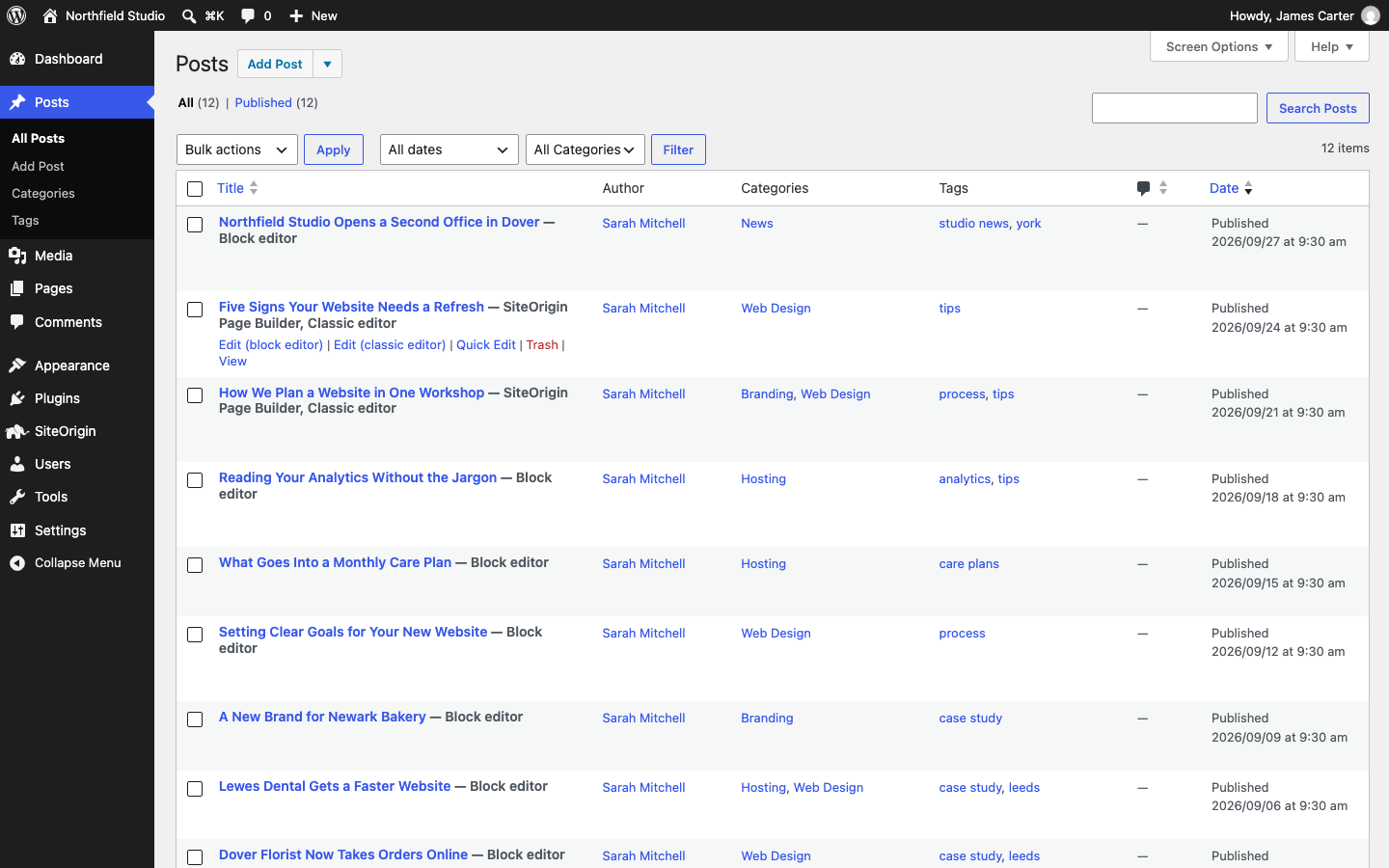
A post reopens in whichever editor was used for it last, whoever opens it. Each user chooses a Default Editor for new posts and pages at UsersProfile.
Classic Content in the Block Editor
When you open a classic-editor post in the Block Editor, its content appears in one Classic block. To turn the content into individual blocks, select the Classic block and click Convert to blocks in its toolbar.
Check the converted layout before you save. If it looks wrong, click Undo at the top of the editor. If you already saved, open the post’s revisions and restore a version from before the conversion. After converting a post, keep editing it in the Block Editor. The Classic Editor shows the blocks’ underlying code in its Text tab.
Page Builder in Each Editor
Page Builder shows up differently in each editor:
- In the Classic Editor, Page Builder adds a Page Builder tab next to Visual and Text. Click it to build the page content from rows and widgets.
- In the Block Editor, insert a SiteOrigin Layout Block alongside your other blocks. If the SiteOrigin Widgets Bundle is active, add its widgets from the SiteOrigin category in the block inserter.
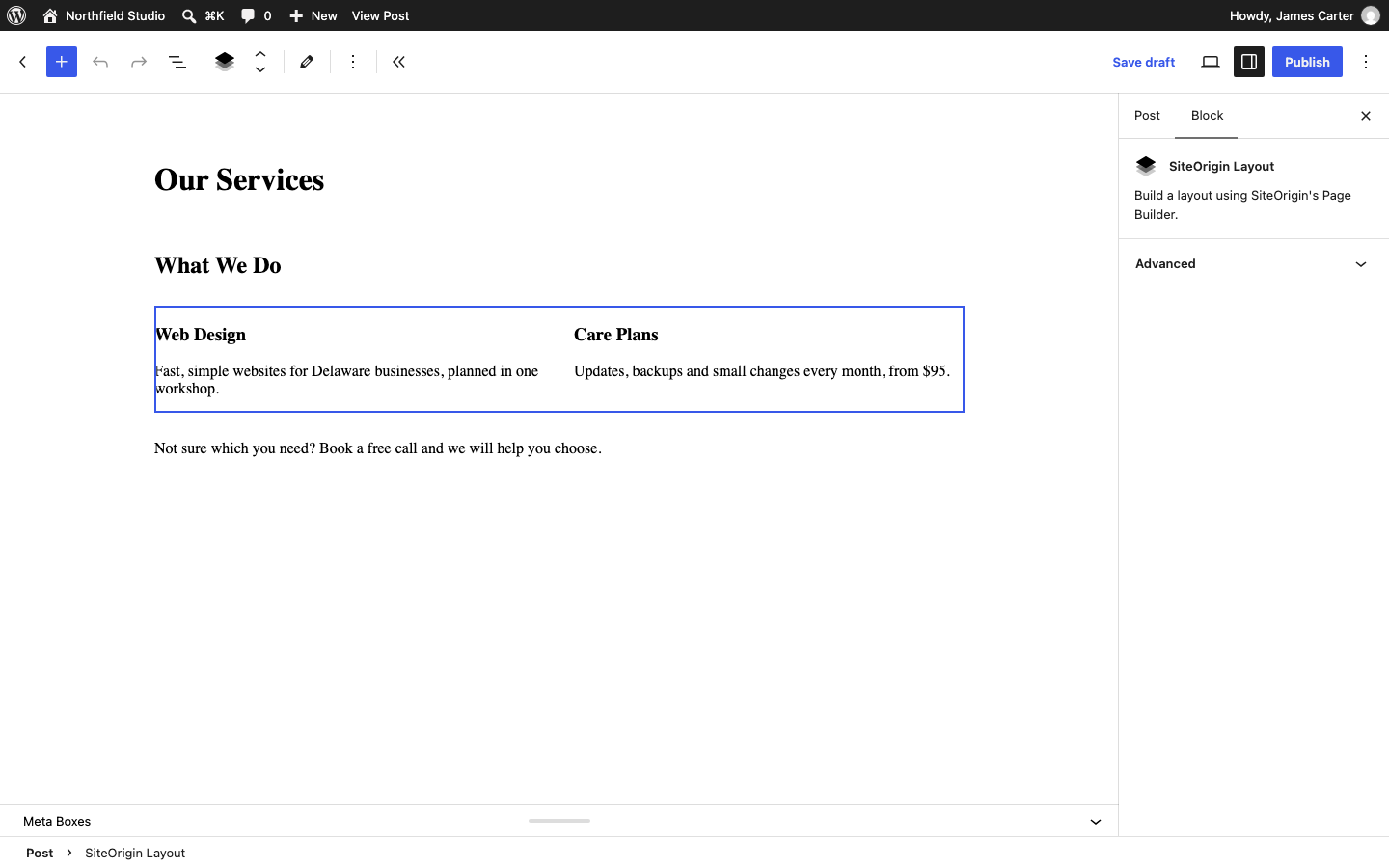
To have Page Builder open new posts and pages in the Block Editor, disable Use Classic Editor for New Posts on the General tab at SettingsPage Builder. To create one page in the Block Editor, go to PagesAll Pages, click the arrow next to Add Page and choose Block Editor.
When the Classic Editor plugin opens the Classic Editor for everyone and editor switching is off, it overrides Page Builder’s setting, and you can’t add a SiteOrigin Layout Block. Page Builder doesn’t need the Classic Editor plugin, so if you installed it only for Page Builder, we recommend deactivating it. See Which Editor Opens in the Page Builder documentation for the full rules.
Which Editor to Use
WordPress builds its new editing features for the Block Editor, so it is the better start for a new site. A block theme also lets you edit its templates with blocks in the Site Editor. Keep the Classic Editor if your team prefers its single editing field, or if a plugin on your site works only with it.
For help using blocks, see WordPress Block Editor.