
 Page Builder
  Widgets Bundle
  SiteOrigin CSS
  Installer
 Updating a Theme Using a ZIP File
2 min read Updated
To update a theme from a zip file, upload the zip at AppearanceThemes with Add Theme and Upload Theme, then click Replace installed with uploaded. You don’t need to switch themes or delete the old version first, and the steps are the same for classic and block themes. Use this route when a theme has no automatic updates, for example a theme bought outside WordPress.org, or when an update in DashboardUpdates fails.
Update the Theme
Before you start, back up your site, and download the new version of the theme as a zip file. Keep the file zipped; if your browser unzipped it, compress the theme folder into a zip again.
- Go to AppearanceThemesAdd ThemeUpload Theme.
- Use the file field to select the zip, then click Install Now.
- WordPress shows This theme is already installed. and a table that compares the installed and uploaded versions. Check the version numbers, then click Replace installed with uploaded.
- Go to AppearanceThemes, click the theme and check that it shows the new version number.
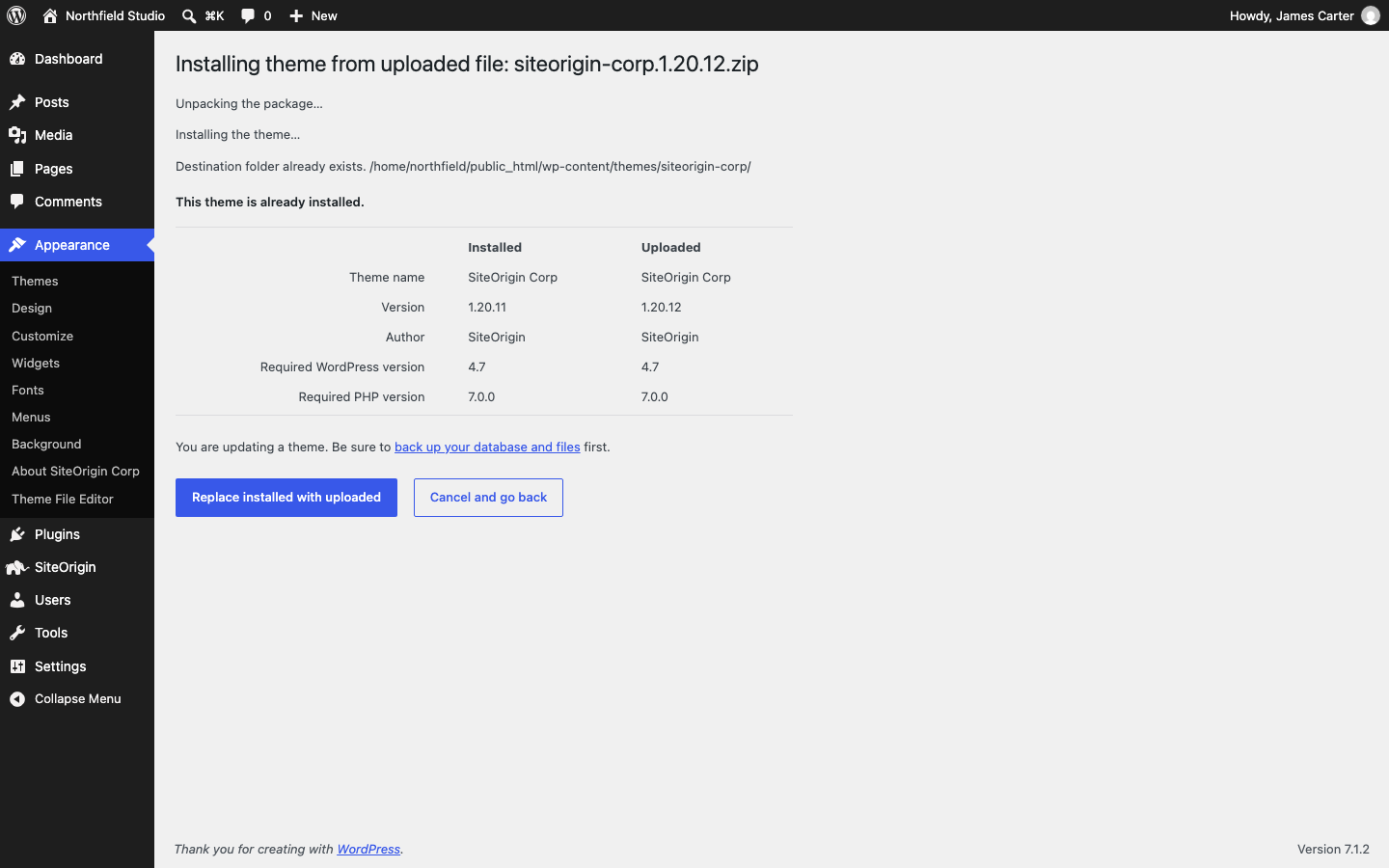
If WordPress installs the zip as a second copy of the theme and does not show the comparison table, the folder inside the zip has a different name from the installed theme’s folder, for example vantage-2 in place of vantage. WordPress matches themes by folder name. Delete the second copy at AppearanceThemes, rename the folder inside the zip to match the installed one, and upload it again.
What the Update Keeps
Your content, menus, widgets and theme settings are stored in the database, and so are templates and styles you edited in the Site Editor, so the update leaves them in place. Changes made to the theme’s own files, with the Theme File Editor or by FTP, are replaced with the new version. To keep code changes through updates, put them in a child theme. Updating the parent leaves the child theme’s files as they are.
Update With FTP or a File Manager
When the upload fails, for example with an error that the file exceeds the maximum upload size, replace the theme folder in your hosting account instead.
- Unzip the new theme on your computer.
- Connect to the site with an FTP program, or open your Hosting File Manager, and go to
wp-content/themes. - Upload the new theme folder under a temporary name, for example
vantage-new. - Rename the installed theme’s folder, for example from
vantagetovantage-old, then rename the new folder to the original name,vantage. - Check the site. When it works, delete the
vantage-oldfolder.
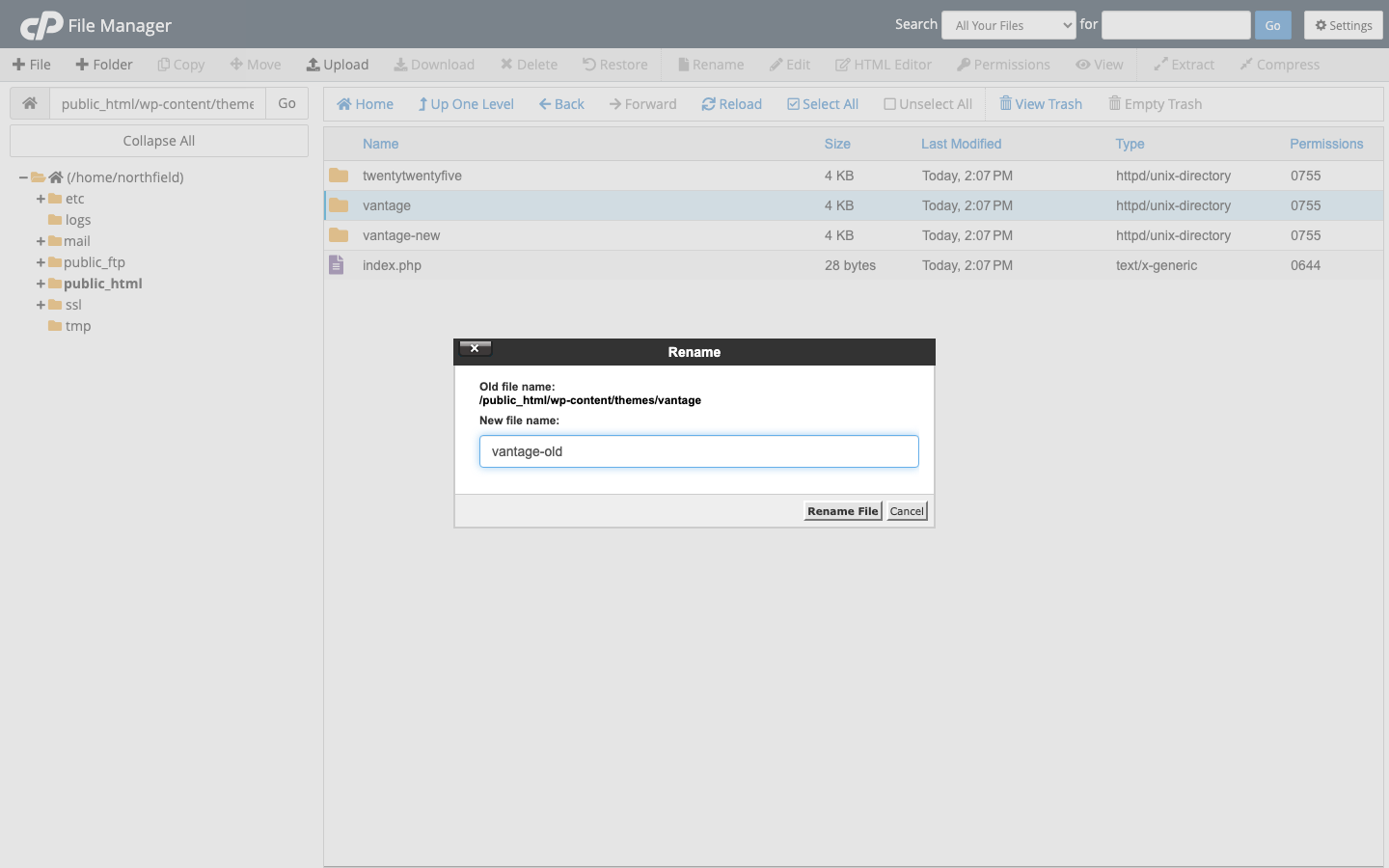
Do the two renames one straight after the other. If someone opens AppearanceThemes while the active theme’s folder is missing, WordPress can switch the site to a default theme.