
 Page Builder
  Widgets Bundle
  SiteOrigin CSS
  Installer
 Backing Up and Restoring Your Site
4 min read Updated
A backup is a copy of your site that you can restore if something damages it, such as a failed update. A full backup has two parts: your site’s files hold your themes, plugins and images, and its database holds your posts, pages and settings. WordPress has no full-site backup tool, so you back up with your host, a backup plugin, or both.
Back up before you update or move your site, so you can restore it if the change fails. When a WordPress update is available, the Updates screen reminds you to back up your database and files.
Check Your Host’s Backups
Start by checking whether your host makes automatic backups. In your hosting account, look for a Backups section and check the date of the latest copy. Find out how long your host keeps backups, and whether you can restore or download one yourself. A host backup sits outside WordPress, so it helps even when WordPress won’t load.
If your host keeps its backups on the same servers as your site, a problem with your hosting account loses your site and its backups together, so keep another copy in cloud storage.
Back Up With a Plugin
A backup plugin runs backups on a schedule and sends them to cloud storage. We’ll use the free version of UpdraftPlus to back up your database, plugins, themes and uploads.
- Install and activate UpdraftPlus: WP Backup & Migration Plugin from PluginsAdd Plugin. See Installing a Plugin if you need help.
- Click UpdraftPlus in the admin menu and open the Settings tab.
- Set Files backup schedule and Database backup schedule. Both start at Manual. Choose Daily for a site that changes most days, for example with new posts, orders or form entries. Choose Weekly only if losing a week of changes would be fine.
- Under Select your preferred remote storage location, choose a service you use, such as Google Drive or Dropbox.
- Click Save Changes, then follow the link that appears under your storage service to connect your account.
- Open the Backup / Restore tab and click Backup Now.
- In the window that opens, leave the database, files and remote storage options enabled and click Backup Now. When it finishes, check that the backup shows under Existing backups and in your cloud storage.
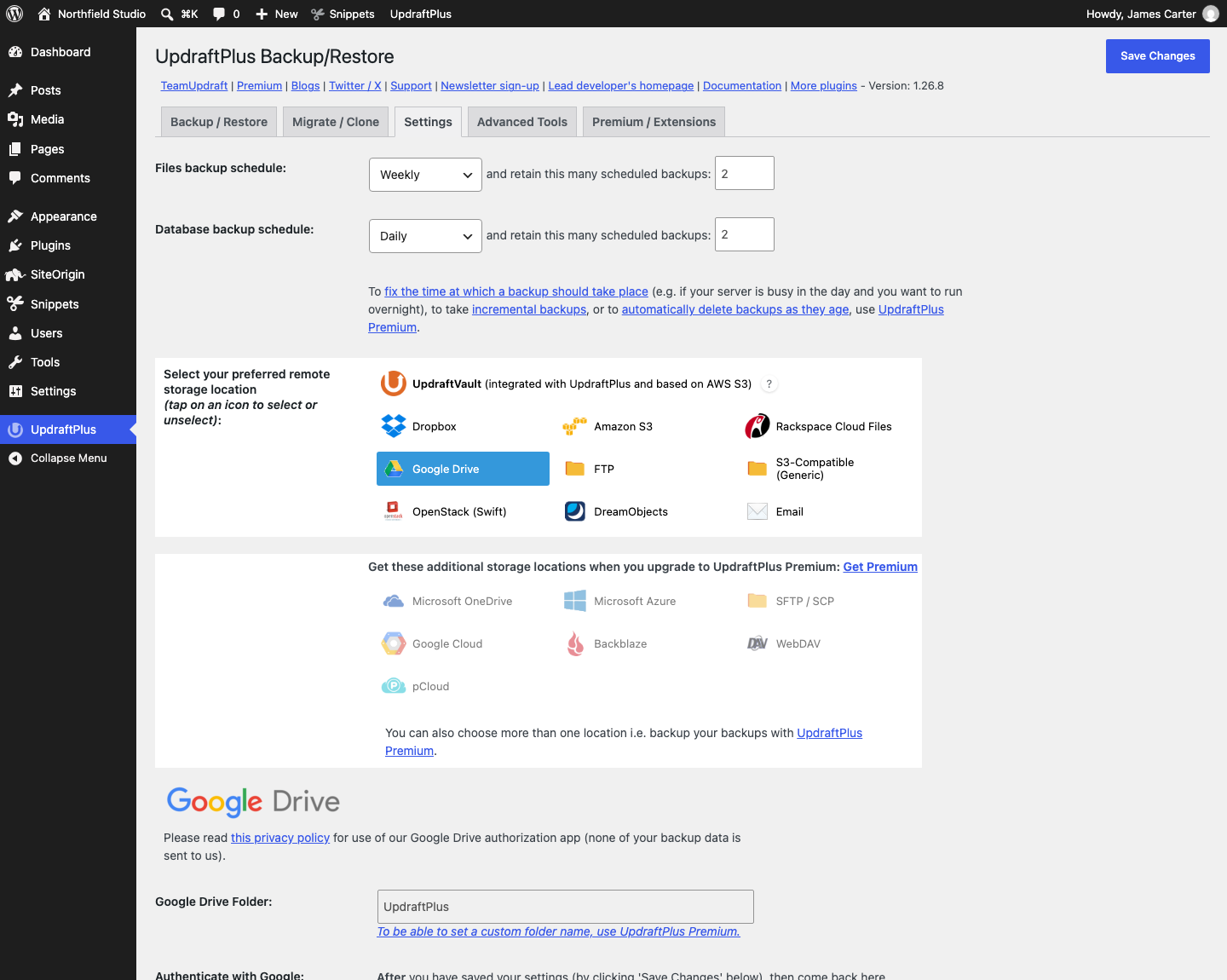
Without remote storage, UpdraftPlus keeps backups in your hosting account, and a failure there loses them along with your site. UpdraftPlus skips the WordPress core files, which you can download again from WordPress.org. It also skips wp-config.php, the file with your database connection details. Download wp-config.php with your Hosting File Manager and keep it in password-protected storage outside your hosting account. Download a fresh copy if your database details change.
Restore a Backup
If your WordPress dashboard still opens, restore with UpdraftPlus. Choose only the parts that the problem affects, because restoring the Database also undoes changes made since the backup.
- Open UpdraftPlus and the Backup / Restore tab.
- Under Existing backups, find the backup from before the problem and click Restore.
- Check the parts to restore, such as Plugins or Database, and click Next.
- When UpdraftPlus has checked the backup, click Restore.
If a plugin update broke the site, restore only Plugins first, which puts every plugin back to its version in the backup. Restoring Plugins keeps the posts and uploads added since the backup, but it doesn’t undo changes the plugin update made to the database. Restoring the Database returns your content and settings to the backup date, so changes made since then are lost.
If WordPress won’t load, use your host’s restore option or ask your host to restore a backup. If UpdraftPlus holds your only backup, download every file from the same backup date and ask your host to help restore the site. If your host can’t, install a fresh copy of WordPress at your site’s original address, then install UpdraftPlus. Under Existing backups, click Upload backup files and upload all the files you downloaded. When the backup appears, click Restore.
Test Your Backups
Test a backup after you set it up, and again whenever you change backup settings or move hosts. Ask your host to restore a recent backup to a staging site, which is a test copy of your site, and check that its pages and dashboard work. If your host doesn’t include a staging site in your hosting account, ask your host how to test a restore without touching the live site. Also check that new backups still appear in your cloud storage.
For other ways to back up your site, see the Backups guide in the WordPress handbook.