
 Page Builder
  Widgets Bundle
  SiteOrigin CSS
  Installer
 Menus
4 min read Updated
A WordPress menu is a list of links to your pages, posts, categories and other sites, and your theme shows it in places such as the header and footer. In a classic theme, you build menus at AppearanceMenus or in the Customizer and assign each menu to a location the theme provides. In a block theme, a menu is a Navigation block that you edit in the Site Editor.
The menus you see in Appearance depend on your theme. A classic theme shows Customize, and it shows Menus when it supports menus or widgets. A block theme shows Editor in place of Customize, unless the theme or a plugin adds Customizer settings, and it shows Menus only when it supports menus or widgets.
Classic Admin Screens
- Go to AppearanceMenus.
- If you already have a menu, click create a new menu at the top of the screen. If you have none, the name field is already open.
- Enter a name in Menu Name, for example Main Menu, and click Create Menu.
- In the left column, open Pages, Posts, Custom Links or Categories, check the items you want and click Add to Menu. For a link to another site, enter the URL and Link Text under Custom Links.
- Drag the items into order. To make a drop-down, drag an item a little to the right, under the item that should be its parent. If dragging is awkward, click the arrow on the item to open it and use the Move links, such as Under Services.
- Under Menu Settings, enable a location under Menu location, for example the header location.
- Click Save Menu.
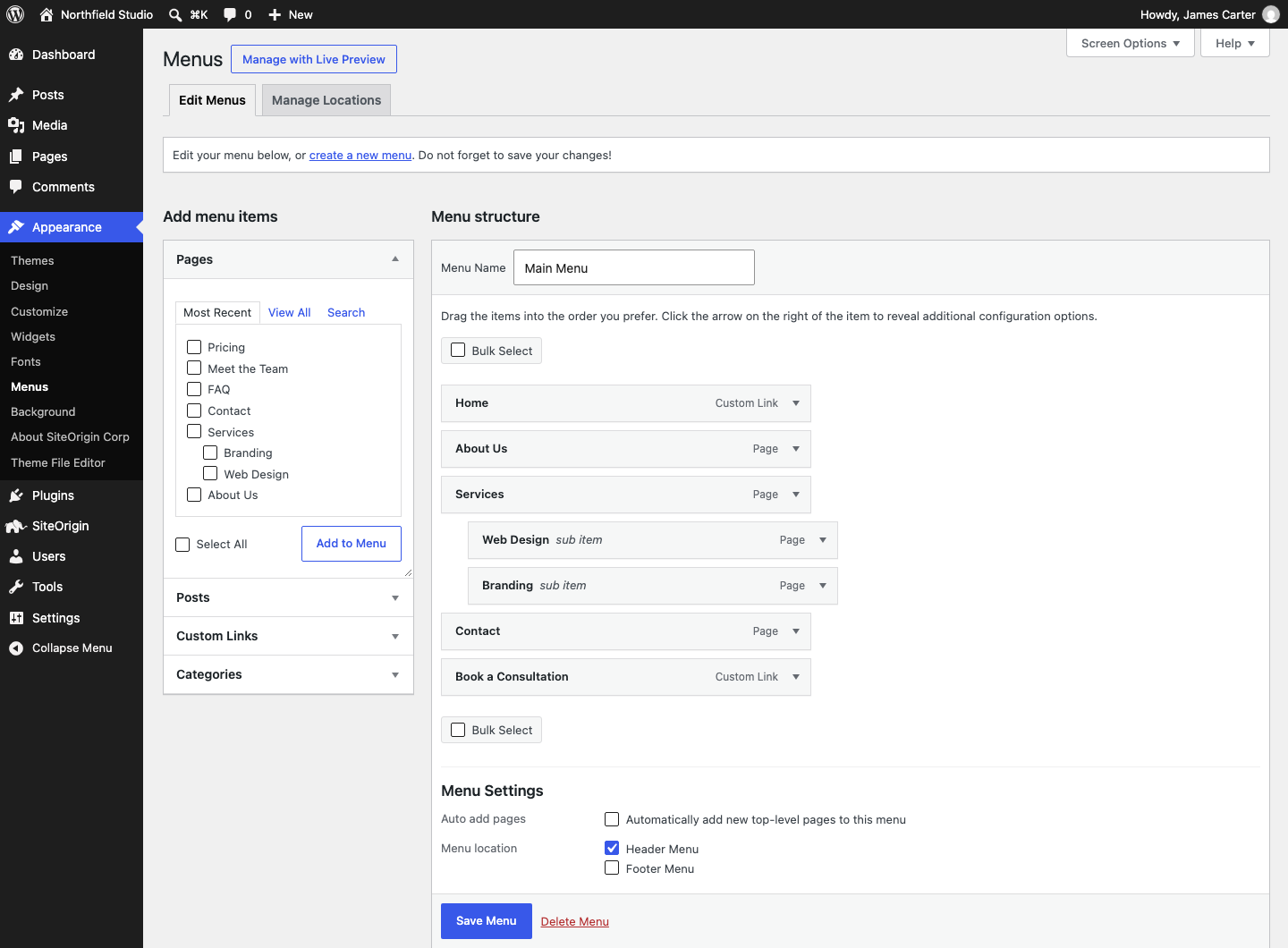
To change the text of a menu item, click the arrow on the right of the item and edit Navigation Label. Click Screen Options at the top right to show more item fields, such as Link Target and CSS Classes, or more boxes in the left column, such as Tags.
The Manage Locations tab at the top of the screen lists every location your theme offers, so you can assign all of them on one screen. Under Auto add pages, the Automatically add new top-level pages to this menu option adds each new top-level page to the menu when you publish it. To remove a menu, open it and click Delete Menu at the bottom.
Customizer
- Go to AppearanceCustomizeMenus.
- Click Create New Menu, enter a Menu Name, check a location under Menu Locations and click Next.
- Click Add Items and choose pages, posts, categories or a custom link. The preview updates as you add each item.
- Click Reorder to move items with the arrows, or drag them. Move an item to the right, under its parent, to make a drop-down.
- Click Publish.
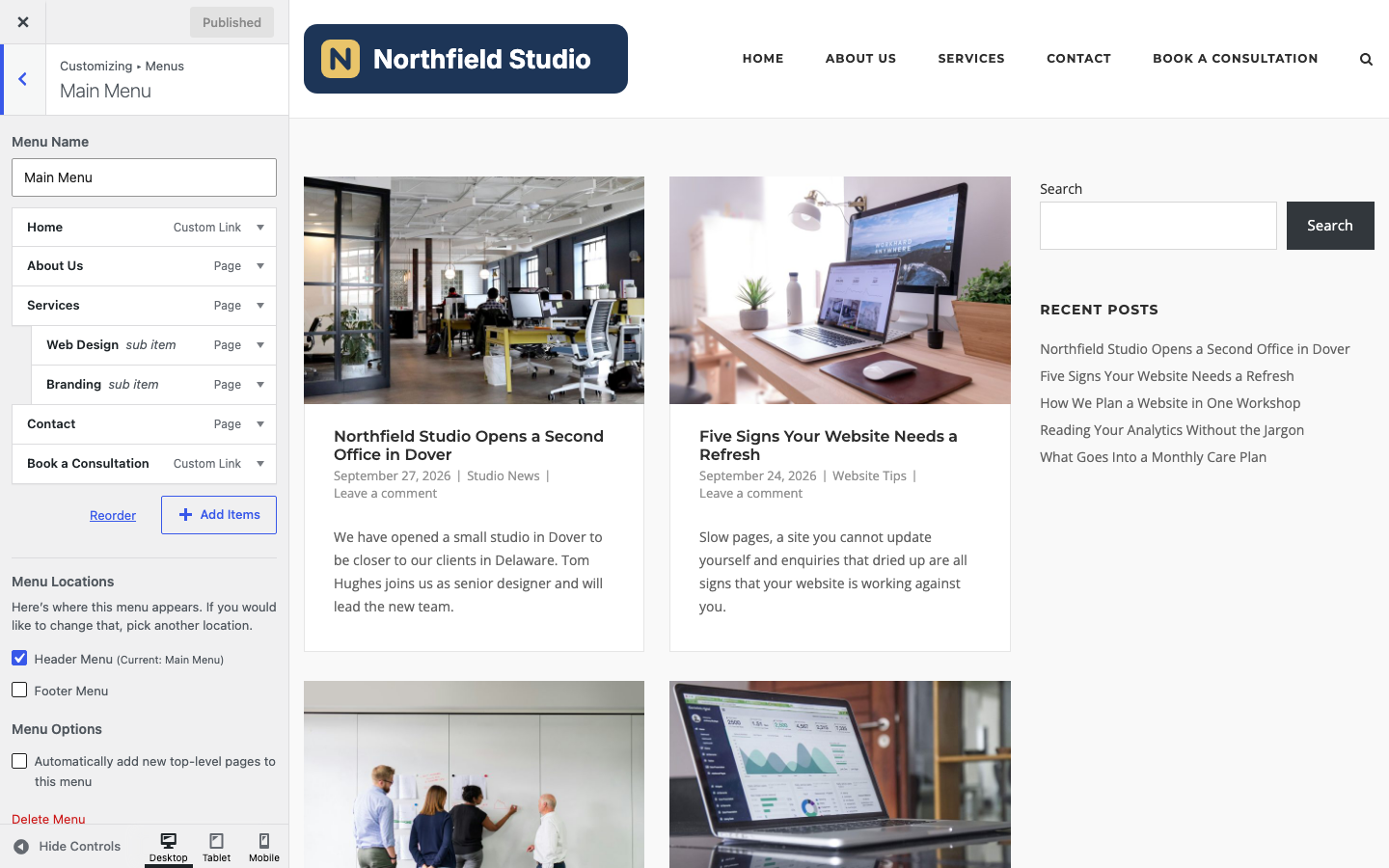
To edit a menu you already have, click its name in the Menus panel. The Delete Menu link is at the bottom of each menu.
Block Themes
In a block theme, the header and footer hold a Navigation block, and the block shows a saved menu or, until you pick one, a list of your pages. One menu can appear in several templates, and a change to it shows in each template that uses it.
- Go to AppearanceEditorNavigation to see your menus. Click a menu, then click the three dots (Actions) and choose Edit.
- To add an item, click the add block button (+) in the menu and choose a page, or search for a page or enter a URL.
- To make a drop-down, select an item and click Add submenu in the block toolbar, then add the child items inside it.
- Drag items in the menu list in the block settings sidebar to change their order.
- Click Save.
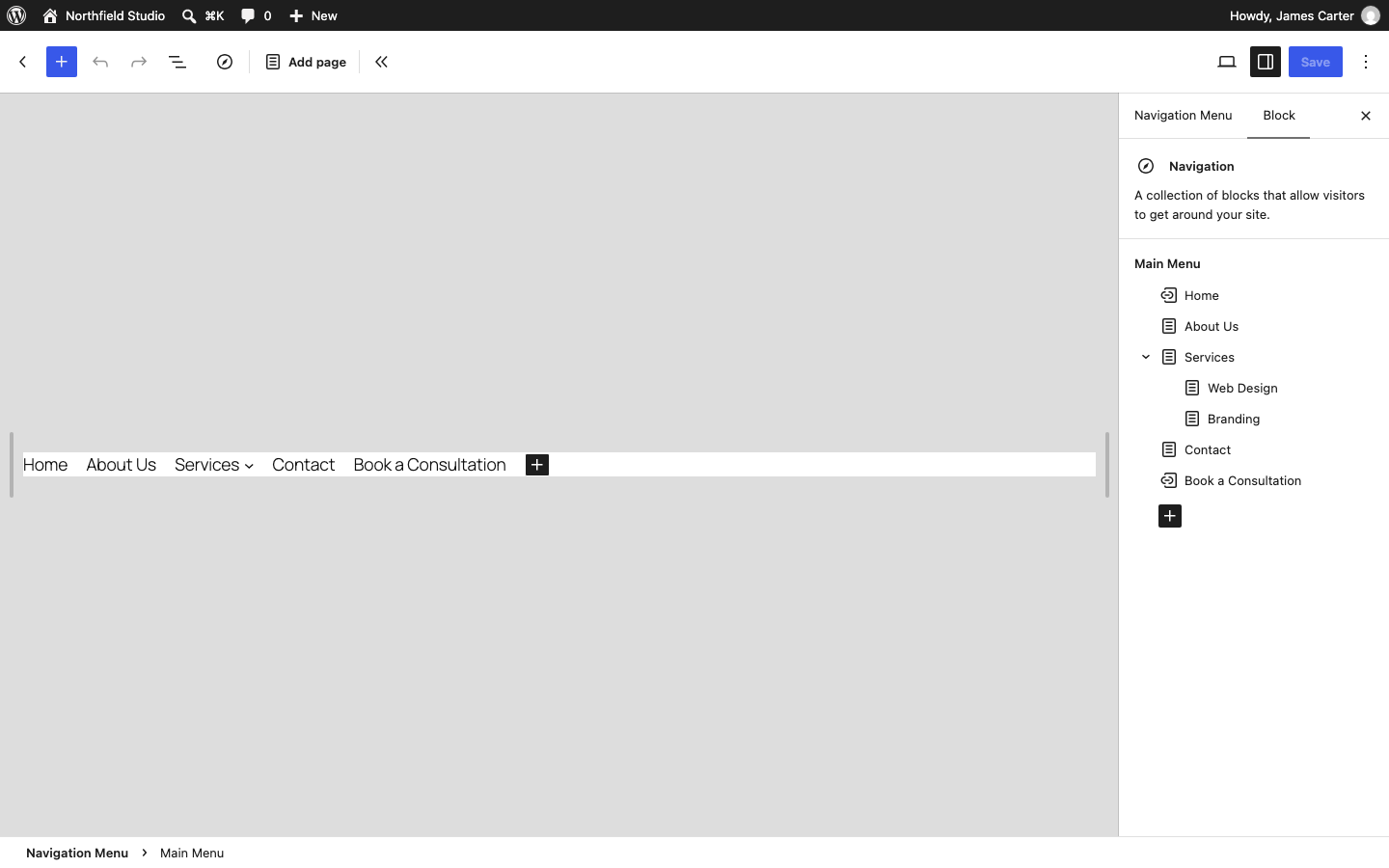
To start a new menu, select the Navigation block in a template, click the three dots in the block settings next to the menu name and choose Create new Menu. The same list switches the block to another saved menu, and menus you built at AppearanceMenus appear there under Import Classic Menus. If the menu lists all your pages automatically, it uses a Page List block; to change single pages, select the Page List block, click Edit and confirm, which turns each page into its own link. New pages are then no longer added automatically.
See Navigation block and Appearance Menus Screen for the full WordPress guides.