
 Page Builder
  Widgets Bundle
  SiteOrigin CSS
  Installer
 Featured Images
3 min read Updated
A featured image is the main image of a post or page, and your theme uses it to represent that content in blog lists and archives, and at the top of the post when the theme’s post template includes it. SEO and social sharing plugins also use it as the preview image when someone shares the link. You set it in the post editor with Set featured image. Where it appears, and at what size, depends on the theme.
Block Editor
The Block Editor is the default editor in WordPress, and these steps work with any theme that supports featured images.
- Open the post or page and open the settings sidebar with the Settings button at the top right.
- On the Post tab (Page for pages), click Set featured image near the top.
- Upload an image or choose one in the Media Library, then click Set featured image.
- Click Save, or Publish for a new post.
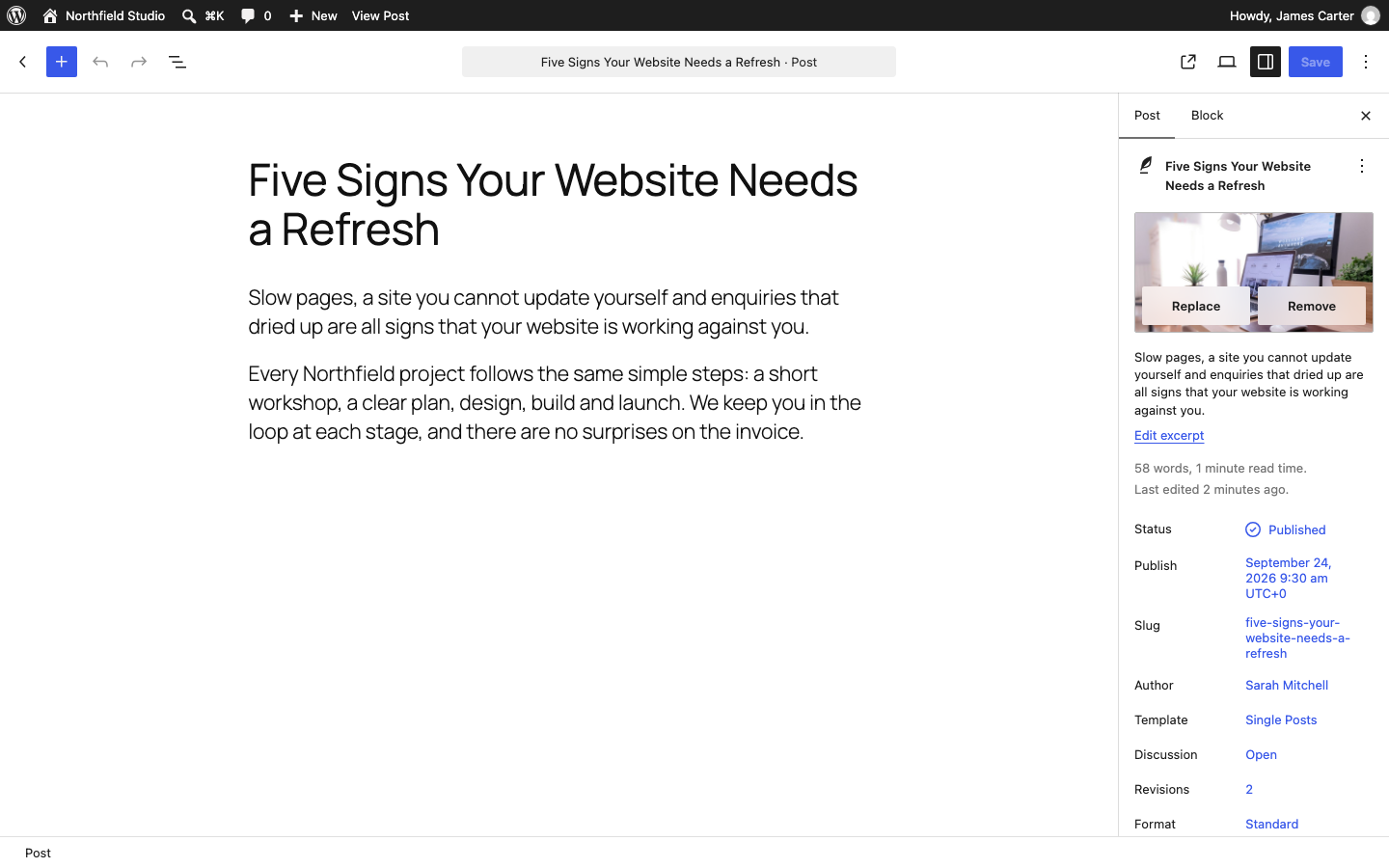
To change the image, hover over it in the sidebar and click Replace; to clear it, click Remove. Fill in the image’s alternative text in the Media Library; your theme uses it when it shows the image.
Classic Editor
You see the Classic Editor when the Classic Editor plugin is active, or for a post type that does not use the Block Editor.
- Open the post or page and find the Featured image box in the right column.
- Click Set featured image.
- Upload an image or choose one in the Media Library, then click Set featured image.
- Click Update, or Publish for a new post.
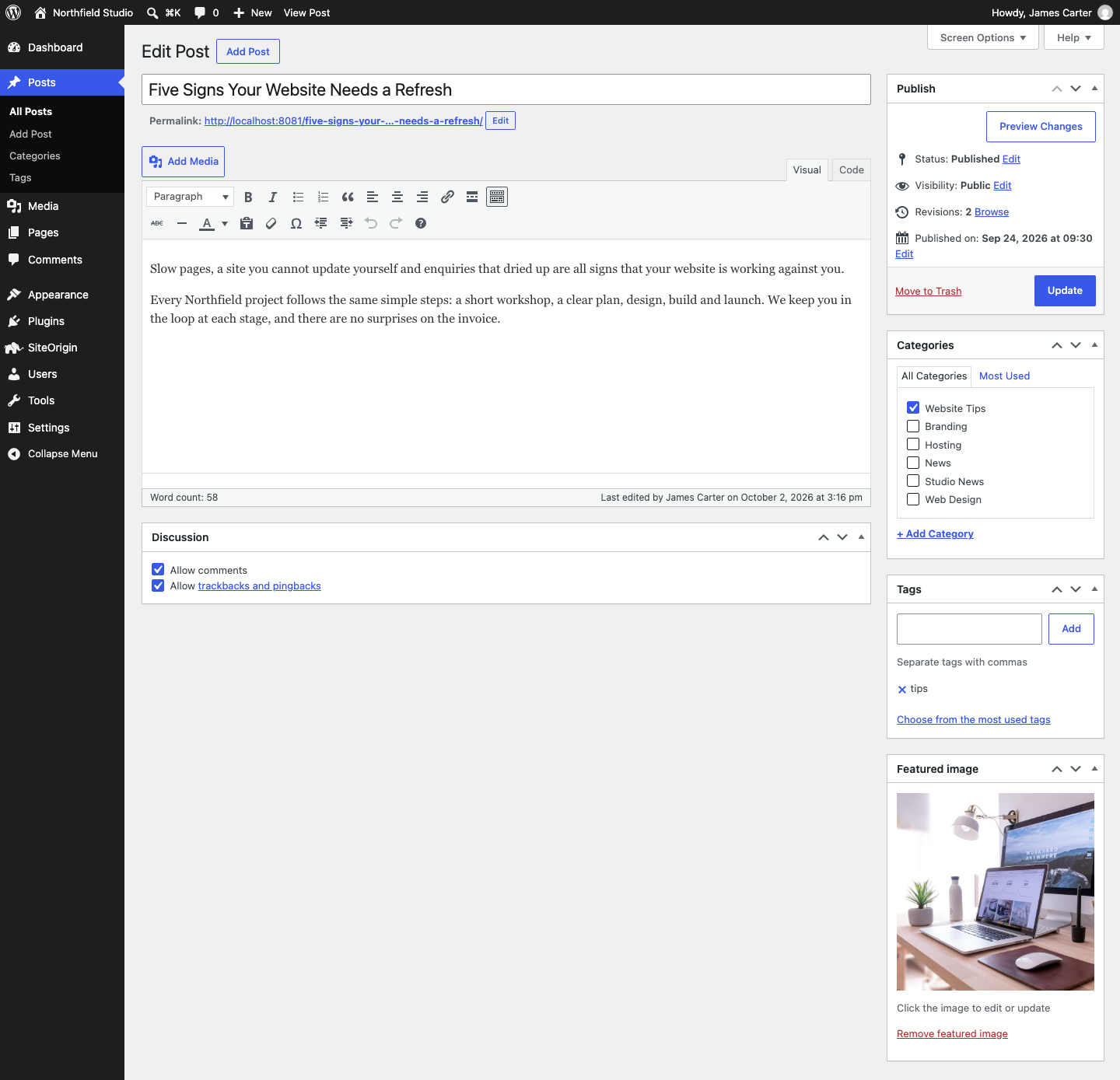
The Remove featured image link under the image clears it. If the box is missing, click Screen Options at the top of the screen and enable Featured image.
Show or Hide the Image in Your Theme
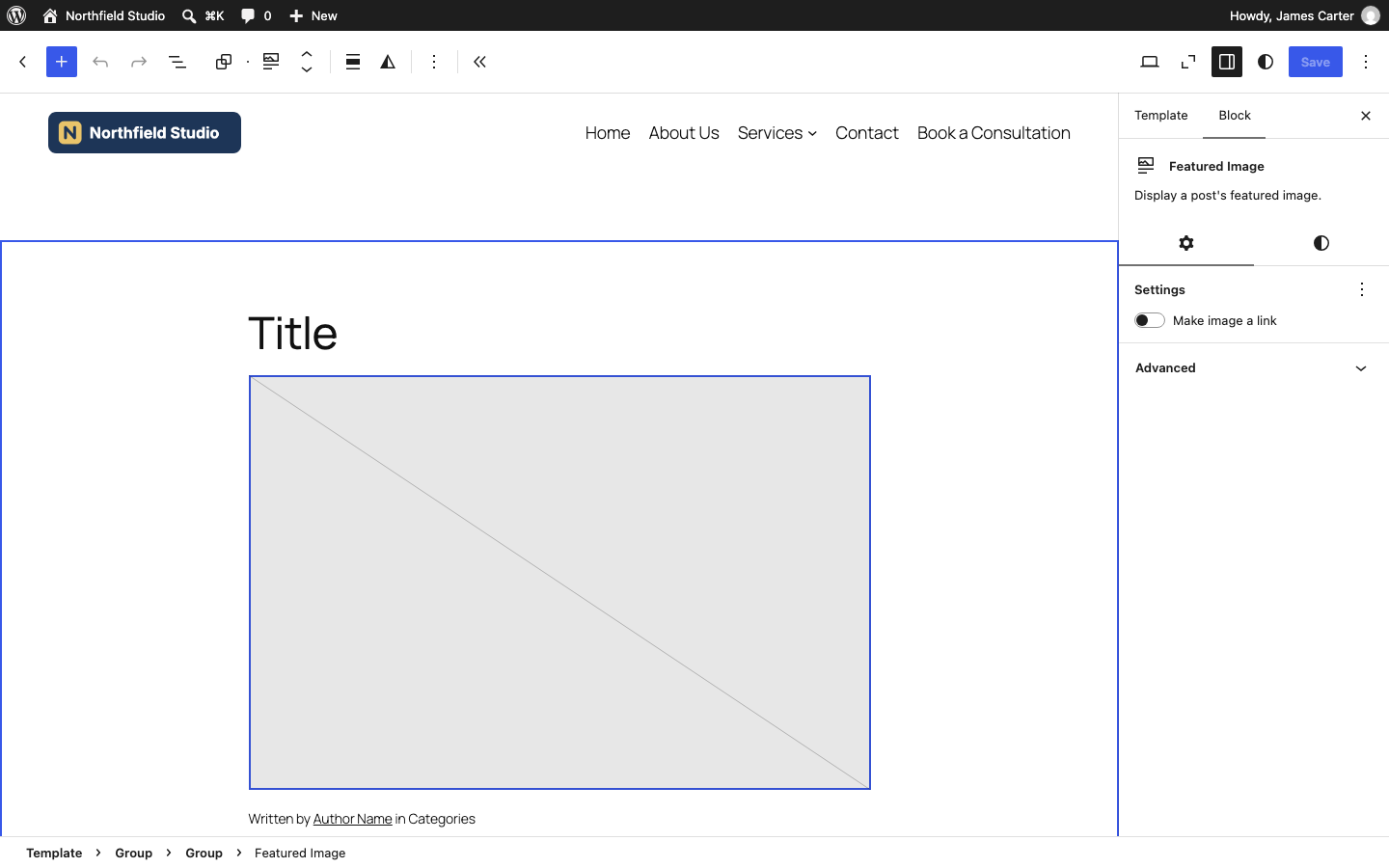
In a block theme, the Featured Image block in a template decides where the image appears.
- Go to AppearanceEditorTemplates and open Single Posts, or the template for the view you want to change, such as Blog Home.
- To show the image, click the add block button (+) and add a Featured Image block. To hide it, select the block and delete it.
- Click Save.
In a classic theme, the theme’s own code decides where the image appears, and the theme can add settings for it in the Customizer. SiteOrigin Corp, for example, has Archive Featured Image and Post Featured Image settings; see the Corp documentation or your theme’s documentation for its settings.
If the Featured Image Option Is Missing
- The theme does not support featured images. Block themes support them by default; a classic theme has to declare support for them.
- The post type does not support featured images, which plugins decide for the custom post types they add.
- The panel is turned off. In the Block Editor, click the three dots at the top right, go to Preferences > General and enable Featured image under Document settings. In the Classic Editor, use Screen Options.
See Featured Image block for the full WordPress guide to the block.