
 Page Builder
  Widgets Bundle
  SiteOrigin CSS
  Installer
 Adding Code Snippets Safely
7 min read Updated
Many support replies and tutorials, including ours, give you a few lines of PHP to add to your site, for example to hide a theme feature. Where you put that code matters: theme and plugin updates overwrite edits to their files, and a fatal PHP error stops your site from loading. The two safe places for a snippet are the free Code Snippets plugin and a child theme, and both let you switch a snippet off again if it breaks your site.
Where a Snippet Should Go
We recommend the free Code Snippets plugin. Your snippets stay in place when you update or change themes. Each snippet has its own on and off switch, and the plugin checks a PHP snippet for errors when you activate it.
A child theme‘s functions.php file also keeps your code through parent theme updates. Use it when you already have a child theme and the snippet changes that theme. There is no switch: to turn the snippet off, you edit the file. The snippet also stops running if you switch to another theme.
Never add a snippet to these files, because an update replaces them and your code is lost:
- Your parent theme’s
functions.phpor any other file in the parent theme. - A plugin’s files.
- WordPress core files, in the main WordPress folder,
wp-adminorwp-includes.
These steps are for PHP. For CSS changes, use the free SiteOrigin CSS plugin at AppearanceCustom CSS, or WordPress’s Additional CSS field; Adding Custom CSS shows both.
Use code from a source you trust. If its instructions don’t explain what it changes, ask the author before you activate it. Back up your site, then try the snippet on a staging copy first if your host offers one.
Add a Snippet With the Code Snippets Plugin
- Install and activate Code Snippets. Installing a Plugin shows how.
- Go to SnippetsAdd New.
- Name the snippet for what it does, such as “Link login logo to site”.
- Leave the snippet type set to Functions, which is PHP.
- Paste the code into the code field. If the snippet starts with
<?php, leave that line out; Code Snippets removes it when you save anyway. - Under the code, leave Run everywhere selected unless the snippet’s instructions say otherwise.
- If you’re using the example below, change its
northfield_prefix first, then click Save and Activate.
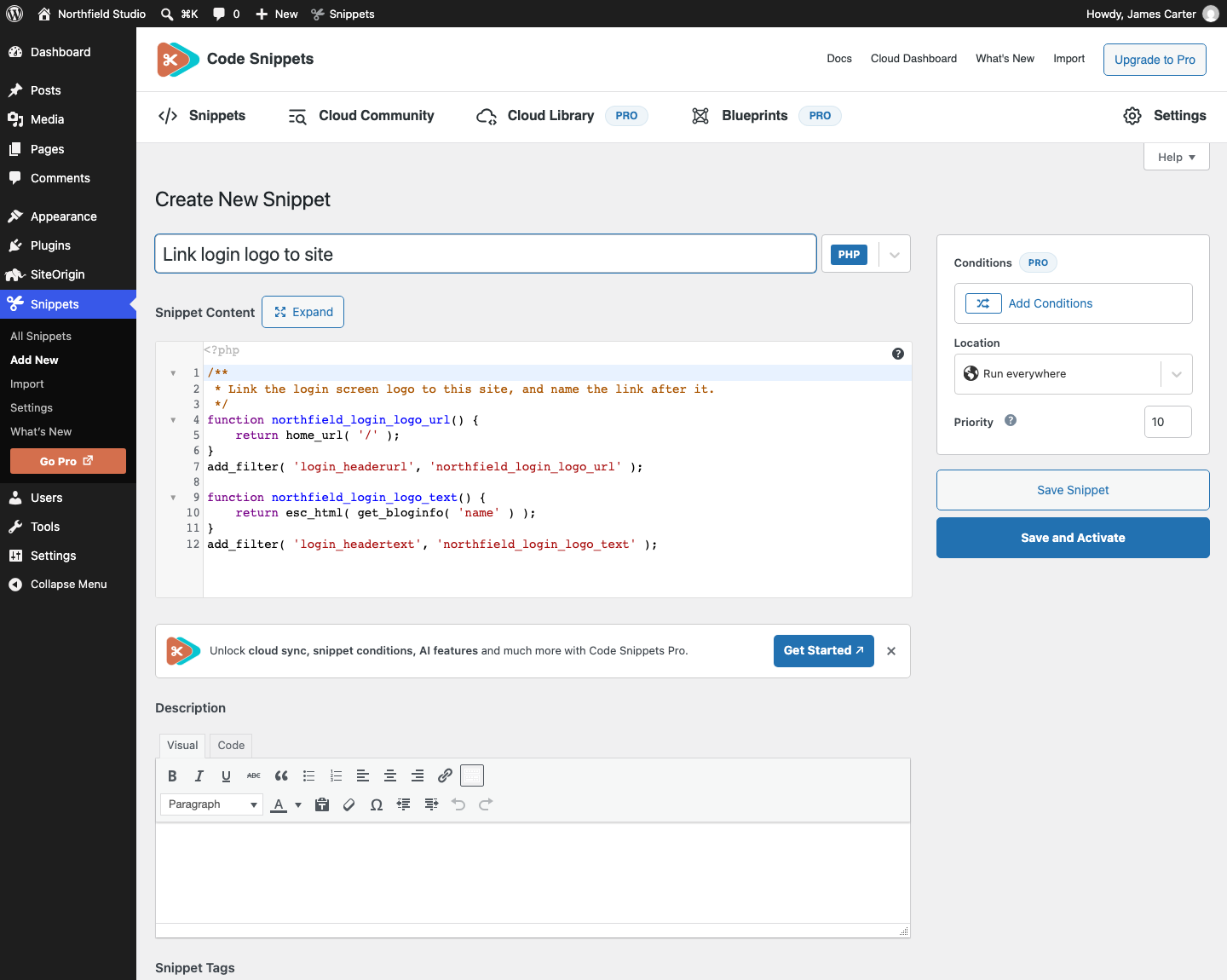
To try it out, add this snippet, which links the logo on the WordPress login screen to your own site instead of WordPress.org, and names the link after your site:
/**
 * Link the login screen logo to this site, and name the link after it.
 */
function northfield_login_logo_url() {
	return home_url( '/' );
}
add_filter( 'login_headerurl', 'northfield_login_logo_url' );

function northfield_login_logo_text() {
	return esc_html( get_bloginfo( 'name' ) );
}
add_filter( 'login_headertext', 'northfield_login_logo_text' );
Before you activate it, replace northfield_ everywhere it appears with a prefix based on your site, such as mybakery_, in lowercase letters and ending in an underscore. The prefix keeps your function names from clashing with another function of the same name, which would stop your site from loading. Code Snippets also checks whether the function name is already in use when you activate the snippet.
If Code Snippets finds a PHP error when you activate a snippet, it turns the snippet off and shows a notice that starts “Snippet automatically deactivated due to an error on line”, with the error below it. Fix the code, then click Save and Activate again. After you activate a snippet, visit the pages it changes, because the activation check doesn’t catch every error.
To turn a snippet off, go to SnippetsAll Snippets and click the switch next to its name. The code stays saved for when you turn it on again.
Add a Snippet to a Child Theme
If your child theme is active, add the snippet in the Theme File Editor. After you save, WordPress checks the editor and your home page, and if the change causes a fatal error, it puts the old file back.
- Go to AppearanceTheme File Editor, or ToolsTheme File Editor with a block theme. If WordPress shows a warning, click I understand.
- In Select theme to edit, choose your child theme and click Select.
- Under Theme Files, click functions.php. If it isn’t listed, your child theme has no
functions.php, and the Theme File Editor can’t create one. Use Code Snippets instead, or add the file as Child Themes describes. - Paste the snippet at the end of the file, above the
?>line if the file has one. Leave out the snippet’s opening<?phpline, because the file already starts with one. - Click Update File.
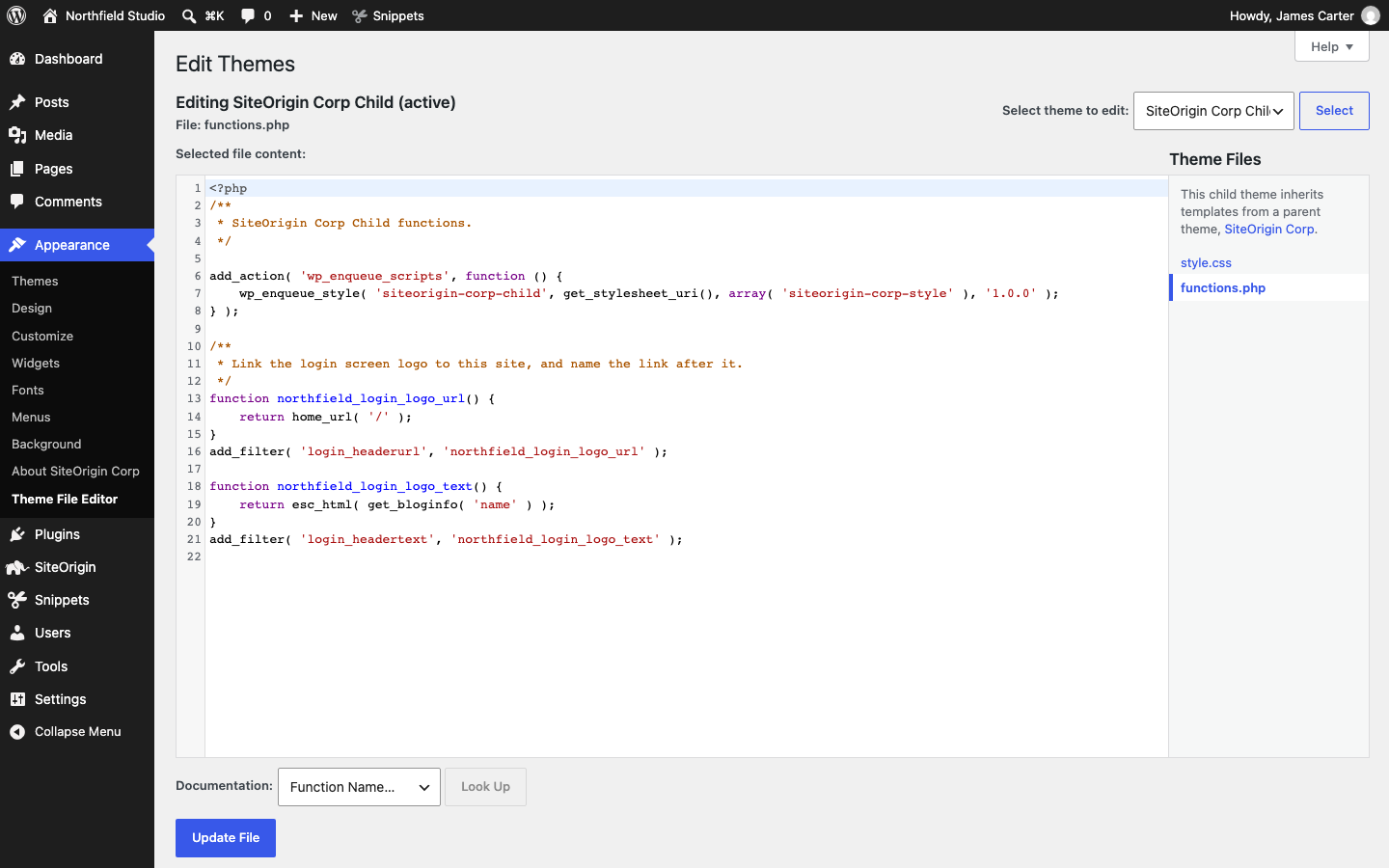
If you see an error notice, your change wasn’t saved. Read the notice, fix the code and try again.
If there is no Theme File Editor item in the menu, file editing is turned off for your account or your site. Use your Hosting File Manager instead. Find wp-content/themes/your-child-theme/functions.php and download a copy before you edit it. WordPress doesn’t check edits made in your Hosting File Manager, so as soon as you save, visit your home page and a page the snippet changes.
If a Snippet Breaks Your Site
If a snippet causes a fatal error, WordPress shows “There has been a critical error on this website.” or a blank page in place of your site. If the error happens in the dashboard or on the login page, WordPress also sends a recovery link to your site’s admin email address. Identifying Plugin Issues explains how to recover with or without that email.
For a snippet in Code Snippets, use the plugin’s safe mode. It pauses every snippet so you can log in and turn off the faulty one. Here’s how to switch it on in your Hosting File Manager:
- Open
wp-config.php. Debugging in WordPress shows how to find and edit it. - Add this line above the line that starts
/* That's all, stop editing!, then save the file:define( 'CODE_SNIPPETS_SAFE_MODE', true );
- Log in to WordPress, go to SnippetsAll Snippets, and turn off the snippet you activated or edited last.
- Remove the line from
wp-config.phpand save the file again.
For a snippet in a child theme, open functions.php in your Hosting File Manager and remove the snippet, or upload the copy you downloaded before you changed it.
To find out what went wrong, check your host’s PHP error log for the error’s file name and line number. Before you test a fixed snippet, turn on debug logging, then check debug.log for new errors. Debugging in WordPress shows how.
Ask Your AI Assistant
Ask your AI assistant to explain a snippet before you add it, or to help you fix one that fails. If you have a staging copy, test any code it suggests there before you use it on your live site. Never paste wp-config.php or share passwords, keys or customer details. Remove those details from error messages before you paste them.
To check a snippet before you add it:
I want to add this PHP snippet to my WordPress site with the Code
Snippets plugin. It came from SOURCE OF THE SNIPPET.
PASTE THE SNIPPET HERE.
Explain in plain words what it does and where it takes effect.
What could go wrong if I activate it, and what should I check on a
staging copy first? Flag anything that could cause a PHP error.
To fix a snippet that fails:
This PHP snippet on my WordPress site fails with this error.
Snippet:
PASTE THE SNIPPET HERE.
Error, from the Code Snippets notice or debug.log, with private
details removed:
PASTE THE ERROR HERE.
Explain the error and give me a corrected version. Do not suggest
editing WordPress core files or the plugin's own files.