
 Page Builder
  Widgets Bundle
  SiteOrigin CSS
  Installer
 Integrated Plugins
4 min read Updated
Origami adds support for Page Builder, the Widgets Bundle, SiteOrigin CSS, Jetpack, WooCommerce and SiteOrigin Premium, and none of them is required. To install a plugin, go to PluginsAdd Plugin, search for it by name, click Install Now and then Activate.
Page Builder by SiteOrigin
Origami recommends Page Builder by SiteOrigin. Until you install and activate it, a notice in the WordPress admin links to AppearanceInstall Plugins, where you can install it in one step. With Page Builder active, Origami adds:
- The Home Page screen at AppearanceHome Page, where you build your home page without the page editor. Turn the toggle next to Custom Home Page to On and click Save Home Page. Page Builder then creates a page called Home Page, sets it as your front page and gives it the Without Page Title template.
- The Business Home Page layout, which the Home Page screen starts with. You can also add it to any page: click Layouts in Page Builder and open the Prebuilt Layouts tab. The layout has a gallery slider and a call to action in the first row, and three Icon and Text Widgets in the second row.
- Four widgets of its own for Page Builder and the Footer widget area: SiteOrigin Call To Action, SiteOrigin Button, SiteOrigin Headline and SiteOrigin Icon and Text. Origami registers these widgets itself, so they also work without Page Builder.
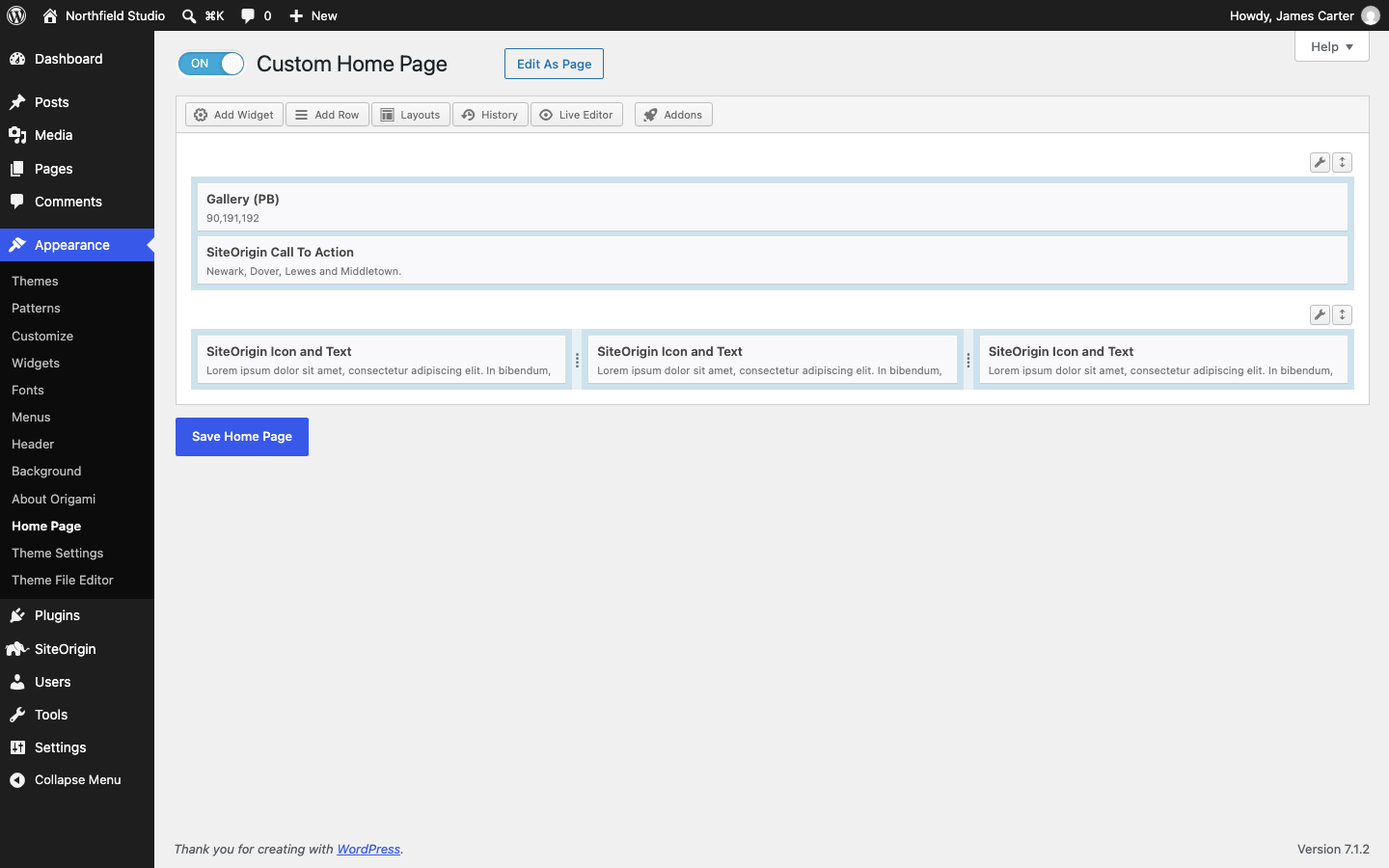
The gallery in the Business Home Page layout uses Page Builder’s legacy Gallery (PB) widget. Go to SettingsPage Builder, open the Widgets tab, turn on Legacy Bundled Widgets and click Save Settings. The gallery in the layout still loads as a missing widget (known issue), so replace it:
- Go to AppearanceHome Page and delete the missing widget.
- Click Add Widget, open Page Builder Widgets and choose Gallery (PB). If it is not in the list yet, reload the page after a few minutes; Page Builder keeps its widget list for up to 10 minutes (known issue).
- In Gallery Images, enter your image IDs, separated by commas, then click Done.
- Drag the widget above the Call To Action and save the page.
The slider follows the Use Origami Gallery setting; see Galleries.
For everything else Page Builder does, see the Page Builder documentation.
SiteOrigin Widgets Bundle
The SiteOrigin Widgets Bundle adds more widgets for Page Builder and the footer, such as the Blog Widget, the Google Maps Widget and the Video Player Widget. The Widgets Bundle has its own Button and Headline Widgets, so the widget list shows two SiteOrigin Button and two SiteOrigin Headline Widgets. The Widgets Bundle versions have more settings, and their description in the list is longer. See Widgets Bundle Getting Started.
Masonry Widget
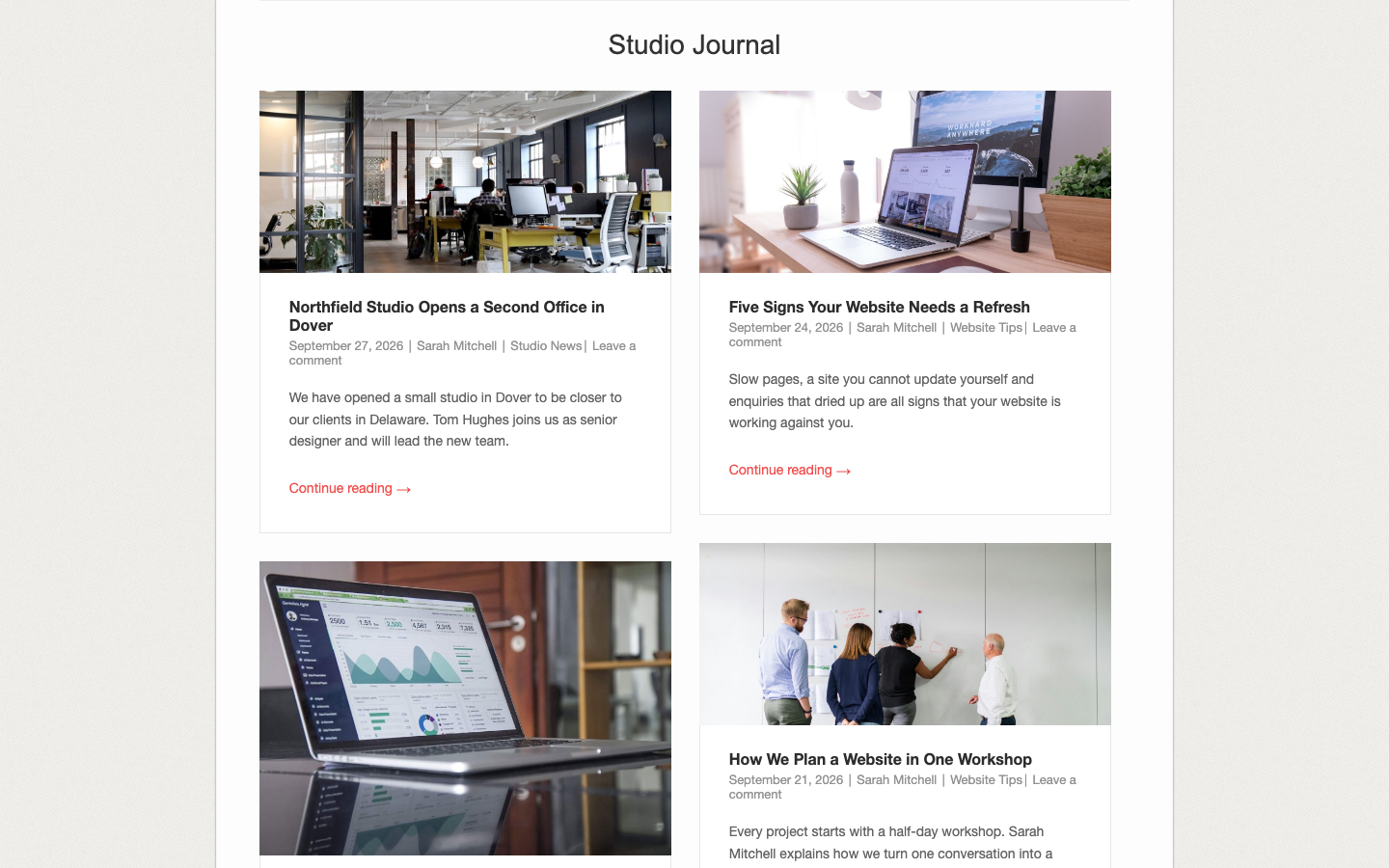
The Masonry Widget plugin shows your posts in a masonry layout, as on the Origami demo. The plugin has not had an update since 2013. For a new masonry layout of your posts, use the Blog Widget from the Widgets Bundle and choose the Masonry template.
SiteOrigin CSS
SiteOrigin CSS adds a CSS editor with a visual inspector at AppearanceCustom CSS. When Origami runs from the same theme folder as Origami Premium did, it also shows the CSS that you saved in the Origami Premium Custom CSS editor. See CSS Snippets.
Jetpack
Origami supports two Jetpack features:
- Infinite Scroll loads more posts on the blog page as the visitor scrolls. Turn it on in the Jetpack settings, as the Jetpack Infinite Scroll guide shows.
- Responsive Videos scales embedded videos to the content width. When Jetpack is active, Origami uses it in place of its own Use Fitvids setting.
WooCommerce
Origami declares support for WooCommerce and turns on the zoom, lightbox and slider of the product gallery. It adds a small stylesheet for WooCommerce pages but no shop sidebar or WooCommerce settings, and shop pages use the same single column as the rest of the site.
SiteOrigin Premium
SiteOrigin Premium has two addons for Origami: the No Attribution Addon, which removes the “Theme By SiteOrigin” footer link, and the Ajax Comments Addon, which posts comments without a page reload. See Premium Settings.