
 Page Builder
  Widgets Bundle
  SiteOrigin CSS
  Installer
 WordPress Page Builder Tutorial: Getting Started with SiteOrigin
5 min read Updated
SiteOrigin Page Builder lets you build responsive, column-based layouts with rows, columns and widgets. Layouts adapt to phones and tablets automatically. Page Builder works with any WordPress widget, and the SiteOrigin Widgets Bundle adds the widgets most sites need.
Page Builder works in both WordPress editors.
Install Page Builder
Go to PluginsAdd Plugin, search for SiteOrigin Page Builder, then click Install Now and Activate. To install manually, download the ZIP from the WordPress.org plugin page and upload it at PluginsAdd PluginUpload Plugin.
We recommend the SiteOrigin Widgets Bundle too. You don’t need the Classic Editor plugin. Page Builder includes its own Classic Editor option.
Choose Your Editor
Page Builder interface (Classic Editor)
Build the whole page with Page Builder in the Classic Editor. This is the default for new pages and posts.
SiteOrigin Layout block (Block Editor)
Add Page Builder layouts as blocks, alongside other blocks on the same page. Choose this if you already build with blocks.
Both use the same Page Builder toolbar, with Layouts, History and the Live Editor. You can use both on the same site. Page Builder chooses the editor for each page. See Which Editor Opens.
Build in the Page Builder Interface
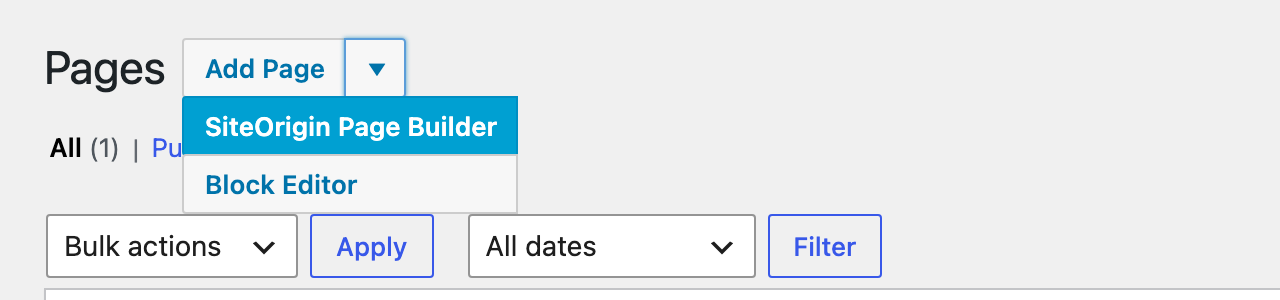
- Go to PagesAdd Page. If the button has an arrow, click the arrow and choose SiteOrigin Page Builder.
- Add a title, then click the Page Builder tab above the editor.
- Add a row, then add widgets to its columns. To start from a prebuilt layout, click Layouts.
- Click Live Editor to edit with a live preview.
- Click Publish.
Toolbar

The main toolbar buttons are:
- Add Widget: add a widget to the selected column.
- Add Row: add a row and choose its columns.
- Layouts: insert a prebuilt layout, or import or export a layout.
- History: view and restore earlier versions of the layout.
- Live Editor: edit the layout with a live preview of the page.
The toolbar can also show Addons, which links to SiteOrigin Premium, and Revert to Editor, which returns the page to the standard editor.
Row Actions
Open a row’s settings menu to choose Edit Row, Duplicate Row or Delete Row. Drag a row by its move handle to change its position.
Open Page Builder Automatically
New pages open in the Classic Editor with the Page Builder tab closed. To start every new page in the Page Builder interface, go to SettingsPage BuilderGeneral and enable Default to Page Builder Interface. This setting needs Use Classic Editor for New Posts to be enabled.
Build in the Block Editor
- Open the Block Editor. Either go to PagesAdd Page, click the arrow and choose Block Editor, or go to SettingsPage BuilderGeneral and disable Use Classic Editor for New Posts. With that setting disabled, new pages open in the Block Editor.
- Click the block inserter, search for SiteOrigin Layout and insert the block.
- Build the layout with rows and widgets, the same way as in the Page Builder interface.
- Use the block toolbar’s Preview layout (eye) and Edit layout (pencil) buttons to switch between previewing and editing.
- Click Publish.
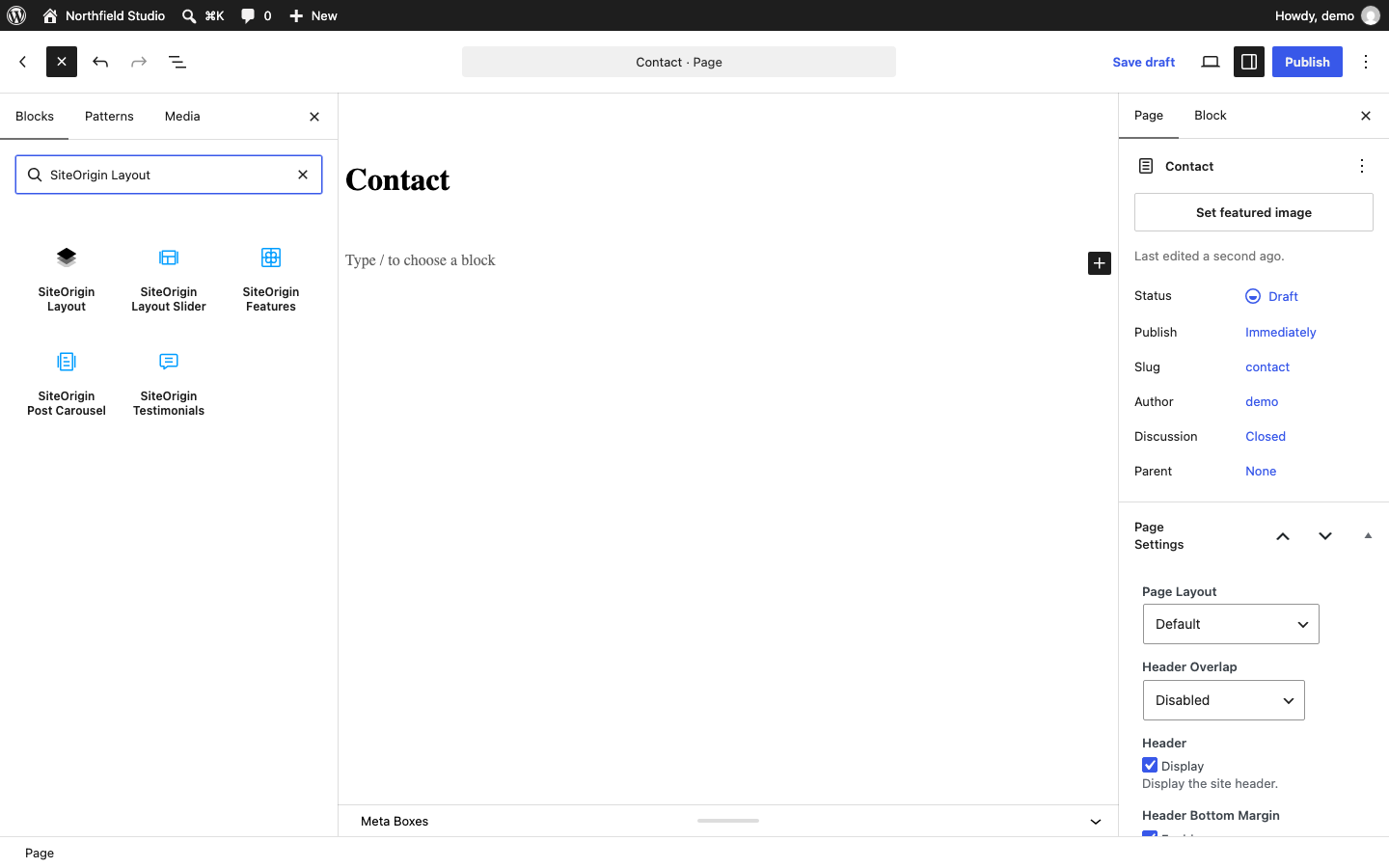
You can add as many SiteOrigin Layout blocks to a page as you need, with other blocks between them.
Which Editor Opens
Page Builder chooses the editor for each page:
- New pages and posts of Page Builder post types open in the Classic Editor while Use Classic Editor for New Posts is enabled. It is enabled by default. Disable it to open new pages in the Block Editor. The Block Editor option under Add Page opens the Block Editor either way.
- Existing Page Builder pages without blocks open in the Classic Editor with the Page Builder interface.
- Existing pages that contain blocks open in the Block Editor.
- Other existing pages open in your site’s default WordPress editor. Use Classic Editor for New Posts affects new posts only.
When a new page opens in the Classic Editor, Page Builder shows this notice. Dismiss it with the X, or follow its link to change the setting.
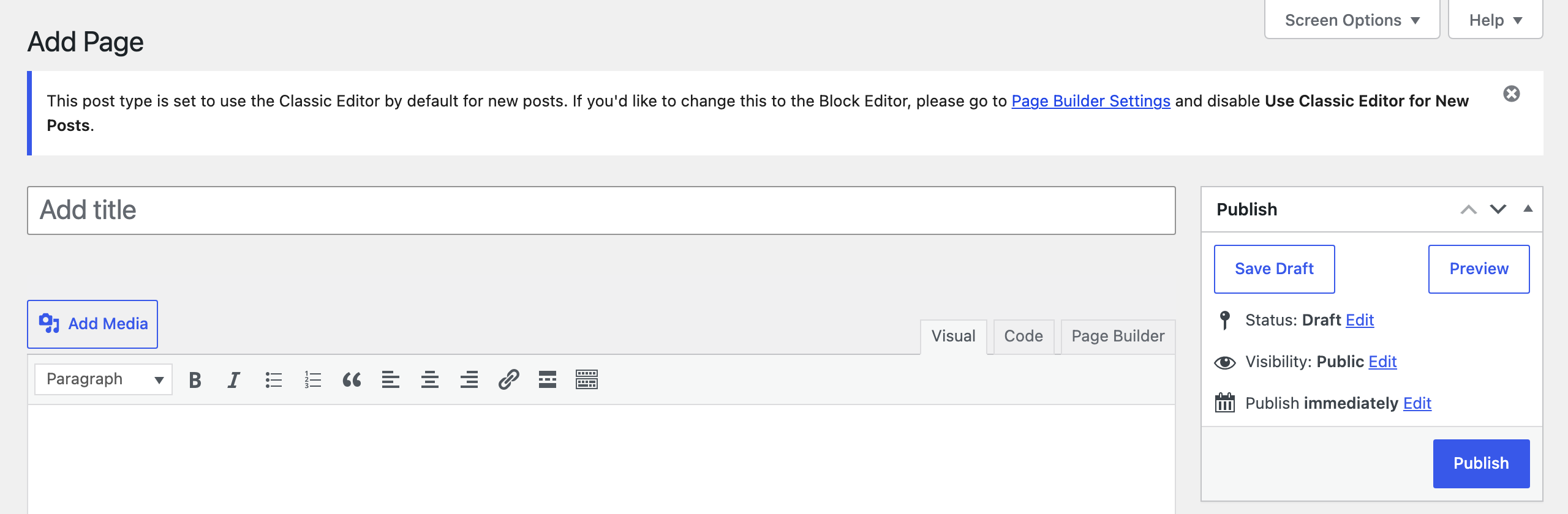
Existing Page Builder pages open in the Classic Editor with the Page Builder interface:
Using the Classic Editor Plugin
Page Builder doesn’t need the Classic Editor plugin. If the plugin is active, its settings at SettingsWriting can override Page Builder:
- Default editor for all users set to Classic editor, with Allow users to switch editors set to No: every post opens in the Classic Editor. The Block Editor option under Add Page opens the Classic Editor too, so you can’t add SiteOrigin Layout blocks. Existing Layout blocks still display on your site.
- Allow users to switch editors set to Yes: users can switch editors with the Classic Editor plugin’s links. A new post can still open in the Classic Editor when it is the default editor.
To use Page Builder in both editors, we recommend deactivating the Classic Editor plugin.
Editor Settings
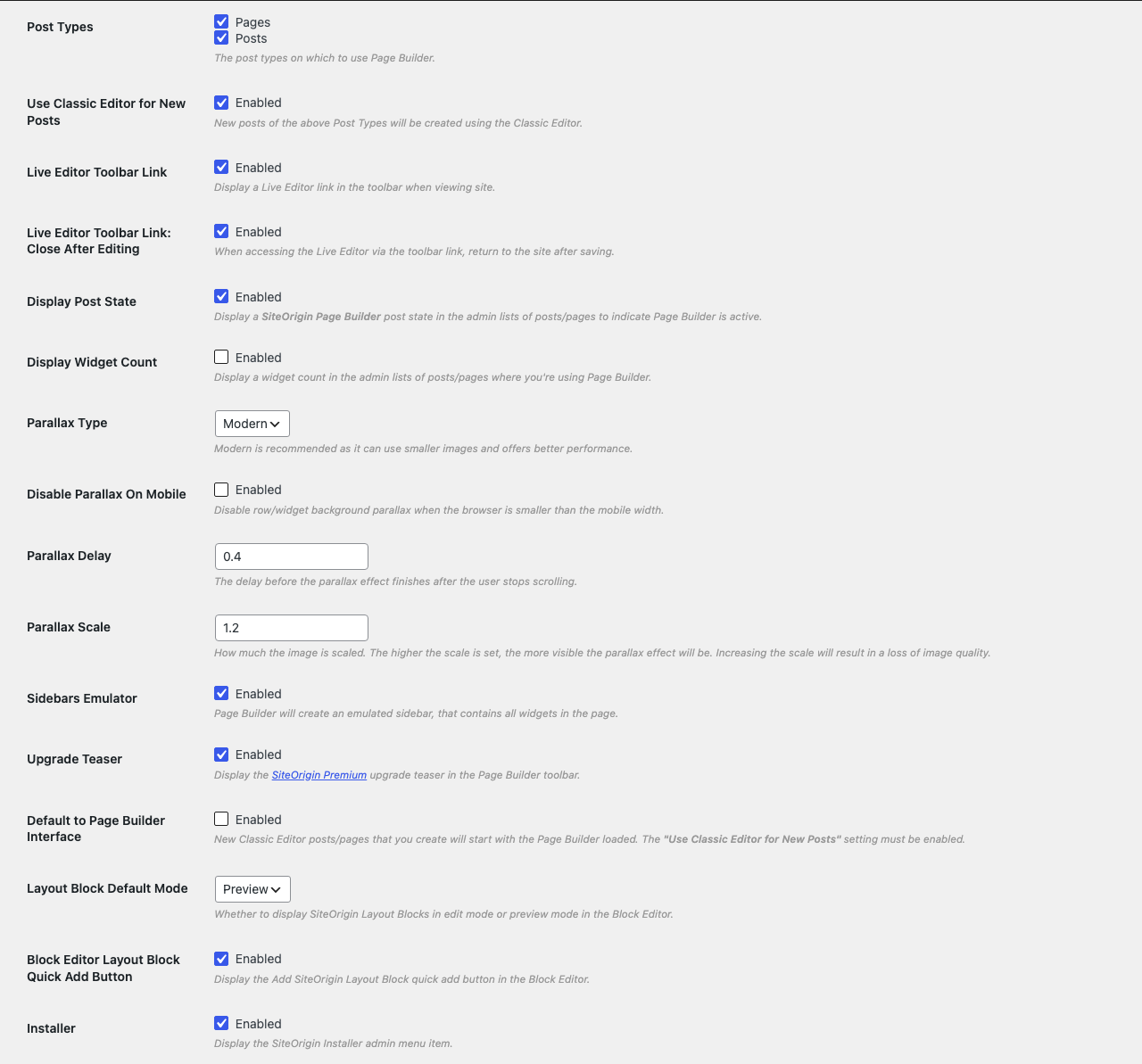
Go to SettingsPage BuilderGeneral.
Post Types
The post types that use Page Builder. Pages and posts by default.
Use Classic Editor for New Posts
New posts of the selected post types open in the Classic Editor. Enabled by default.
Default to Page Builder Interface
New Classic Editor posts start with Page Builder open. Disabled by default. Needs Use Classic Editor for New Posts.
Layout Block Default Mode
Whether saved SiteOrigin Layout blocks open in Edit or Preview mode. Preview by default. New blocks always start in Edit mode.
Read more about all the Page Builder settings.
Widget Areas and Other Post Types
To add a layout to a sidebar or footer, add the Layout Builder widget to a classic widget area, or the SiteOrigin Layout block to a block-based widget area.
Page Builder works with most post types. Choose them at SettingsPage BuilderGeneralPost Types.
Next Steps
- Building a Page
- Copy and Paste Rows and Widgets
- Styling Rows, Columns and Widgets
- Responsive Layouts
- Live Editor
- Prebuilt Layouts
SiteOrigin Premium adds more features to Page Builder, the Widgets Bundle and SiteOrigin themes. Developers can extend Page Builder too. See the developer documentation.