
 Page Builder
  Widgets Bundle
  SiteOrigin CSS
  Installer
 Page Builder and Widgets
3 min read Updated
Page Builder by SiteOrigin and the SiteOrigin Widgets Bundle are free plugins that work with SiteOrigin Snapshot. Page Builder builds pages from rows and columns, and the Widgets Bundle adds widgets to place in them, such as the Contact Form, Image Grid and Blog Widgets. A services page, for example, can show your session prices in one column and a gallery in the next. In Snapshot, you build a layout with the SiteOrigin Layout Block in the Block Editor, or with Page Builder in the Classic Editor.
Install the Plugins
- Go to PluginsAdd Plugin.
- Search for “Page Builder by SiteOrigin” and click Install Now, then Activate.
- Search for “SiteOrigin Widgets Bundle”, then click Install Now and Activate.
- Go to PluginsSiteOrigin Widgets and activate the widgets you need, for example Contact Form and Blog, which are off by default.
For a tour of both plugins, see Page Builder Documentation and Widgets Bundle Getting Started.
Build a Layout in the Block Editor
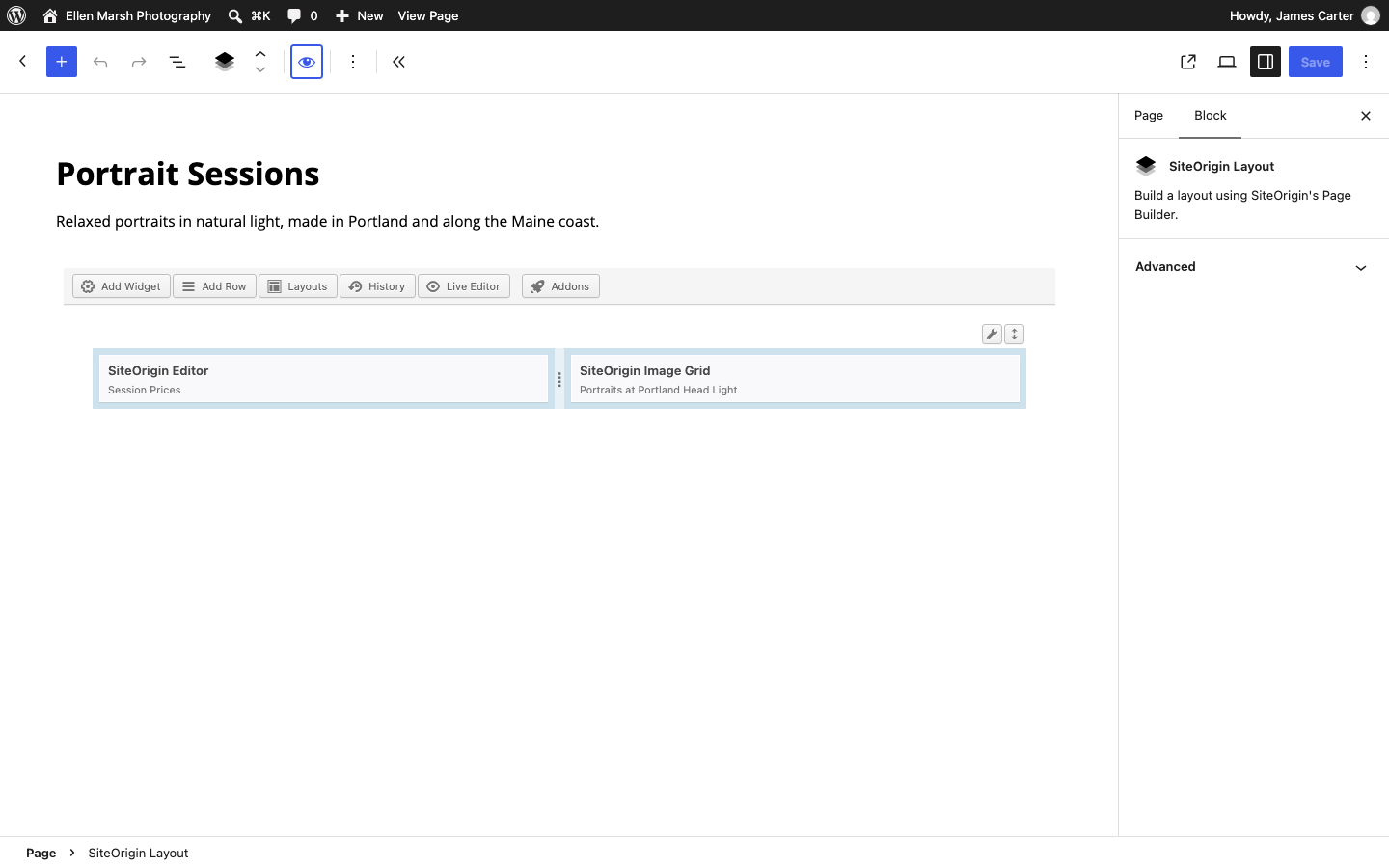
The SiteOrigin Layout Block adds a Page Builder layout to a post or page, with your other blocks above or below it:
- Open a page that already uses the Block Editor. For a new page, click the arrow beside Add Page and choose Block Editor.
- Click the + button at the top of the editor to open the block inserter.
- Search for “SiteOrigin Layout” and click the block.
- In the block, click Add Row and choose its columns, then click Add Widget to add content.
- Click Publish, or Save if the page is already published.
To preview the layout while you edit, click the eye icon (Preview layout) in the block toolbar, then the pencil icon (Edit layout) to continue. By default, saved layouts open in preview mode; to open them ready to edit, set Layout Block Default Mode to Edit at SettingsPage Builder.
Use the Classic Editor
Page Builder adds its own Page Builder tab to the Classic Editor, beside Visual and Code, and you don’t need the Classic Editor plugin for it. By default, new posts and pages open in the Classic Editor, so click the Page Builder tab to start a layout. To open new posts and pages in the Block Editor, disable Use Classic Editor for New Posts at SettingsPage Builder.
To choose the editor for one new item, use the arrow beside Add Page or Add Post and pick SiteOrigin Page Builder or Block Editor. Either way, the page keeps the Snapshot template it’s assigned.
Widgets as Blocks
Each widget you activate in the SiteOrigin Widgets Bundle appears as a block under SiteOrigin in the block inserter, for example SiteOrigin Contact Form. You can add these blocks to posts and pages, and in the Site Editor you can add them to Snapshot’s Sidebar and Footer template parts. For example, put a SiteOrigin Contact Form block in the Sidebar part so readers can ask about prints or portrait sessions from posts that show the sidebar.
To show your posts in a masonry grid, add the SiteOrigin Blog block and choose its Masonry template. For Snapshot’s built-in post layouts, see Blog Layouts.
Widget Areas
Widgets you add to Snapshot’s Sidebar and Footer areas at AppearanceWidgets won’t appear on your site, even with the Classic Widgets plugin. Add widgets as blocks to the Sidebar and Footer template parts instead, as described in Header, Footer and Menus.
Related
- Templates to choose a Snapshot template for a page or post.
- Page Builder Settings to change editor and layout defaults.
- Blog Widget for the masonry and other post layouts.