
 Page Builder
  Widgets Bundle
  SiteOrigin CSS
  Installer
 Styles
4 min read Updated
Styles in the Site Editor set the colors, fonts and spacing for your whole SiteOrigin Snapshot site, so you can change its look without editing each page.
To open Styles, go to AppearanceEditor and click Styles.
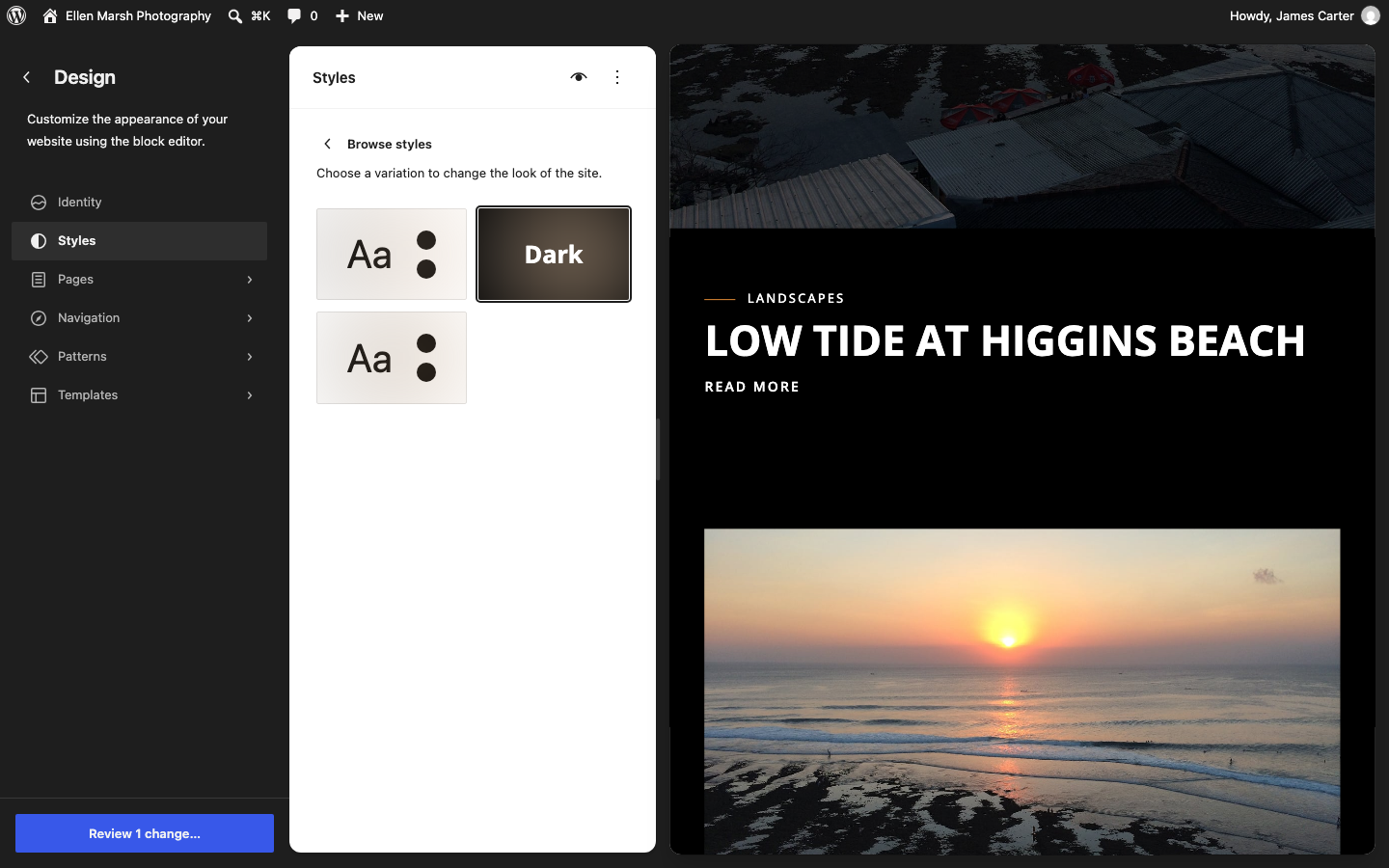
Switch to the Dark or Light Style
Snapshot has three styles that change its colors and the look of some blocks:
- Default: a white page with a black header and footer, and burnt orange links.
- Dark: a black page, header and footer with white text, and lighter orange links.
- Light: a white page, header and footer with black text, and lighter orange links.
- In Styles, click Browse styles.
- Click Default, Dark or Light. The preview updates as you click.
- Click Save.
Switching style replaces your earlier changes to colors, fonts and layout in Styles, so choose a style first and then make your own changes.
Change the Colors
In Styles, click Colors to change the site palette or an element’s color. Snapshot uses these palette colors across the site:
- Primary is black and Secondary is white in Default and Dark. The Light style reverses them.
- Accent: the color of links, and of menu items and post titles on hover. Set Accent to your brand color to update all three.
- Platinum colors borders and dividers, and Smokey colors placeholder text and secondary text.
- Post Slider Overlay Color tints the images in the Posts Slider, and Search Overlay Color is the background of the full-screen search.
Under Palette, select Edit palette and choose the color to change. Use Background and Text below the palette for the site’s base colors, and change an element such as Link or Button only if you want it to differ. Click Save when you are done.
The header and footer have their own background colors, so changing Background here does not change them. To change them, edit the header or footer as shown in Header, Footer and Menus.
Snapshot also keeps the older AppearanceBackground screen in the Customizer. A color or image set there takes priority, so if a background change in Styles does not appear, clear it there.
Change the Fonts
Snapshot uses Open Sans for text and headings, and Playfair Display for the Quote block. Both come with the theme, so you do not need to install them.
- In Styles, click Typography.
- Under Elements, choose the type of text you want to change, such as Headings.
- Choose the Font, size, weight and line height, then click Save.
To use another font, upload or install it at AppearanceFonts, then select it in Typography.
Snapshot’s font sizes range from Extra Small (13px) to Huge (36px), and larger text scales down on small screens. To edit the sizes, open Font size presets in Typography.
Change the Width and Spacing
In Styles, click Layout to adjust the page width and spacing, change what you need and click Save. Snapshot’s defaults are:
- Content width: 1128px maximum for page content. On pages with a sidebar, that width includes the sidebar.
- Wide width: 1440px, for blocks set to wide width, such as a gallery.
- Padding: 5% at the left and right of the page.
- Block spacing: a default gap of 20px between blocks.
Style One Kind of Block
In Styles, click Blocks to set the default look of a block type, such as the Button block.
Snapshot also has styles you can choose for individual blocks. To use one, select the block in the editor and open the Styles tab in the block sidebar:
- Dark and Light for the Button, Read More and Tag Cloud blocks.
- Tag, which makes a Button block look like a small label.
- Posts Slider for the Query Loop block, which shows posts with featured images as slides. The Posts Slider pattern is already set up for this.
- Unstyled for the Table, Tag Cloud, Latest Posts and Post Terms blocks, which drops most of Snapshot’s styling for that block.
Add Your Own CSS
Use Additional CSS for design changes that have no control in Styles. Your CSS loads on every page and stays in place when Snapshot updates.
- In Styles, click the More menu (⋮) at the top and choose Additional CSS.
- Add your CSS, then click Save.
For example, this hides the slide numbers under the Posts Slider and keeps the arrows:
.so-group-pagination-number {
	display: none;
}
For a visual CSS editor, use the free SiteOrigin CSS plugin.