
 Page Builder
  Widgets Bundle
  SiteOrigin CSS
  Installer
 Templates
3 min read Updated
SiteOrigin Snapshot’s templates set the layout for each kind of page on your site. You can edit any of them in the Site Editor, and you can assign a different template to a single page.
To see them all, go to AppearanceEditor and click Templates.
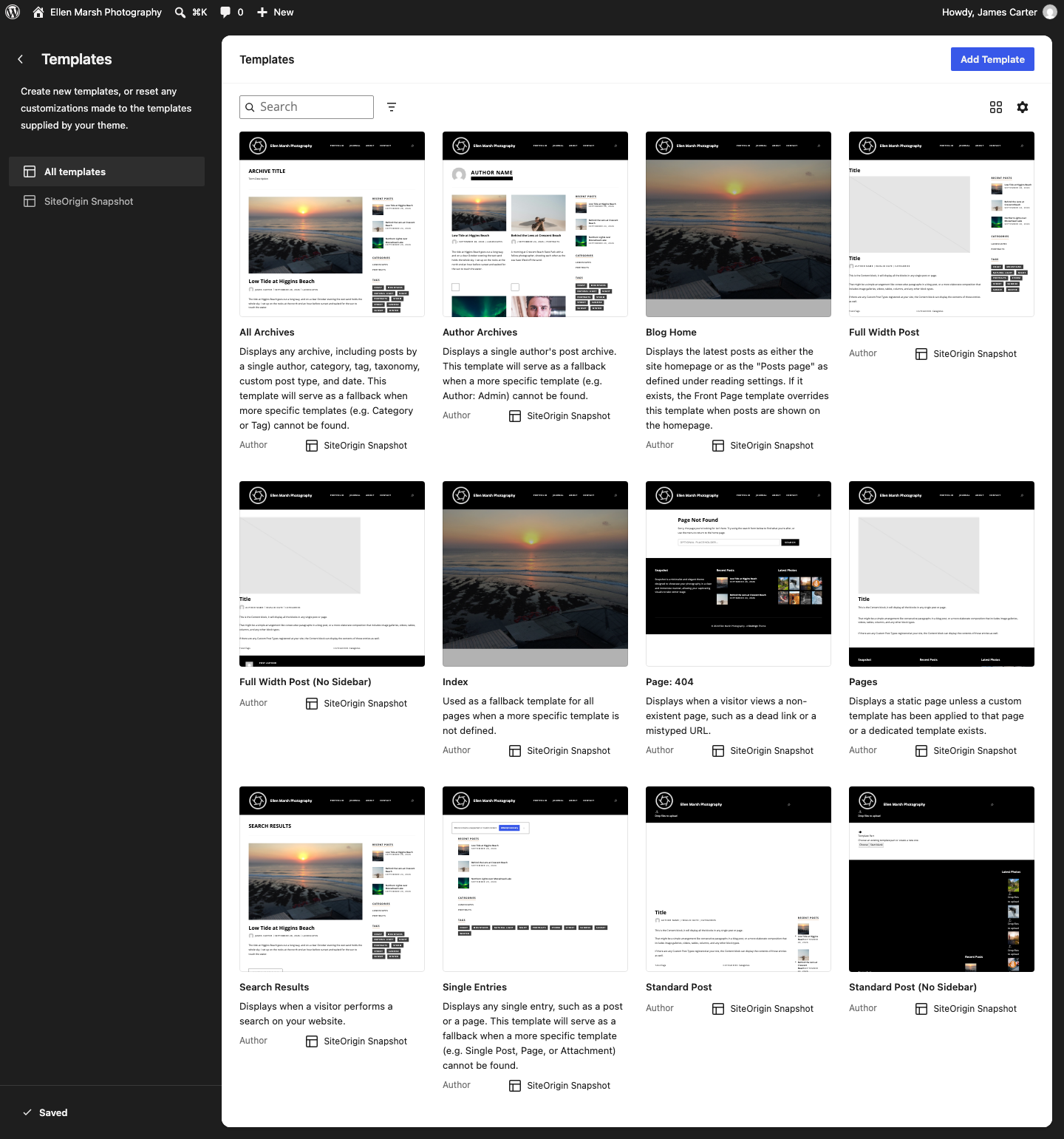
Templates for Different Pages
WordPress chooses a template based on the page a visitor opens:
- Blog Home: the Posts Slider above your latest posts, with a sidebar beside them. It shows on the home page or the Posts page chosen in SettingsReading.
- Index: WordPress uses Index when none of the other templates fits. It has the same layout as Blog Home.
- Standard Post: every blog post. It shows the featured image, title and content beside the sidebar. Below the post are its tags, categories and author box, then links to the previous and next posts above the comments.
- Pages: the default layout for pages, including a static home page. It shows the featured image, title and content, with no sidebar.
- Single Entries: one item added by a plugin, such as a portfolio project, with its title and content beside the sidebar.
- All Archives: pages that group posts by category, tag or date. Short post previews appear beside the sidebar, below the archive title and any description.
- Author Archives: an author’s photo, name and bio above their posts. The posts appear in two columns beside the sidebar.
- Search Results: previews of matching posts, pages and other searchable content beside the sidebar.
- Page: 404: appears when someone visits a page that does not exist. It shows a Page Not Found heading, a short message and a search form.
Choose a Template for a Page
Snapshot offers four optional page templates. They use the blog post layout, so a page that uses one also gets the author details, an author box, post navigation and comments:
- Standard Post: content with the sidebar on the right.
- Standard Post (No Sidebar): in Snapshot 1.0.5, this template hides the page’s title and content. Use Full Width Post (No Sidebar) instead.
- Full Width Post: a wider content area, with the title above it and the sidebar on the right. In Snapshot 1.0.5, the title shows a second time above the content.
- Full Width Post (No Sidebar): drops the sidebar to give the content more room.
To assign one to a page:
- Open the page in the editor. If the sidebar is closed, click Settings at the top right.
- In the Page tab, click the template name next to Template, then click Change template.
- Select a template in the Choose a template window, then save the page, or publish it if it is new.
To restore the page’s default layout, click the template name again, choose Use default template and save the page.
WordPress offers these four templates for pages only. Blog posts always use Standard Post, and the Change template option is unavailable for a post.
Edit a Template
Editing a template changes every page that uses it. For example, editing Standard Post changes every blog post and any page using that template.
- In AppearanceEditor, open Templates and select the template.
- Add, move or remove blocks. For example, remove the Posts Slider from Blog Home to show only the post list.
- Click Save.
Your edits stay in place when Snapshot updates. To restore Snapshot’s original template, open Templates and choose Reset from the template’s actions menu (⋮). Click Reset again to confirm.
All Snapshot templates use the same header and footer, and those with a sidebar share the Sidebar part too. Editing a shared part updates every template that uses it. See Header, Footer and Menus to edit these shared parts, or Blog Layouts to change the Posts Slider and post list.