
 Page Builder
  Widgets Bundle
  SiteOrigin CSS
  Installer
 Header, Footer and Menus
4 min read Updated
In SiteOrigin Snapshot, the header, footer and sidebar are template parts that you edit in the Site Editor. Every Snapshot template uses the same Header and Footer parts, so a change to either shows on every page of your site.
Open a Template Part
- Go to AppearanceEditorPatterns.
- In the template parts list on the left, choose Header, Footer or Sidebar, then open the part you want to edit.
- Make your changes and click Save.
Your saved version replaces the theme’s version. To restore the theme’s version, open the part’s Actions menu (three dots) in the same list and choose Reset.
Header
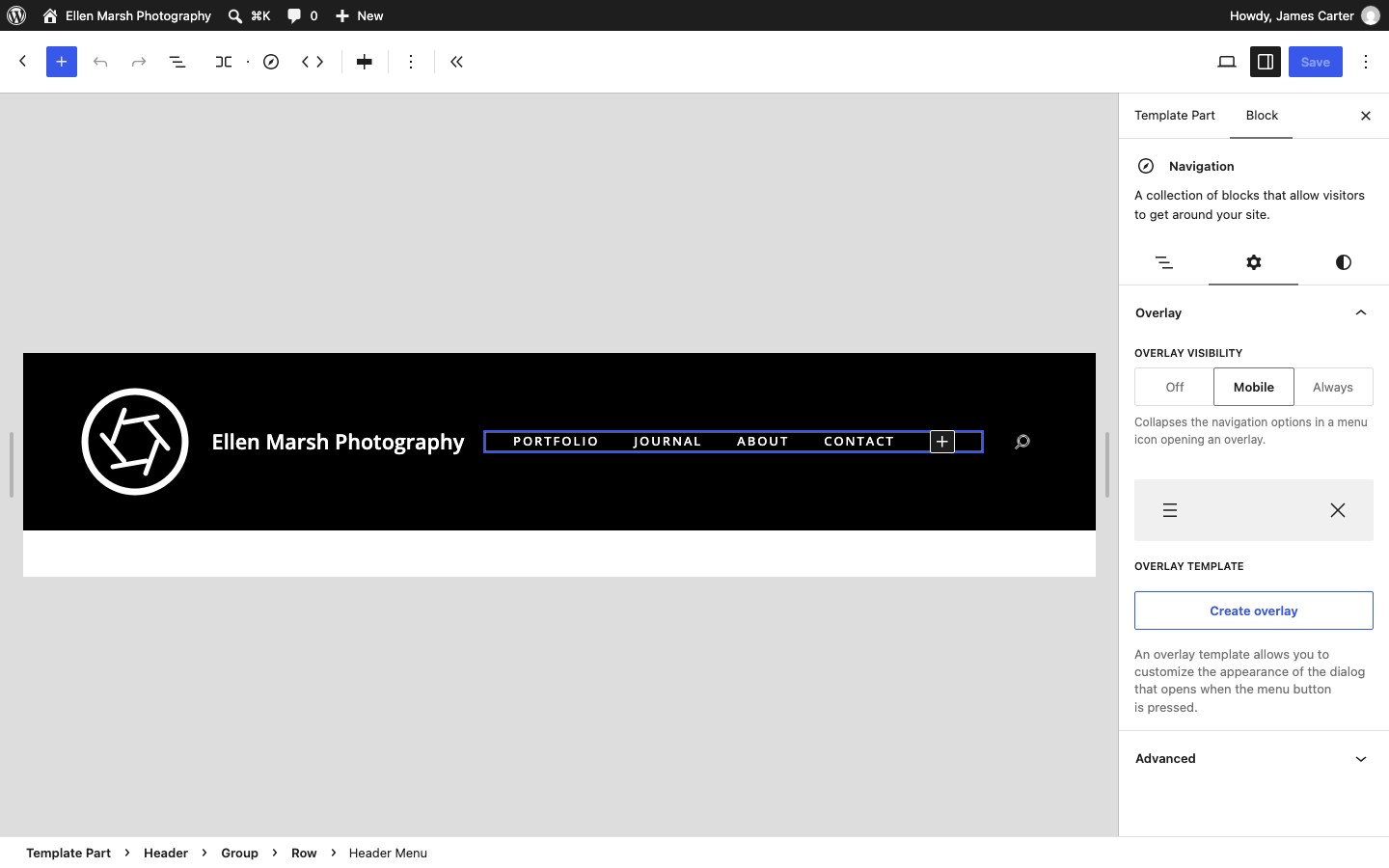
On wider screens, the header shows your logo and site title on the left, the menu in the center and a search button on the right. It stays at the top of the screen as visitors scroll.
Logo and Site Title
To add a logo, go to AppearanceEditorIdentity and choose an image under Site Logo. You can also upload one from the Site Logo block in the header. Change Site Title on the same screen to update the name beside your logo; WordPress also uses that name in browser tab titles. To show only the logo, delete the Site Title block from the header. For logo sizes and file types, see Uploading Your Logo.
Menu
The menu is a Navigation block. If your site already has a menu, WordPress shows it there; otherwise the block lists your published pages. See Menus to add links and drop-downs in the Site Editor. Snapshot adds its own arrow icons to drop-down menus.
Mobile Menu
On screens narrower than 600 pixels, Snapshot collapses the menu into a three-line button that opens the menu over the page. To change when the button appears:
- Open the Header part and select the Navigation block.
- In the Overlay panel of the block settings, set Overlay Visibility. Choose Always for the button on every screen size or Off to keep the full menu on small screens; Mobile is the default.
- Click Save.
The Header Mobile Menu pattern is the same header with Overlay Visibility set to Always. To use it, open a template that uses the header, such as Pages under AppearanceEditorTemplates. Select the Header part, then choose Header Mobile Menu in the Design panel of the block settings. The pattern replaces the whole header on every page, including any changes you’ve made to it. Click Save to keep it.
To replace the three lines with the word “Menu”, click the three-line button preview below Overlay Visibility and disable Show icon button. Snapshot changes the word to “Close” while the menu is open.
Search
The magnifying glass is a Search block. Clicking it opens a full-screen search field, which visitors close with the close button or the Escape key. To remove search from your header, select the Search block and delete it.
Sticky Header
To let the header scroll away with the page, open the Header part and select the top-level Header group in the List View. In the block settings, open the Styles tab, set Position to Default and save.
Footer
Above the copyright line, the footer has three columns:
- Snapshot: replace the heading with your name or business name. Replace the sample text with a short description, for example “Landscape and portrait photographer based in Portland, Maine.”
- Recent Posts: a Latest Posts block with your two newest posts, showing thumbnails for posts with featured images.
- Latest Photos: a Gallery block with eight sample photos that open larger when clicked. To use your own, select the gallery, click Add in the block toolbar and choose your photos, then remove the samples.
The copyright line shows the year 2024, your site name and a SiteOrigin credit. The year doesn’t update on its own, so select the line and type the current year.
Sidebar
The Sidebar part has three sections: Recent Posts shows your three newest posts, Categories lists your categories and Tags shows up to ten tags. The sidebar appears on the blog page, archive pages, search results and single posts. The default Pages template has no sidebar. To hide it on a post, choose the Full Width Post (No Sidebar) template in the post’s settings; see Templates.
You can add any block to the sidebar, for example an Image block for your portrait and a Paragraph block for a short bio, or a SiteOrigin widget block. Widgets added at AppearanceWidgets don’t appear in Snapshot’s sidebar or footer, so add blocks to the Sidebar and Footer parts instead.
Related
- Styles for header and footer colors and fonts.
- Page Builder and Widgets for SiteOrigin widget blocks in the sidebar and footer.
- Getting Started for the first steps after you activate Snapshot.