
 Page Builder
  Widgets Bundle
  SiteOrigin CSS
  Installer
 Page Builder vs the Layout Block vs Widget Blocks
Page Builder, the Layout Block and Widgets Bundle blocks all build pages with SiteOrigin widgets. Page Builder works in the Classic Editor, and the Layout Block and Widgets Bundle blocks work in the Block Editor. Whether you use the Classic Editor, the Block Editor or both, this guide shows where each option fits.
Option 1: The Page Builder Interface
Page Builder adds a Page Builder tab to the Classic Editor, next to the Visual and Text tabs. Click it to replace the editor with the Page Builder interface, where you build the page from rows of columns that hold widgets. Revert to Editor takes you back. Rows, columns and widgets each have settings for backgrounds, padding and borders, and you also get prebuilt layouts, a history browser and the Live Editor.
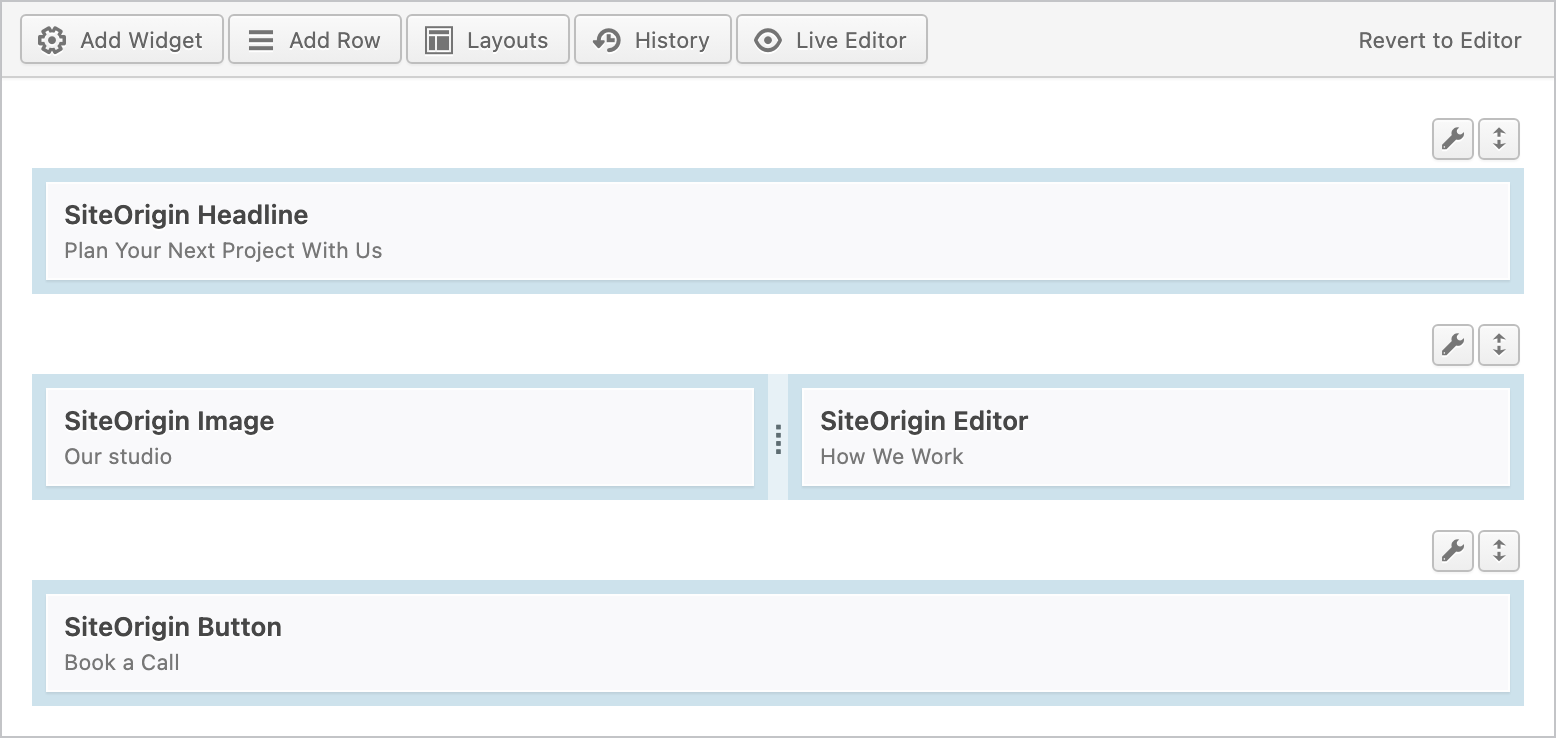
New pages open in the Classic Editor unless you turn off Use Classic Editor for New Posts at SettingsPage BuilderGeneral, where you also choose the post types it applies to, such as posts and pages. If you’d like new content to open in the Page Builder interface straight away, turn on Default to Page Builder Interface on the same screen. If your site uses both editors, you can still start a page in the Block Editor while that setting is on: click the arrow next to Add New and choose Block Editor.
The Classic Editor plugin works the same way with Page Builder, and if you use both editors, its settings can let you switch for individual pages.
Use it for:
- Every page on a site that uses the Classic Editor, from a full layout to a blog post with one designed section. Text goes in the SiteOrigin Editor Widget.
- Pages built from designed sections top to bottom, such as a home page, a landing page or a services page.
Option 2: The Layout Block
The Layout Block brings the full Page Builder interface into the Block Editor. It’s called SiteOrigin Layout in the block inserter, and you can add as many as you need, with other blocks between them.
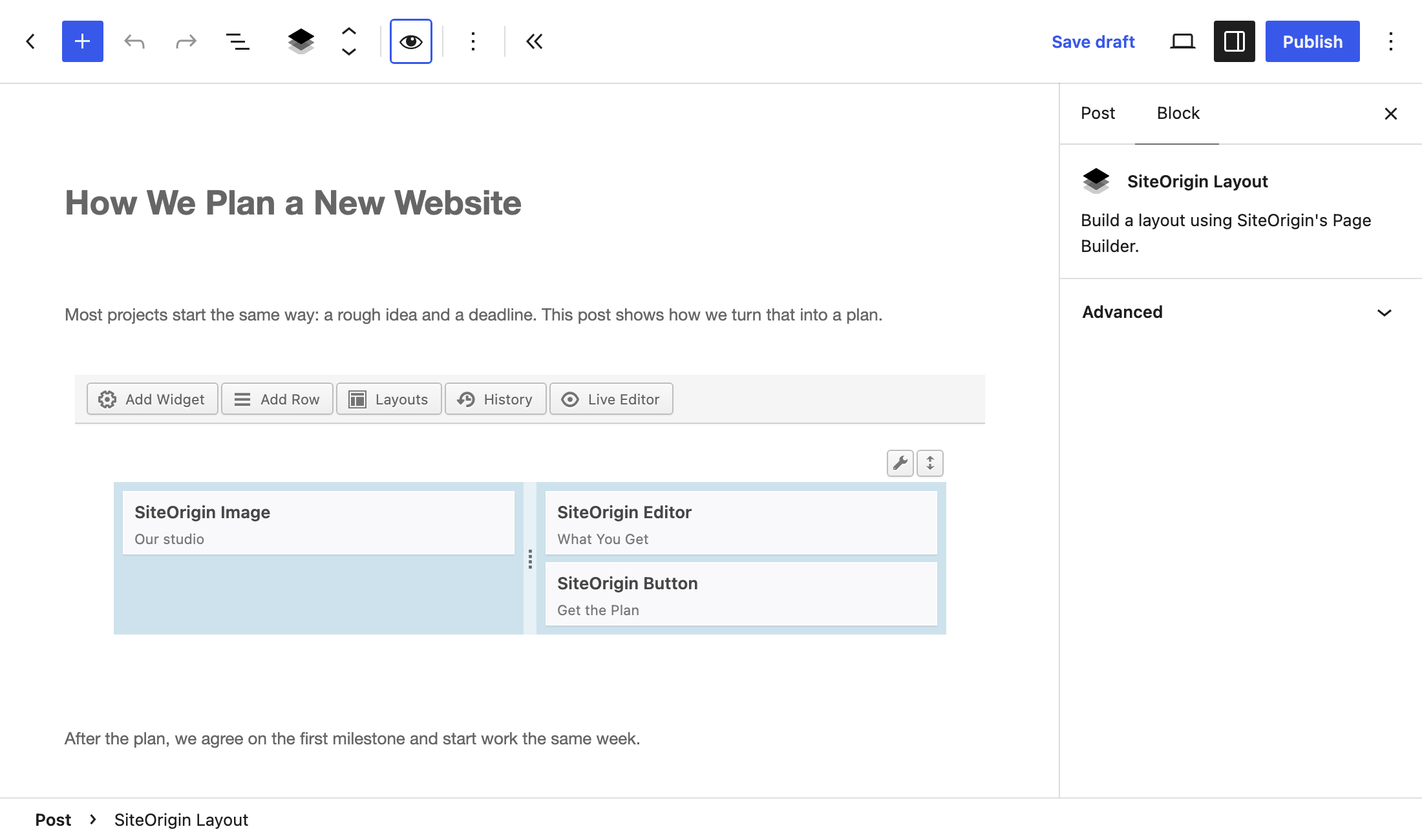
The Edit layout and Preview layout buttons in the block toolbar switch between building the layout and previewing it, and the builder inside the block includes the Live Editor. To choose whether Layout Blocks open in edit or preview mode when you open a page, go to SettingsPage BuilderGeneral and set Layout Block Default Mode.
Use it for:
- Whole pages, if you build your site in the Block Editor. Some sites build every page in one Layout Block and lay it out with rows, columns and widgets.
- A section with columns and a background among your other blocks.
- Layouts in synced patterns and in widget areas that use blocks.
Option 3: Widgets Bundle Blocks
Each widget in the Widgets Bundle is also a block, in the SiteOrigin category of the block inserter, with names such as SiteOrigin Button, SiteOrigin Accordion and SiteOrigin Contact Form. The block shows the widget’s settings, and the Edit widget and Preview widget buttons in the block toolbar switch between those settings and a preview.
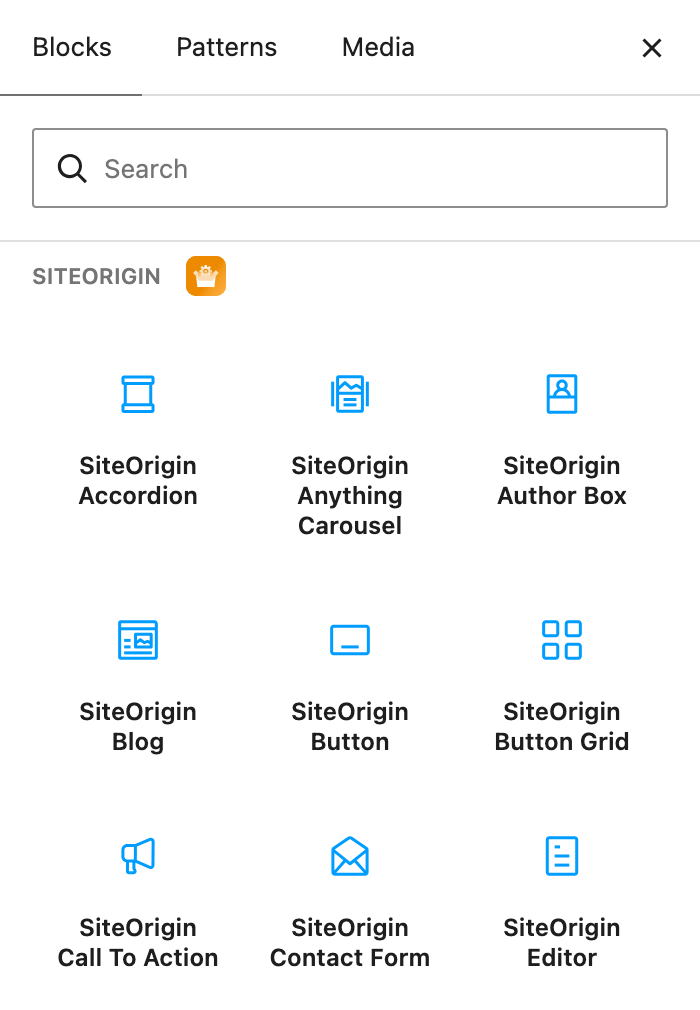
To make a widget’s block appear in the inserter, go to PluginsSiteOrigin Widgets and click Activate on that widget.
Use it for:
- Pages built with WordPress blocks or blocks from other plugins, where you want a SiteOrigin widget among them.
- A single feature, such as a button, map, slider or contact form.
Comparison
| Page Builder interface | Layout Block | Widgets Bundle blocks | |
|---|---|---|---|
| Where it works | Classic Editor | Block Editor | Block Editor |
| Page Builder rows and columns | Yes | Yes | No |
| Row and column styles | Yes | Yes | No |
| Live Editor | Yes | Yes | No |
Examples
A Landing Page
In the Classic Editor, build the landing page in the Page Builder interface with one row for each section, such as the opening, the features and the sign-up form, and drag the rows into the order you want. In the Block Editor, build the same rows inside one Layout Block, or give each section its own Layout Block and move the Layout Blocks with the block controls.
A Blog Post with One Designed Section
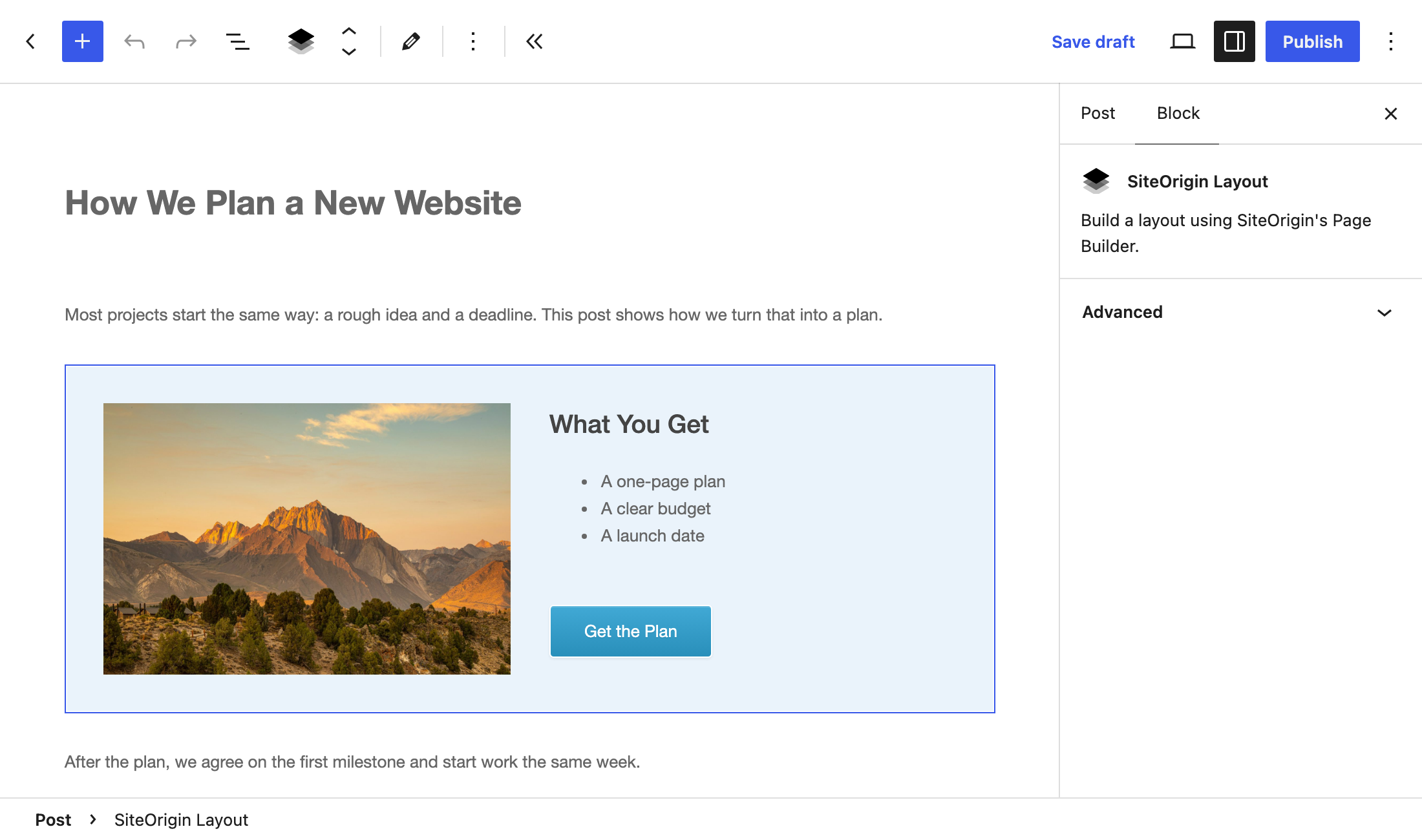
In the Classic Editor, switch to the Page Builder interface, write your text in SiteOrigin Editor Widgets, and put the designed section in its own row of two columns with a colored row background. In the Block Editor, write the text in paragraph blocks and add a Layout Block where the section belongs. Inside it, add a row of two columns with your widgets and a row background, then carry on writing below the Layout Block.
A button at the end of the post needs only a SiteOrigin Button block in the Block Editor, or a final row with the Button Widget in the Page Builder interface.
A Section You Reuse Across the Site
Copy Row and Paste Row put a row, such as a newsletter sign-up, onto another page, in both the Page Builder interface and the Layout Block, and you can change each copy on its own page.
Save the row for future pages with the Custom Layouts Addon: right-click the row and choose Save as Custom Layout, then add it to another page from the Layouts dialog under Custom Layouts. Each time you add it, you get a separate copy you can edit.
A synced pattern keeps one copy updated everywhere. In the Block Editor, save a Layout Block as a synced pattern, and when you edit the pattern, WordPress updates every page that uses it.
For more detail, read the Page Builder documentation and the Widgets Bundle getting started guide. Page Builder and the Widgets Bundle are free, and the Custom Layouts Addon is part of SiteOrigin Premium.
Thanks for reading. If you have any questions or feedback, please let us know in the comments below.