
 Page Builder
  Widgets Bundle
  SiteOrigin CSS
  Installer
 How to Style One Page with the Custom Body Class Addon

The Custom Body Class Addon puts your own classes on the body tag of one page or every page, so your custom CSS can style those pages. We announced it in Target Any Page with the Custom Body Class Addon. In this guide, Northfield Studio, an example web design studio in Wilmington, Delaware, uses it to give its Book a Call page a dark header and every page a fall accent. If you’d like to follow along, go to SiteOriginPremium Addons and activate the Custom Body Class Addon. It requires the SiteOrigin Widgets Bundle, and the CSS below is written for the Corp theme.
Style the Book a Call Page
The studio’s site runs on the Corp theme, with a white header on every page. The studio links to its Book a Call page from its emails and social posts, and Sarah Mitchell, who runs the studio, wants a dark header on that page alone, so the call page stands apart from the rest of the site. Here’s how to add a class to one page.
- Edit the page and find the SiteOrigin Premium metabox below the content. In the Block Editor, open the Meta Boxes panel at the bottom of the screen first.
- Open Advanced. When other addons add settings to this metabox, Advanced is the last tab.
- Enter
dark-headerin Body Classes and update the page.
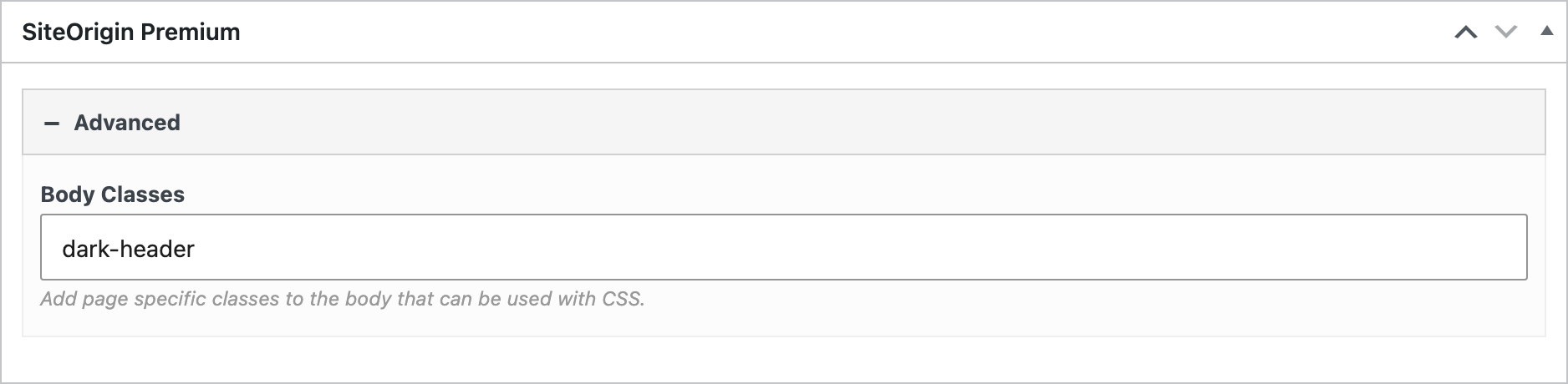
The page now carries dark-header, and your custom CSS can target that class. If you use the SiteOrigin CSS plugin, open AppearanceCustom CSS. With a theme that uses the Customizer, you can also open AppearanceCustomize and then Additional CSS. Add these rules:
.dark-header .site-header {
    background: #1f1f1f;
}

.dark-header .site-header .site-title a,
.dark-header .main-navigation ul li a {
    color: #fff;
}

.dark-header .search-toggle .open svg path {
    fill: #fff;
}
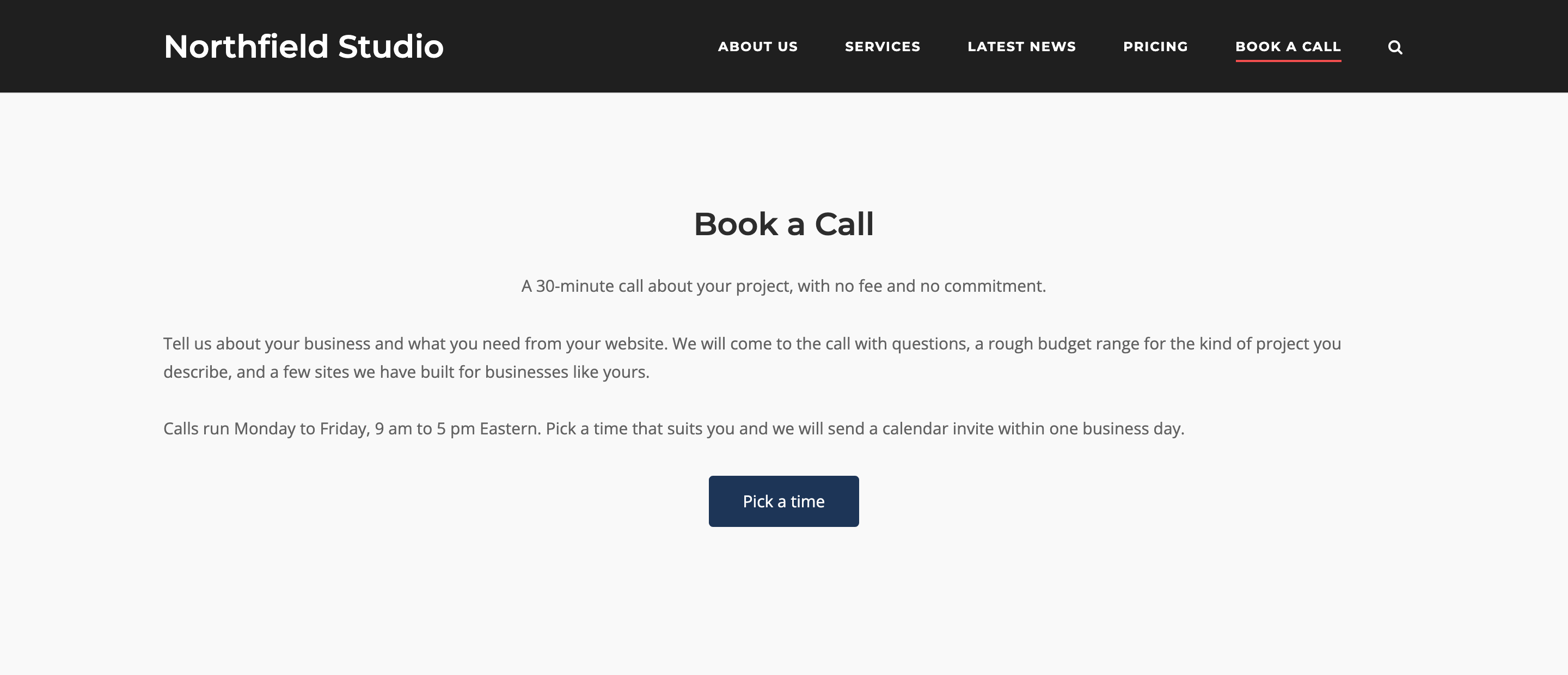
The first rule darkens Corp’s header, the second turns the site title and menu links white, and the third does the same for the search icon. Another theme uses its own selectors; find them with your browser’s inspector, as described below. Each rule starts with .dark-header, so it applies on pages with that class.
Reload the Book a Call page. The header is dark there, and white on every other page.
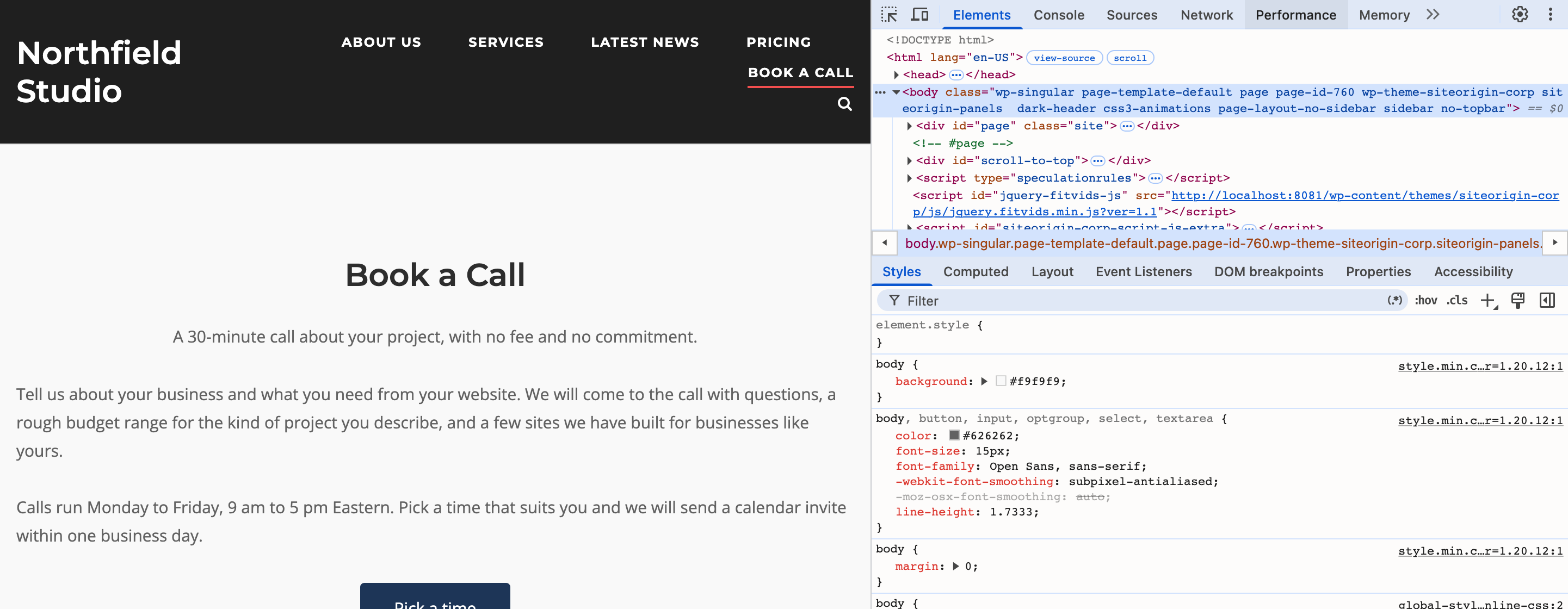
Your browser can show you the class on the page. Right-click anywhere on the page and choose Inspect. Chrome, Edge and Firefox open their developer tools next to the page, with the Elements panel selected (Firefox calls it Inspector). Near the top of the HTML, inside the <html> tag, find the line that starts with <body. Its class attribute lists the classes WordPress adds, such as page-id-760, and dark-header sits after them. If the class is missing and you use a caching plugin, clear its cache. If the class is still missing, check that your theme uses the standard WordPress body classes, as SiteOrigin themes do.
Share One Class Across Several Pages
WordPress already adds a class with the page’s ID, such as page-id-760, to the body of every page, and your CSS can target that class too. A class you name is easier to read in a stylesheet months later, and you can give the same class to more than one page, so one rule styles them all. The studio has two more pages that lead to a call, Start a Project and Pricing, and Sarah enters dark-header on each of them. All three pages now share the dark header from the rules above, with no change to the CSS.
A page can carry more than one class. Separate the classes with spaces, for example dark-header wide-gallery, and the addon adds each class to the body.
Add a Fall Accent to Every Page
For the fall season, the studio wants an orange line under the header on every page, including the blog and the search results. Global Classes cover that:
- Go to SiteOriginPremium Addons and click Settings on Custom Body Class.
- Enter
fall-2026in Global Classes and click Save.

Back in your custom CSS, add a rule for the new class:
.fall-2026 .site-header {
    border-bottom: 4px solid #d9771e;
}
The orange line now shows across the site, and the Book a Call page has both the dark header and the line, because a page gets its own classes and the global classes together. A page shown by the Landing Page Addon has no body classes, because that addon uses its own template. The 404 Page and Maintenance Mode Addons use that template too when Display is Text or Layout Builder, so the classes don’t show there either.
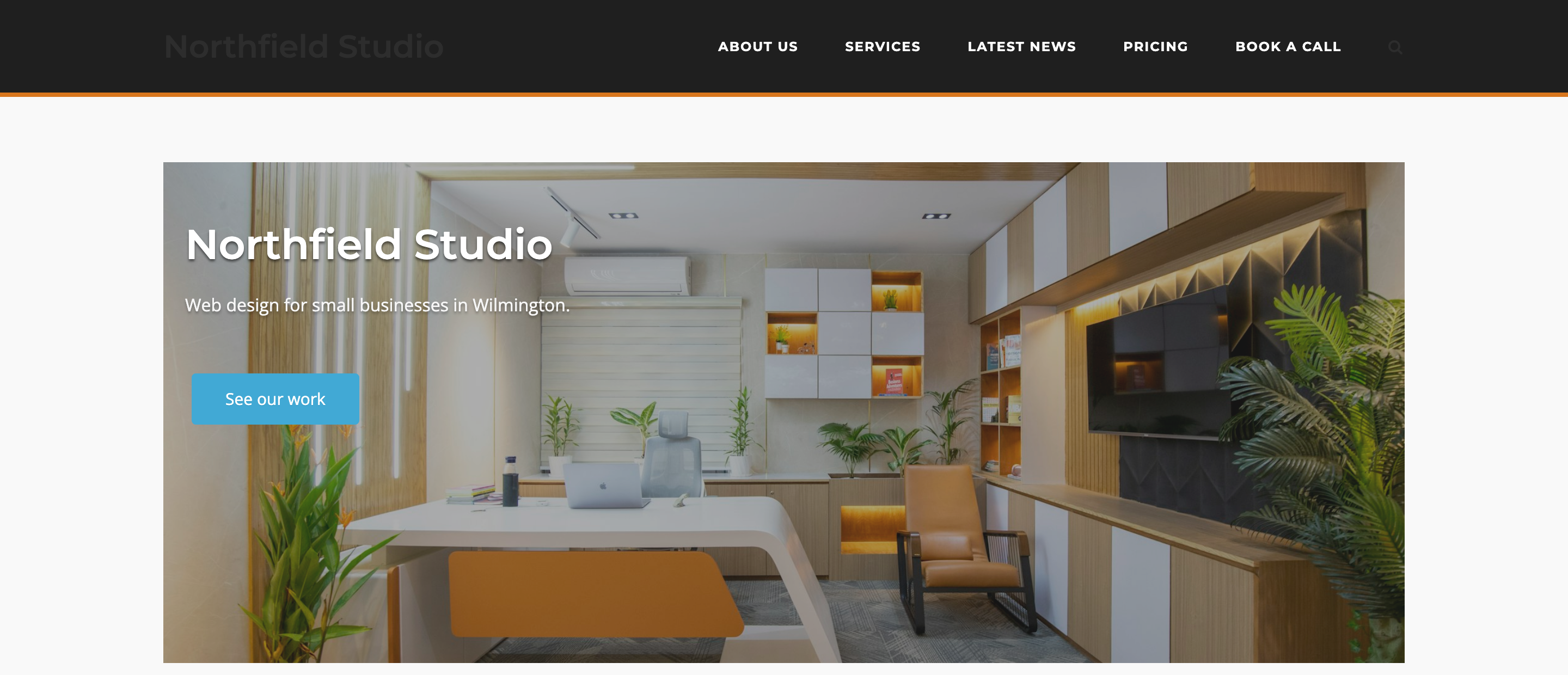
When the season ends in December, Sarah clears Global Classes and saves. The line disappears from every page, and the CSS stays where it is. Next fall, she enters fall-2026 again, or a new class with a matching rule, and the accent is back.
The Homepage, the Posts Page and the Shop Page
Northfield Studio’s homepage is a page called Studio Home, chosen as the homepage in SettingsReading. Page classes apply there too. Sarah enters dark-header in the Body Classes of the Studio Home page, and the homepage gets the dark header. Page classes also apply to the page chosen as the posts page in Reading settings. If you run WooCommerce, the shop page is a product list rather than a page, so the addon looks up the page chosen as the shop page in WooCommerceSettingsProducts and adds that page’s classes.
On your own site, the same two fields carry whatever your CSS needs, such as hiding the sidebar on a landing page or widening the content column on a gallery page.
The video below runs through the whole example on the Corp theme, from the Book a Call page to the fall accent.
For more on each setting, see the Custom Body Class documentation.
The Custom Body Class Addon is part of SiteOrigin Premium, along with every other Premium addon.
Thanks for reading. If you have any questions or feedback, please let us know in the comments below.