
 Page Builder
  Widgets Bundle
  SiteOrigin CSS
  Installer
 CSS Storage and Output
2 min read Updated
SiteOrigin CSS stores your CSS in the WordPress database and loads it on your site from a file or inline. You do not need a child theme: theme updates do not change your CSS.
Where Your CSS Is Stored
When you save, the plugin stores your CSS in the WordPress database, in the options table. When the CSS has changed, it also writes a copy to a CSS file in your uploads folder.
CSS for Each Theme
The plugin keeps a separate set of CSS for each theme:
- If you switch to another theme, the editor shows that theme’s CSS, which can be empty. Your earlier CSS is not lost. Switch back, and it loads and shows on your site again.
- A parent theme and its child themes share one set of CSS. The text under the editor names the theme the CSS applies to, for example “Changes apply to SiteOrigin Corp and its child themes”.
- Revisions are also kept for each theme.
To move CSS to a new theme, copy it from the editor while the old theme is active. Activate the new theme, paste the CSS into the editor and click Save CSS.
How Your Site Loads the CSS
The CSS Output Location setting in the right column of the editor controls how pages load your CSS. Choose an option and click Save CSS.
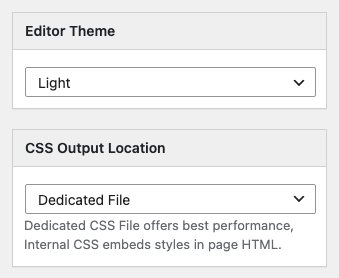
Dedicated File (Default)
The plugin writes your CSS to this file:
wp-content/uploads/so-css/so-css-<theme>.css
<theme> is the folder name of the active parent theme. For SiteOrigin Corp, the file is so-css-siteorigin-corp.css. Each page of your site links the file in its head with a <link> tag that has the ID so-css-<theme>-css. The link adds a version number that changes each time you save new CSS, so browsers load the new file.
This option is best for performance, because browsers can cache the file. If the plugin cannot write the file, for example when the uploads folder is not writable, your site does not get your new CSS. It loads an older file, or no file.
Inline
The plugin prints your CSS in a <style> tag in the head of each page of your site. If you have no saved CSS, it prints nothing. The tag has the ID <theme>-custom-css and the class siteorigin-custom-css. Use this option if the plugin cannot write the file.
In both modes, the plugin adds your CSS late in the head, after your theme’s styles, so your rules can override the theme.
Uninstalling the Plugin
When you delete SiteOrigin CSS from the Plugins page, it removes its settings and the revisions for the active theme. It keeps your CSS in the database, so it is still there if you install the plugin again. Your site stops loading the CSS while the plugin is inactive.
Related
- Basic Editor
- Advanced Customizations: use your own CSS file or force inline output with a filter.
- FAQ