
 Page Builder
 Widgets Bundle
 SiteOrigin CSS
 Installer
Fixing PHP Memory Exhausted Errors
10 min read Updated
PHP gives each request to your site a memory limit. If a plugin, a theme or a task such as an import needs more memory than that limit allows, PHP stops the request and logs a fatal error that starts “Allowed memory size of … bytes exhausted”. Visitors see a blank page, an HTTP 500 error or “There has been a critical error on this website”, and the task stops partway.
Other faults look the same on screen, so start with the log. A higher limit fixes the error when a task needs more memory than it had; If the Error Comes Back covers a task whose memory use keeps growing.
Confirm the Error
Turn on debug logging using the steps outlined in Debugging in WordPress, repeat the task that failed, and read the newest lines of wp-content/debug.log. If your host keeps a PHP error log, the same line appears there.
WordPress also sends an email when the failure happens on a dashboard or login screen and the fault is in a plugin or theme. The email goes to your site’s administration email address with the subject “Your Site is Experiencing a Technical Issue”, names the plugin or theme, and includes a recovery mode link that logs you in with that plugin or theme paused. WordPress sends one email a day at most, and sends none for a failure on a public page or on Multisite.
In this example, the log shows:
PHP Fatal error: Allowed memory size of 134217728 bytes exhausted (tried to allocate 167772192 bytes) in /home/example/public_html/wp-content/plugins/memory-limit-demo/memory-limit-demo.php on line 16
Each part of the line answers a different question:
Allowed memory size of 134217728 bytesis the limit that request had, in bytes. Common values are 67108864 (64M), 134217728 (128M), 268435456 (256M) and 536870912 (512M). The next section shows where to read your limit in megabytes.tried to allocate 167772192 bytesis the last block of memory the request asked for. A task’s total need is higher, so this number doesn’t give you the right setting.- The file and line show where the memory ran out. If one plugin fills the limit, the next code to ask for memory is the code the log names, so test a named plugin before you blame it.
If the Log Shows Something Else
A memory change won’t fix these errors:
Maximum execution time of … seconds exceededmeans the request ran out of time.- “exceeds the maximum upload size” and
upload_max_filesizeare upload limits, which have their own settings. Out of memory, without “Allowed memory size”, means your server or hosting account ran out of RAM. Ask your host about it.Hard memory limit of … bytes exhaustedcomes from PHP 8.2.35, 8.3.36, 8.4.27, 8.5.12 and later, which end a request at once if its memory use goes far past the limit. The message skips the PHP error log, so look in your host’s server logs, then follow If the Error Comes Back.
If the log has no fatal error for that moment, use the other checks in Debugging in WordPress, such as the browser console. If a save fails without an error in the log, see Fixing Saves Blocked by a Firewall.
Check the Current Limit
Go to ToolsSite Health, open the Info tab and expand Server. PHP memory limit shows the limit for most requests. A second line, PHP memory limit (only for admin screens), appears when administrators have a higher limit on dashboard screens. When that line is missing, both limits match.
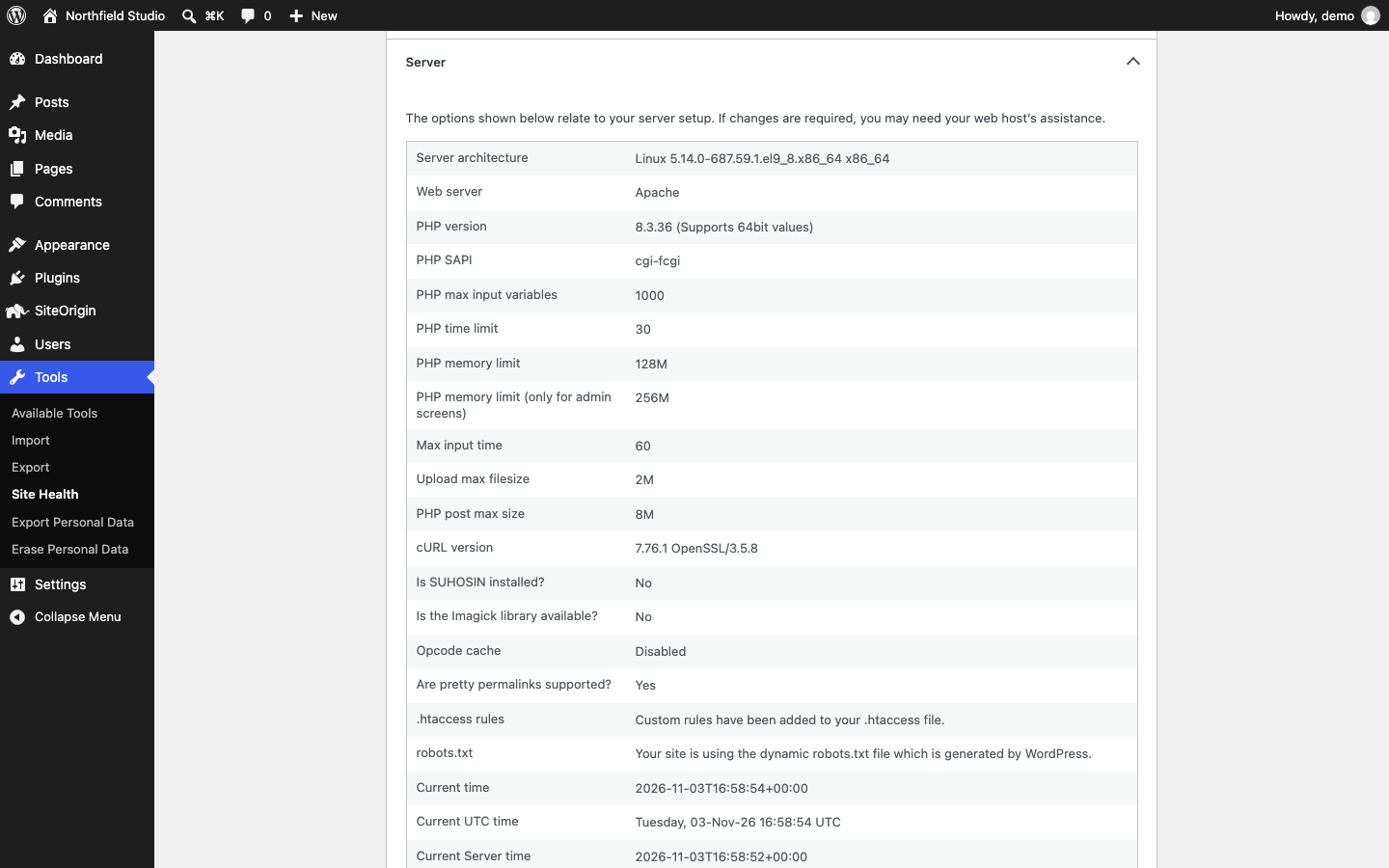
WordPress applies the two limits to different requests:
| Request | Limit |
|---|---|
| Public pages, Block Editor saves, the REST API and Ajax requests | PHP memory limit |
| Dashboard screens for administrators, image processing and WP-Cron tasks | PHP memory limit (only for admin screens) |
Compare the limit in the error with these two lines, so you raise the one that failed. A Block Editor save that fails at 128M gets no help from a 256M admin limit.
Your host’s setting decides the first line. WordPress raises it only when it is below 40M, or 64M on Multisite, so a host limit of 128M stays at 128M. Administrators get 256M on dashboard screens, or your host’s limit if that is higher.
If you can’t open the dashboard, the number in the error gives you the limit that failed.
Raise the Limit in Your Hosting Panel
Many hosting plans come with a control panel, a dashboard where you manage your hosting account. If yours has PHP settings, start there, because the panel sets PHP’s own limit. If you don’t have a panel, or it has no memory setting, ask your host to raise the limit or use wp-config.php instead.
In cPanel, a panel many hosts provide:
- Log in to cPanel and open MultiPHP INI Editor in the Software section.
- On the Basic Mode tab, select your domain under Configure PHP INI basic settings. Selecting Home Directory changes every site in your account.
- Set memory_limit one step above the number in the error, such as 256M if the error showed 128M.
- Click Apply.
- Reload ToolsSite HealthInfo and check that PHP memory limit shows the new value. If it shows the old value, wait five minutes and reload, because cPanel also saves the setting in a
.user.inifile, which PHP re-reads every five minutes by default.
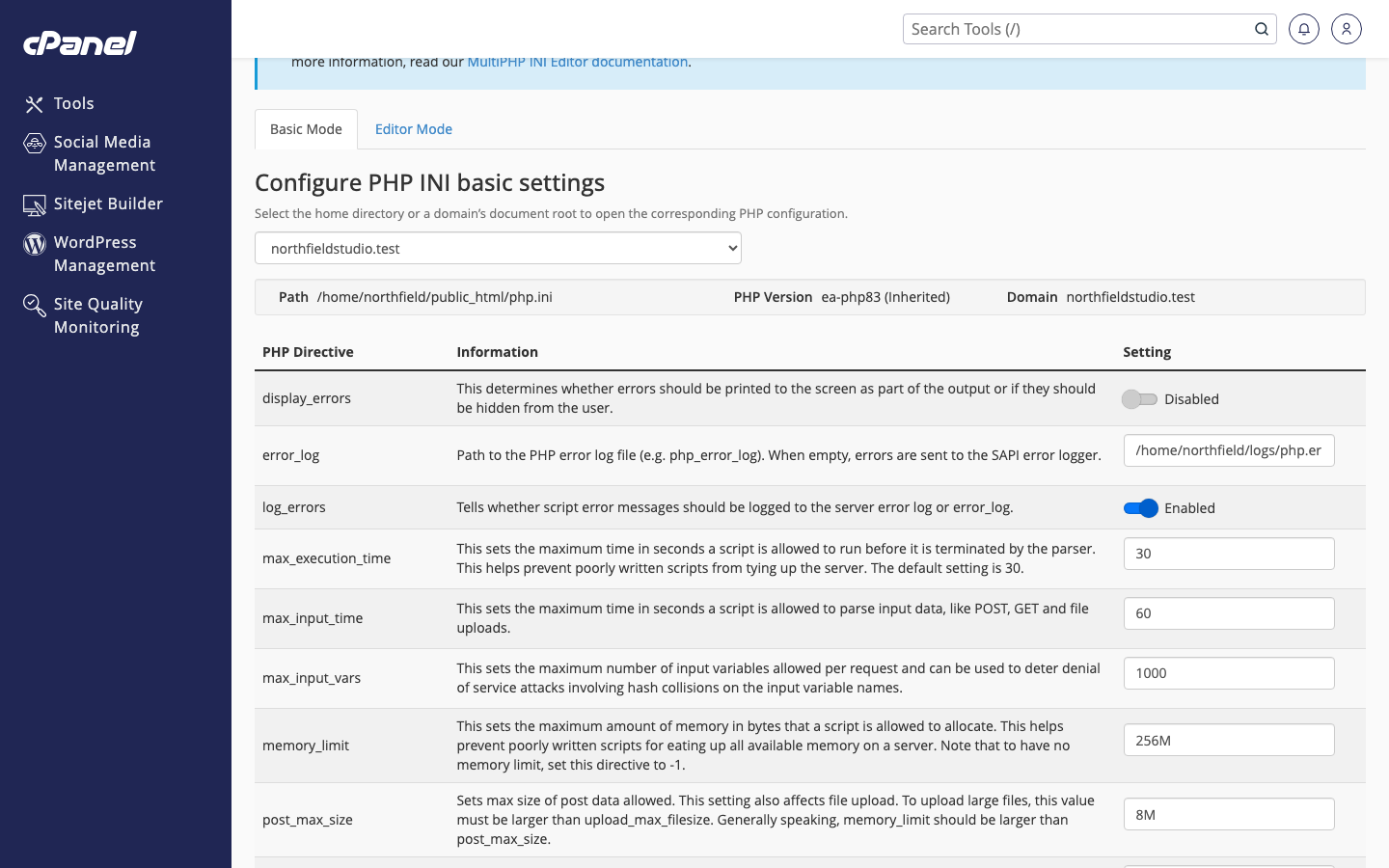
If your cPanel has Select PHP Version instead, open Switch to PHP options and change memory_limit there. On another panel, look for a PHP settings screen.
The right value depends on your site, so raise it one step at a time. The limit applies to each request, and several requests running together can use several times that amount of your hosting plan’s memory. Keep a limit in place: a value of -1 removes it, and a runaway request then keeps going until your server or hosting account runs out of memory.
Raise the Limit in wp-config.php
If you don’t have a hosting panel, or it has no memory setting, WordPress can ask PHP for a higher limit from wp-config.php. PHP allows the change unless your host has locked the setting.
- Download a copy of
wp-config.php, then open the file using the steps outlined in Debugging in WordPress. - Add this line above
/* That's all, stop editing! Happy publishing. */, or change the value if the line is already there:define( 'WP_MEMORY_LIMIT', '256M' );
- Save the file and reload ToolsSite HealthInfo.
- Check PHP memory limit under Server.
WP_MEMORY_LIMIT under WordPress Constants shows the value you asked for, and PHP memory limit shows the value PHP gave you. If the constant shows 256M and the limit stays at 128M, your host has locked the setting and needs to change it for you.
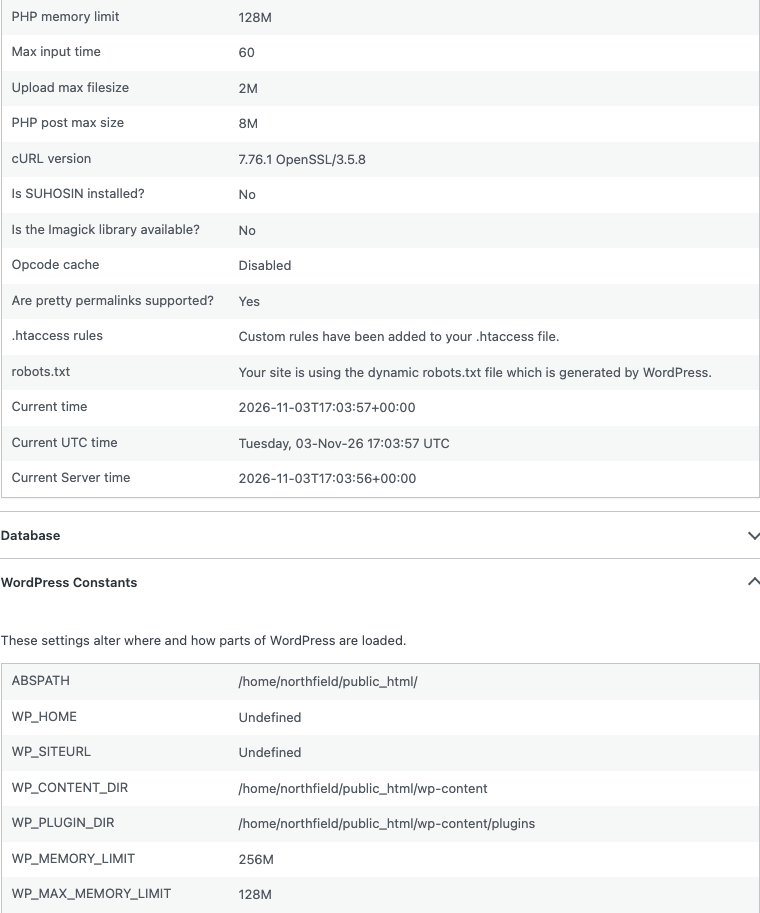
To raise the limit on admin screens above 256M, add a second line:
define( 'WP_MAX_MEMORY_LIMIT', '512M' );
Both constants only raise a limit, so a value below your host’s limit changes nothing.
A php_value line in .htaccess works on some PHP setups and returns a 500 error for the whole site on others, so use your host’s panel or wp-config.php instead.
Check the Fix
Site Health shows that the setting changed, and repeating the task shows that the error is fixed.
- Repeat the task that failed, on the same page and as the same user.
- Check that the task finishes.
- Read the newest lines of your log and check that no new “Allowed memory size” line appears.
- Turn off debug mode and delete the log using the steps outlined in Debugging in WordPress.
If the Error Comes Back
Read the limit in the new error and compare it with the value you set. If the error still shows the old limit, the change didn’t reach that request, so check the table in Check the Current Limit.
If the error shows your new limit, the task used all of it. Stop raising the limit after a step or two, because a higher limit gives a runaway task more room and leaves the fault in place. Here’s how to find what is using the memory:
- Make a staging copy of your site, or a full backup, before you test.
- Find the plugin or theme using the steps outlined in Identifying Plugin Issues, repeating the same task after each change.
- To see how much memory a plugin adds, install the Query Monitor plugin. While you’re logged in as an administrator, load the page and read the second number in the toolbar at the top, such as 198.6MB, which is the page’s peak memory. Deactivate a plugin, reload the page and compare. A page that fails shows no number, so test it at a limit where it loads.
- Update the plugin or theme you found. If the task still fails, report it to the developer.
A task that works through a lot of data, such as an import or a backup, uses less memory per request when you split it into smaller batches.
When to Ask for Help
Ask your host when Site Health keeps the old value after five minutes, when neither your panel nor WP_MEMORY_LIMIT changes the limit, when you need a limit above your plan’s maximum, or when the log shows Out of memory.
Ask the plugin or theme developer when your tests point to their code. For a SiteOrigin plugin or theme, post in our support forum. Include:
- The full error line, with your account name removed from the path.
- The task that failed and the page it failed on.
- The limit before and after your change, from Site Health.
- What happened when you repeated the task.
- The report from Copy site info to clipboard at ToolsSite HealthInfo.
Ask an AI Assistant
Your AI assistant can help you read the error line and decide what to test next. Check its advice against the steps above and against what Site Health shows. Before you paste anything, remove passwords, keys and customer details. Never paste wp-config.php.
To read the error, copy this prompt and replace the words in capitals with your details:
My WordPress site shows a PHP memory error.
The error line: PASTE THE LINE, WITH YOUR ACCOUNT NAME REMOVED.
What failed: THE TASK AND THE PAGE IT FAILED ON.
Site Health, PHP memory limit: VALUE.
Site Health, PHP memory limit (only for admin screens): VALUE OR
NOT SHOWN.
Which of the two limits did this request hit, and which plugin or
theme should I test first? The file in the error is where the
memory ran out, which may not be the code that used it. Don't
suggest setting memory_limit to -1.
After you change the limit:
I raised the PHP memory limit on my WordPress site in HOSTING PANEL
NAME OR WP-CONFIG.PHP.
Site Health before: VALUE. Site Health after: VALUE.
When I repeated the task, the error was GONE OR STILL THERE.
The newest error line: PASTE IT, OR WRITE NONE.
What does this show, and what should I check next?
To ask your host for help:
Help me write a short, factual message to my web host about the
PHP memory limit for my domain. Ask for the current limit, whether
I'm allowed to change it, and the highest limit my plan allows.
My notes: PASTE THE ERROR LINE, THE LIMITS FROM SITE HEALTH AND
WHAT YOU CHANGED.