
 Page Builder
  Widgets Bundle
  SiteOrigin CSS
  Installer
 Fixing Page Not Found Errors
7 min read Updated
A “Page not found” or 404 error means WordPress received the request but couldn’t match the address to any content. Where the error shows tells you where to look. If every page except the home page shows a 404, WordPress’s rewrite rules, which turn your addresses into pages, are out of date or your web server isn’t reading them. That follows a site move, a permalink change or a new plugin. If only one page shows a 404, its address has changed, it’s in the Trash, or it was deleted.
Refresh Your Permalinks
WordPress stores its rewrite rules in the database and, on Apache and LiteSpeed servers, in the .htaccess file. Rebuilding them fixes a site-wide 404 caused by out-of-date rules, and it doesn’t change any of your addresses.
- Go to SettingsPermalinks.
- Leave the settings as they are and click Save Changes.
- WordPress shows “Permalink structure updated.” Load the page that showed the 404 again.
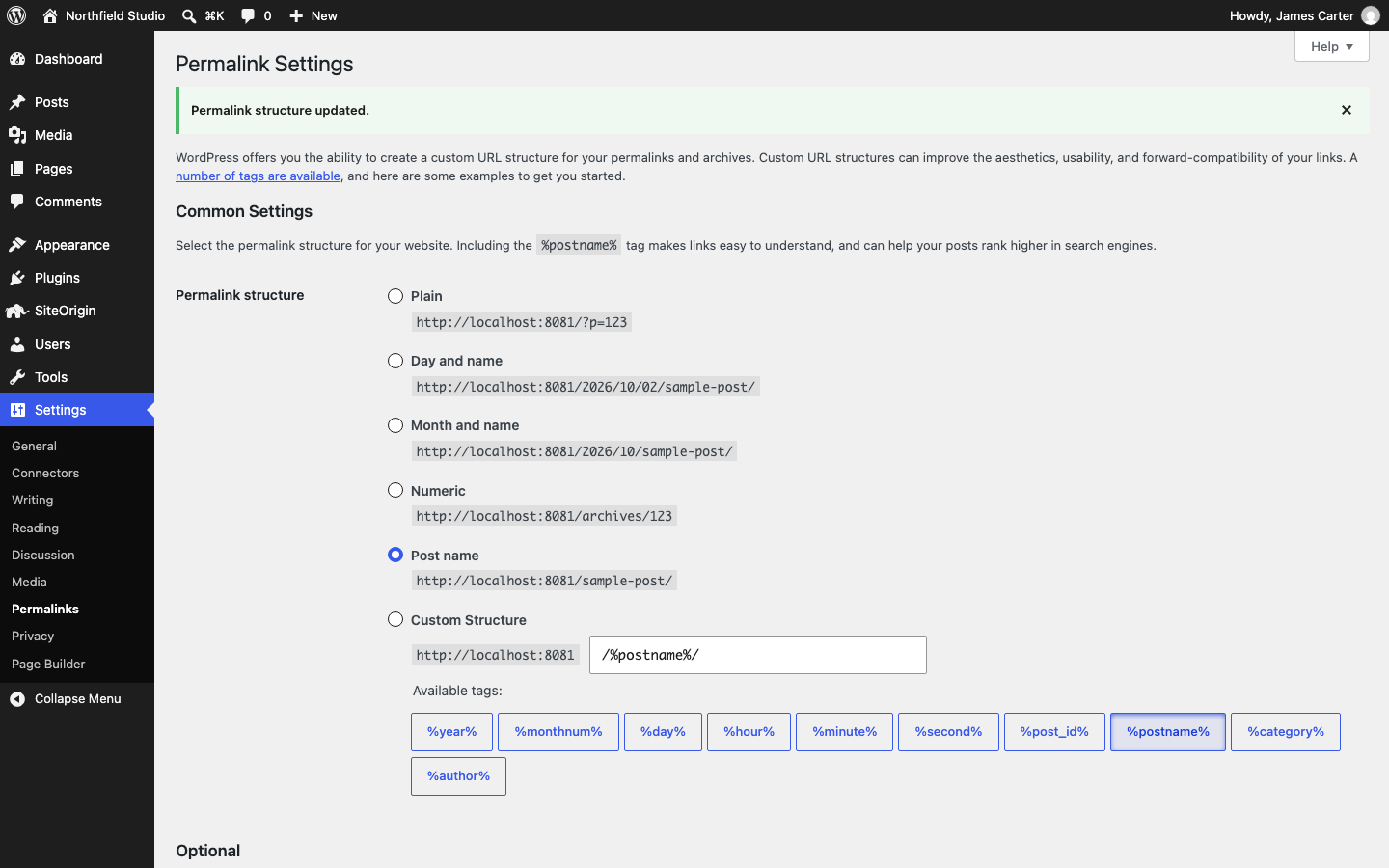
Opening the Permalinks screen already rebuilds the rules, and saving rebuilds them again and confirms it. Do this after you activate a plugin that adds new pages, such as a shop, events or portfolio plugin, if its pages show a 404. If the screen says “You should update your .htaccess file now.” instead, WordPress couldn’t write to the file; the next section shows how to add the rules by hand.
Check the .htaccess File
On Apache and LiteSpeed servers, the .htaccess file in the folder WordPress is installed in passes each address to WordPress. If the file is missing, can’t be written to, or has a broken rule from another plugin, every page apart from the home page shows a 404. Here’s how to check it in your Hosting File Manager.
- Log in to your hosting account and open the File Manager.
- File Managers hide files whose names start with a dot. If you can’t see
.htaccess, turn on hidden files in the File Manager settings. - Open the folder WordPress is installed in, such as
public_html. - If
.htaccessis there, right-click it and choose Download to keep a backup, then choose Edit and click Edit again when the File Manager asks about the encoding. If it isn’t there, click + File and create a file named.htaccess. - Check that the file contains the WordPress block below, add it if it’s missing, and click Save Changes.
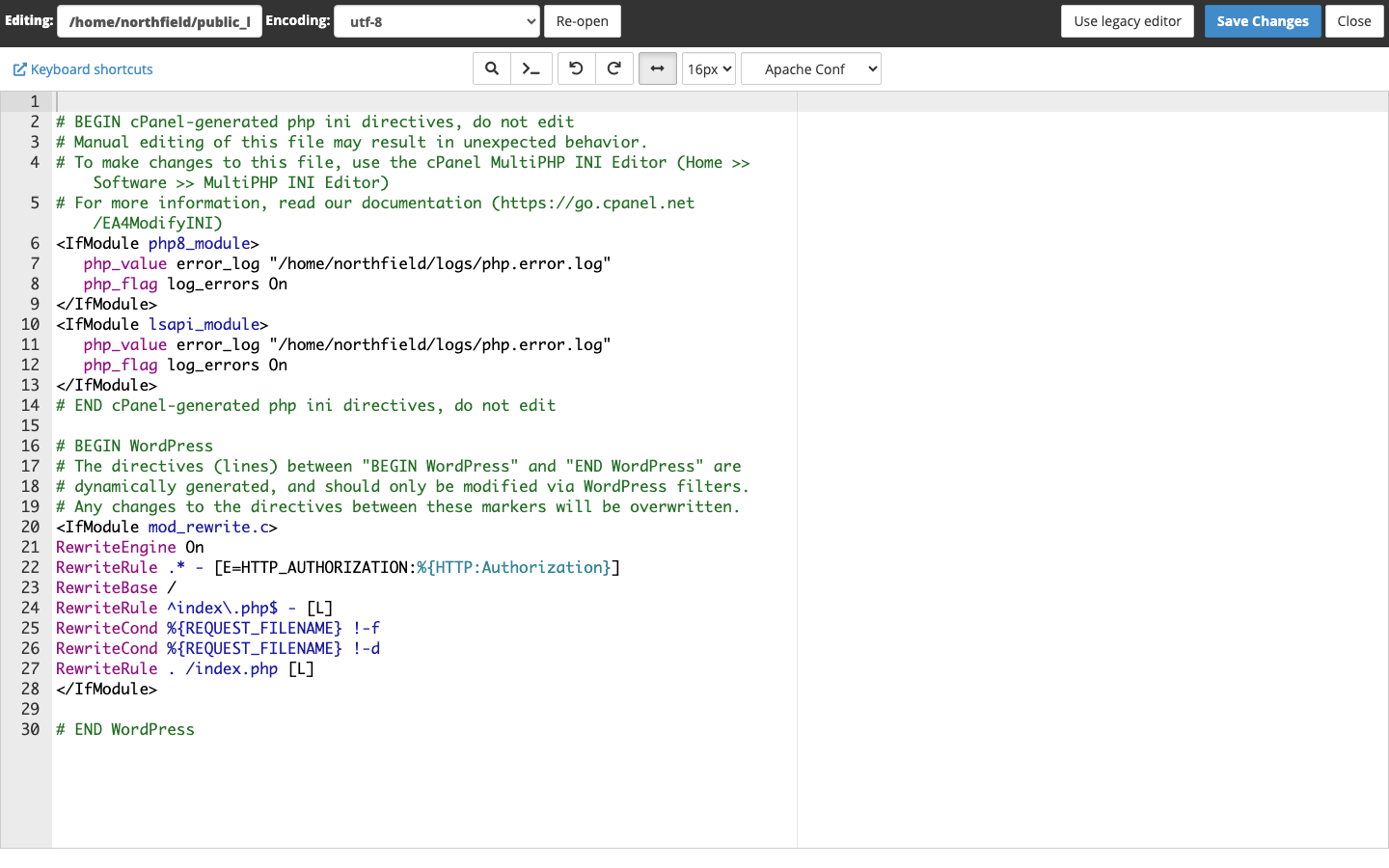
This is the block WordPress writes for a site installed at the root of its domain:
# BEGIN WordPress
<IfModule mod_rewrite.c>
RewriteEngine On
RewriteRule .* - [E=HTTP_AUTHORIZATION:%{HTTP:Authorization}]
RewriteBase /
RewriteRule ^index\.php$ - [L]
RewriteCond %{REQUEST_FILENAME} !-f
RewriteCond %{REQUEST_FILENAME} !-d
RewriteRule . /index.php [L]
</IfModule>
# END WordPress
For a site in a subfolder, such as example.com/shop/, WordPress uses the subfolder in two places: RewriteBase /shop/ and RewriteRule . /shop/index.php [L]. WordPress also adds three comment lines below # BEGIN WordPress; they don’t affect the rules. When WordPress can’t write the file, the Permalinks screen shows the exact rules for your site in a Rewrite rules field at the bottom, ready to copy.
WordPress rewrites everything between # BEGIN WordPress and # END WordPress when you save permalinks, so put your own rules outside those markers. Caching and security plugins add their own blocks to the same file. If a 404 started after you installed a caching or security plugin, compare the file with your backup or deactivate the plugin, as shown in Identifying Plugin Issues.
Nginx servers don’t read .htaccess at all; the rewrite rules live in your web server’s configuration, which your host manages. If your host uses Nginx and every page shows a 404, ask them to check the WordPress rules, and point them to the WordPress Nginx guide.
Check the Page’s Slug
The slug is the last part of a page’s address, for example about-us in example.com/about-us/. If someone changed it, the old address shows a 404.
- Go to PagesAll Pages, or PostsAll Posts for a post.
- Hover over the title and click Quick Edit.
- Check the Slug field. Change it back if you need the old address, and click Update.
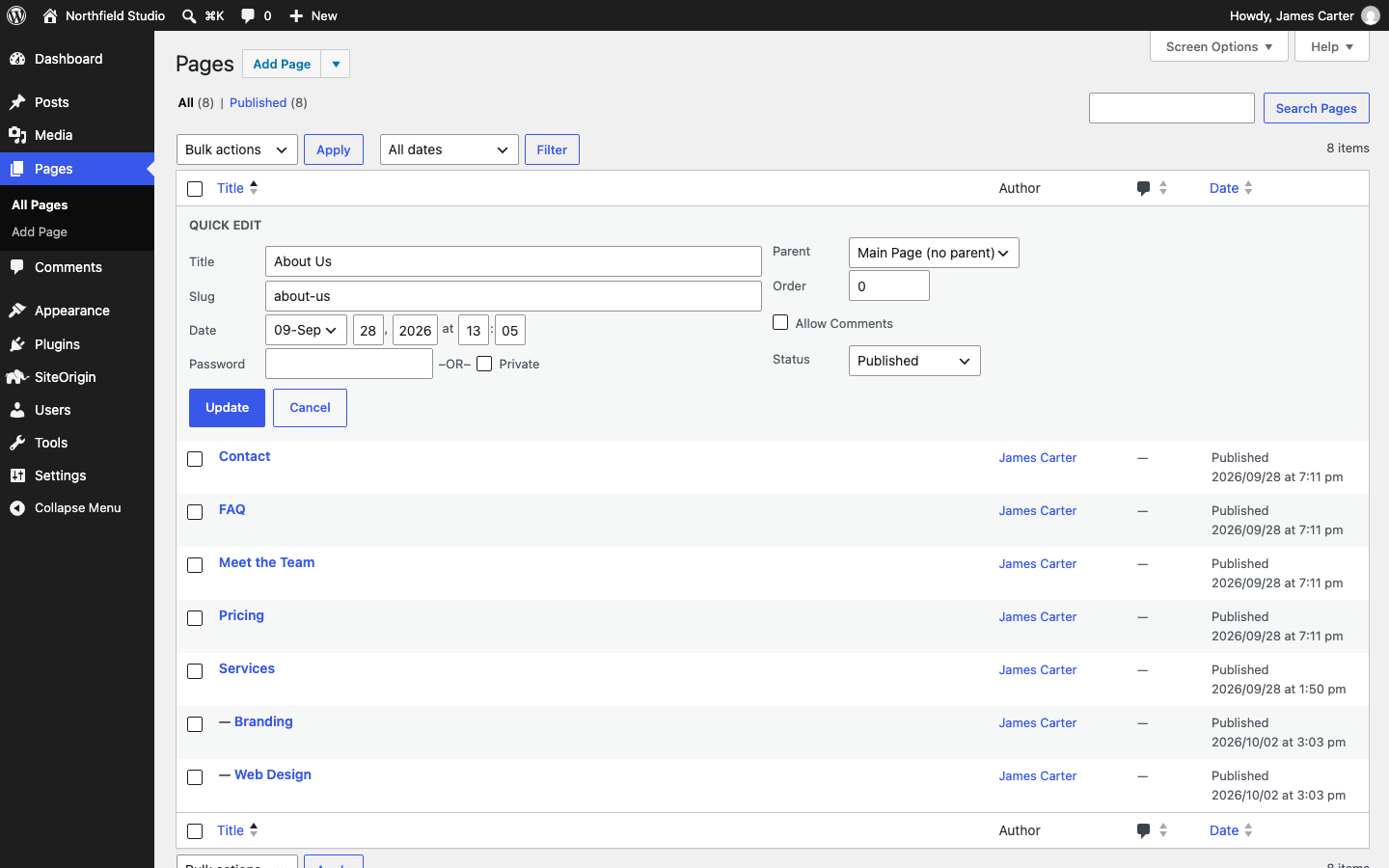
In the Block Editor, the slug is in the Slug row of the page settings sidebar. In the Classic Editor, click Edit next to the permalink under the title.
When you change a published post’s slug, WordPress redirects the old address to the new one. It doesn’t do this for pages, so a changed page slug needs a redirect. If WordPress adds -2 to a slug you type, something else already uses it: another post for a post, or, for a page, another page or media file under the same parent page. Find and rename that item first.
Restore a Trashed Page
A page in the Trash shows a 404 to visitors. By default, WordPress keeps trashed items for 30 days before it deletes them for good.
- Go to PagesAll Pages and click Trash above the list.
- Hover over the page and click Restore.
- By default, WordPress restores the page as a draft, so open it and click Publish.
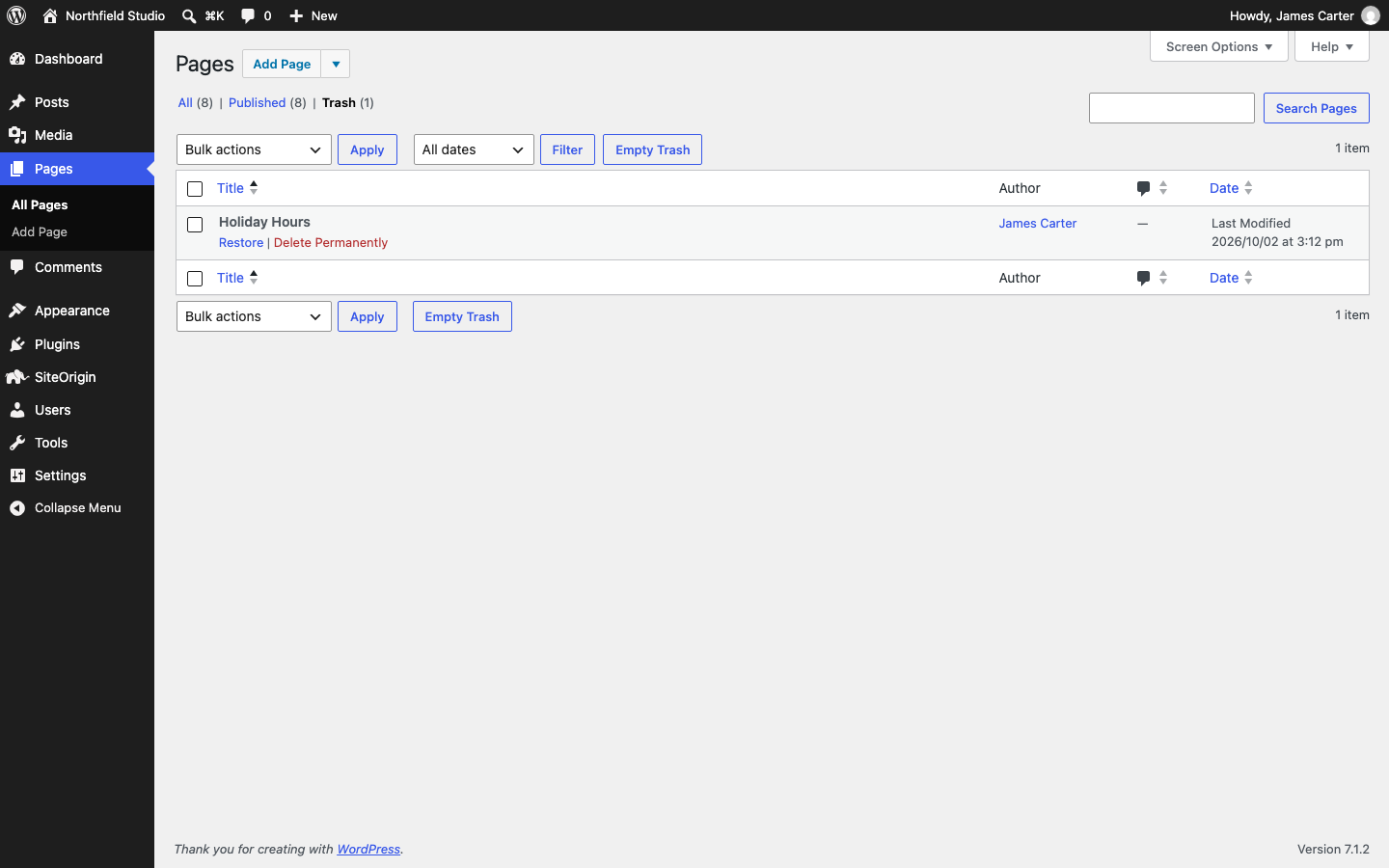
While a page is in the Trash, WordPress adds __trashed to its slug so a new page can use the old address. When you restore the page, WordPress gives it back its old slug; if another page has taken that slug in the meantime, it adds a number such as -2, and you need to rename one of the two. If the page was deleted permanently, restore it from a backup or create it again with the same slug.
Redirect an Old Address
When a page moves or is gone for good, redirect its old address to the closest page that exists, so visitors and search engines arrive somewhere useful. WordPress has no redirect screen of its own; the free Redirection plugin adds one, and many SEO plugins include redirects too.
- Go to PluginsAdd Plugin, search for Redirection, then install and activate it.
- Go to ToolsRedirection and complete the setup the first time you open it.
- Enter the old address in Source URL, for example
/old-services/, and the new address in Target URL. - Click Add redirect and load the old address to test it.
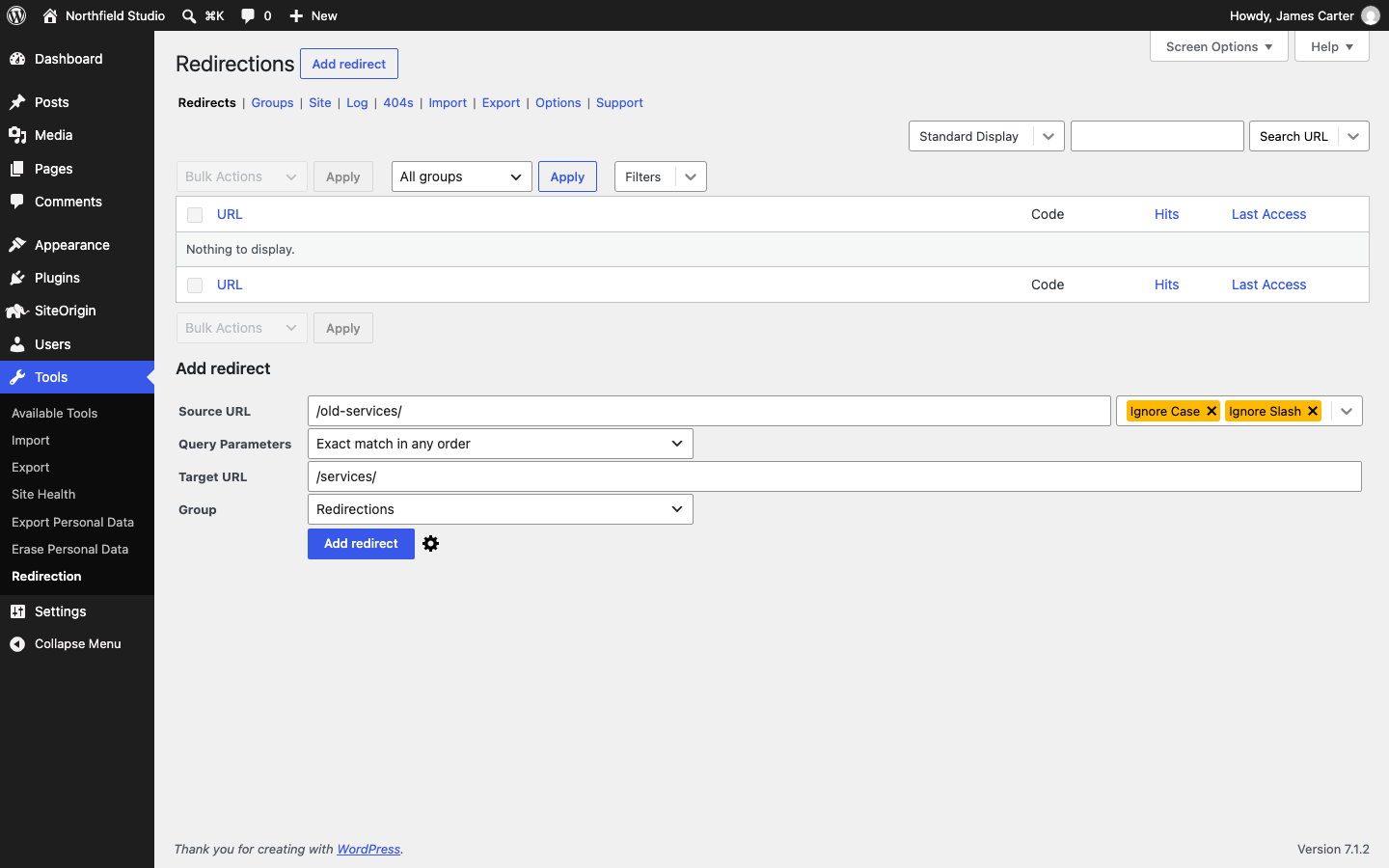
Redirection can also log 404 errors, which shows you which broken addresses visitors actually reach.
Other Causes
- The site moved to a new domain or folder. Check WordPress Address (URL) and Site Address (URL) at SettingsGeneral, then refresh your permalinks.
- A 404 when you save or edit a page. Your host’s firewall, such as ModSecurity, blocked the request. Fixing Saves Blocked by a Firewall shows how to confirm the block and what to ask your host.
- Images and files show a 404. The file is missing from
wp-content/uploads, for example after a site move. Upload it again or restore the folder from a backup.
Ask an AI Assistant
Your AI assistant can help you narrow down the cause. Use it alongside these steps, and check its advice before you change anything. Never paste passwords, API or license keys, the contents of wp-config.php, or personal data such as customer names and email addresses.
To find the cause of a 404:
My WordPress site shows "Page not found" (404) errors.
Which addresses fail: ALL PAGES EXCEPT THE HOME PAGE, OR ONE PAGE.
Example address: THE ADDRESS, WITHOUT ANY PRIVATE QUERY STRINGS.
It started after: THE LAST CHANGE, SUCH AS A SITE MOVE OR A NEW PLUGIN.
Web server, if I know it: APACHE, LITESPEED, NGINX OR UNKNOWN.
I already tried: WHAT YOU TRIED.
List the most likely causes in order and the next check for each.
To check your .htaccess file:
This is the .htaccess file from the root folder of my WordPress site.
WordPress is installed at: THE ROOT OF THE DOMAIN, OR A SUBFOLDER NAME.
PASTE THE FILE HERE.
Does the WordPress block look correct? Do any other rules in the file
look likely to cause 404 errors? Explain before suggesting changes,
and do not remove rules from other plugins without telling me why.