
 Page Builder
  Widgets Bundle
  SiteOrigin CSS
  Installer
 SiteOrigin vs Elementor: Editing Workflow Comparison
4 min read Updated
Page Builder by SiteOrigin and Elementor both have free WordPress plugins for building page layouts. The useful difference is how you want to edit a page and whether you also need to design your site templates.
Choose SiteOrigin if you want layouts made from WordPress widgets or a SiteOrigin layout alongside blocks in the Block Editor. Choose Elementor if you prefer selecting elements on the canvas and changing their controls in a sidebar. We develop Page Builder and the SiteOrigin Widgets Bundle.
The Same Task in Both Free Plugins
We built the same two-column page with both free plugins on October 9, 2026. The test site ran WordPress 7.1.3, PHP 8.3 and Twenty Twenty-Five, with Page Builder 2.37.0, SiteOrigin Widgets Bundle 1.75.0 and Elementor 4.3.4. The test used the free plugins without paid addons or a connected vendor account.
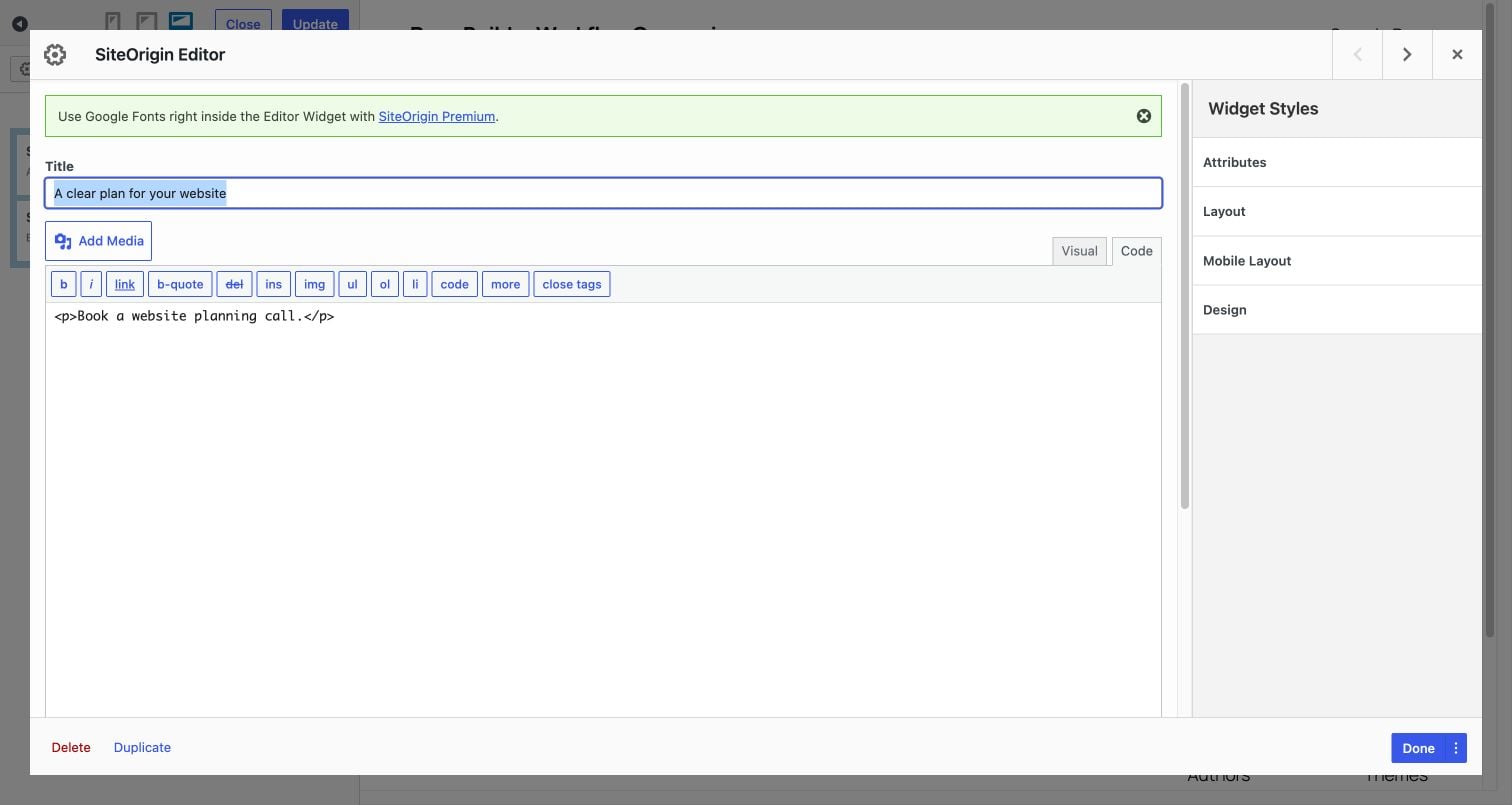
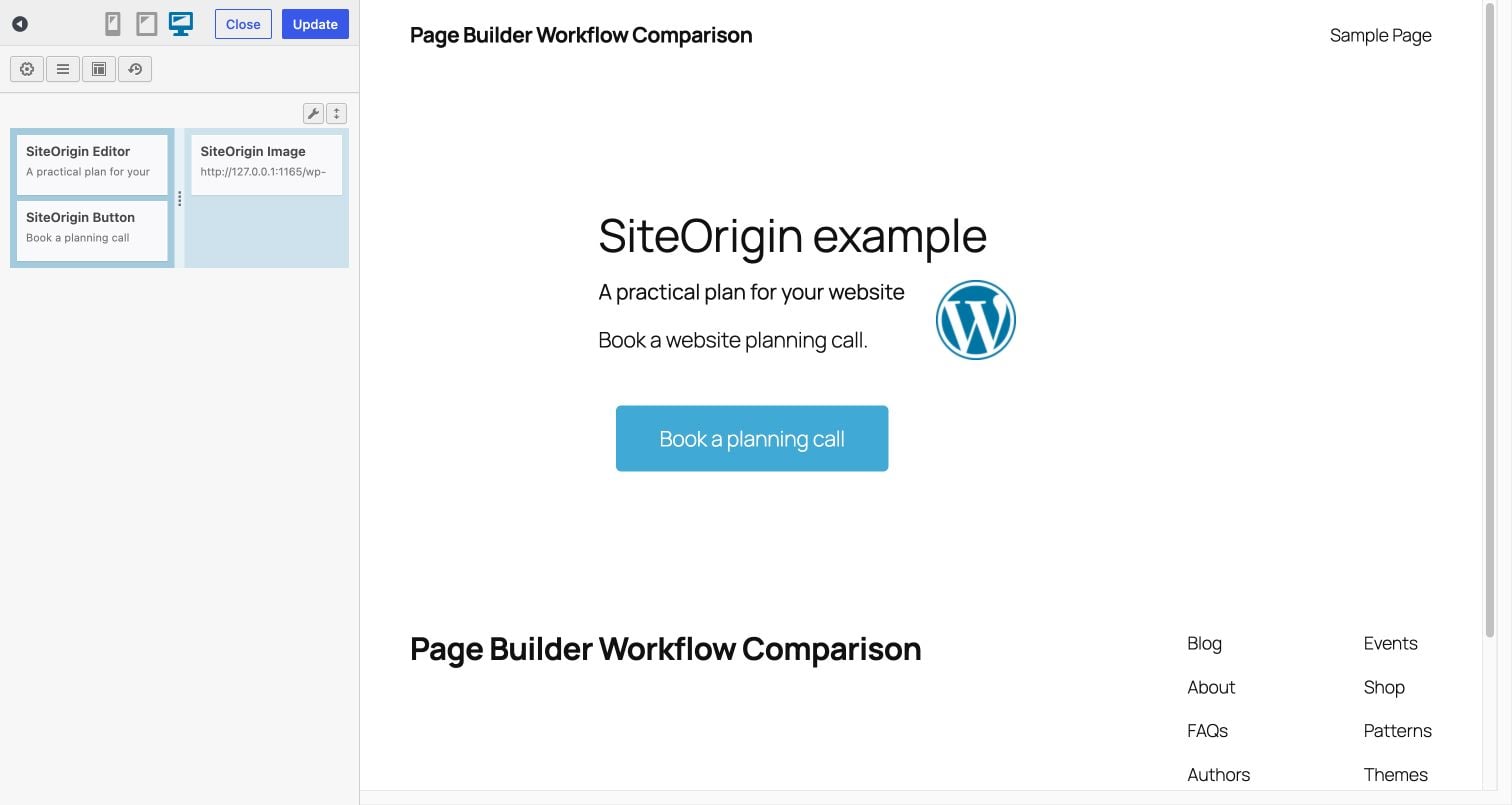
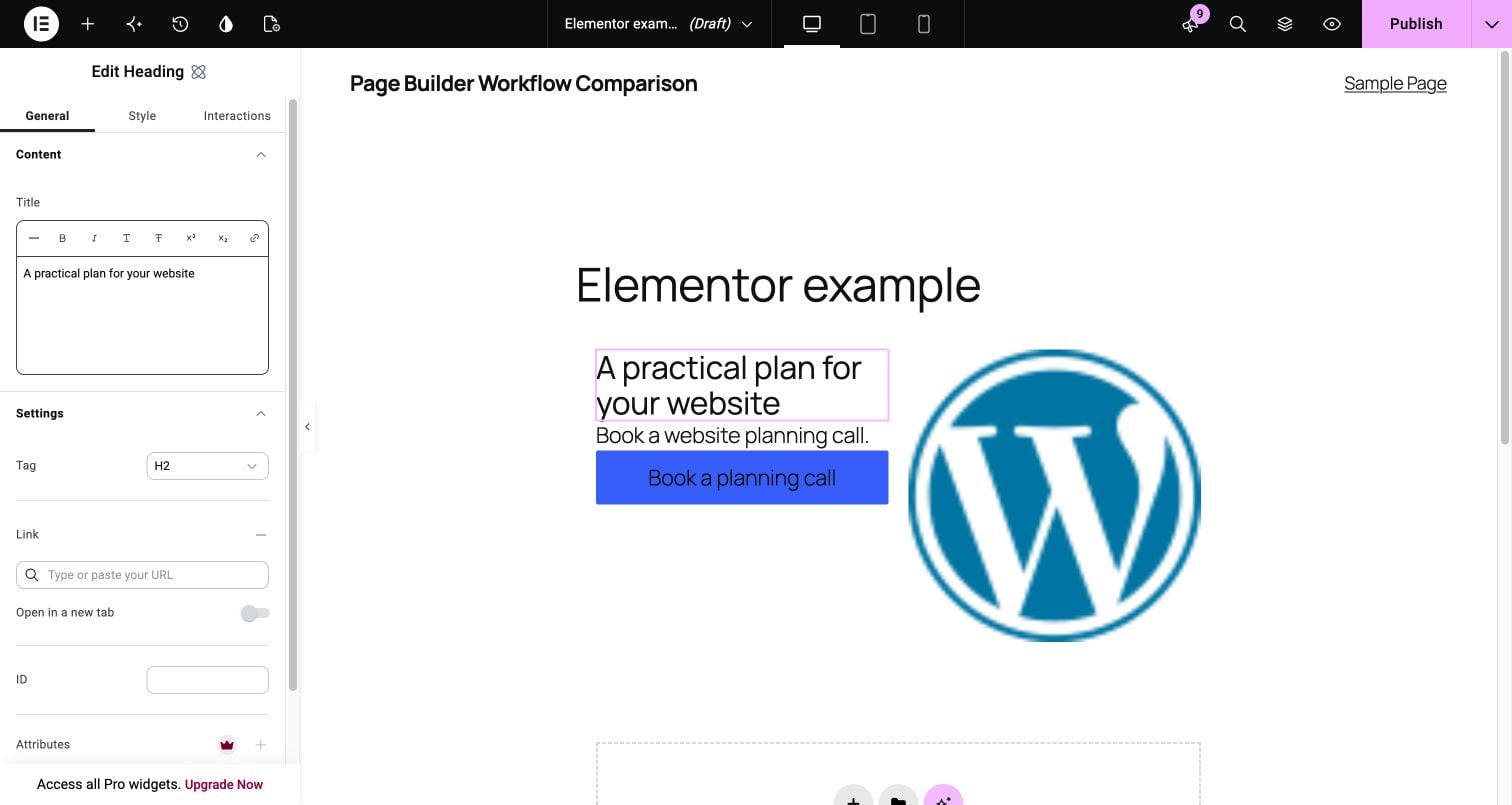
The left column held the heading “A clear plan for your website”, the text “Book a website planning call.” and a “Book a planning call” button linked to #contact. The right column held the WordPress core logo. Then we changed the heading to “A practical plan for your website” in each editor.
Editing the Heading in SiteOrigin
We added a SiteOrigin Layout Block with a two-column row containing SiteOrigin Editor, Button and Image Widgets. The free Live Editor opened the Editor Widget in a dialog, where we changed the Title field. After we selected Done, the preview reloaded with the new heading. We selected Update and the editor confirmed “Draft saved”.
Editing the Heading in Elementor
We made a two-column Flexbox structure containing Atomic Heading, Paragraph, Button and Image elements. Selecting the heading on the canvas opened its Title field in the General sidebar, and the canvas reflected the revised text as we edited the field. We opened Save Options, then selected Save Draft.
The exercise covers editing and saving the same content in each plugin. The logo used different default sizes, and the mobile layouts remained unfinished. Design quality, speed, search performance and the other plugin features were outside the exercise.
Editing Workflow Comparison
| What you need | Page Builder | Elementor |
|---|---|---|
| Build a page | Arrange rows, columns and WordPress widgets. | Arrange elements in a visual editor. |
| Preview changes | Open the free Live Editor to edit beside a preview. A widget change appears after you finish its dialog. | Edit the page in the visual canvas. |
| Work with blocks | Add a SiteOrigin Layout Block alongside other WordPress blocks. | Build a page in Elementor or the Block Editor. |
| Add content | Use WordPress widgets, including widgets from the free Widgets Bundle. | Use Elementor widgets, with free and paid options. |
For installation and editor setup, use the steps outlined in WordPress Page Builder Tutorial: Getting Started with SiteOrigin and Elementor.
Using SiteOrigin Live Editor
Live Editor is included in the free plugin, with rows, columns and widget controls in a sidebar beside the page preview. Selecting Done in a widget dialog updates the preview. For a SiteOrigin Layout Block, the preview contains the block being edited; the surrounding WordPress blocks are outside the preview. Read the editing steps outlined in Live Editor.
Considering Paid Features
SiteOrigin Premium extends Page Builder and other SiteOrigin products. Its WooCommerce Templates Addon lets you build custom store layouts with Page Builder. Elementor Pro includes Theme Builder for site templates and WooCommerce Builder for store layouts. These are different feature sets; check the current plans against the templates and controls you need.
Review SiteOrigin Premium. Review Elementor Pro.
Switching Builders on an Existing Site
Plan to rebuild your layout in the replacement editor when switching builders. Back up your site before making changes. Try the replacement layout on staging before changing a live page. A September 2025 support case describes existing Page Builder data affecting an Elementor replacement; the site owner reported success after building a fresh page. The case predates the versions used in our exercise.
A layout built with your own content gives the person maintaining your site a useful editing test. Ask the person who maintains your site to change the text in each editor. Check the finished layout on a phone before choosing an editor for your site. Custom site templates need a separate design test, since this exercise covers page content.
Install the free plugins from their official listings: Page Builder by SiteOrigin, SiteOrigin Widgets Bundle and Elementor.